Salesforce is one of the most widely used CRM platforms, and with its flexibility comes complexity. Whether you’re working with standard objects (like Leads, Opportunities, or Accounts) or building custom apps, thorough testing is essential. Manual testing, however, is time-consuming, repetitive, and prone to human error.
That’s where Selenium automation testing comes in. In this post, I’ll share how Selenium helps us automate Salesforce testing end-to-end — from record creation to file handling, filters, and validation messages — and why it’s become a game changer for QA teams.
Why Automate Salesforce Testing?
Salesforce is dynamic and highly customizable, but that also makes manual testing difficult:
- Repetitive effort: Testing CRUD operations, file uploads, and form validations manually across multiple objects is boring and error-prone.
- Time-consuming: Regression testing after every release slows down development.
- Scalability issues: As features expand, test cases multiply, making manual validation harder.
By automating tests with Selenium WebDriver, we’ve cut down repetitive effort, improved reliability, and ensured consistency across every release cycle.
Automation for Salesforce needs to cover core functionalities across standard and custom apps Our Selenium scripts validate:
-
Login & Navigation
- Automate secure login with credentials.
- Navigate to different tabs, and records (Accounts, Leads, Opportunities, or custom objects).
- Test bulk navigation (e.g., moving across 500+ records).
-
Record Creation & CRUD Operations
- Automate creation of Leads, Accounts, or custom object records.
- Test editing and updating records with different field types (picklists, text, dates).
- Delete and restore records (Recycle Bin check).
- Validate mass record creation (hundreds or thousands of records).
-
Validation Messages & Error Handling
- Leave required fields blank and check if correct error messages display.
- Enter invalid data (e.g., text in numeric fields).
- Test field-level rules (like unique email addresses).
- Validate system error handling on incomplete or incorrect input.
-
File Handling & Attachments
- Upload files of different formats (PDF, Excel, images).
- Confirm correct attachment to parent records.
- Download files individually, in bulk, or using filters.
- Validate metadata (name, size, timestamp).
-
Notes & Related Lists
- Automate creation and retrieval of notes.
- Ensure correct association with parent records.
- Validate related lists for attachments, activities, and custom child objects.
-
Filters & Search Conditions
- Apply valid filters to confirm only relevant records display.
- Apply invalid filters (wrong logic or incomplete fields).
- Validate that error messages show properly.
Challenges in Salesforce Automation
Testing Salesforce with Selenium isn’t always straightforward because of Lightning’s dynamic UI:
- Dynamic XPaths: Element IDs change frequently.
- Shadow DOM & LWC: Elements may be hidden deep inside components.
- Page Load Delays: Lightning pages take time to render.
How We Overcome These Challenges
- Use relative XPaths and CSS selectors instead of absolute IDs.
- Apply WebDriverWait + ExpectedConditions to handle dynamic loading.
- Create reusable utility methods (for login, record creation, file upload, etc.).
- Use Selenium Grid for cross-browser testing (Chrome, Edge, Firefox).
Running Automated Test Scenarios
With Selenium, we can run multiple test cases in sequence or parallel. For example, in a single run, we can:
- Create 100 Leads with random test data.
- Validate required field messages when left blank.
- Upload & download files across 500+ records.
- Apply filters and confirm correct results.
- Test filter conditions with various datasets.
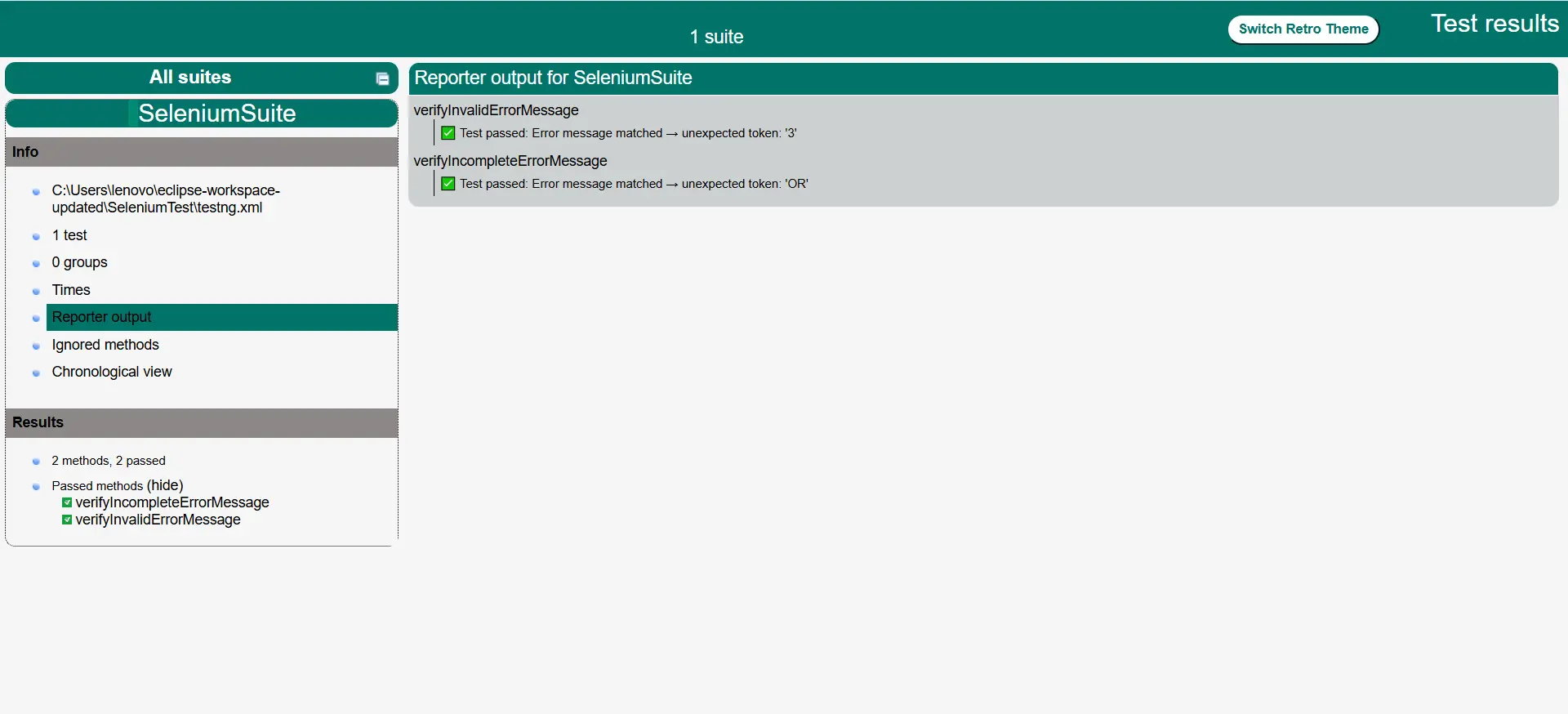
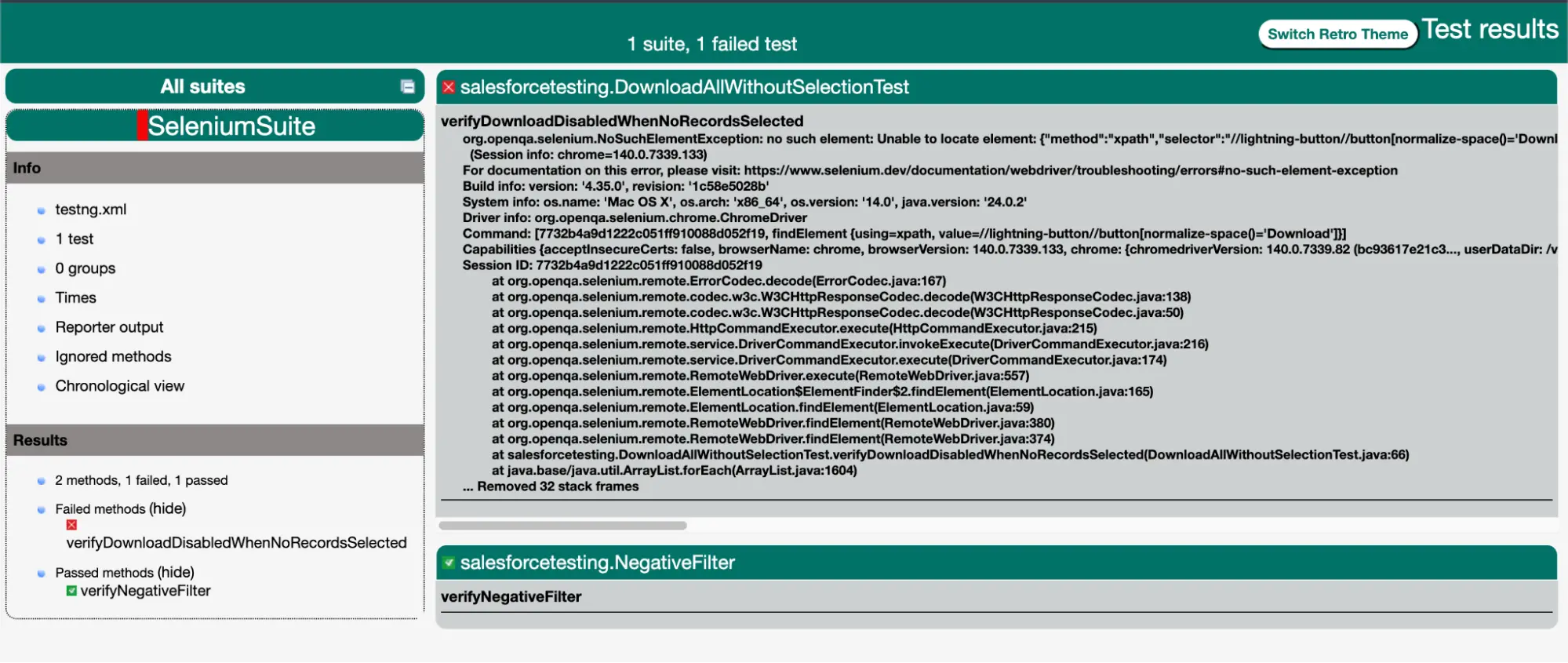
At the end of execution, TestNG reports summarize:
- Total test cases executed.
- Passed vs failed counts.
- Detailed logs for any failures.
This gives us full coverage of real-world Salesforce workflows with complete traceability.
Functionalities Selenium Can Automate in Salesforce
-
Form Handling & Field Validations
- Test required fields: Leaving mandatory fields blank and checking for validation messages.
- Test data type validations: Entering numbers in text-only fields or invalid emails in email fields.
- Test field dependency rules (e.g., one picklist value enabling another field).
- Validate default values and read-only fields.
-
Workflow & Approval Processes
- Automate record submission into an approval process.
- Validate that approvers receive the right tasks/notifications.
- Automate approval/rejection actions and check record status updates.
- Test workflow-triggered field updates or email alerts.
-
User Access & Profile/Permission Testing
- Validate different user roles (e.g., Standard User vs Admin).
- Automate login with different profiles and confirm object-level & field-level security.
- Test record visibility with sharing rules (e.g., private vs public access).
-
UI & Navigation Testing
- Automate navigation across tabs, sub-tabs, and related lists.
- Validate Lightning App navigation menus.
- Test page redirections (e.g., after record save, redirect to detail page).
- Validate breadcrumbs, search functionality, and global search results.
-
Reports & Dashboards
- Automate report creation (tabular, summary, matrix).
- Apply filters in reports and validate returned data.
- Export reports (Excel/PDF) and validate file download.
- Validate dashboard refresh and component data.
-
Email & Notification Testing
- Validate that automated workflow sends email alerts to the right users.
- Check in-app Salesforce notifications (bell icon alerts).
- Automate testing of Chatter feed posts/comments on records.
-
Lightning Components & Dynamic Elements
- Interact with modals, pop-ups, and quick actions.
- Automate drag-and-drop actions in Salesforce Kanban boards.
- Test Lightning Record Pages (tabs inside record detail view).
- Validate inline editing on list views and detail pages.
-
Calendar & Events
- Automate event creation, editing, and deletion.
- Validate recurring events.
- Test event reminders and notifications.
-
Integration Points
- Validate Salesforce integration with external systems (e.g., file upload to Google Drive or SharePoint).
- Test API-driven record creation by verifying new records in the UI with Selenium.
- Automate scenarios where Salesforce interacts with third-party apps inside Lightning.
-
Bulk Data Handling & Performance Scenarios
- Automate record creation in bulk (1000+ records) and validate system response.
- Test bulk uploads via related lists (multiple files/notes).
- Validate list view performance when thousands of records exist.
Advanced Scenarios Selenium Can Cover
- Global Search Automation: Validate results for keywords across objects.
- Cloning Records: Automate clone functionality and verify new record values.
- Page Layout Validations: Ensure correct fields/sections are visible for different profiles.
- Custom Buttons & Actions: Validate that quick actions/custom buttons trigger the right workflows.
Benefits of Salesforce Automation with Selenium
- Time Savings: Regression testing that took hours now runs in minutes.
- Better Test Coverage: More records, multiple browsers, and large datasets are covered automatically.
- Faster Bug Detection: Issues surface earlier in the pipeline, reducing production defects.
- CI/CD Integration: Tests run automatically with every deployment, giving instant feedback.
- Consistency: Every run executes the same way — no human error.
Conclusion
Automating Salesforce testing with Selenium goes far beyond one app. From record creation and validation messages to file handling and filters, Selenium lets us replicate real user actions at scale. By overcoming Lightning’s dynamic UI challenges with smart locators and waits, we’ve achieved:
- Faster releases
- More reliable regression testing
- Higher confidence in Salesforce stability
For any team working on Salesforce, automation is no longer optional — it’s essential for delivering quality at speed.
Have any questions? Feel free to drop an email to support@astreait.com or visit astreait.com to schedule a consultation.