Overview
Salesforce communities (now known as Salesforce Experience Cloud) come with built-in user management and password reset functionality. Organizations often customize these features to deliver a more branded and personalized experience for their external users such as customers or partners.
Customizing the password change page is one of many ways organizations enhance the user experience within their community portals. Along with authentication customization, businesses also personalize the visual design of their communities using standard themes and branding tools available in Salesforce Experience Cloud. These themes help organizations create consistent branding, responsive layouts, and improved navigation for community users.
Description
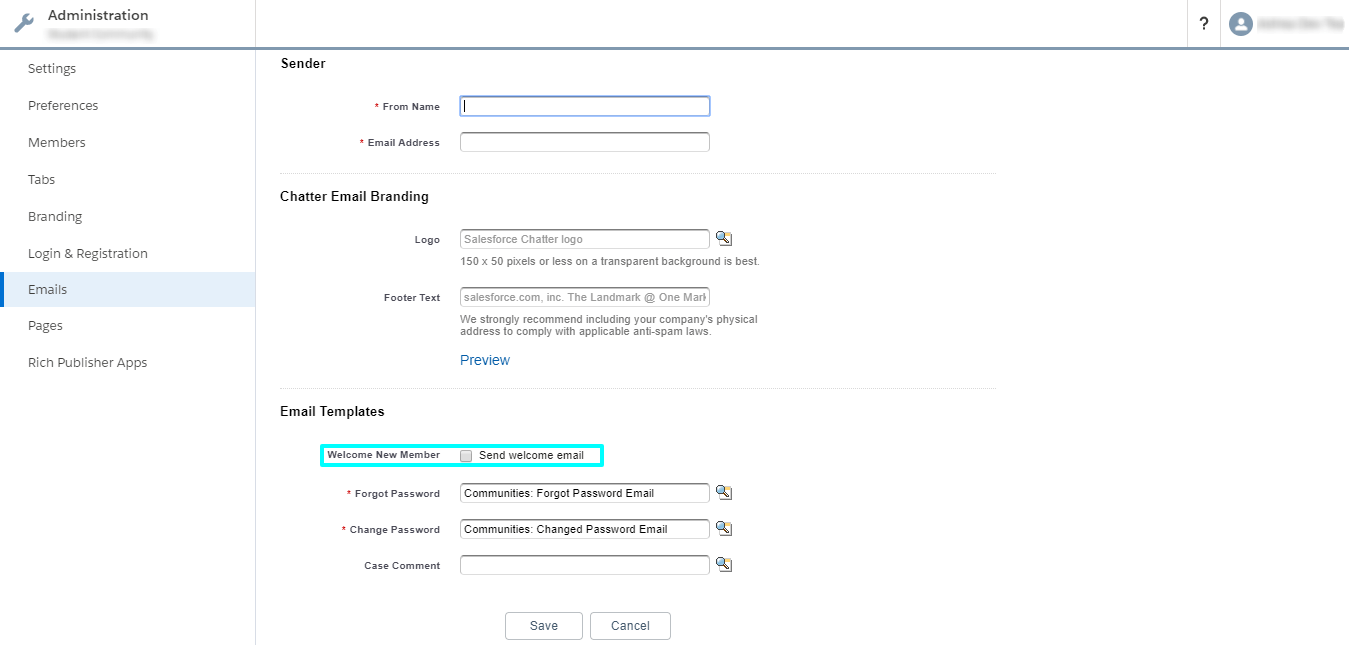
In order to achieve this, we first need to disable the default functionality of ‘Send Welcome Email’ of the communities and send our custom email instead, when a community user is created. The email can contains the link to the community which redirects the user to the custom Password Change Visualforce Page.
In the custom page, resetPassword() method of System class is used to generate a new password for a specified user. This method takes in two parameters: userId, which is the id of the user whose password is to be reset and a Boolean type parameter sendUserEmail, which determines whether the user is to be notified that his password has been reset or not.
The return value for this method is of type System.ResetPasswordResult. It represents the result of password reset. getPassword() method of ResetPasswordResult Class is used to return the password generated by resetPassword() call.
Syntax: ResetPasswordResult rpr =System.resetPassword(Id userId, Boolean sendUserEmail);
String password = rpr.getPassword();
Here’s the step by step guide for doing the same:
- Go to Setup. In the quick find box, type Communities and select All Communities.
- Click on Manage button for the community for which this functionality is to be implemented.
- Click Administration→Emails and deselect the ‘Send Welcome Email’ checkbox.
- Add the custom page to Visualforce Site Pages.
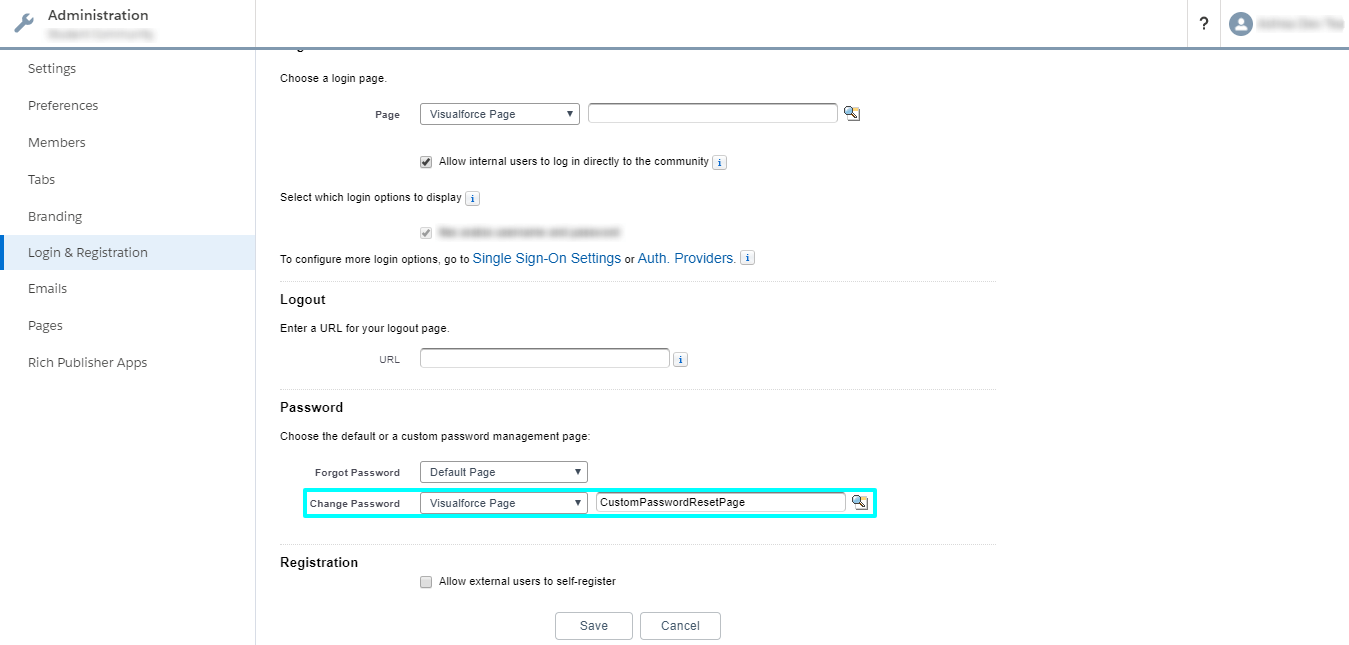
- Go to ‘Login & Registration’ and scroll to Password section. Select ‘Visualforce page’ in the Change password drop down list. Click on the lookup icon and select the desired visualforce page and save.
Voila! You’re done!
Salesforce provides multiple ways to expose functionality to external users. While community portals are commonly built using Salesforce Experience Cloud, organizations sometimes use Salesforce Sites to create public-facing web applications powered by Salesforce data. Salesforce Sites allows developers to host Visualforce pages and Lightning components that can be accessed without requiring user authentication.
Salesforce Experience Cloud provides extensive customization capabilities, from branding and authentication to building fully interactive community portals. Features such as custom password pages, personalized themes, and secure login mechanisms allow organizations to create seamless digital experiences for their users. To explore more tutorials, best practices, and implementation guides related to Salesforce communities, visit our Communities Expertise page.
For any query on Custom Password Change, contact support@astreait.com