In this blog, we’ll explore how to integrate Salesforce and Slack using n8n to automate real-time alerts for high-priority customer issues. We'll go one step further — sending messages to different Slack channels based on product types such as TV, AC, and Refrigerator.
Why Use n8n for Salesforce-Slack Integration?
N8N is a powerful workflow automation tool that allows seamless integration between different platforms using a no-code/low-code approach. It provides:
- Easy drag-and-drop workflow creation
- Support for OAuth-based authentication
- Real-time triggers and custom routing logic.
- Perfect for dynamic workflows like this one!
Use Case Summary
When a High-Priority Case is created in Salesforce.
- Identify the Product Type (TV, AC, Refrigerator)
- Extract relevant case details like Product Number, Address, and Problem
- Post a Formatted Message to the Appropriate Slack Channel based on the product
   Product Type         Slack Channel
   TV                   #support-for-tvs
   AC                   #support-for-acs
   Refrigerator         #support-for-refrigerato
Prerequisites
Before we start, ensure you have the following:
- A Salesforce account with API access.
- A Slack workspace and a channel where notifications should be sent.
- An n8n instance (either self-hosted or via n8n Cloud).
Step 0: Create Custom Fields in Salesforce
- Go to Salesforce Setup → Object Manager → Case
- Click on Fields & Relationships → New
- Select Picklist → Click Next
- Label: Product Type, API Name: Product_Type__c
- Enter values: TVs, ACs, Refrigerator
- Save
Step 1: Install and Set Up n8n
If you haven’t installed n8n, follow these steps:
Local Installation (Optional for Self-Hosting)
                           npm install -g n8n

                           n8n start
Alternatively, you can use n8n Cloud to skip local setup.
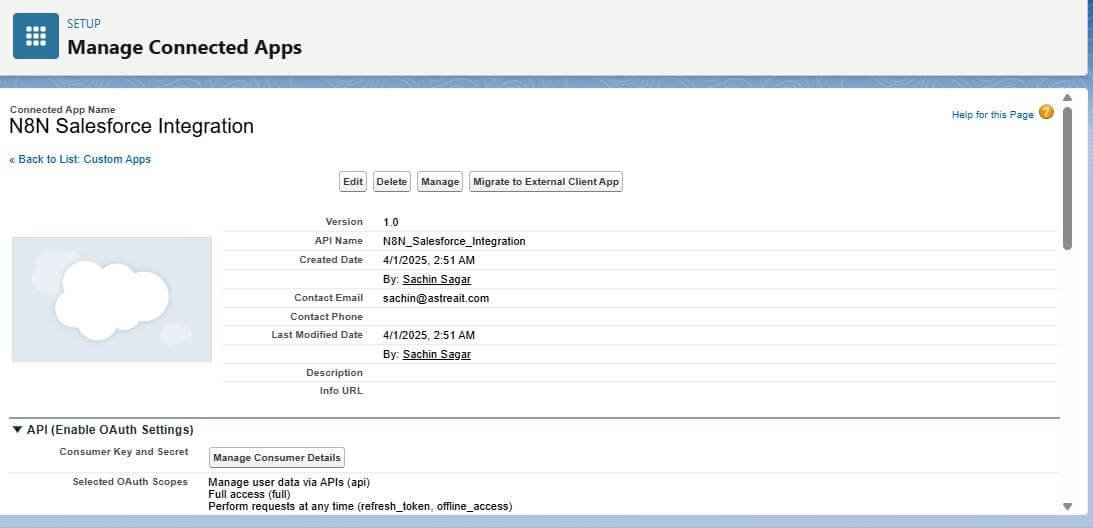
Step 2: Create a Salesforce Connected App
To allow n8n to interact with Salesforce, you need to create a Connected App:
- Go to Setup > App Manager in Salesforce.
- Click New Connected App and configure:
- Enable OAuth Settings.
- Set Callback URL to
http://localhost:5678/callback(or n8n Cloud URL). - Select OAuth Scopes:
Full Access. - Save and copy the Consumer Key & Secret.
- Generate an OAuth Access Token & Refresh Token.
Step 3: Set Up Slack for Integration
To allow n8n to post messages to Slack, follow these steps:
- Go to Slack API Portal (https://api.slack.com/).
- Click Create New App → Choose From Scratch.
- Enter an App Name and select your Slack Workspace.
-
Navigate to OAuth & Permissions:
- Add Bot Token Scopes: chat:write, channels:read, groups:read, im:write.
-
Install the app to your workspace and copy the Bot Token.


Step 4: Connect Salesforce with n8n
Node 1.
- Open n8n and create a new workflow.
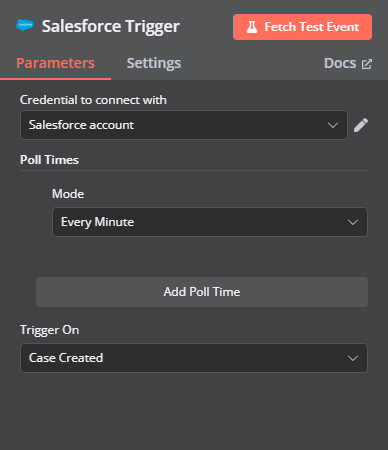
- Add a Salesforce Trigger node.
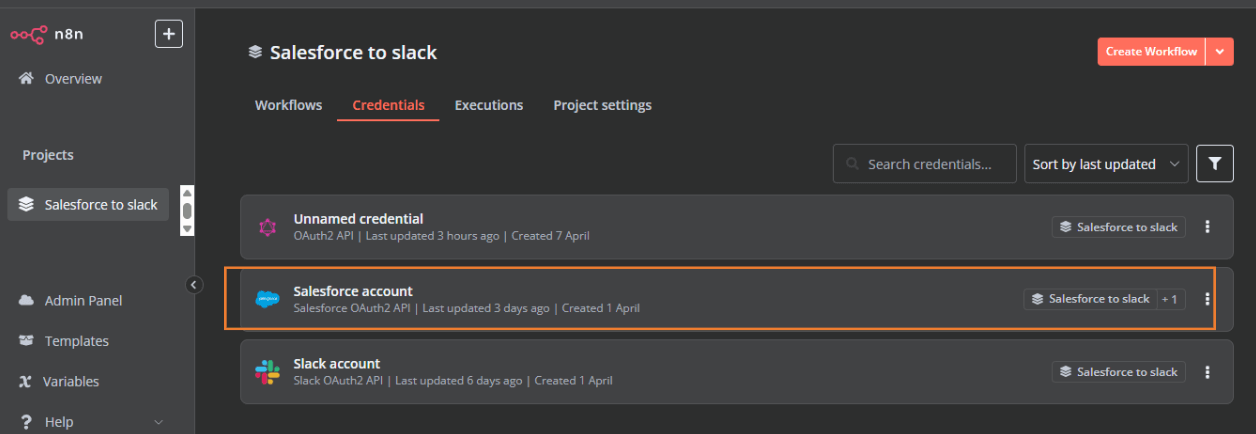
-
Authenticate using the OAuth credentials from Step 2.
-
Configure the trigger:
-
Object case
-
Event created
-
Object case
Node 2.
Get Record Node
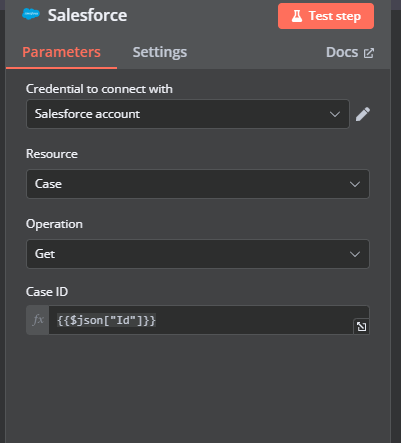
- Add a Salesforce Get Record Node.
- Authenticate with your Salesforce credentials.
-
Use the Case ID from the trigger to fetch the full case details.
Node 3.
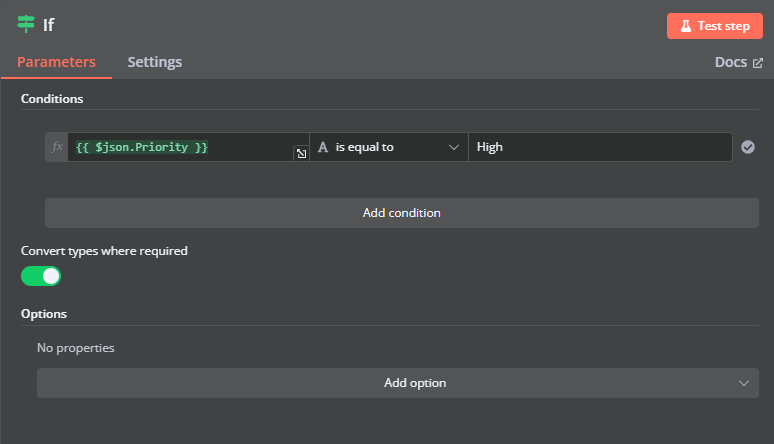
IF Node (Check Priority)
- Add an IF Node to check if the case is marked as High Priority.
-
Set the condition:
- Condition: Priority → equals → High
- If the condition is true, the workflow proceeds to the next step.
- If false, the workflow stops (no notification will be sent).
Node 4.
Switch Node (Route Based on Product Type)
- Add a Switch Node to route the notification based on the product type.
-
Set the condition:
- If Product_Type__c equals "TVs" → Go to Slack channel #support-for-tvs
- If Product_Type__c equals "ACs" → Go to Slack channel #support-for-acs
- If Product_Type__c equals "Refrigerator" → Go to Slack channel #support-for-refrigerator.

Node 5.
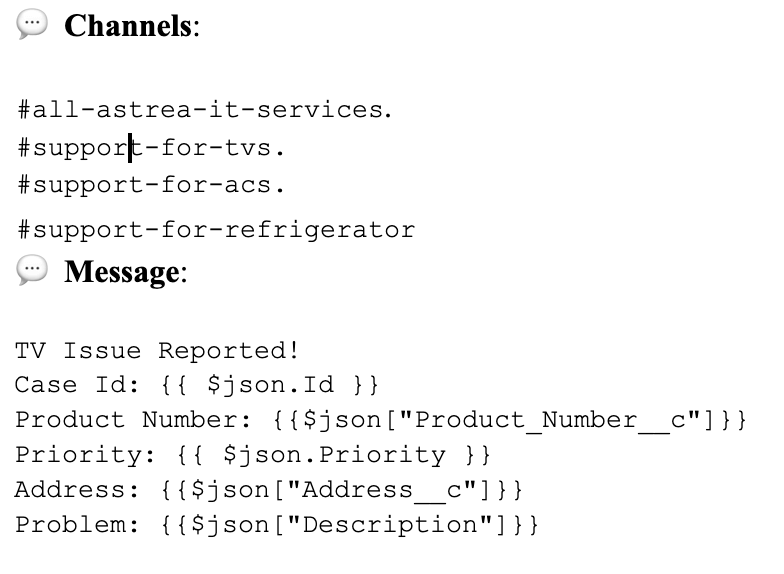
Set Up Slack Notification in n8n
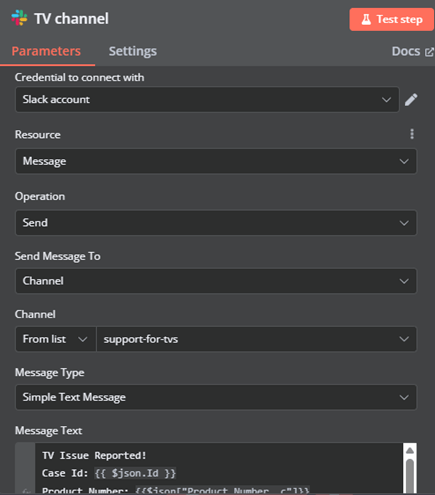
- Add a Slack Node for each route from the Switch node.
- Authenticate using the Slack Bot Token from Step 3.
- Configure the Slack message.
Connect the Salesforce Trigger to the Slack node.
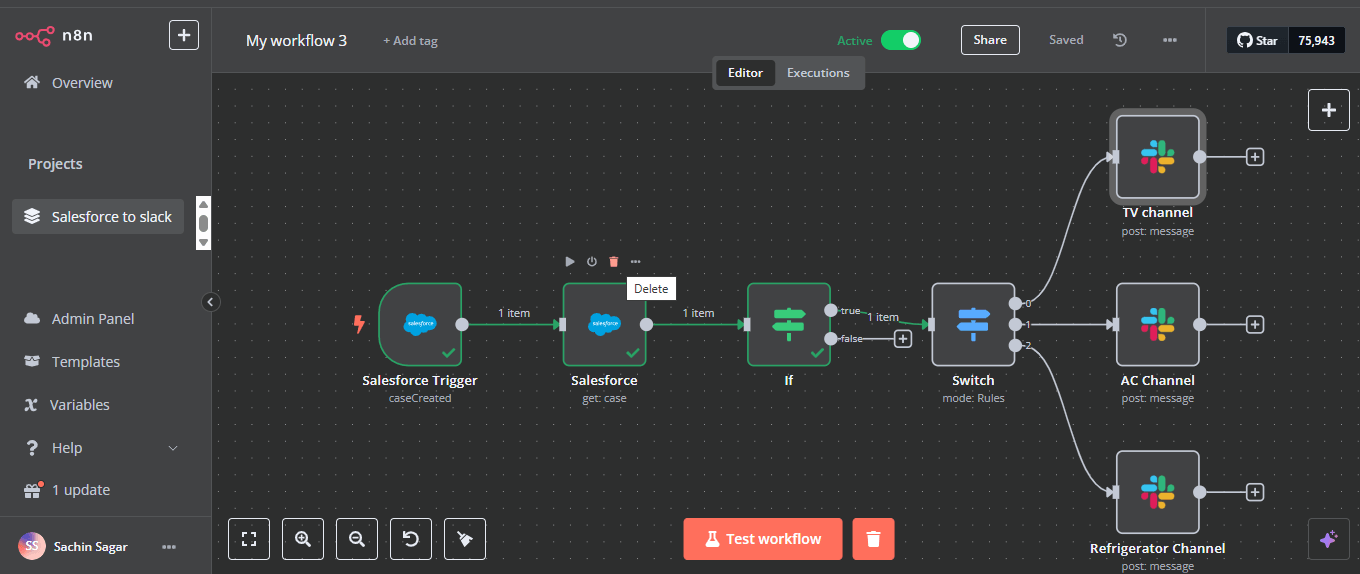
Completed Flow:
Step 5: Activate and Test the Workflow:
- Save and activate the workflow in n8n.
- Create a High-Priority Case in Salesforce.
- Check if a message appears in the slack channel.
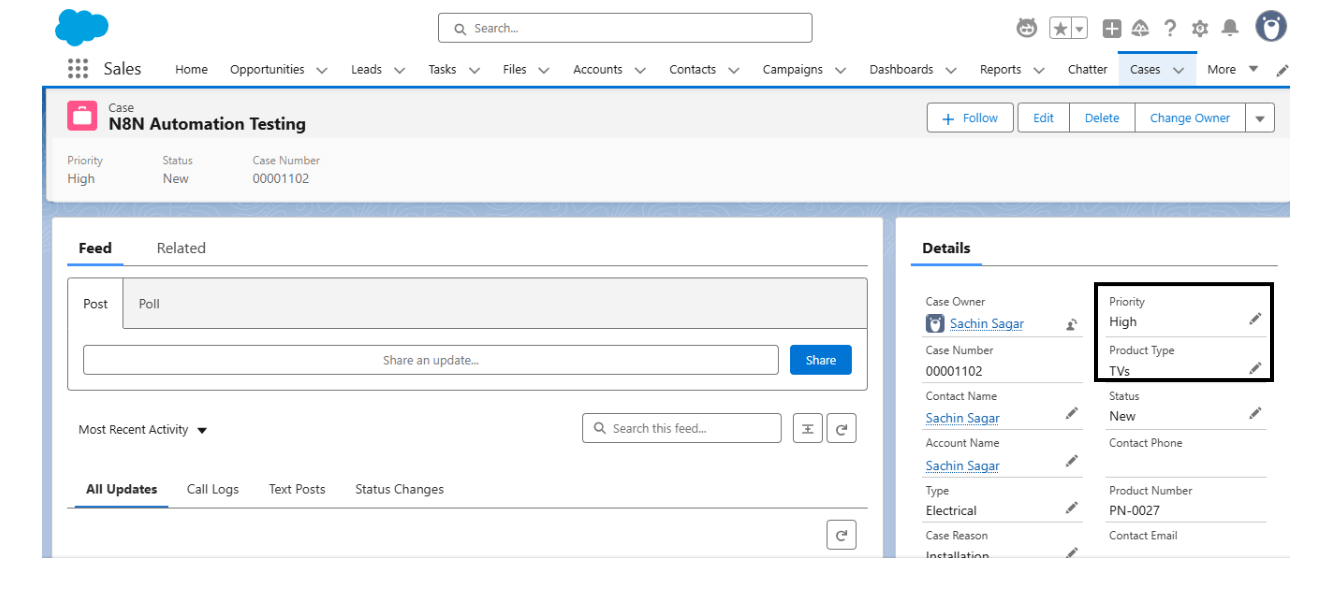
Test Scenario 1: Creating a High-Priority Case for a TV.
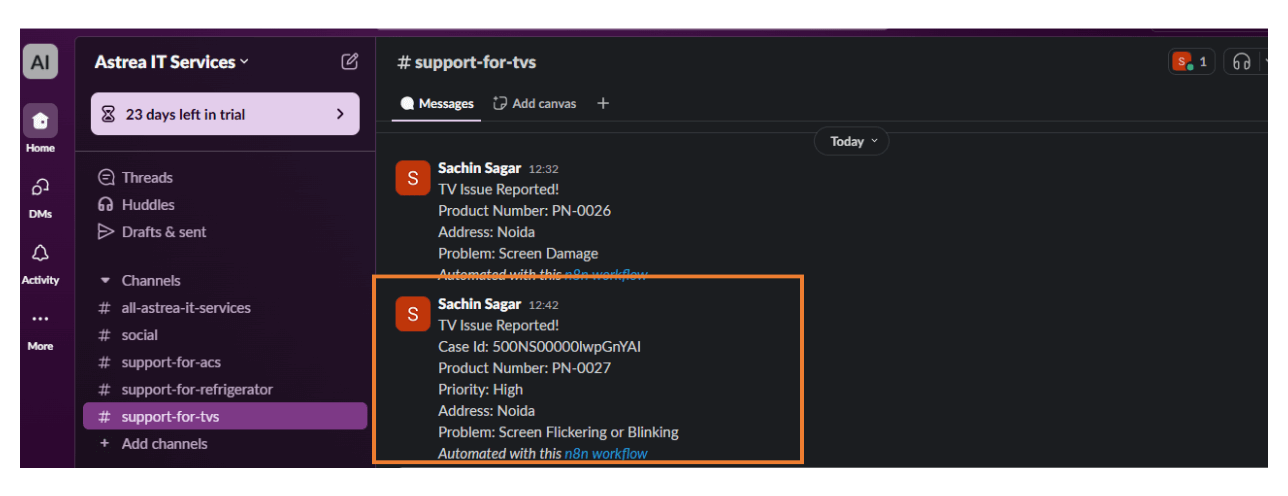
Review the Slack channel to see the posted message:
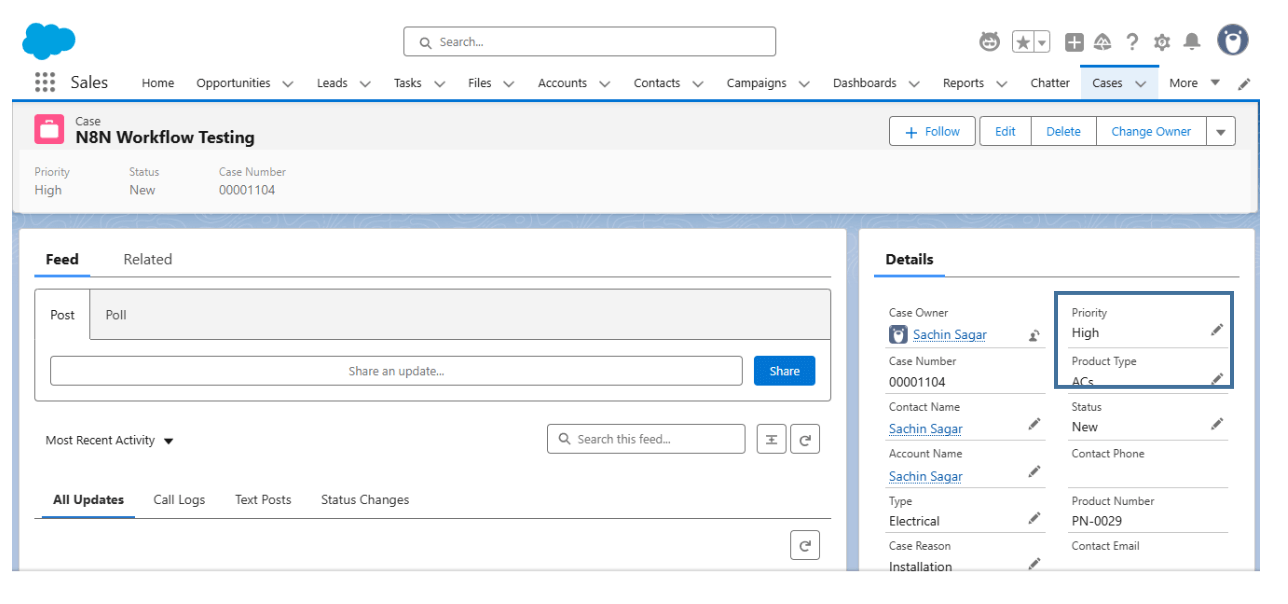
Test Scenario 2: Creating a High-Priority Case for an AC.
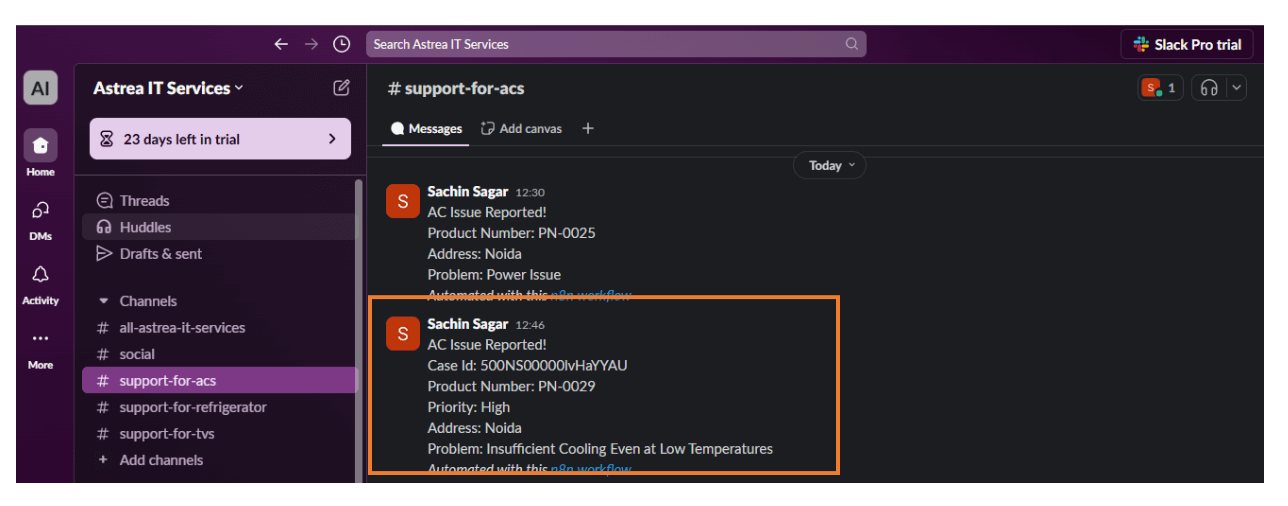
Review the Slack channel to see the posted message:
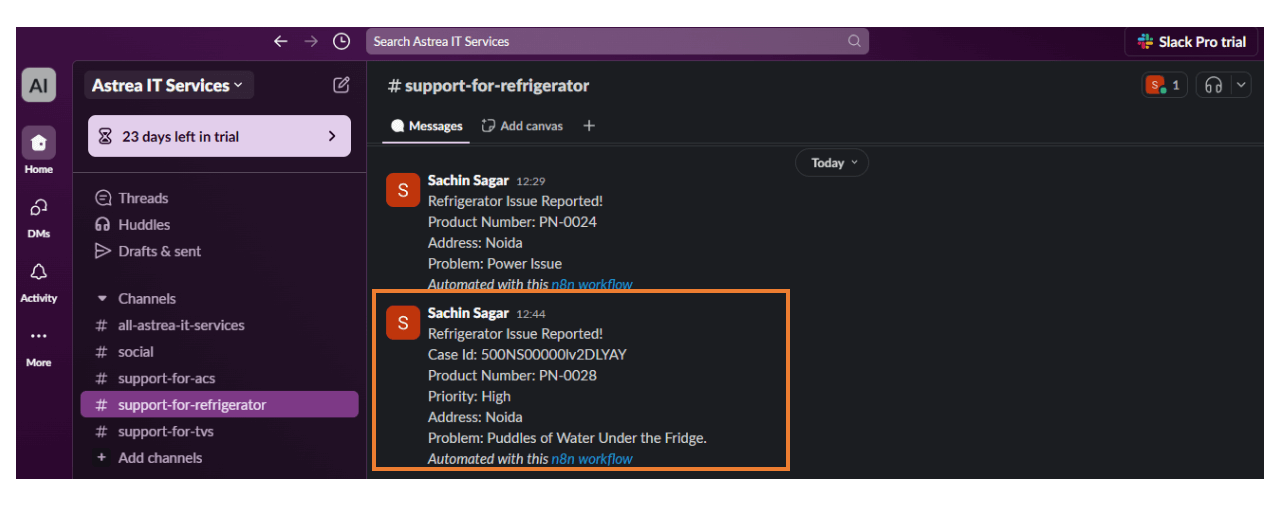
Test Scenario 3: Creating a High-Priority Case for a Refrigerator.

Review the Slack channel to see the posted message:
Conclusion:
In this guide, we’ve walked you through the process of integrating Salesforce and Slack using n8n to automate messages for high-priority cases. By leveraging the powerful IF node, we ensured that only cases marked as high priority trigger alerts, while the Switch node intelligently routes messages based on the product type.
This automation not only boosts real-time alerting but also enhances response times, improves team efficiency, and streamlines customer support workflows — all without the need for complex coding.
Have any questions or need assistance? Feel free to drop an email to support@astreait.com