Introduction
Managing documents efficiently is a common challenge for Salesforce users, especially when dealing with large files, multiple teams, and external collaboration. Astrea File Sync addresses this challenge by enabling seamless synchronization of Salesforce files with popular cloud storage platforms such as Google Drive, Dropbox, and AWS S3.
This blog provides a detailed yet simplified walkthrough of Astrea File Sync. While some deep technical steps are intentionally excluded, this guide explains platform-specific flows, key configurations, and real-world usage to help readers understand how the app works end to end.
What Is Astrea File Sync?
Astrea File Sync is a Salesforce AppExchange solution that allows files related to Salesforce records to be automatically synced with external cloud storage systems. It ensures secure storage, easy accessibility, and reduced dependency on Salesforce file storage.
Key Features
- Sync Salesforce files to Google Drive, Dropbox, or AWS S3
- Works with standard and custom Salesforce objects
- Automated folder creation using Org Name and Org ID
- Flexible sync options for recent and existing records
- Secure authentication and permission-based access
- File upload and retrieval directly from Salesforce record pages
Prerequisites
Before starting, ensure the following:
- A Salesforce Developer or Production Org
- Active Google, Dropbox, or AWS accounts
- Notes & Attachments related list enabled on the objects to be synced
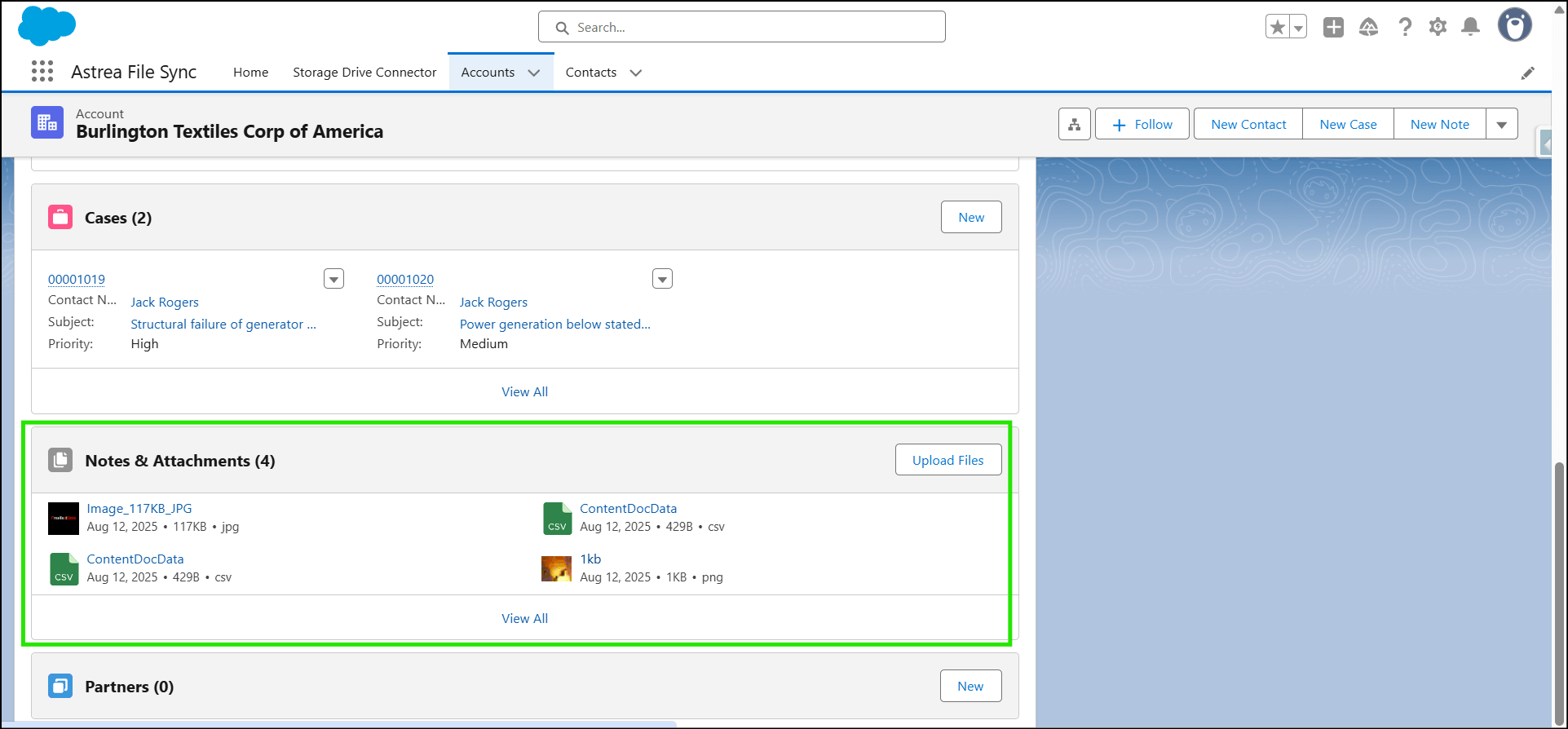
Overall File Sync Flow
Although each storage platform has different setup requirements, the core flow of Astrea File Sync remains consistent:
- Connect Salesforce with a storage platform
- Authenticate and authorize access
- Configure Salesforce objects for syncing
- Define sync behaviour
- Upload and access files seamlessly
Google Drive Integration
Google Drive integration allows Salesforce files to be synced into automatically created folders in Google Drive.
Steps:
-
Create and authorize a Google application
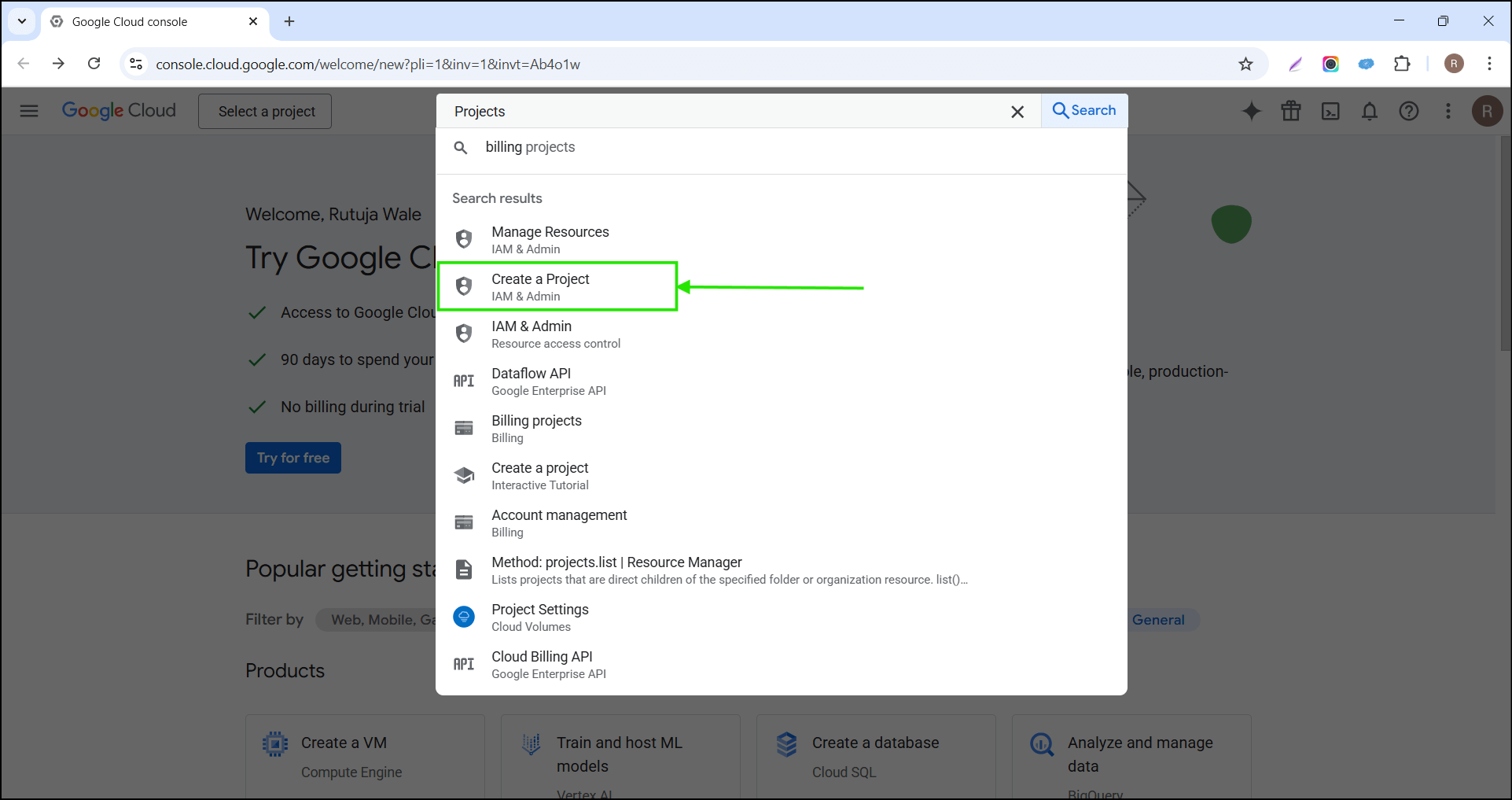
- Connect Google Drive in the Astrea File Sync App
- Configure Salesforce objects
- Sync files from records
Object Configuration
After connecting Google Drive:
-
Select the Salesforce object
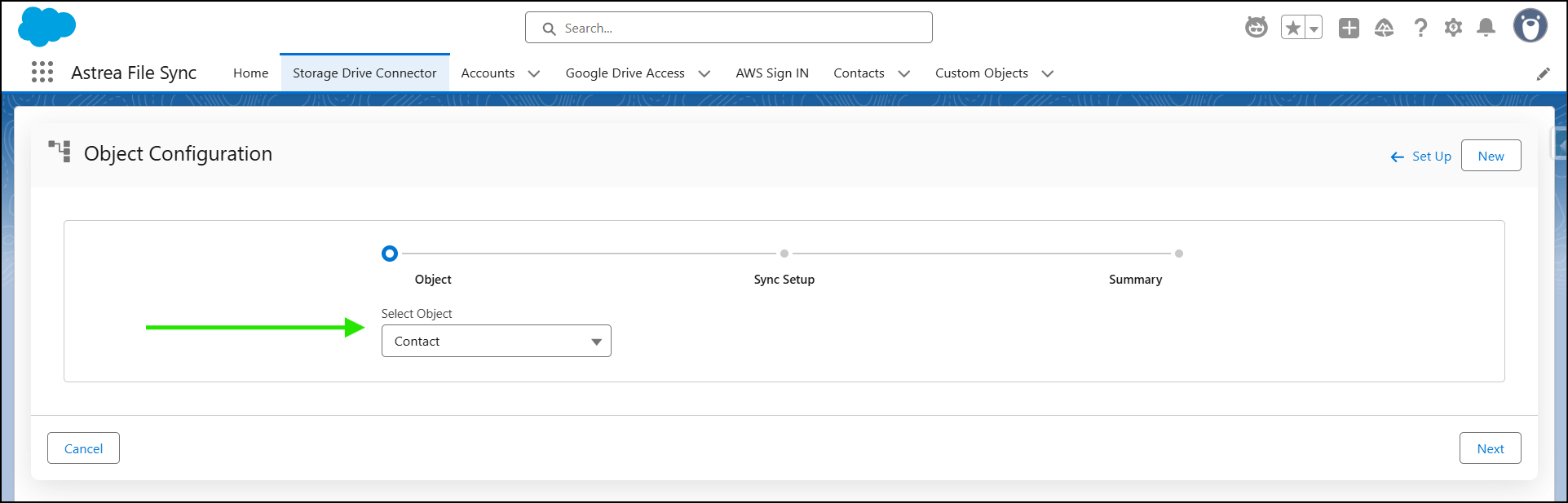
- Map it to a Google Drive folder
-
Choose sync options such as recent or existing records
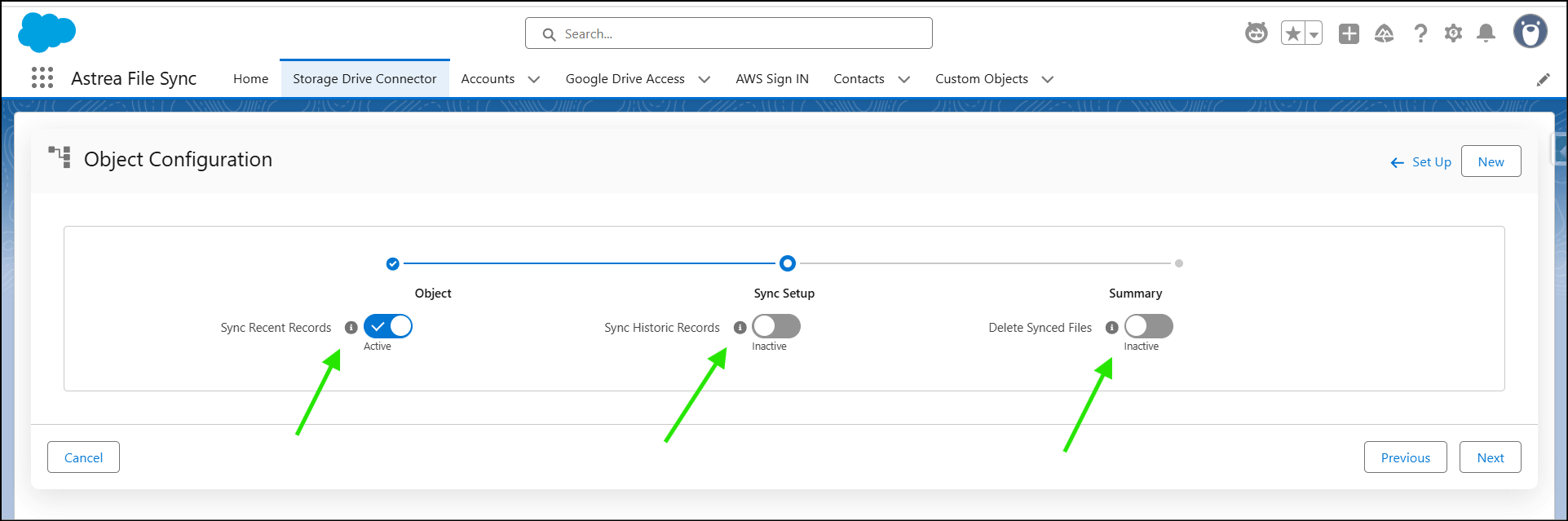
Once completed, files uploaded in Salesforce will automatically appear in the corresponding Google Drive folders.
Dropbox Integration
Dropbox integration enables teams to store and share Salesforce files using Dropbox folders.
Steps:
-
Create a Dropbox app
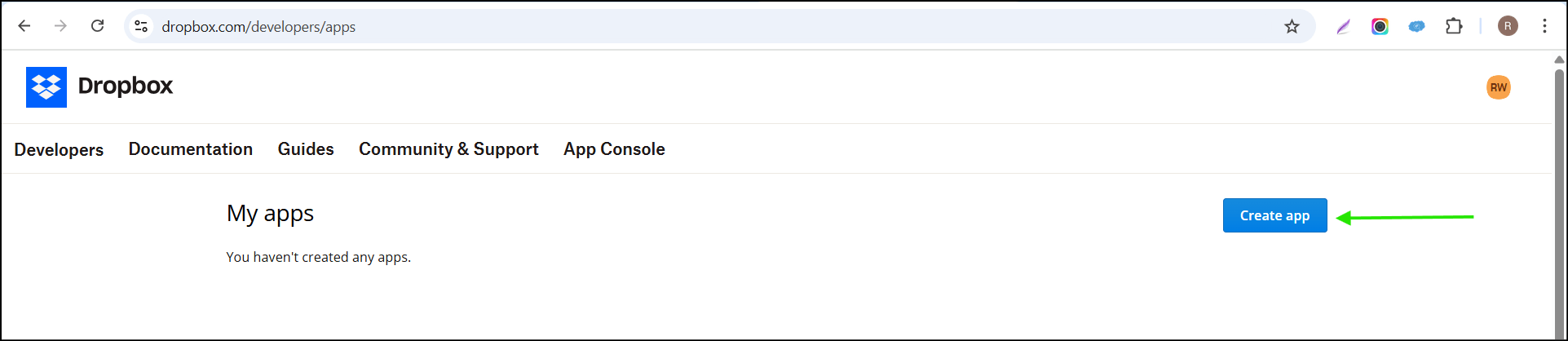
- Authorize Dropbox access in Salesforce
- Connect Dropbox using the Storage Drive Connector
-
Configure objects and sync rules
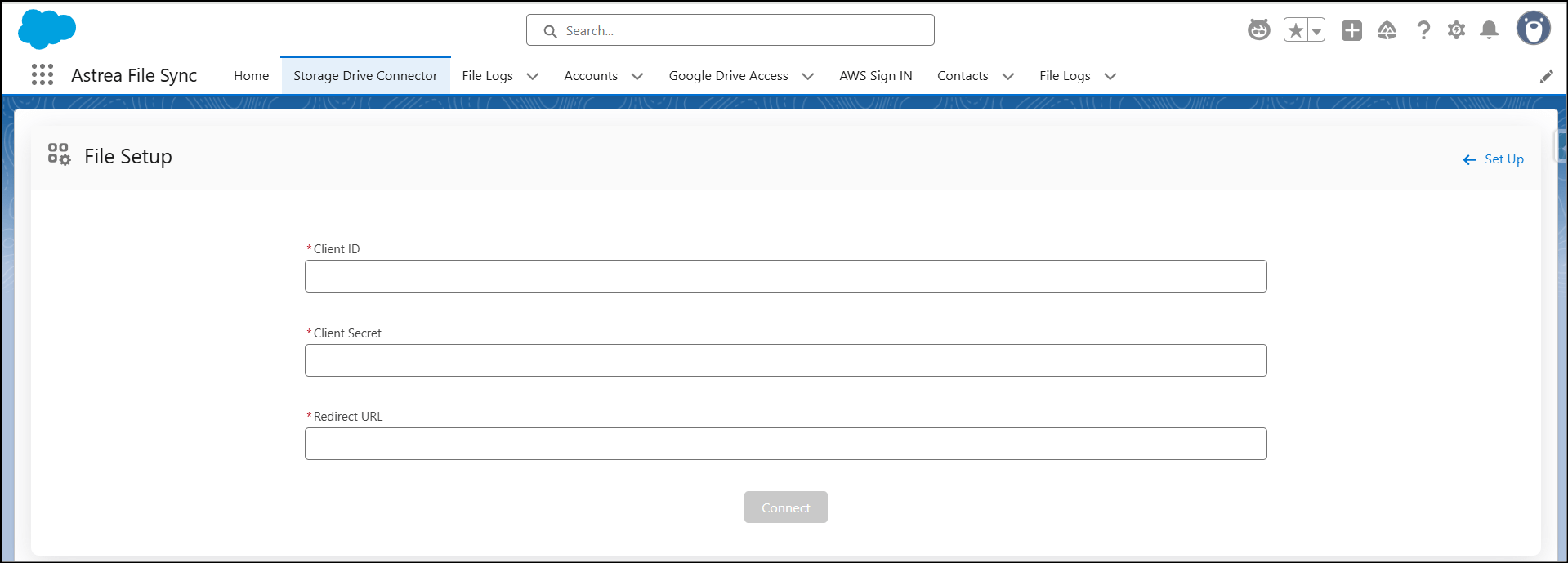
Object Configuration
- Select the Salesforce object
- Define or auto-create Dropbox folders
- Enable sync options based on business needs
Files synced from Salesforce will be visible in Dropbox, maintaining consistency across platforms.
AWS S3 Integration
AWS S3 integration is ideal for organizations requiring scalable and secure storage.
Steps:
- Configure AWS access using Salesforce Named Credentials
- Connect AWS S3 in the Astrea File Sync App
- Select or create S3 buckets
- Configure Salesforce objects for syncing
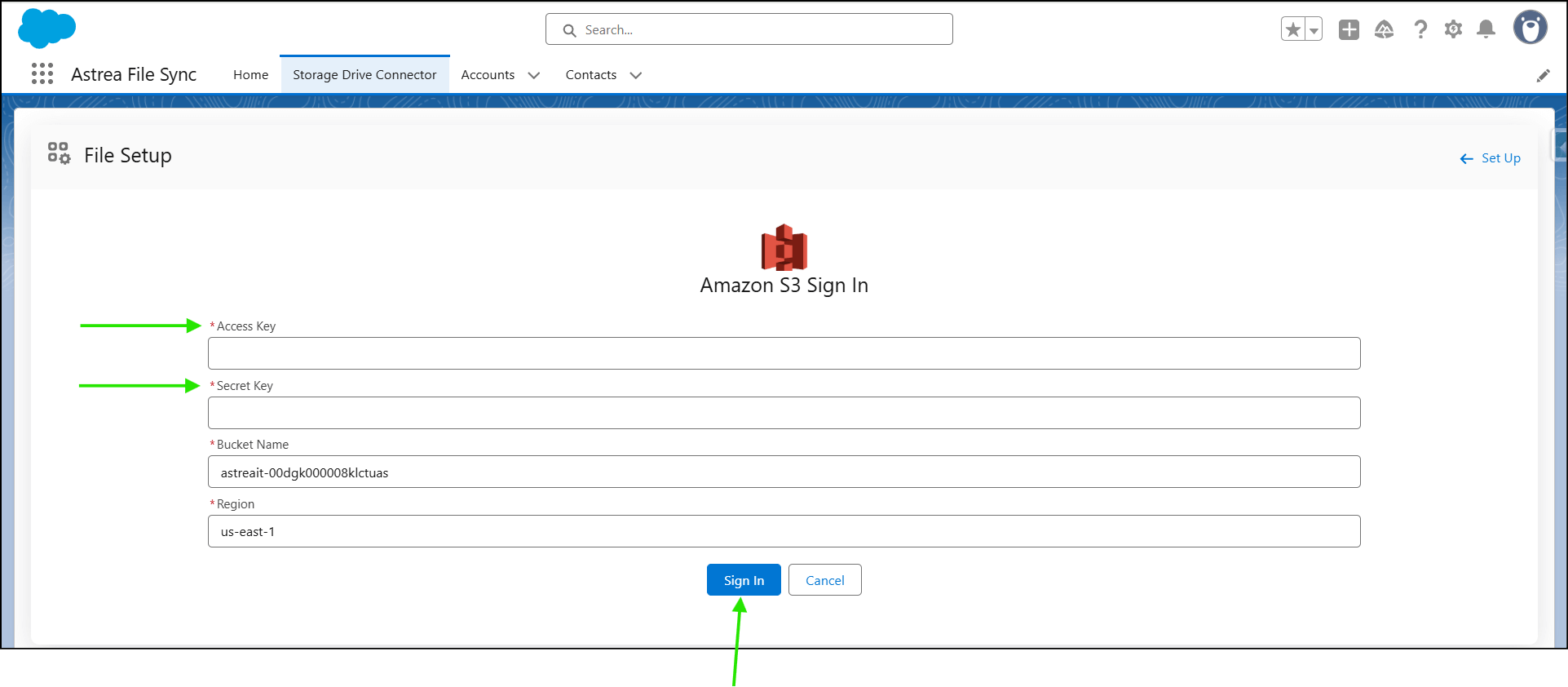
Object Configuration
- Select Salesforce objects
- Define S3 folder structure
- Enable sync options
Once configured, Salesforce files are stored securely in AWS S3 while remaining accessible in Salesforce.
Sync Options Explained
Astrea File Sync offers flexible syncing behaviour:
- Sync Recent Records – Sync records created in the last 24 hours
- Sync Existing Records – Sync records within a defined date range
- Delete Synced Files – Remove files from storage after successful sync (optional)
Salesforce Record Page Experience
Astrea File Sync can be embedded directly on Salesforce Lightning Record Pages.
Users can:
- Upload files using a dedicated component
- Drag and drop documents
- View files stored in external storage
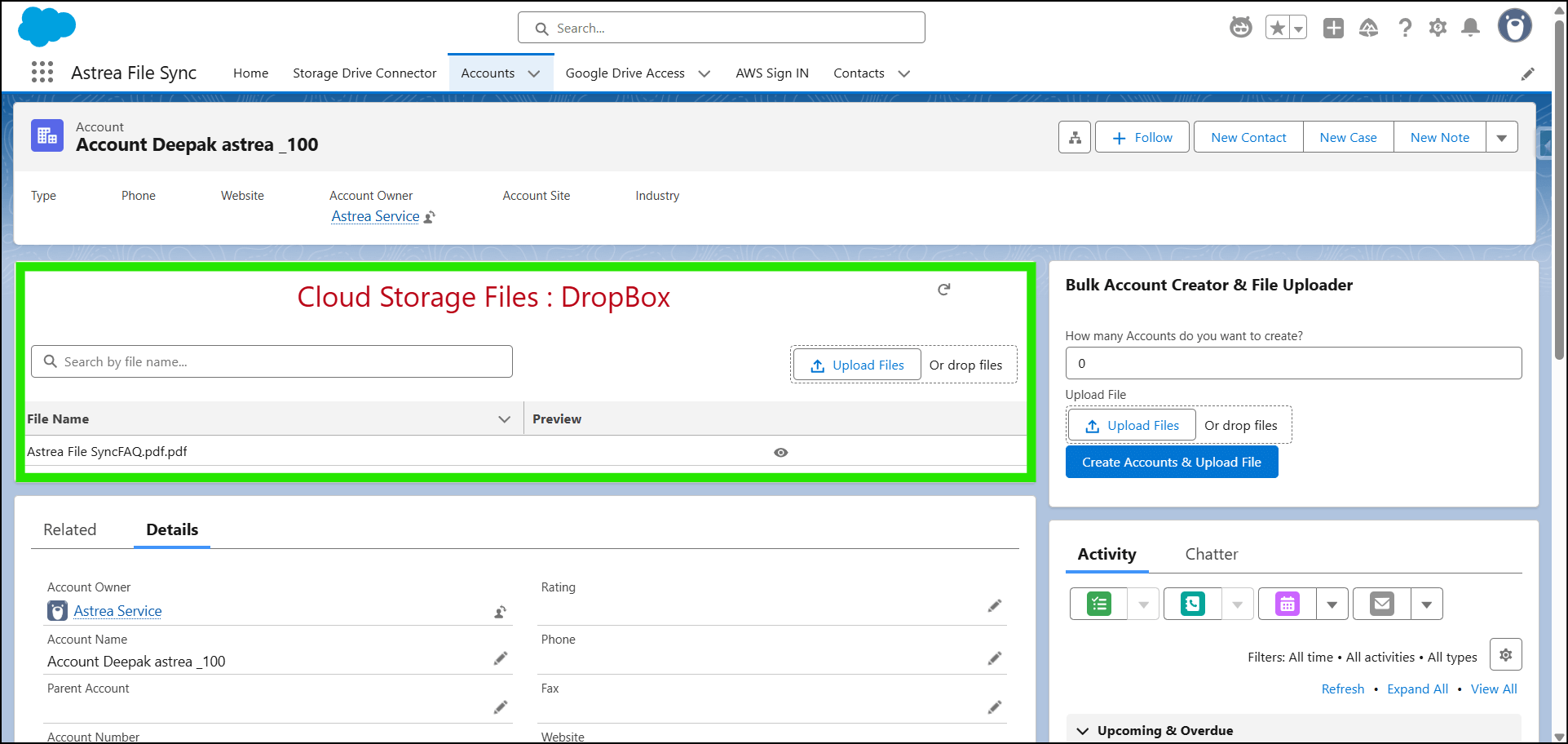
How File Upload Works
- User opens a Salesforce record
- Uploads a file using the File Sync component
- File is stored in the connected cloud storage
- File remains visible and accessible in Salesforce
Common Business Use Cases
- Storing large Opportunity or Contract files externally
- Managing Account or Case documents
- Centralizing files for collaboration
- Reducing Salesforce storage usage
Security & Access Control
Astrea File Sync follows Salesforce security standards:
- Secure OAuth and credential-based authentication
- Salesforce permission-controlled access
- Safe and reliable file transfers
Conclusion
Astrea File Sync bridges the gap between Salesforce and external cloud storage platforms. By supporting Google Drive, Dropbox, and AWS S3 with a consistent and user-friendly experience, it empowers organizations to manage documents efficiently, securely, and at scale.