Why a training batch needs its own system
Running a training batch sounds simple until there are a few hundred students in it. Every day someone has to share the class link, check who joined, run a quiz, collect assignments and answer the same login question for the tenth time.
Most teams stitch this together from tools that were never meant to work as one. A form for sign-ups, a chat group for class links, one spreadsheet for attendance and another for quiz scores. Each tool holds a piece of the picture, so a simple question like "is this student on track?" means opening four of them.
The cost shows up in three places. Trainers spend their evenings on admin instead of teaching. Students miss things because the information is scattered. And at the end of the batch, nobody fully trusts the attendance numbers.
We wanted one place where a student signs up, attends, practises and asks for help, and where the people running the batch can see all of it without chasing anyone. So we built one.
What we built
Astrea LMS is a training portal that runs on Salesforce. Students, trainers and admins all sign in at the same web address, and each person sees the screens for their role.
| Who | What they do in the portal |
|---|---|
| Students | Register, join live classes, take tests, submit assignments, link Trailhead, ask questions and raise support cases |
| Trainers | Write questions, build tests, create and grade assignments, answer forum questions |
| Admins | Manage students and trainers, schedule classes, follow attendance and Trailhead progress, read reports and handle support cases |
All of it is stored in one Salesforce org, so a student's sign-up, classes, scores, badges and support requests sit together on the same record. The rest of this post walks through the portal the way a student meets it, then shows what the people running the batch get.
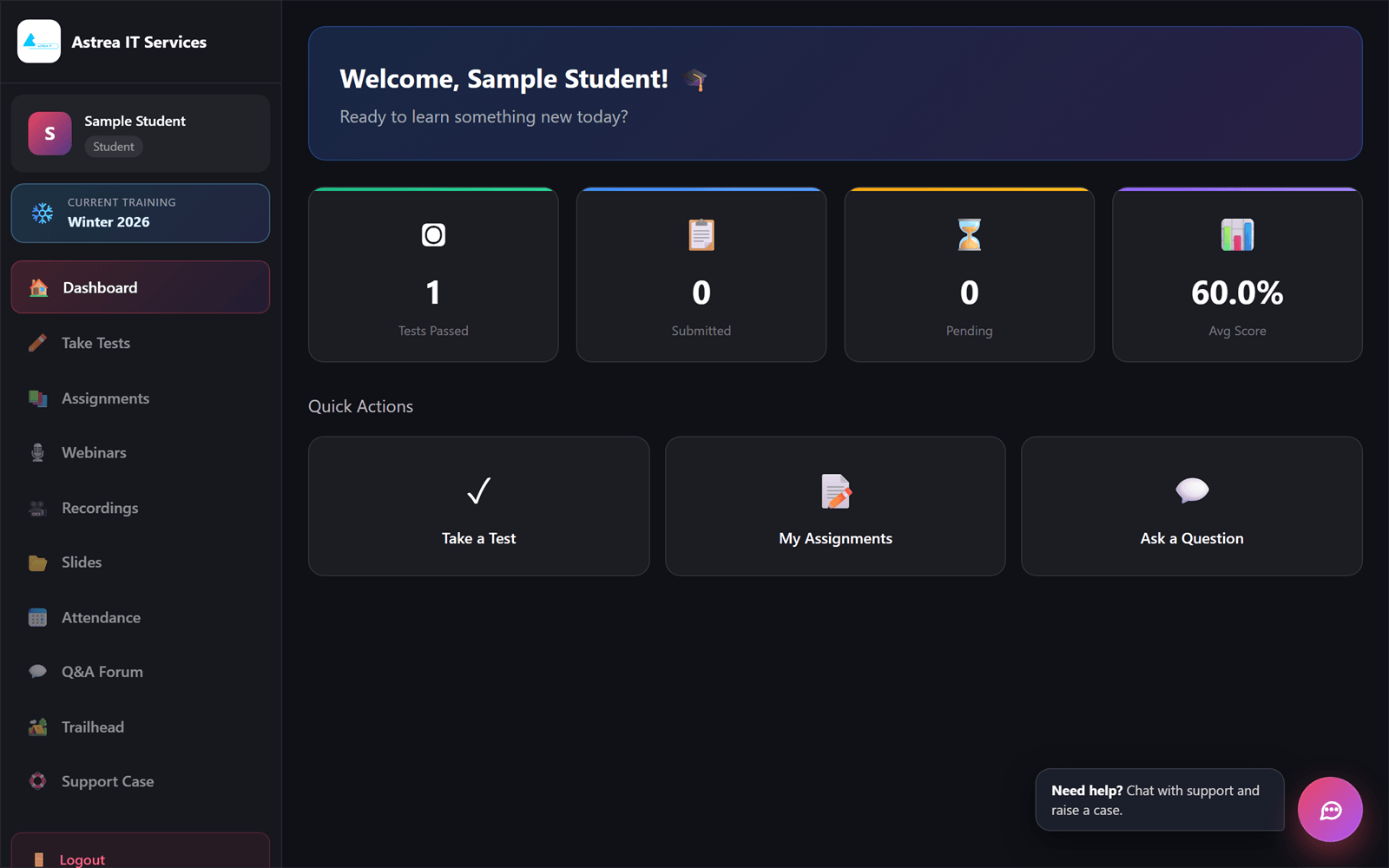
The student dashboard, the first screen after sign-in. The menu on the left leads to every part of the portal.
Getting students in
A student needs one link. It works on a laptop or a phone, and the same page has tabs for Admin, Trainer and Student.
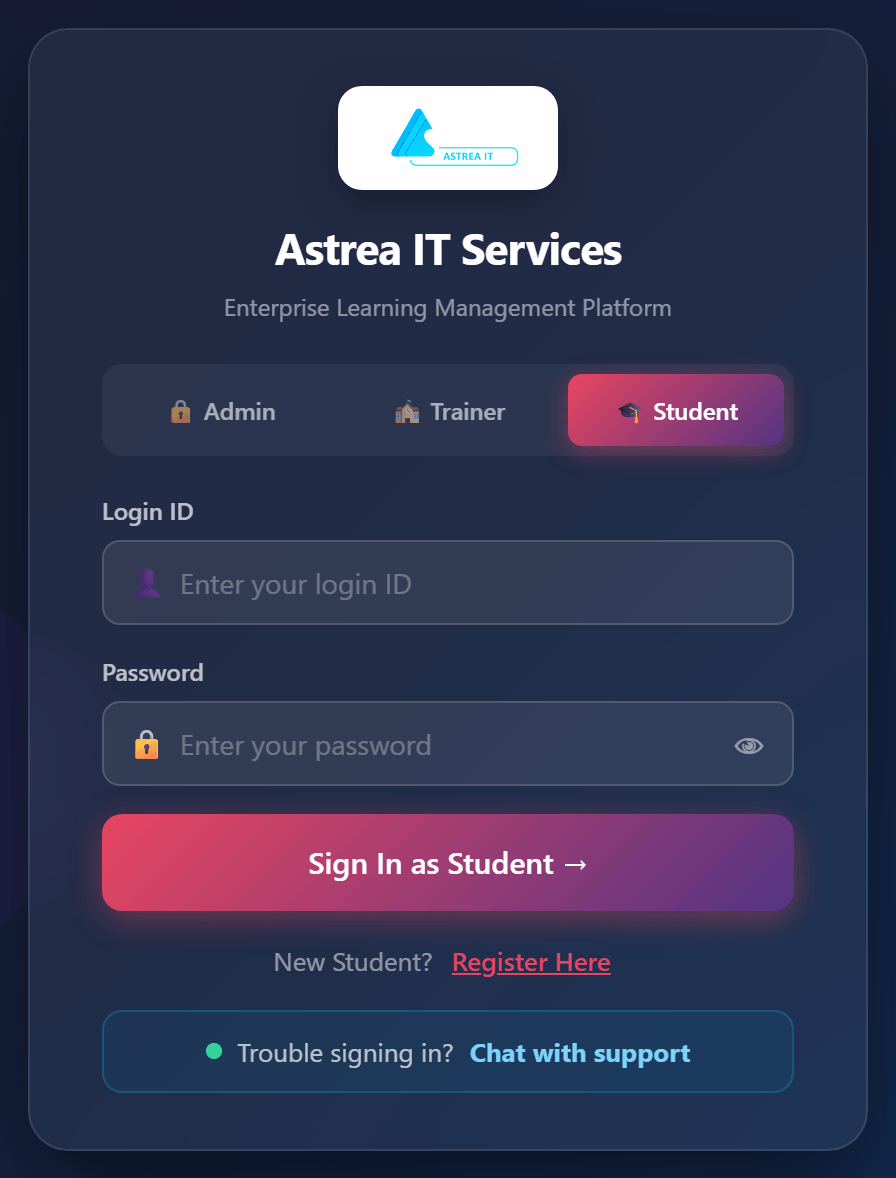
The sign-in page. Students pick the Student tab and use the Login ID they chose when they registered.
New students click Register Here and fill in two short steps. First their name, email, phone number and college or company, then a Login ID and a password. The portal refuses an email, phone number or Login ID that is already taken, so the same person can't end up with two accounts.
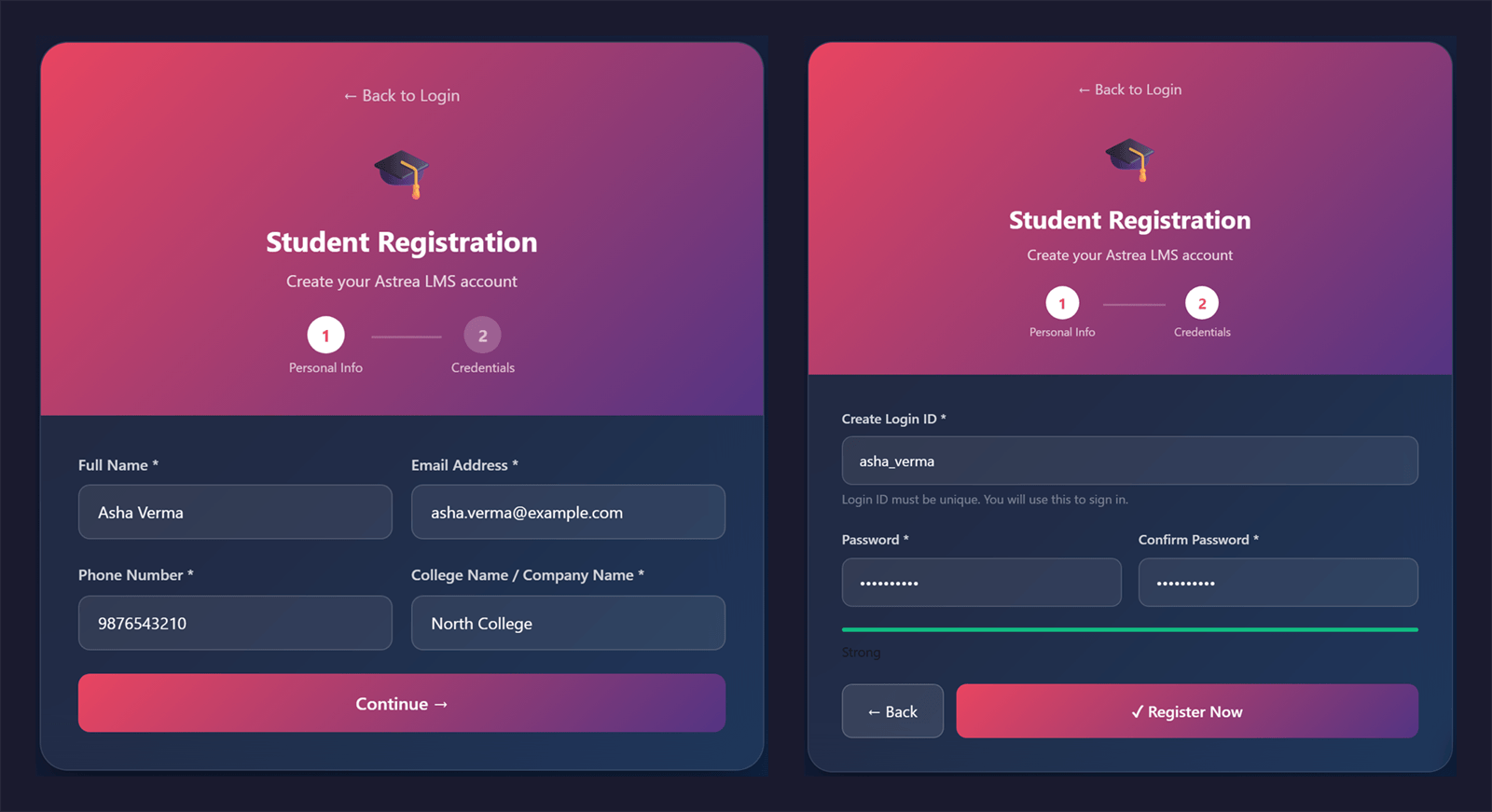
Registration takes two steps. A strength meter nudges students towards a better password.
There is no approval queue. The account works as soon as it is created, which matters on the first morning of a batch when hundreds of people sign up at once.
And if someone can't sign in, they don't have to hunt for a trainer's number. A "Trouble signing in?" link on the same page opens a chat, which we come back to in the support section.
Attendance that counts itself
This is the part we are proudest of. A student is present for a day only when they finish everything assigned to that day: join the live class, complete the quiz and earn the Trailhead badge set for it. If a day only has a quiz, the quiz is enough, and a day with nothing assigned isn't counted at all.
Nobody fills in a register. The portal works attendance out from what actually happened: Zoho's report for the class, the student's quiz attempt and the badges on their Trailhead profile. If Zoho hasn't sent its report yet, the day shows as "not final yet" instead of quietly turning into an absence.
Students see all of this on their Attendance page. A ring shows their percentage, a Today card lists what's done and what's left, and a strip has one square per day. Hover over a day and it tells you why it was marked present or absent.
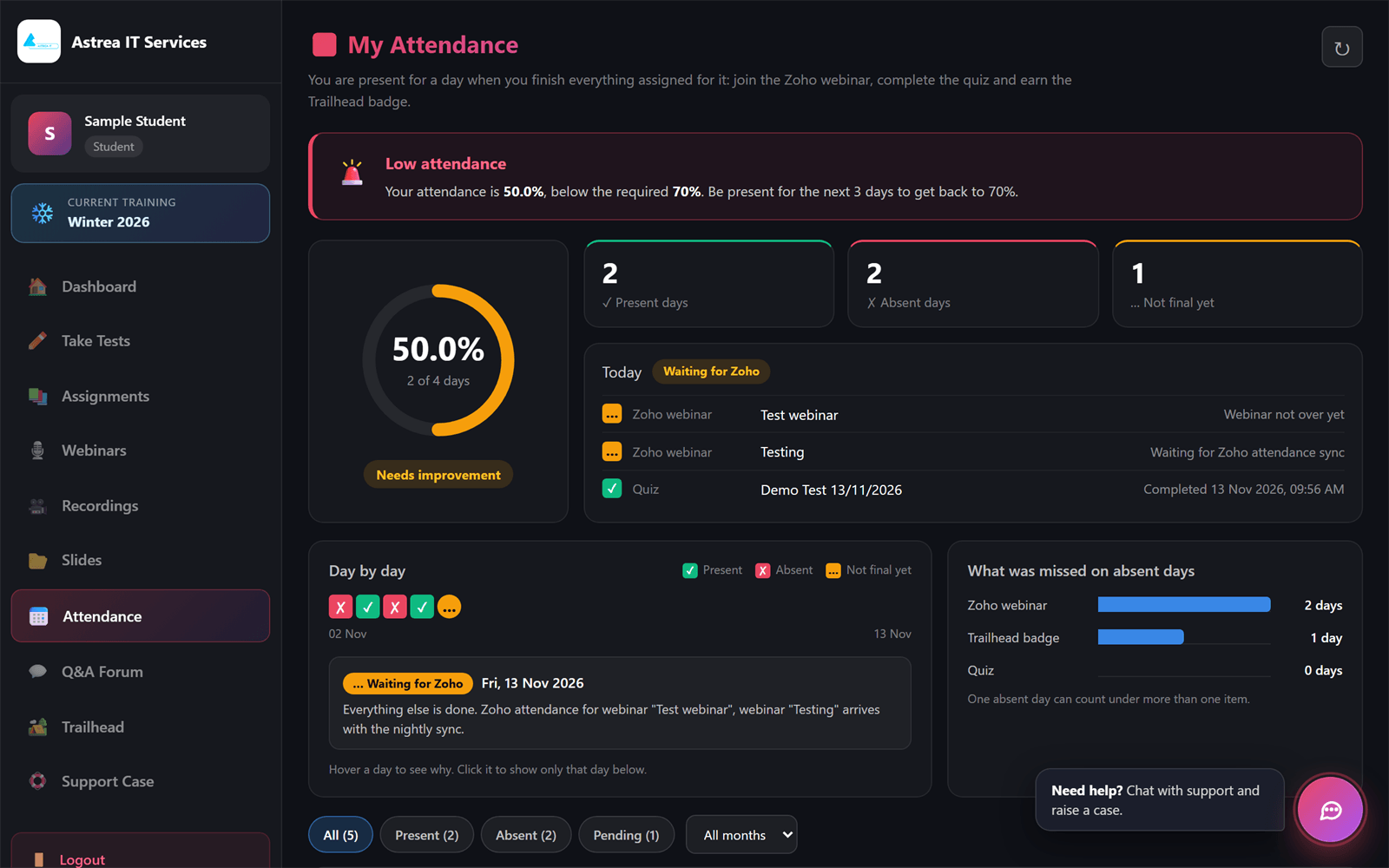
The Attendance page for a student below 70%. The banner says how many present days they need to get back on track.
The bar is 70%. Below that, the page shows a warning and works out how many present days in a row would bring the student back. Near the end of a batch, when 70% is no longer reachable, it tells them the best they can still get to. It's a small thing, but it gives a struggling student a target instead of a telling-off.
Live classes on Zoho, in one click
Classes run as Zoho webinars, but nobody has to go into Zoho to set them up. When an admin schedules a class in the portal, the portal creates the webinar in Zoho and registers every student with their portal email.
So on the day, a student opens Webinars and clicks Join Webinar. Zoho opens straight into the class, with no registration form in the way. If a student joined the batch late and has no link yet, a Get Join Link button sorts it out.
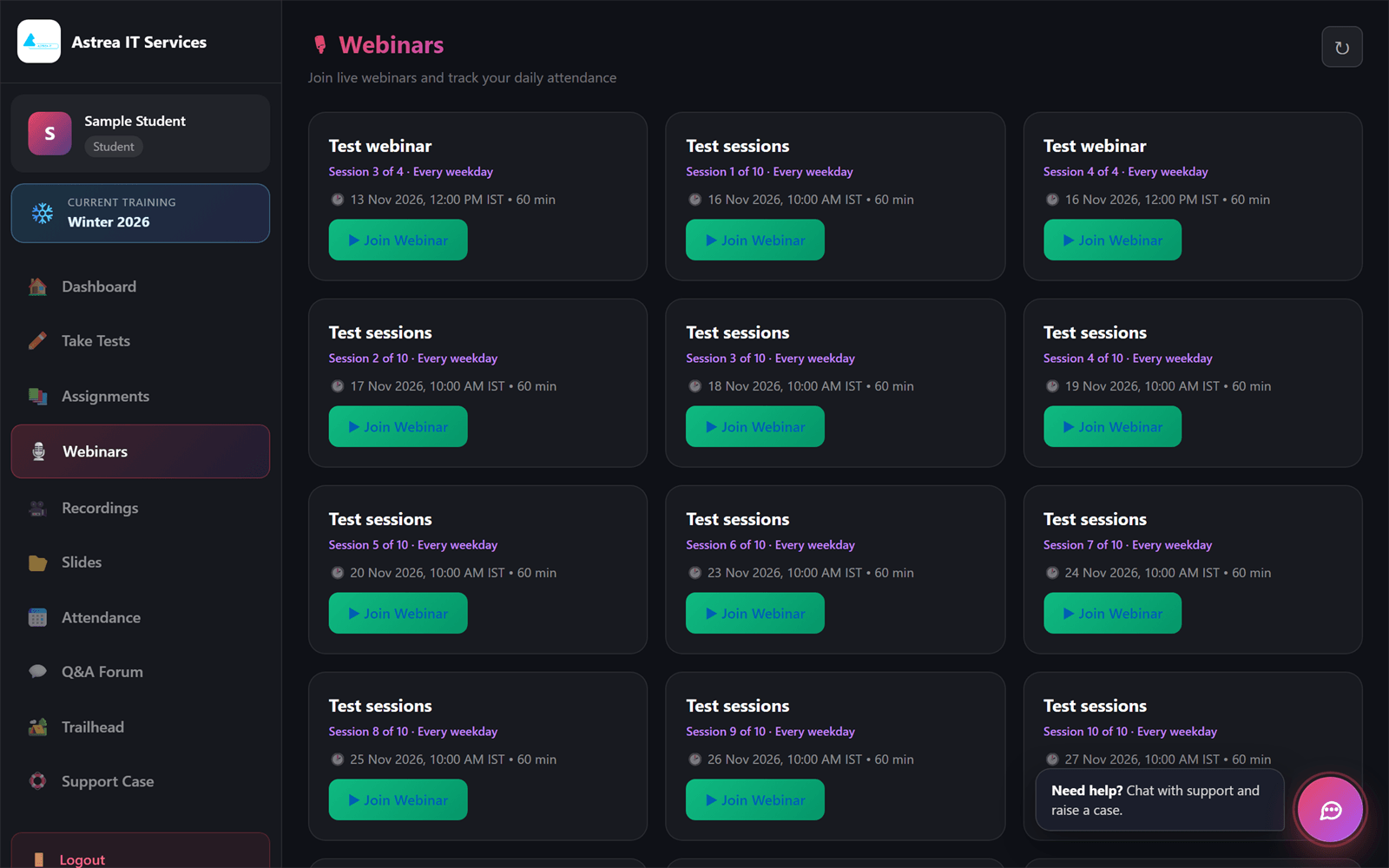
The Webinars page. Each card shows the session number, the date and time in IST, and the Join Webinar button.
A whole course can be set up in one go. The admin picks the days and the number of sessions, and the portal creates each one, up to 30, labelled "Session 3 of 10" and so on. Every night it pulls Zoho's attendance report, shows each student their own join times, and feeds the result into daily attendance.
Tests that mark themselves
Trainers write multiple-choice questions into a shared question bank, then build tests from it. Each test gets a time limit, a pass mark and, if they want one, a due date. A test can also be tied to a particular day, which makes it that day's quiz for attendance.
Students see every test as a card with the number of questions, the time and the pass mark. They can take each test once. A timer counts down, and when it hits zero the test submits itself, so there's no arguing about late answers.
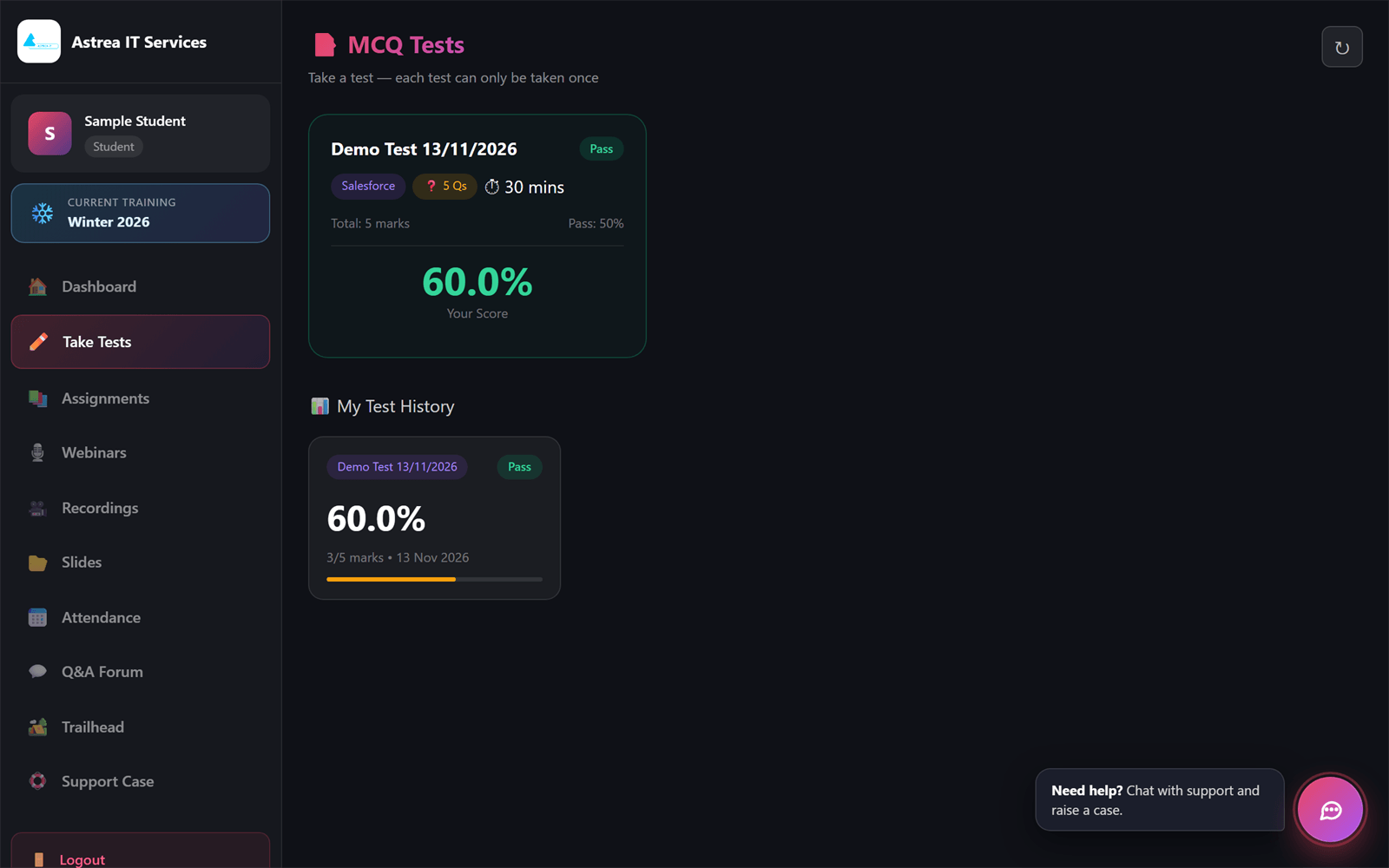
Take Tests, after the student has finished a test. The score and the result stay in My Test History.
The score and a pass or fail appear the moment the test is submitted. Nobody marks anything by hand, and admins get the average score and pass rate for every test without building a report.
Trailhead progress, without asking for screenshots
A Salesforce course without Trailhead doesn't make much sense, but keeping track of it usually means asking students to send screenshots of their badges. We didn't want to do that.
Instead, a student pastes their Trailhead username into the portal once. From then on the portal reads their public profile every night, or straight away when they press Sync Now, and keeps their badges, points and rank up to date.
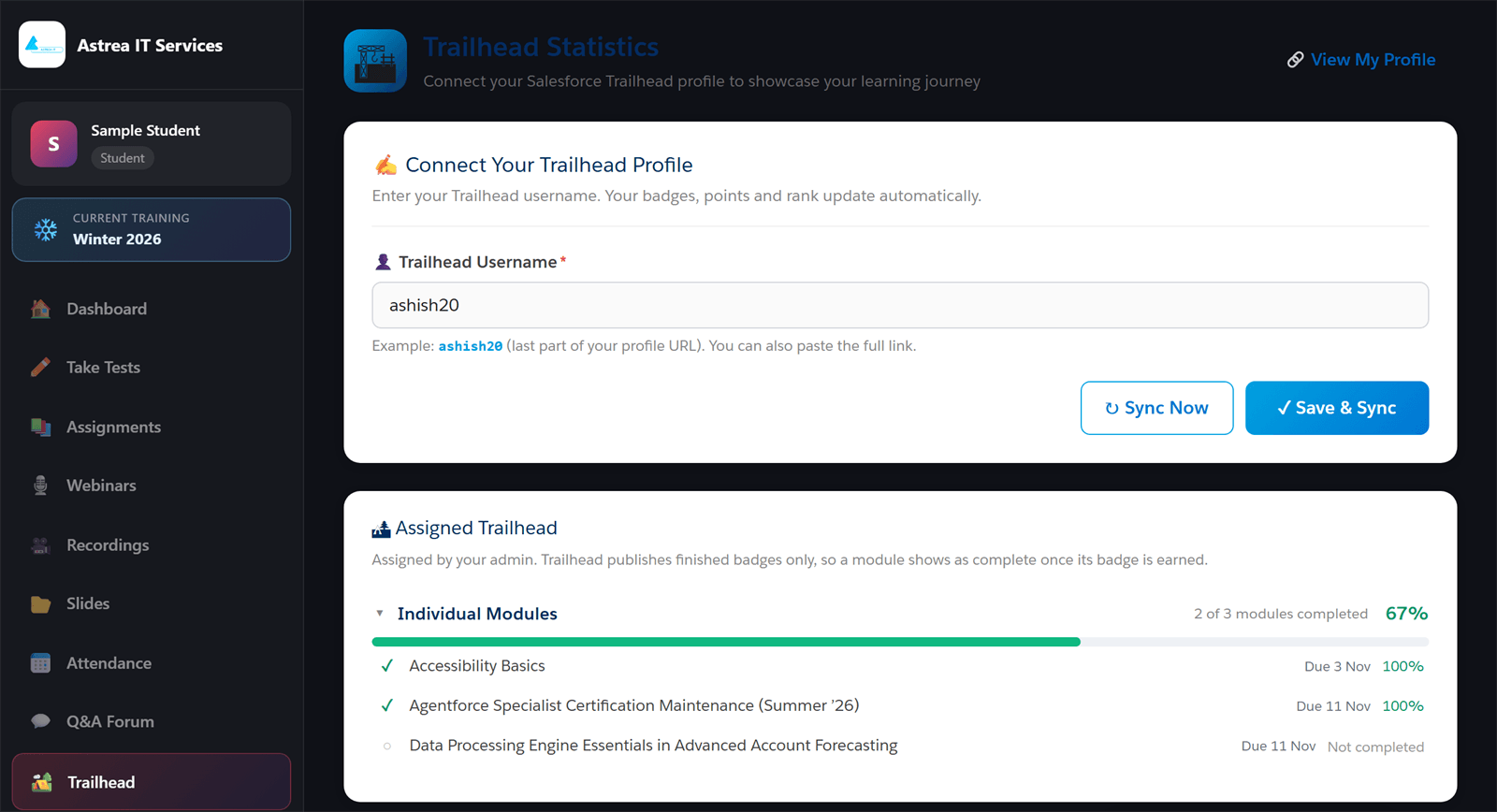
The Trailhead page. Below the profile link is Assigned Trailhead, with a tick for each module the student has finished.
Admins choose the modules the batch should complete and give each one a due date. Every student sees that list under Assigned Trailhead, with a tick once the badge is earned and a percentage for the whole list.
Two honest limits. Trailhead only publishes finished badges, so a module can't show as half done. And a private profile can't be read at all, which is why the first step we give students is to set their profile to public.
Assignments, questions and class materials
Trainers create assignments with a due date and total marks. Students write their answer in the portal and submit it once, then come back later to see their marks and the trainer's feedback. Anything overdue stands out on their list, so it's hard to forget.
The Q&A forum is where students ask each other and the trainers for help. They pick a category and add tags, and similar questions appear while they type, which saves the trainer from answering the same thing five times. People can be tagged with @, and an answer can be marked as the correct one.
Every class recording and slide deck is listed in one place with its date and topics. Recordings open on YouTube and decks in Google Slides, so a student who missed a session can catch up the same evening.
Help that doesn't get lost
In most batches, support means students messaging whichever trainer they happen to know. Questions get buried in chats and nobody can tell what's still open.
In the portal there's a chat button in the bottom right corner of every screen. A student picks a topic, such as Tests, Webinars or Trailhead, writes a short title and the details, says how urgent it is and sends it. They get a case number on the spot, like CASE-00012.
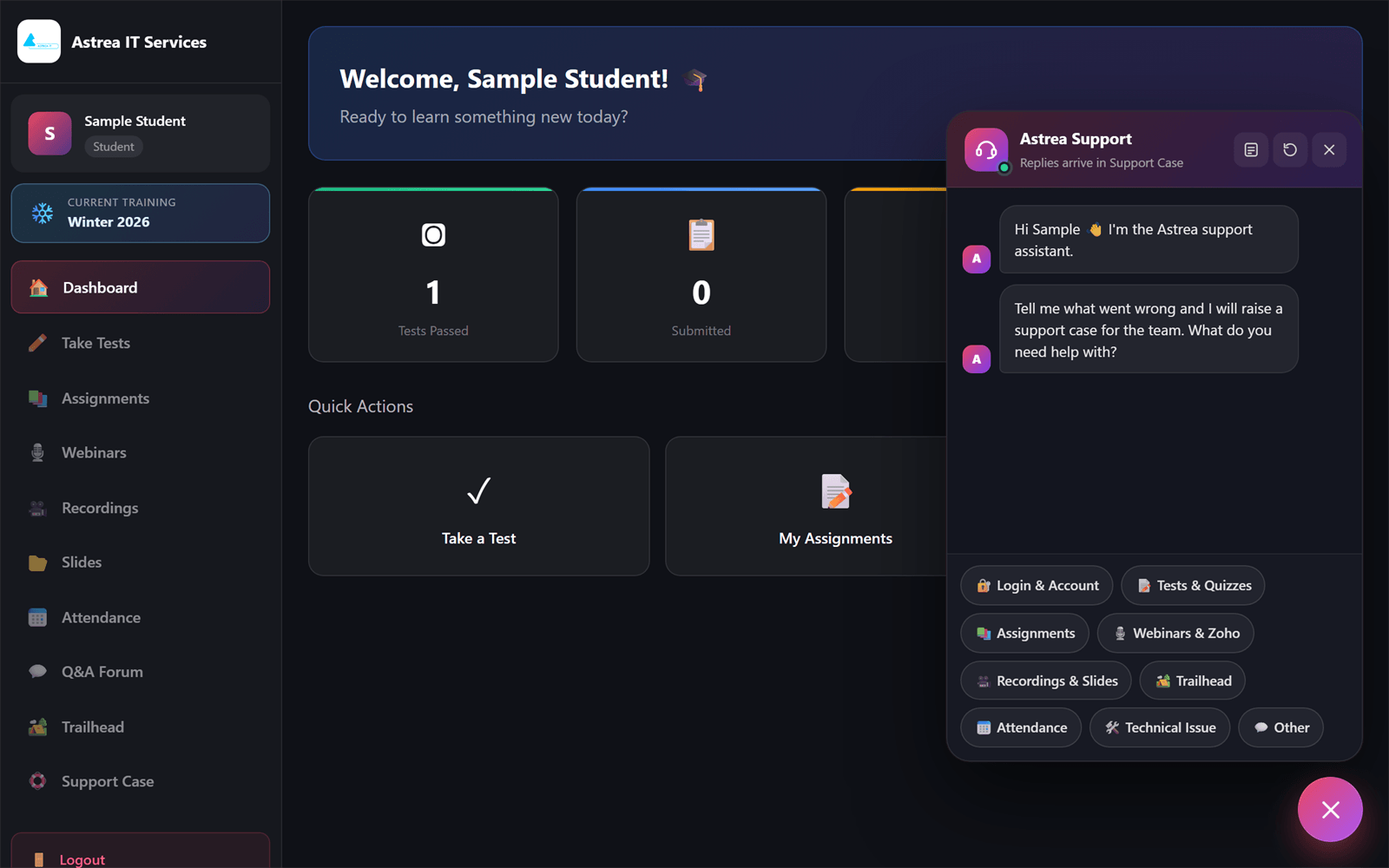
Chat support opened from the student dashboard. The first step is picking one of nine topics.
Every case then sits in the student's Support Case tab with a live status: New, In Progress, On Hold, Resolved or Closed. The support team works the cases from their own screen and replies inside the case, and a badge tells the student when there's a new reply. If a fix works, the student closes the case. If it doesn't, they reply and the case opens again.
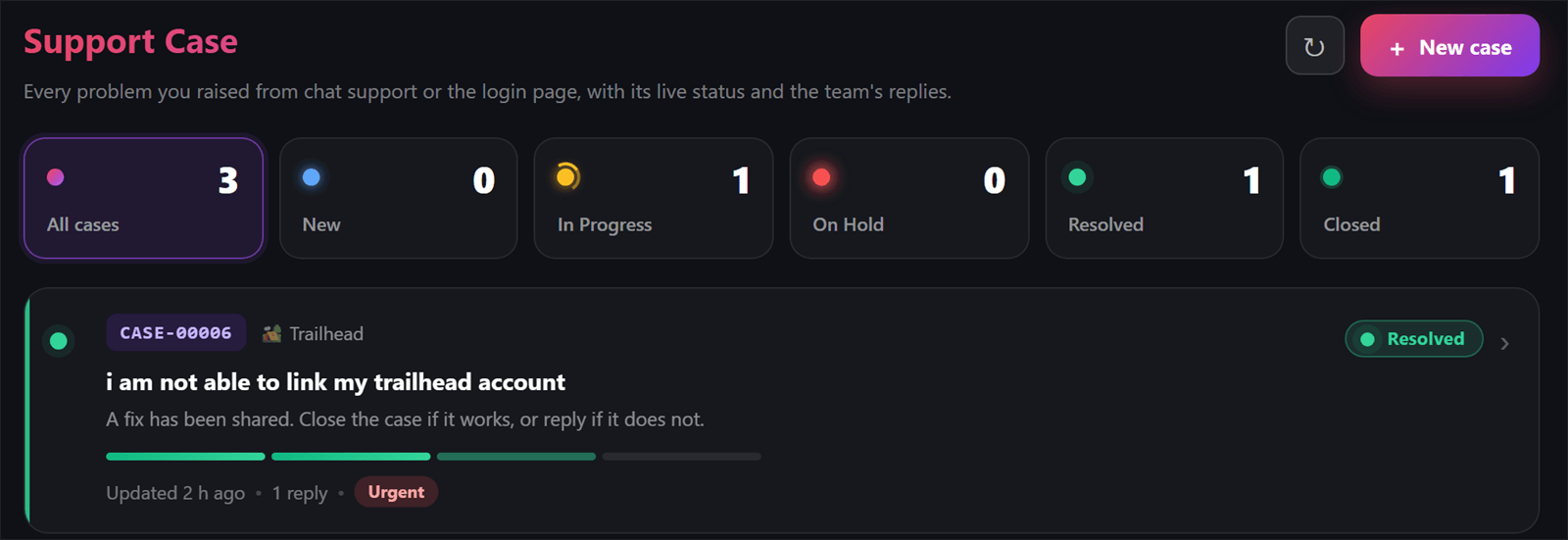
The Support Case tab. The counts at the top show where every case stands.
The same chat sits on the sign-in page for students who can't get in at all. They choose the problem, such as a forgotten password or an account that isn't active, and leave their email for the reply. If that email matches their registration, the case also appears in their Support Case tab once they're back in.
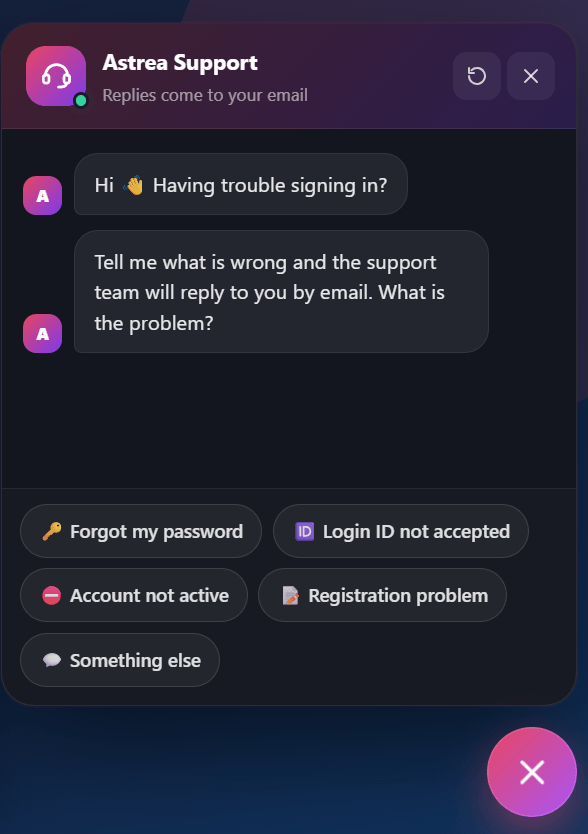
Chat support on the sign-in page, for students who can't sign in.
What admins and trainers get
The student side is only half of it. The people running the batch have their own screens, and most of the daily admin happens on its own.
| Screen | What it's for |
|---|---|
| Admin dashboard | Sign-ups over the last 12 months, test pass and fail, assignment status and the top students |
| Students | Every student with their daily attendance %, college and training |
| Daily Attendance | The whole batch day by day, with filters and graphs |
| Webinars | Schedule one class or a full course in Zoho, and see who joined each day |
| MCQ Tests and Results | Every test with its attempts, average score and pass rate |
| Trailhead Progress | Assign modules with due dates and see who has finished them |
| Reports | One student's full record: tests taken and assignments submitted |
| Support Cases | Every open case, replies and status changes |
| Recordings, Slides, Trainers | Add class material and manage the training team |
Trainers get a lighter set. Their dashboard shows their questions, their tests and the submissions waiting to be graded. From there they write questions, build tests, create assignments and grade each submission with marks and feedback.
The portal also keeps batches apart. Content belongs to a training, such as Winter 2026, and each batch only sees its own tests, assignments, slides and classes. Attendance counts from that training's start date, so a new batch starts with a clean slate and last season's material stays out of the way.
How it's built
The portal is a Salesforce Experience Cloud site, built with Lightning Web Components and Apex. Students and trainers sign in with the Login ID and password they set in the portal, so nobody needs a Salesforce licence of their own, and a session expires after 12 hours.
Two outside services plug in. Zoho Meeting's API creates the webinars, registers students and sends back attendance. Trailhead's public profiles supply badges and points. Scheduled jobs pull both in overnight, and the student can ask for a fresh Trailhead sync whenever they like.
Because every record lives in Salesforce, the training team can also use ordinary Salesforce reports and dashboards on the same data, next to the rest of the company's records.
The summer batch, by the numbers
The first real test was our summer 2026 programme, which ran for eight weeks from 31 May to 25 July. Almost every student registered themselves, and the tests and assignments ran through the portal.
| Measure | Summer 2026 |
|---|---|
| Students | 857, of whom 850 registered themselves |
| Students who took at least one test | 693 |
| Tests, from a bank of 389 questions | 39 |
| Test attempts, all marked automatically | 17,268 |
| Assignment submissions, from 501 students | 8,813 |
| Forum questions and replies | 97 and 136 |
| Class recordings and slide decks | 39 and 36 |
The load held steady too. Students made between about 1,700 and 2,650 test attempts every week of the eight.
The Zoho classes, daily attendance, Trailhead sync and chat support were added after that batch ended. The Winter 2026 batch, starting on 23 November, is the first to use the whole portal.
Who it's for
We built Astrea LMS for our own Salesforce training, but nothing in it is specific to us. It suits anyone who runs training in batches and wants it on Salesforce: training companies, colleges with Salesforce programmes, and companies that train their own staff. The biggest change isn't any one screen. It's that the questions which used to take an evening of spreadsheet work, like who attended, who's falling behind and who's stuck, now have an answer on one page.
Interested in seeing Astrea LMS in action? Contact us at ashish@astreait.com to schedule a live walkthrough of the portal.