Insights in Data Cloud
Insights in Data Cloud are essentially Calculations or Analysis performed on the unified customer data to extract valuable information.
These insights help us understand customers in a better way and segment them effectively in different categories.
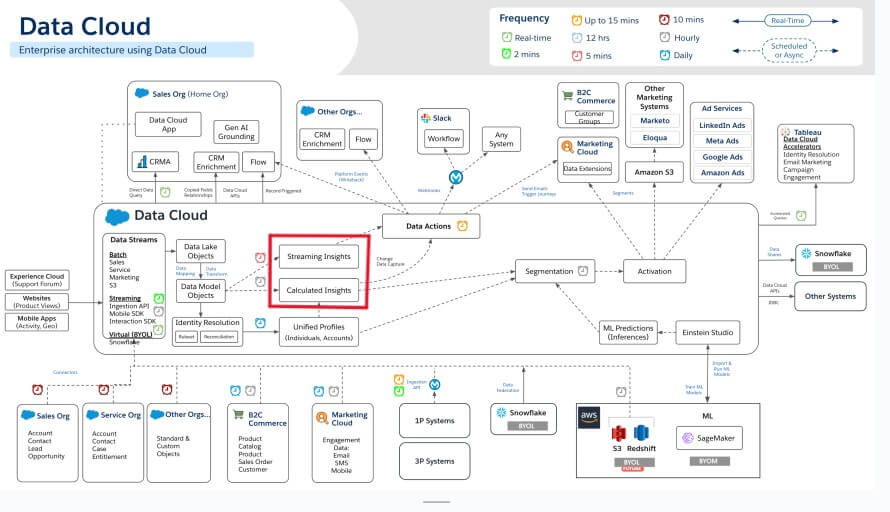
Types of Insights
- They are ideal for performing complex calculations on large data sets.
- For example we can calculate a customer’s ‘LifeTime Value’ based on their purchase history or we can find ‘Affinity Score’ for a product based on how well it fits the wants of a customer.
- Calculated insights are powerful, because they allow us to combine data from various sources and perform calculations on them.
- They are flexible and can be built using either SQL queries or a visual drag-and-drop builder.
-
Calculated Insights can further be used for :
- Segmentation: Grouping customers based on a calculated metric.
Eg : creating a segment of ‘High Vlue Customers’ based on their Lifetime Value - Activation: Sending Calculated metrics as attributes to other systems like Marketing Cloud for personalized messaging or Campaign.
- Segmentation: Grouping customers based on a calculated metric.
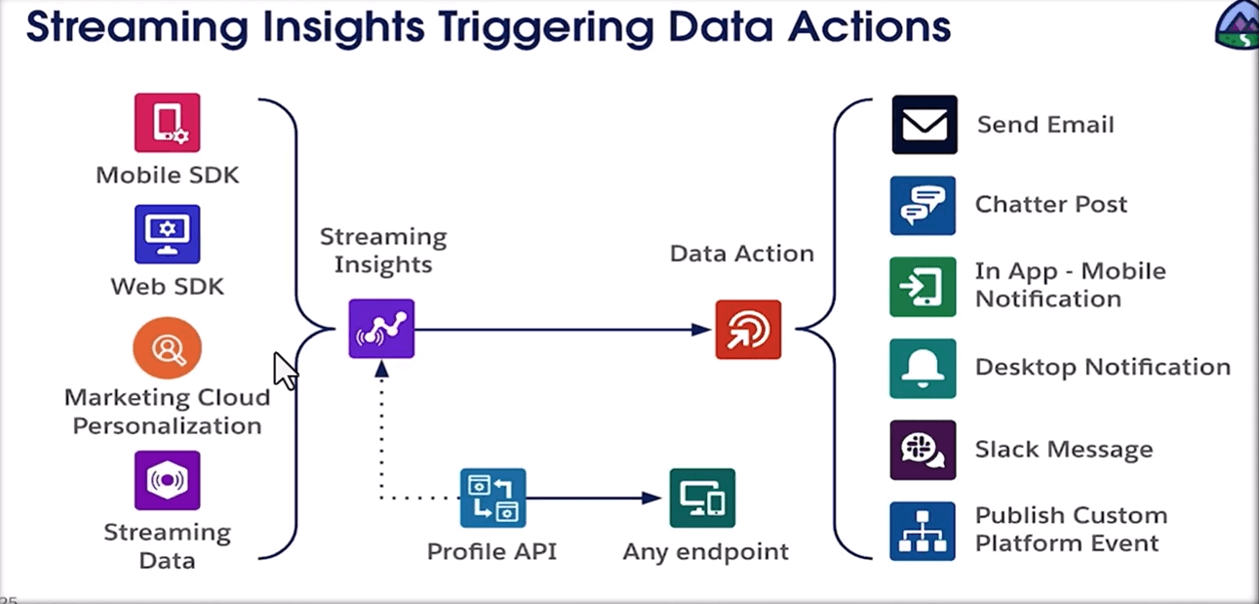
- They are ideal for real-time data analysis and personalization.
- They focus on analyzing real-time data streams coming into Data Cloud.
- They are useful for scenarios which require immediate action based on changing data patterns.
- For example : Detecting a sudden spike in website traffic or identifying an anomaly in device uses.
-
Streaming Insights can be used for :
- Trigger Actions : based on real-time data changes, we can create a service case when a device usage anomaly is detected.
- Sending Push Notification : We can send a push notification with coupon code to a customer, whenever his location is near your store, which increases his likelihood of entering in the store and making a purchase etc.
Steps to create Calculated Insights
Here we will try to create few calculated insights by joining the Reservations DMO and Unified Individual ccid DMO, so that we can calculate :
- Lifetime Total Reservations : how many reservations an Individual has made in his lifetime.
- Lifetime Value of the Customer : What is the total value/price of all the reservations made by an individual.
Step 1: Create the calculated insight
- Using the App Launcher, open the Data Cloud application.
- Click the Calculated Insights tab, then click New.
-
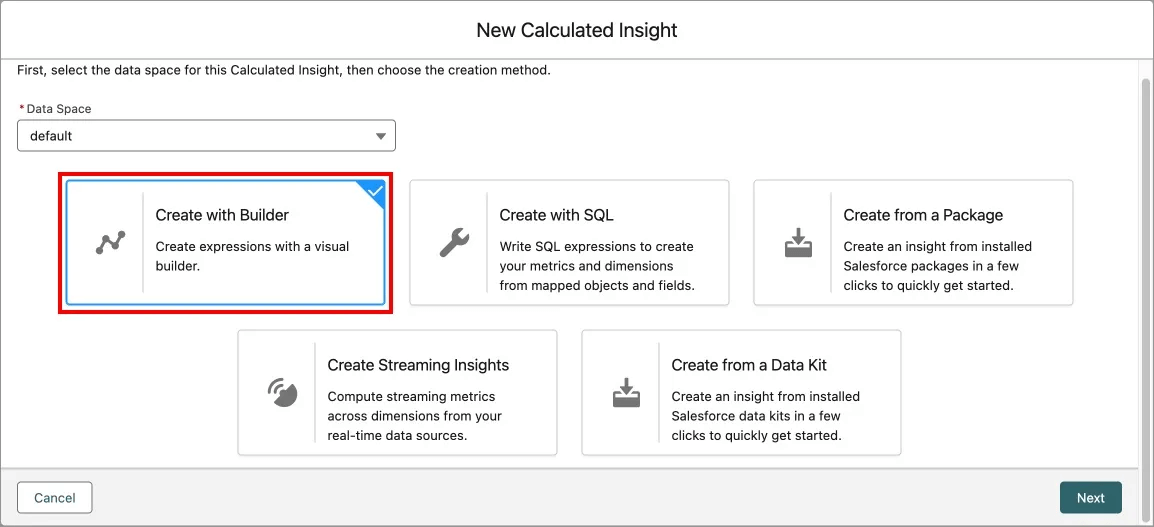
Select Create with Builder and click Next.
-
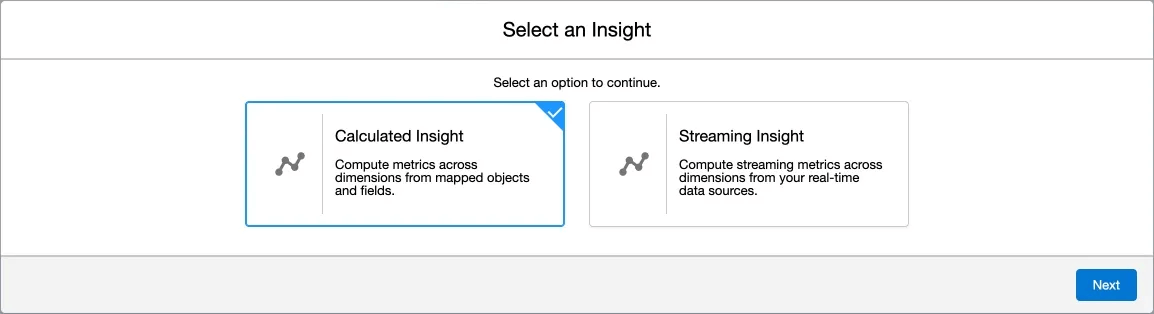
Keep Calculated Insight selected and click Next.
-
Click Select an Object& Select the Reservation Data Model Object, and click Next.
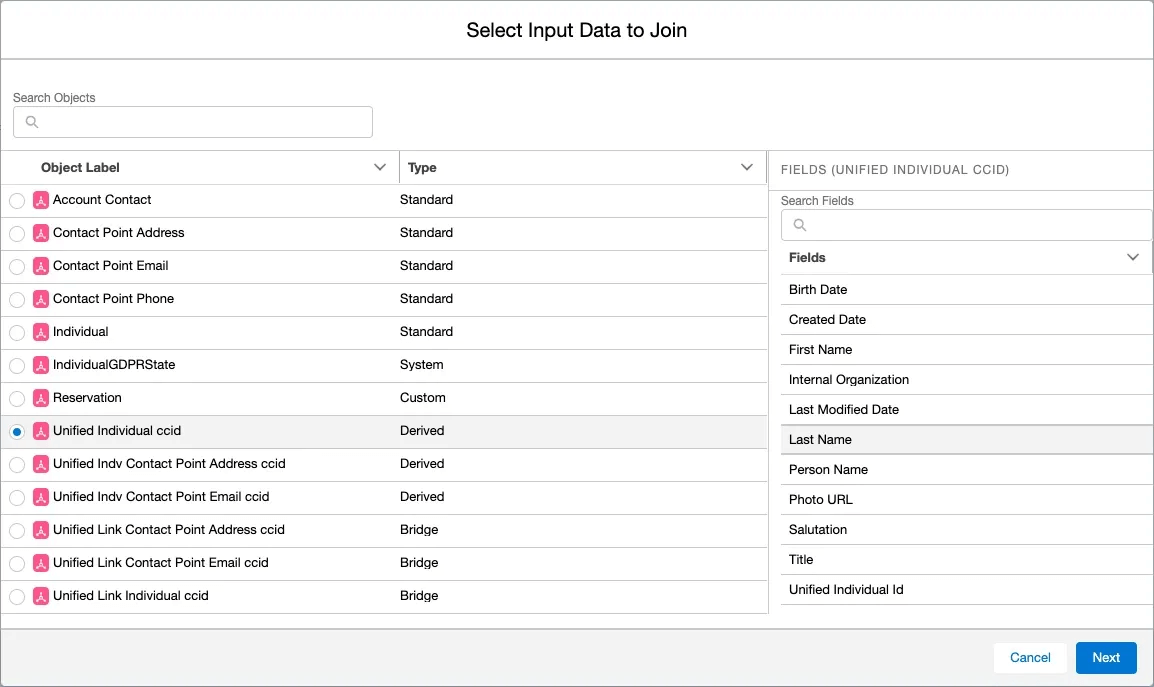
(Note : The Reservations DMO contains data about reservations made by contacts/guests)
-
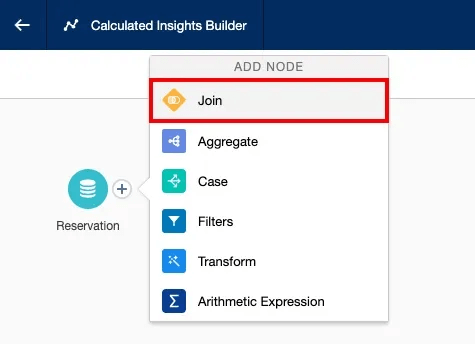
Click the Plus (+) icon next to the Reservation object and click Join.
-
Select the Plus (+) icon next to the Reservation object and click Join.
-
Select the Unified Individual CCID Data Model Object and click Next.
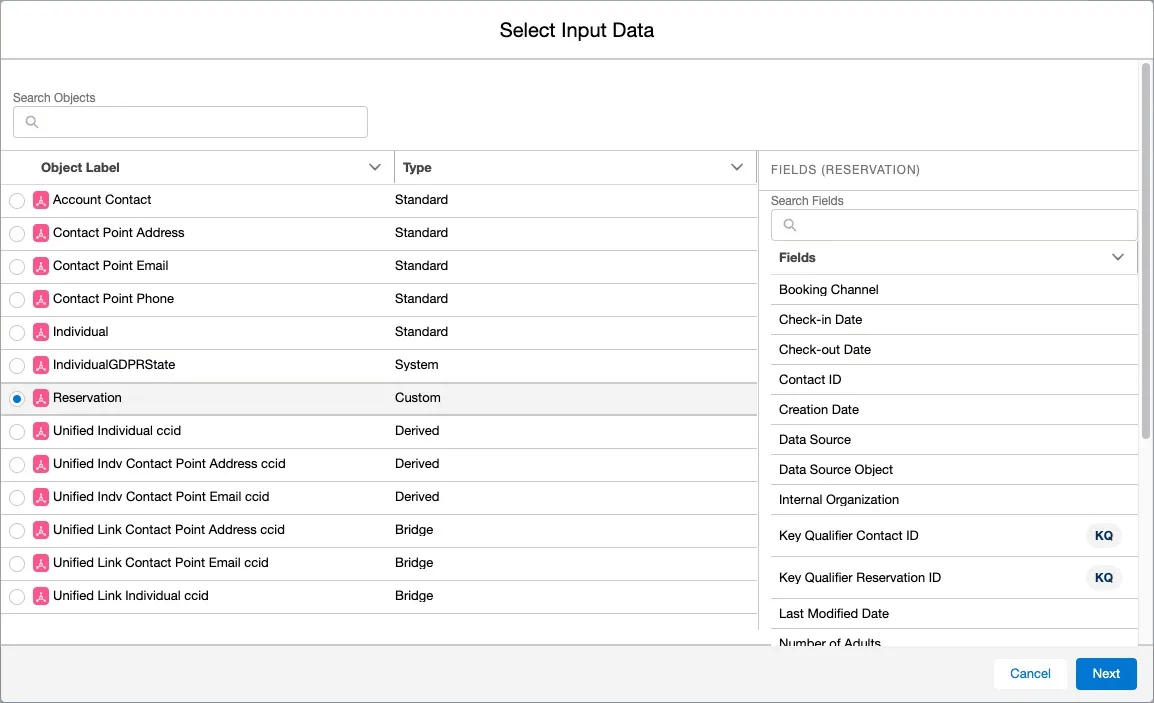
(Note : The Unified Individual ccid DMO contains unique data about each individual contact/guest who have made reservations)
-
Examine the joins that Data Cloud automatically created to link a reservation to a unified profile in the Unified Individual ccid object.
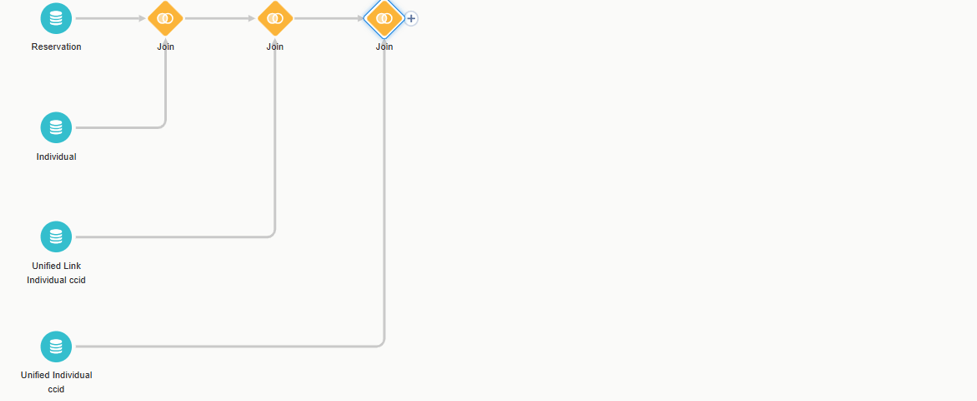
- The join to the Individual object provides guest information for the reservation. However, remember that the Individual object may include duplicate profiles.
- The join to the Unified Individual Link object provides a mapping between the Individual Id and Unified Individual Id.
- Equipped with the Unified Individual Id, we can join to the Unified Individual CCID object, which provides access to the unified customer profile.
-
Here is another diagram illustrating how tables are joined to connect a reservation to a unified individual:
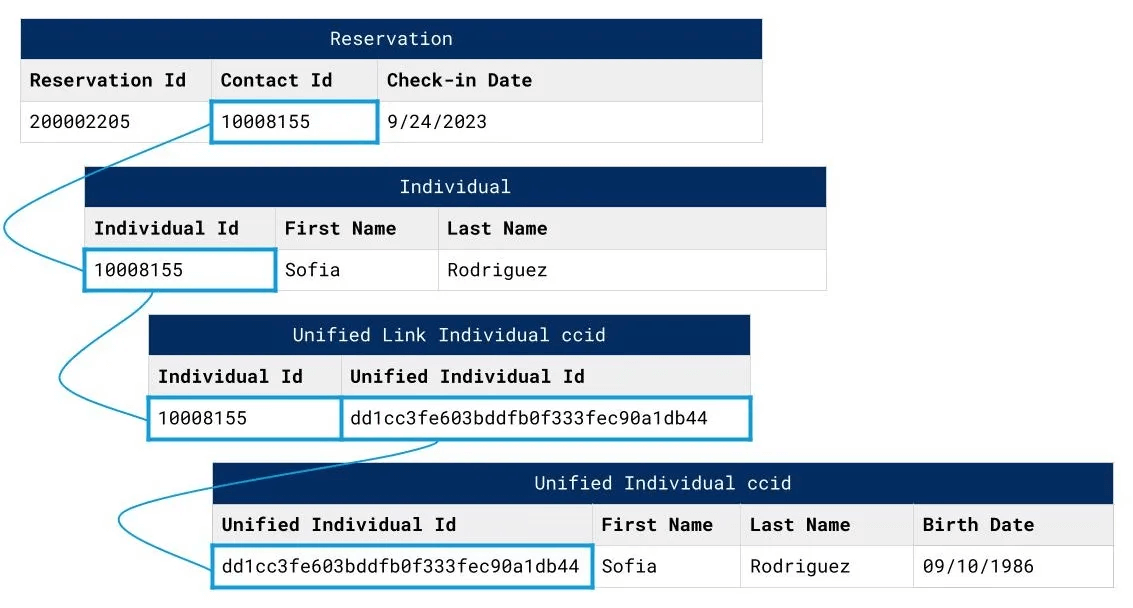
Joining reservations to the unified customer profile will allow you to aggregate data in a more accurate way. For example, you'll be able to calculate the lifetime value of a customer (total amount spent across all reservations), regardless of which profile was used for the reservation, or what system was used to make that reservation.
- Click Apply (bottom left of the screen).
Step 2: Create the Lifetime Reservations measure
With the objects and joins in place, you can now define the measures that you want to calculate. In this step, you will calculate the total number of reservations made by a customer (Lifetime Reservations).
-
Click the Plus (+) icon next to the last join on the right, and click Aggregate.
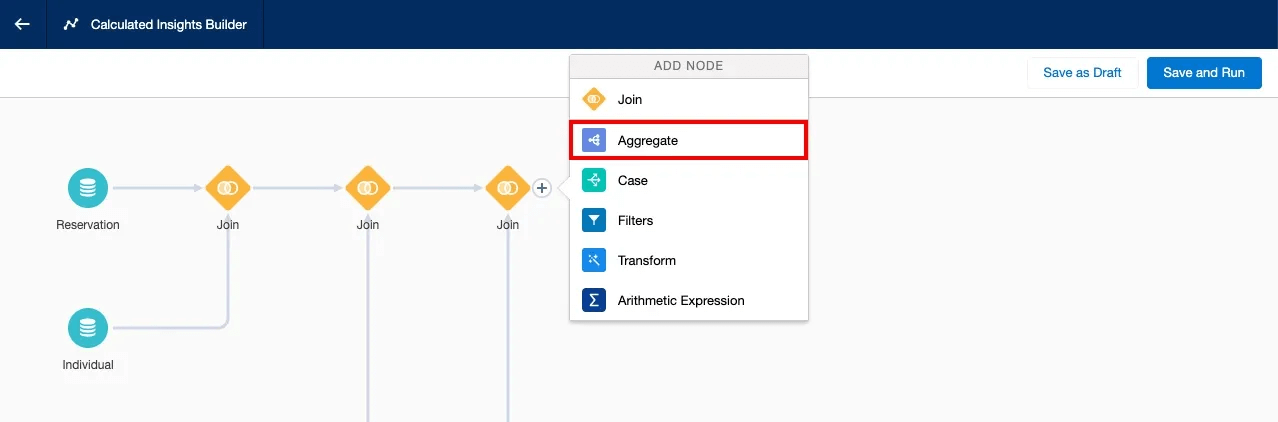
- Under Measures, click the + button.
- Under Metric Functions, select Count.
-
Select the Reservation Id field.
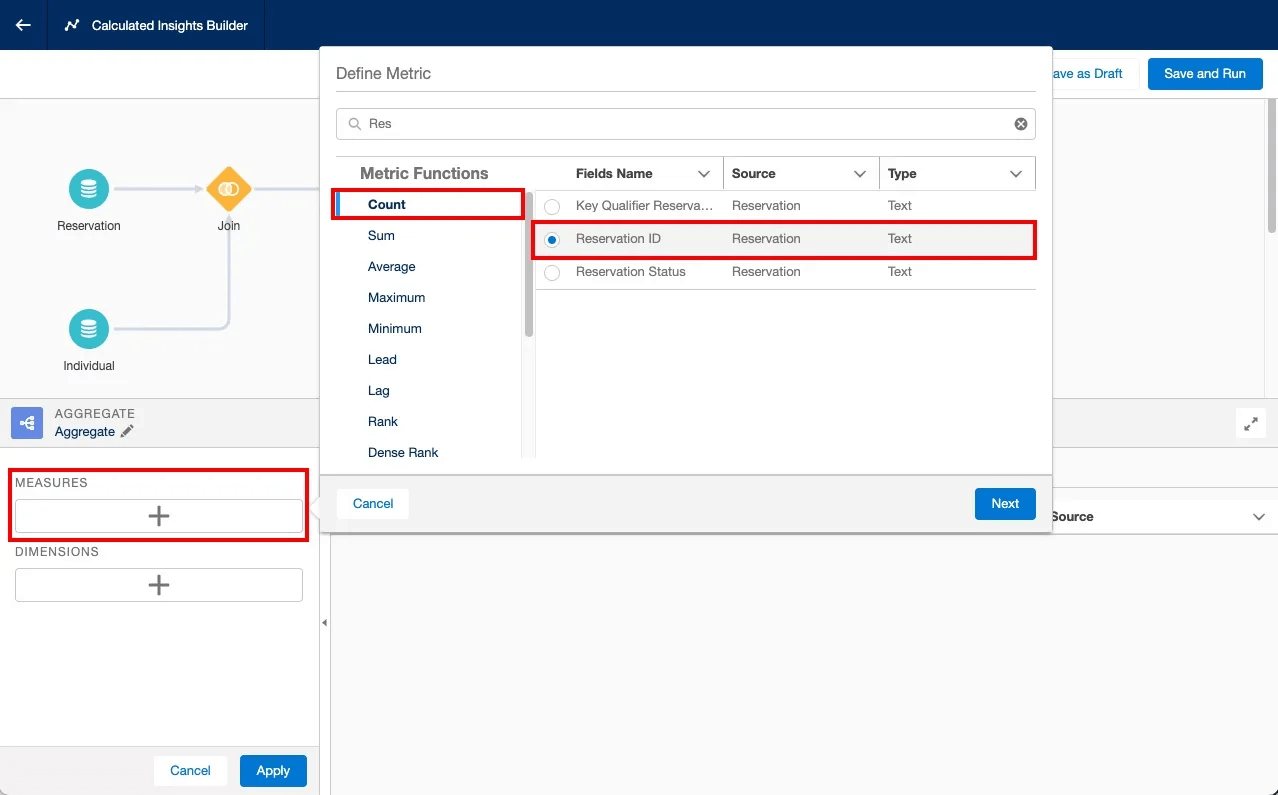
- ClickNext.
- Set the Metric Name to Lifetime Total Reservations and keep the default API name.
- Click Apply.
Step 3: Create the Lifetime Value measure
In this step, you will create a measure that calculates the customer lifetime value (total amount spent by a customer across all reservations).
- Under Measures, click the + button.
- Under Metric Functions, select Sum.
- Select the Total Price Field & Click Next.
- Set the Metric Name to Lifetime Value of the Customer and keep the default API name & Click Apply.
Step 4: Create the dimension
Finally, you'll create a dimension that tells Data Cloud to group the data by unified individual.
- Under Dimensions, click the + button.
-
Search for Unified Individual Id and select Unified Individual Id with the source Unified Individual CCID and click Next.
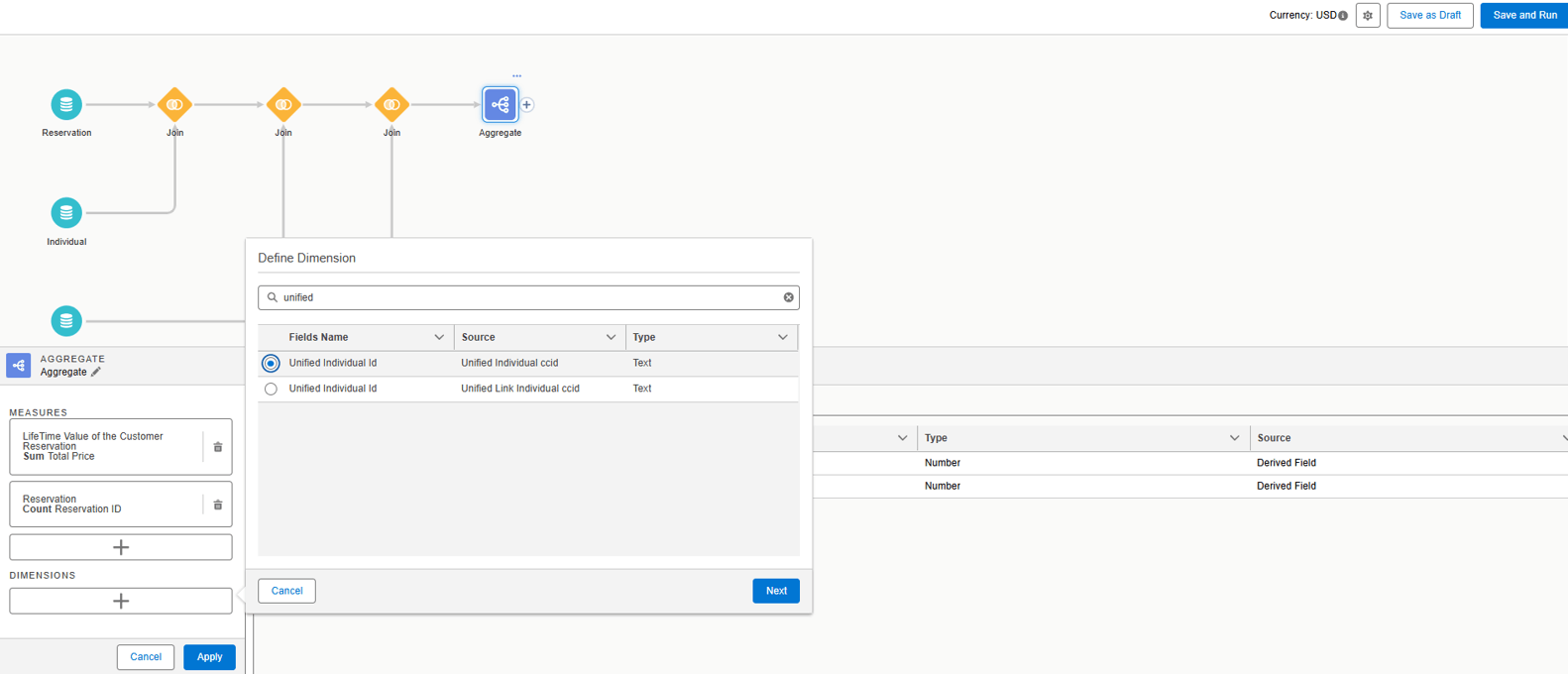
- Set the Dimension Name to Unified Individual Id, keep the default API name, and click Apply.
- Click Apply (bottom left of the screen) to apply changes to the Aggregate element.
Step 5: Save and run
- Click Save and Run(upper right corner of the Calculated Insights Builder).
- Set the Calculated Insight Name to Spend Profile By Guest and keep the default API name, click Next.
-
Click Publish Now(if it's not visible, click the arrow down button in the upper right corner).

-
Make sure that the status of your Calculated Insight is Pending.

- Now wait for some time for the Last Run Status to become Success.
Step 6: View the Calculated Insights from the Data Explorer
- Open Data Explorer tab.
-
Select Calculated Insights in Object and Spend Profile by Guest.
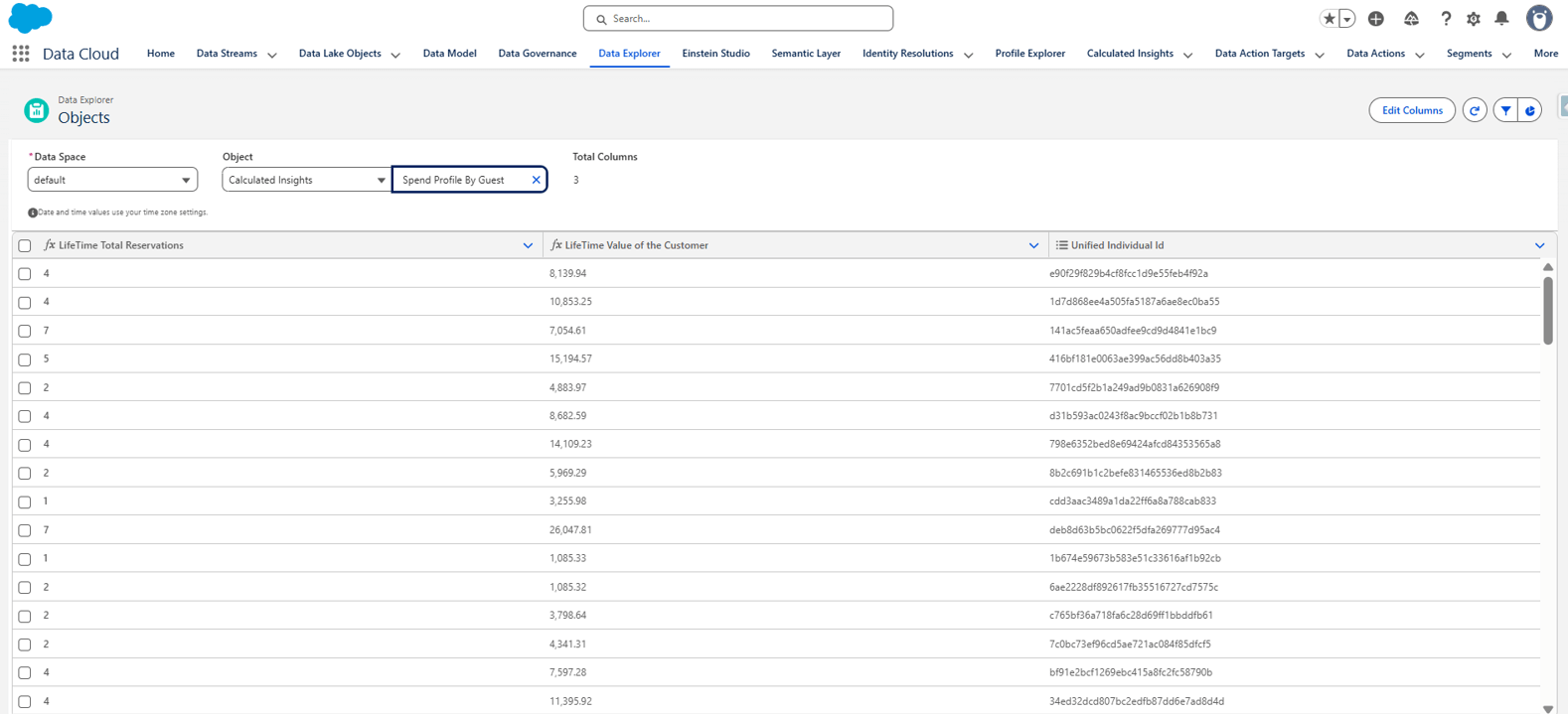
As we can see the calculated insights on the Individuals and reservations objects.
Conclusion
Calculated Insights in Salesforce Data Cloud enable organizations to transform raw data into meaningful, actionable metrics.
By following the above steps, you can efficiently define calculations, and generate insights that help in better decision-making.
Have questions? Learn more about our services at support@astreait.com or visit astreait.com to schedule a consultation.