Why Billing Still Slows Down and What Many Companies Miss
Imagine a deal has just been closed, and everything looks complete and accurate in Salesforce. However, when it is time to create the invoice in Xero, important information is missing. These gaps appear when the systems are not connected, so data has to be entered manually, updated separately by different teams, and shared through emails instead of being managed in a single, consistent process.
The impact of missing data often becomes clear at the billing stage. For example, the negotiated discount exists only in a Salesforce opportunity field that no one in the finance team can see, so the invoice cannot be created immediately. The finance team has to reach out to sales, confirm the agreed terms, and manually enter the data into Xero, which slows down billing by shifting the focus from issuing invoices to coordinating and clarifying information. In addition, re-entered information also increases the likelihood of typos due to the human factor. These errors can lead to incorrect invoice data and require it to be corrected and resent, which in turn wastes a significant amount of time and increases operational costs.
As a result, billing becomes slower and less predictable. What should take minutes can turn into hours or even days, directly impacting revenue flow. These delays occur because data is not synchronized between systems. According to McKinsey, data is embedded in every decision, interaction, and process. This highlights how even small gaps or inaccuracies can disrupt operations and impact business outcomes.
The good news is that there is a practical way to solve this. Connecting Salesforce and Xero helps keep customer and financial details consistent and up to date across both systems. Many companies today rely on Salesforce accounting software to bring financial processes closer to sales operations and reduce manual coordination. As a result, information flows automatically between them, reducing errors and making the billing process more reliable and predictable.
In this article, we’ll look at how missing data slows the billing process, what businesses can do to fix it, how to set up a Salesforce Xero Integration, and the best practices to keep systems aligned and billing predictable.
Common Missing Data Issues That Impact Billing
Missing or incomplete data between Salesforce and Xero is one of the main reasons why billing becomes slow, stressful, and unpredictable. Even small gaps in customer or financial information can stop the process completely and create delays across the entire revenue cycle. The most common missing or incomplete data points that affect billing include:
- Billing and legal entity details. Even when customer data is accurate in Salesforce, missing or outdated billing addresses, company names, or tax information in Xero can prevent invoices from being issued. As a result, the process is paused until the details are verified and updated in Xero, which slows the billing cycle and increases operational friction.
- Pricing and discount alignment. Negotiated terms may exist in Salesforce, but are not always reflected in financial systems. As a result, pricing must be validated manually, which increases the risk of delays and disputes.
- Payment terms and contract data. Incorrect billing schedules, unclear subscription terms, or missing renewal dates disrupt automated invoicing. This leads to manual contract reviews and reduces predictability.
- Customer billing contacts. If the correct contact is not updated or transferred, invoices may be sent to the wrong person or delayed entirely. This affects payment timelines and creates additional back-and-forth between sales and finance.
- Manual data entry errors. Even when all required fields are present, manual input can still introduce inaccuracies such as typos, incorrect discounts, or inconsistent contract details. These errors are harder to detect because the data appears complete, yet they still slow billing and lead to corrections and payment delays.
According to DocuClipper, manual data entry can have an error rate of around 4%. This may sound small, but imagine a company processing hundreds or even thousands of invoices every month. Even a small percentage quickly turns into dozens of issues, creating extra work, disrupting financial processes, and putting pressure on both teams and client relationships.
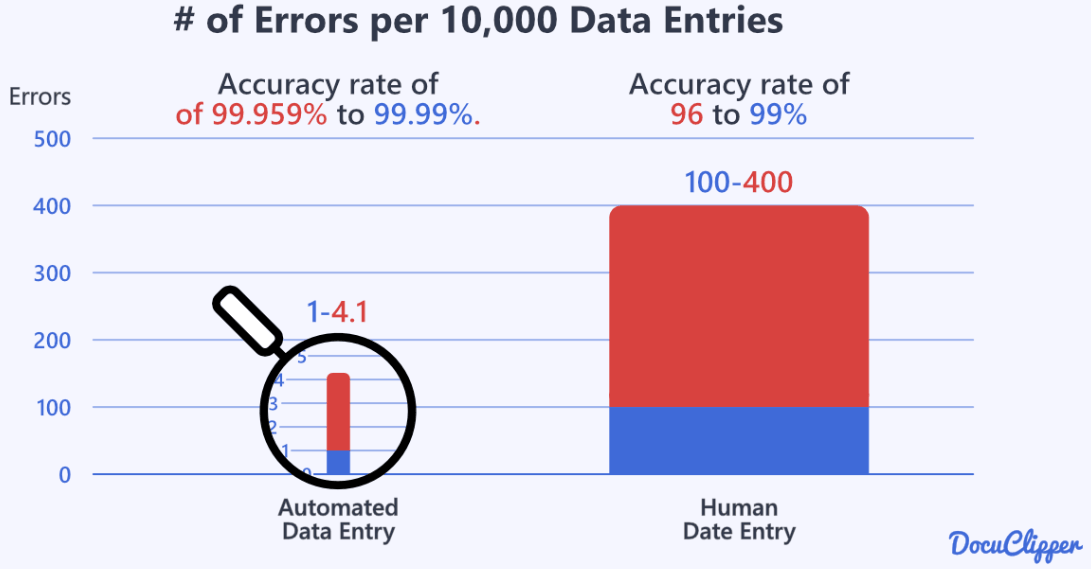
Image source: DocuClipper
Over time, these small gaps turn into a constant source of stress. Teams spend more time fixing problems than creating value. What should take minutes can turn into hours or even days. This is why many organizations realize that keeping Salesforce and Xero data aligned is a critical step toward faster and more reliable billing.
How Businesses Solve Salesforce Xero Data Gaps Today
Once companies realize how much disconnected systems slow down billing processes, they start looking for ways to fix it. There is no single path, and most specialists try several options before finding the right solution. The most common approaches include:
- Manual processes. Sales teams export data from Salesforce, and finance teams re-enter it in Xero. This may work in the early stages, but as the business grows, it becomes slower, more stressful, and difficult to keep under control.
- Spreadsheets. Some teams use them to keep everything in one place. While this adds structure, it still depends on manual updates and does not provide real-time visibility.
- Custom integrations. These solutions offer flexibility but require time, technical skills, budget, and ongoing support.
- Pre-built connectors. Today, many companies choose this approach because it enables automatic data synchronization with minimal time and resource investment.
Here is a simple overview of the most common approaches companies use today:
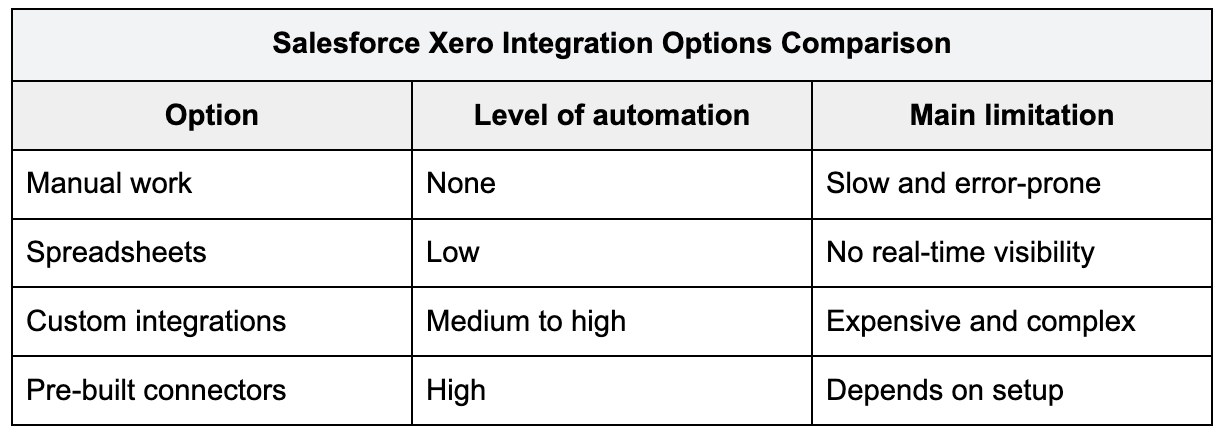
Among these options, connectors have become a preferred choice for many businesses because they balance automation, flexibility, and ease of implementation.
Since we are focusing on connecting Salesforce with Xero, it is important to define the main problems this type of connector should solve. The key priorities include:
- Making sure invoices in Xero are created based on the final deal terms in Salesforce, without delays or manual data re-entry.
- Giving both sales and finance real-time visibility into invoice and payment status to reduce confusion and constant follow-ups.
- Reducing time spent waiting for updates, clarifications, and information shared through emails or internal messages between teams.
- Preventing data inconsistencies and errors that lead to disputes, reissued invoices, and delayed payments.
- Reducing operational and financial risks caused by delayed, incomplete, or incorrect billing data, while supporting faster and more confident decision-making.
One option available on AppExchange to address these challenges is the Xero and Salesforce integration with Breadwinner. It is designed to automate invoice creation and keep customer and financial data aligned between Salesforce and Xero. This gives both sales and finance clear, up-to-date visibility into billing and payments, helping reduce delays, prevent errors, and minimize manual coordination. As a result, companies can improve billing accuracy, accelerate payment cycles, and build a more predictable and reliable revenue process.
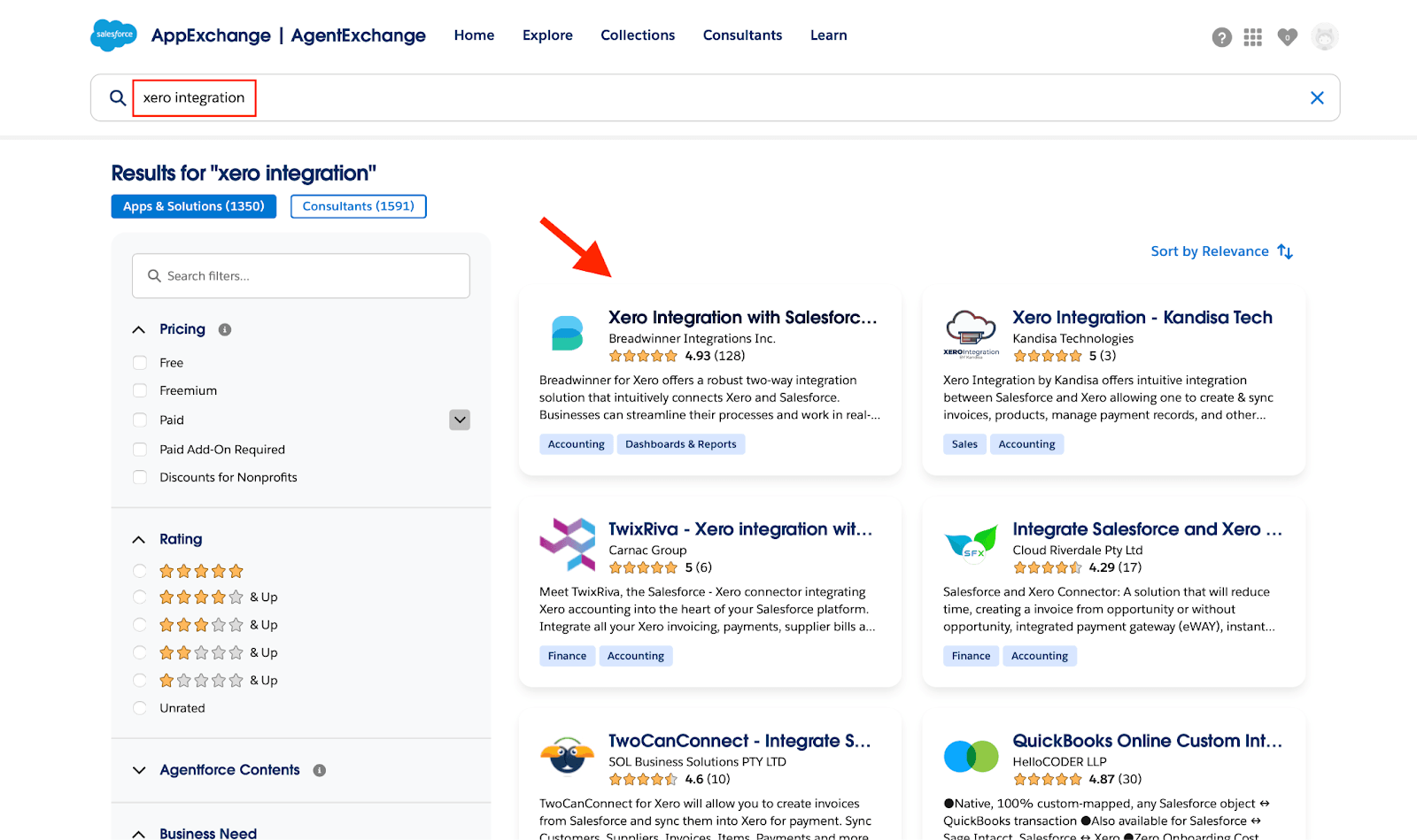
Xero Integration on AppExchange
In the next section, we will walk through the steps to set up a Salesforce Xero connector, using a solution from Breadwinner as an example.
A Simple Step-by-Step Salesforce Xero Integration Guide
For many teams, the biggest worry is that integration will be complicated. In practice, most modern connectors are designed to make setup simple and manageable, even for non-technical users. Below is a step-by-step guide showing how Salesforce and Xero can be connected.
Step 1: Install the Salesforce Xero Connector
The first step is to install a Salesforce and Xero connector. Open the connector’s AppExchange listing. From there, click the “Get It Now” button and choose the environment where you want to install the app. This usually takes only a few minutes. You can also select the “Try It” option if you want to test the connector first in a sandbox before installing it in your production org.
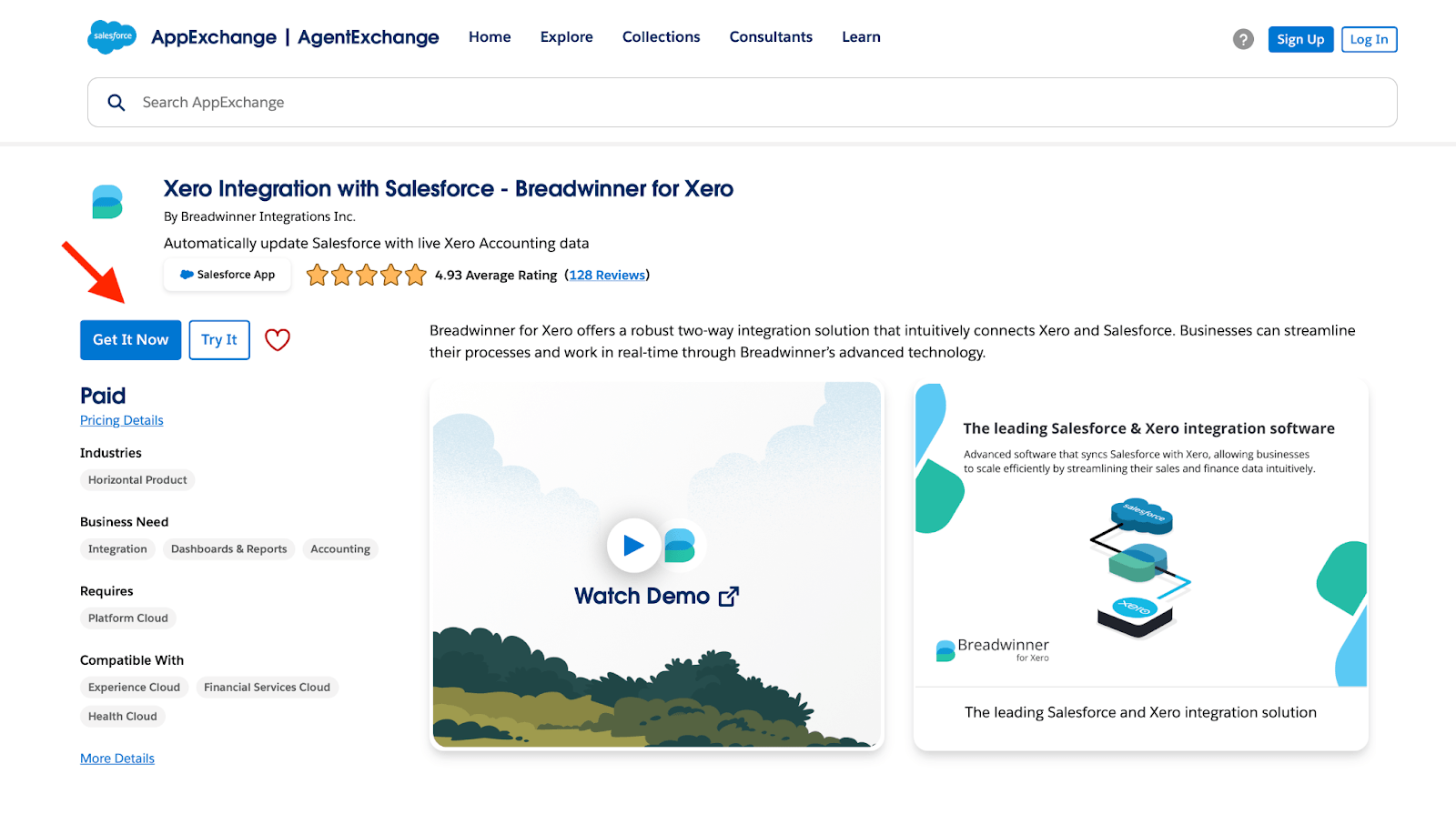
Installing a Salesforce and Xero connector from the AppExchange
After that, Salesforce will guide you through the installation steps. In most cases, it is recommended to install the connector for admins only. This allows your team to configure and test the integration before giving access to other users.
Step 2: Connect Salesforce with Xero
After the installation is complete, open the App Launcher in your Salesforce organization. Search for the Breadwinner app and open it. Inside the app, go to the Breadwinner tab and click “Connect to Xero.” Then sign in to your Xero account and approve access. Once this is done, Salesforce and Xero will be securely connected and ready to sync data.
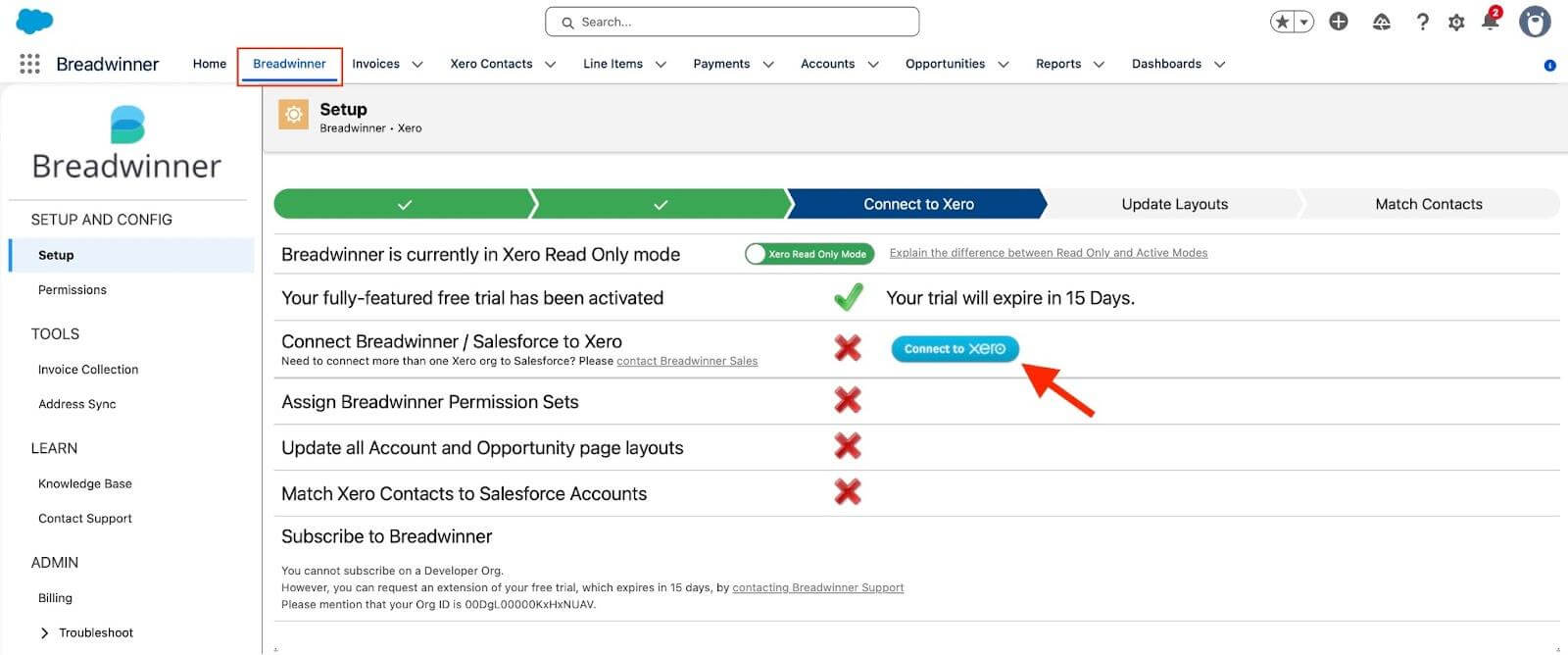
Connecting Salesforce and Xero inside the Breadwinner app
Step 3: Match Your Customer Data
Next, click ‘Preview Account Match for Customers’ and follow the instructions. The system will automatically compare your Xero customers with Salesforce accounts and suggest matches.
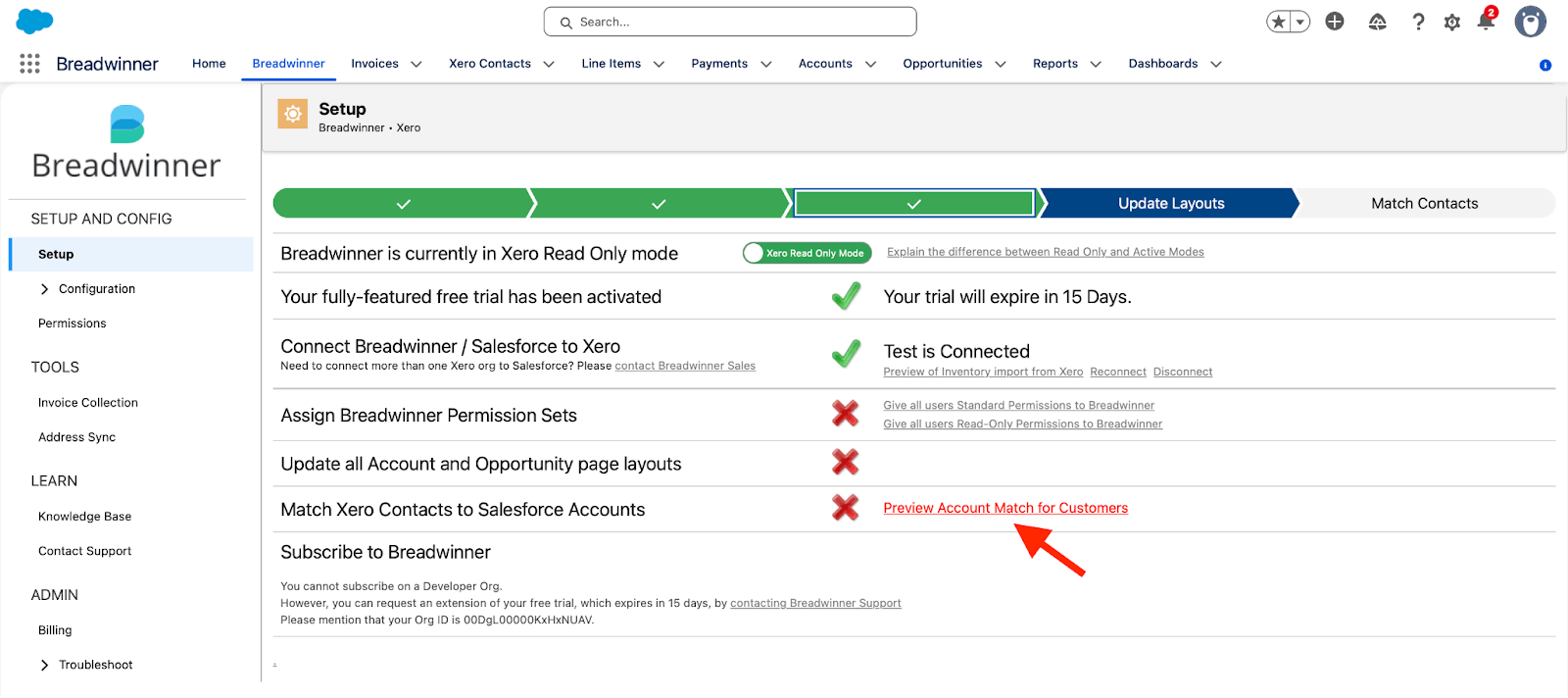
Match Xero Contacts to SF Accounts
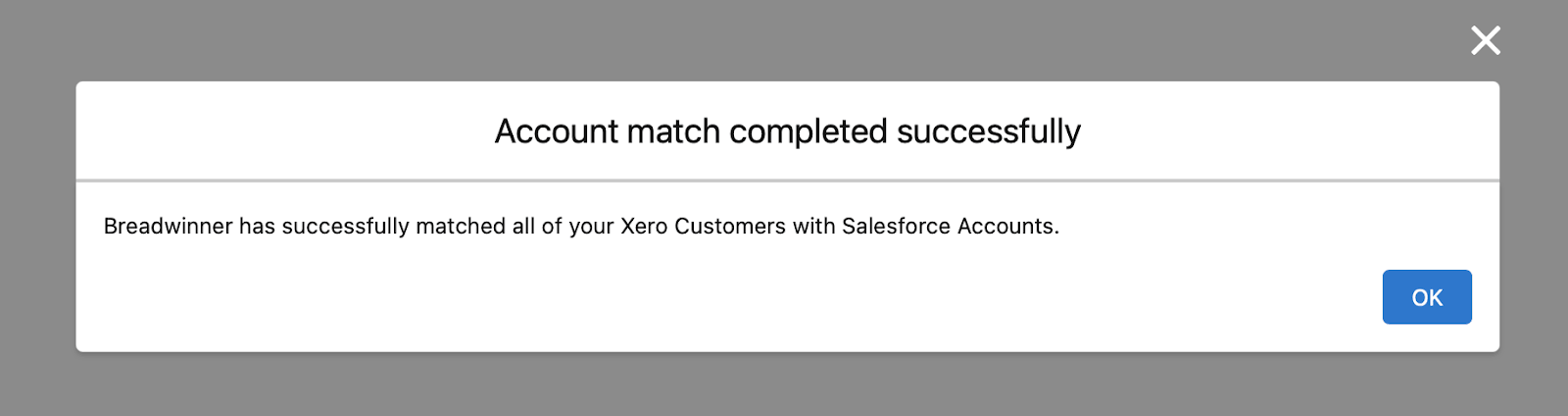
After that, the matching is completed in just a few seconds, and your customer records are aligned across both platforms.
Step 4: Assign Permissions
Once the data is matched, you can set permissions to control who can access the integration.
The connector provides several permission sets that control different levels of access: Admin, Operations, Full, and Read-Only. These determine what users can see and manage within the integration.
There are two main ways to assign permissions:
- Setup page UI, assign permission sets directly from the setup interface.
- Permissions tab, assign permission sets through the Permissions tab available in the configuration section.
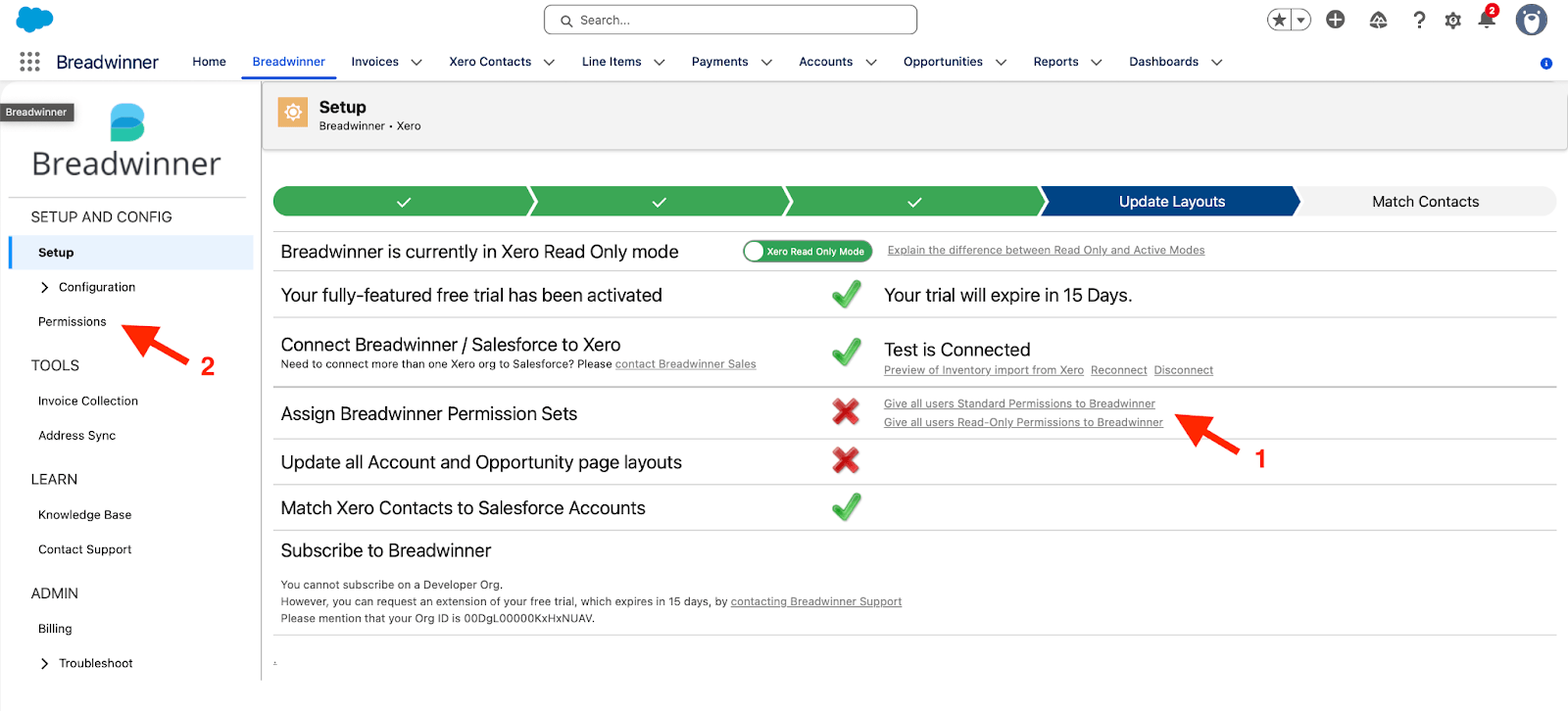
Assign Permissions
Every Salesforce user who needs access to the integration must have one of these permission sets assigned.
Step 5: Update Page Layouts
Click “Update all Account and Opportunity page layouts” in the setup guide and follow the prompts. This helps teams see financial information in one place.
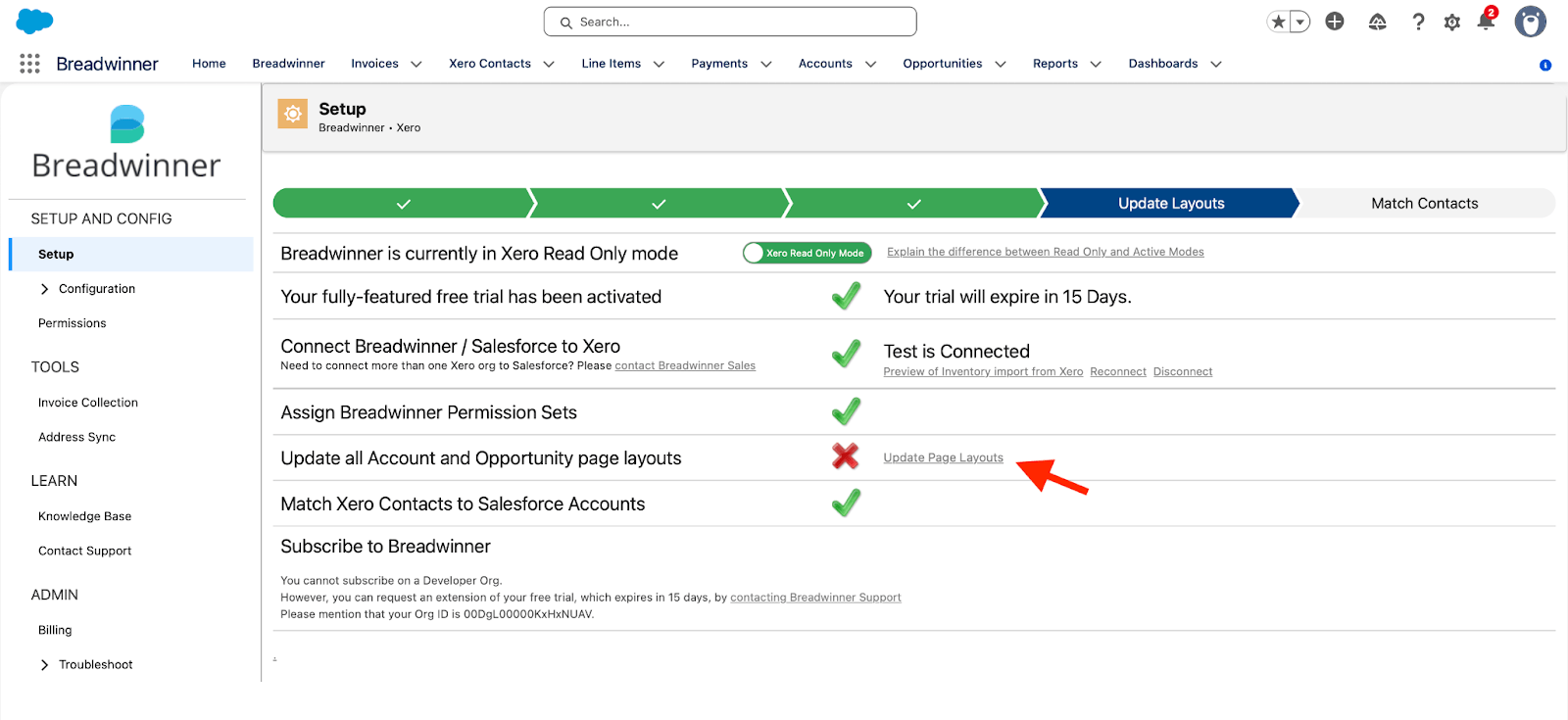
Update all Account and Opportunity page layouts
Step 6: Test the Salesforce Xero Integration with Your First Invoice
Now that the setup is complete, it’s time to see how everything works in real life. The easiest way to do this is to create your first Xero invoice.
Go to any Account in Salesforce and scroll to the Invoices section. Click the “New” button to create a Xero invoice directly from Salesforce. Fill in the required details and save it.
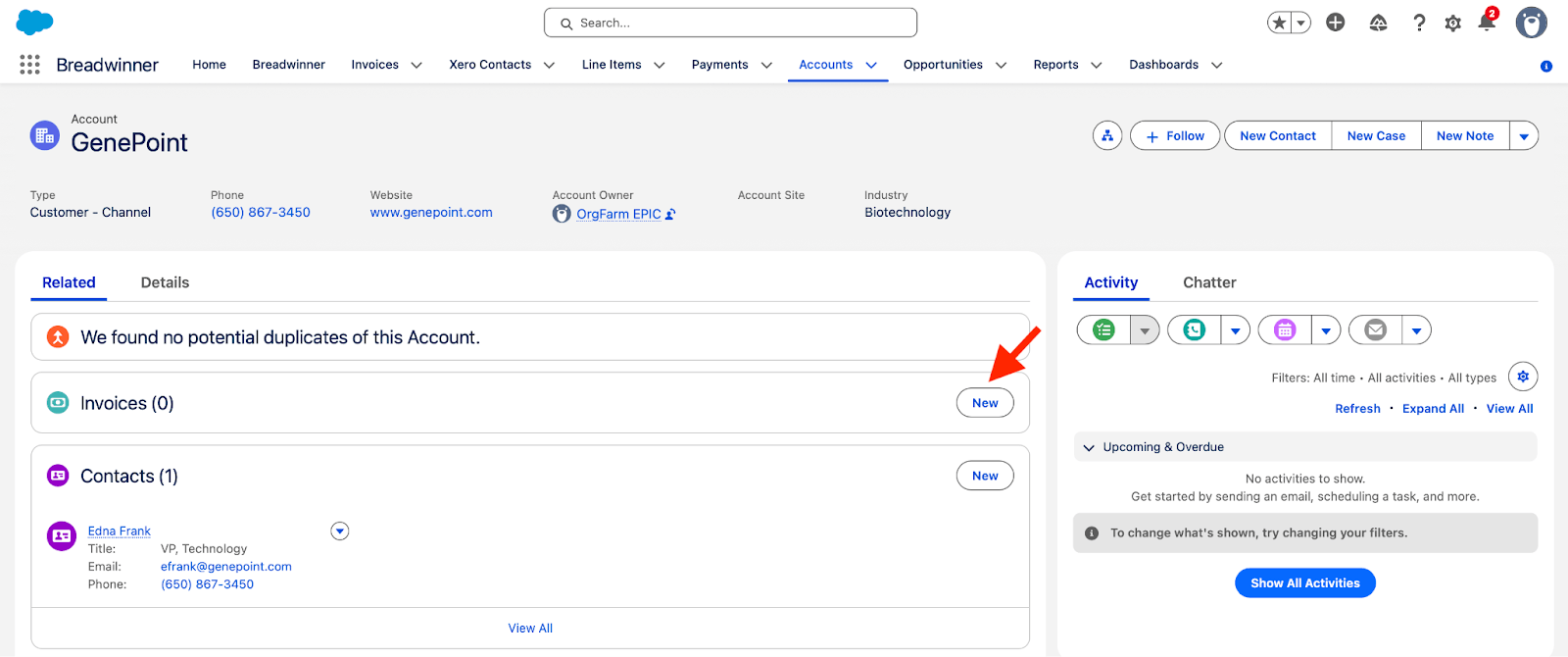
Creating your first Invoice directly from Salesforce
Once the Invoice is created, it will be automatically sent to Xero.
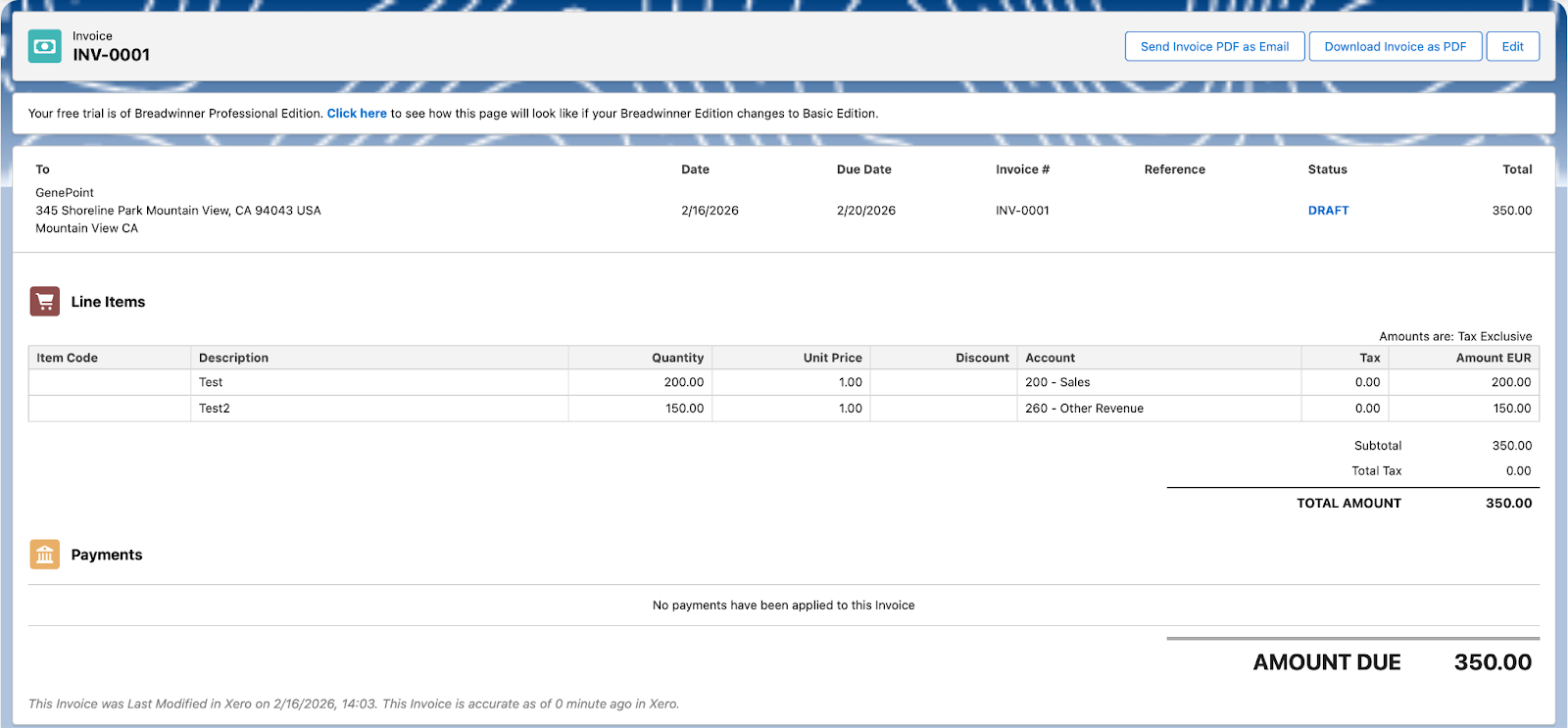
Created Invoice in Salesforce
You can then check in Xero that the Invoice appears correctly and that any status or payment updates are synced back to Salesforce. This confirms that the integration is working correctly and billing data is synced in real time.
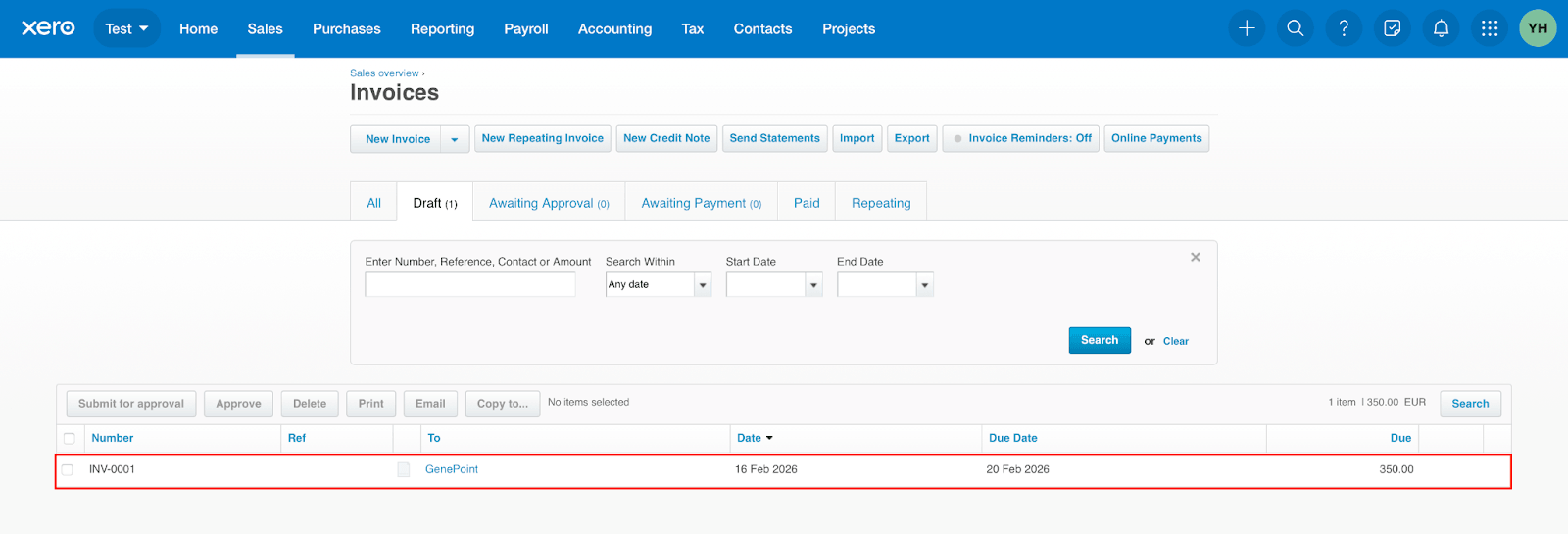
Invoice synced from Salesforce to Xero
At this point, the “Xero Integration with Salesforce” application is fully set up and ready to use. Your teams can now start working with synchronized customer, invoice, and payment data in a single environment. The next step is to focus on long-term scalability and stability. In the following section, we will look at key best practices that help to get the most value from this integration.
Best Practices for Working with a Salesforce Xero Connector
To get the most value from a Salesforce and Xero connector, it helps to follow a few simple principles.
1. Start simple. Many teams try to automate everything at once, but the best results come from beginning with core processes like customer data and invoicing. Once this works smoothly, it is easier to expand automation.
2. Keep your data clean. Accurate customer and deal information in Salesforce leads to better invoices and fewer errors in Xero. Integration tools work with the data they receive, so clean and accurate information is essential. According to Gartner, poor data quality costs organizations millions of dollars every year, which is why strong data foundations are critical for any successful integration.
3. Involve both sales and finance early. Integration works best when these teams align on billing processes and agree on what information is most important.
4. Review and adjust regularly. Business processes change over time. A quick check every few months helps keep the integration aligned with real workflows.
5. Focus on security and access. Make sure the right people can create and manage invoices, while others have visibility without unnecessary permissions.
Salesforce Xero Integration With Agentforce
As Salesforce expands its AI and automation capabilities, it is also useful to understand how integrations work within the Agentforce ecosystem. This helps businesses move beyond basic data synchronization and build more connected and efficient processes.
For example, Breadwinner offers a dedicated solution for leveraging Agentforce capabilities in the context of Salesforce and Xero integration.
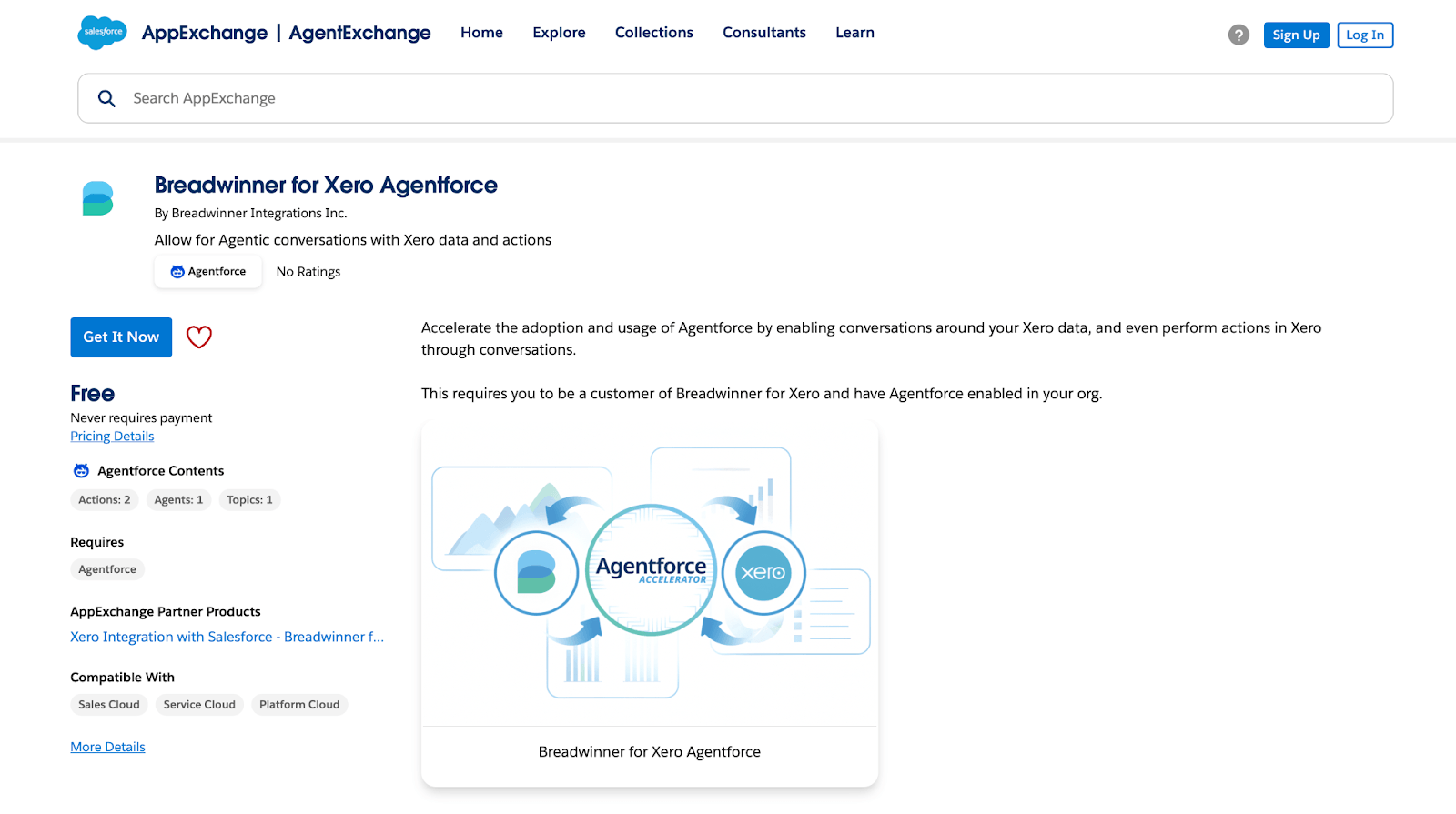
Breadwinner for Xero Agentforce on AgentExchange
This option allows businesses to connect Salesforce with Xero while working within the Agentforce environment. It supports automation and enables the use of intelligent agents to help manage financial processes and improve visibility across teams.
Final Thoughts: Why Connected Systems Matter for Modern Billing Processes
In this article, we explored why billing processes often slow down when Salesforce and Xero are not connected and how missing or inconsistent data creates unnecessary delays. When teams manage information separately and rely on manual updates, billing becomes slower, less predictable, and prone to errors.
We also looked at how integrations can address these issues by keeping data aligned between systems and reducing manual work during the billing process. To illustrate this, we walked through an example of how Breadwinner connects Salesforce with Xero, showing how prebuilt connectors from AppExchange synchronize data and support more reliable billing workflows.
Today, connected systems are increasingly becoming the standard rather than an advantage. As businesses grow, relying on disconnected tools and manual coordination becomes harder to manage. Integrations help teams spend less time fixing data issues and more time focusing on their core responsibilities, which leads to a faster and more reliable billing process.
For any queries please reach out to support@astreait.com