ServiceNow Connect is a Salesforce application that enables organizations to seamlessly synchronize data between Salesforce and ServiceNow. The app supports bidirectional data sync, allowing users to keep records consistent across both platforms with minimal manual effort. It provides flexible configuration options for object mapping, field mapping, sync direction, and scheduling, making it suitable for various business use cases.
With ServiceNow Connect, users can sync data in real time or in batches, automate periodic syncs, and even sync individual records directly from record pages.
Features of ServiceNow Connect
- Supports Salesforce to ServiceNow, ServiceNow to Salesforce, and bidirectional data sync
- Allows mapping of Salesforce objects with ServiceNow tables
- Field-level mapping between Salesforce and ServiceNow
- Configurable Data Sync Settings (sync all records or from a specific date)
- Manual sync of individual records using Quick Actions
- Batch-based data synchronization for large data volumes
- Option to schedule batch jobs (Daily, Weekly, Monthly)
- Detailed error logs and batch error tracking
- Agentforce-powered ServiceNow Connect Agent for guided setup and FAQs
Steps for Using ServiceNow Connect
Step 1: Install the App
Install ServiceNow Connect from AppExchange and complete the standard installation steps.
https://appexchange.salesforce.com/appxListingDetail?listingId=b0981ce3-8049-49dd-a8fa-cd7c6304c3a2
Step 2: Update Named Credentials
The package includes pre-configured Named Credentials, External Auth Identity Provider & External Credentials. Users only need to update them with their ServiceNow instance details and authenticate the connection.
Step 3: Configure Data Sync Settings
From the Data Sync Settings tab:
- Select the Master System (Salesforce or ServiceNow)
- Choose whether to sync all records or sync from a specific date to the current date
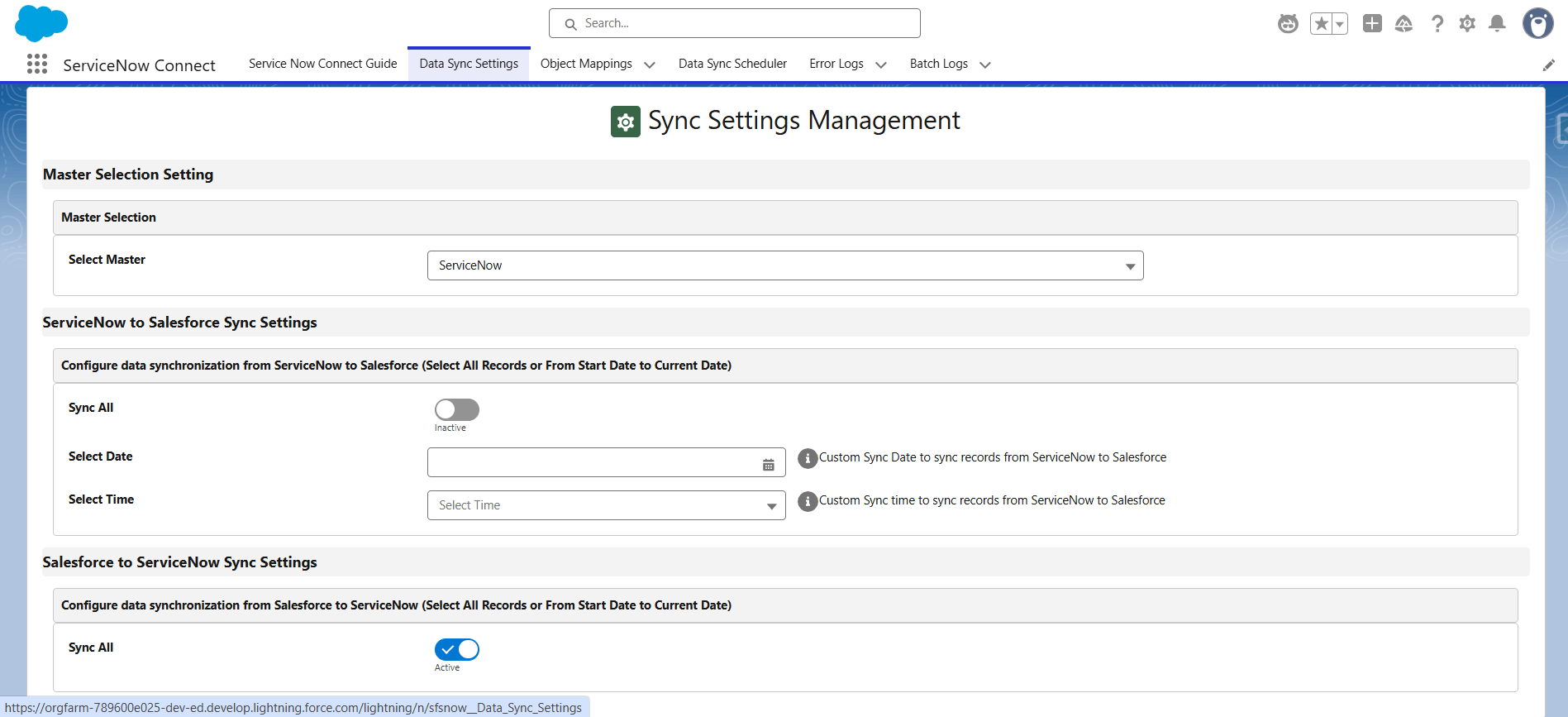
Step 4: Configure Object & Field Mapping
- Select the Salesforce object
- Choose the sync direction (Inbound, Outbound, or Bidirectional)
- Select the ServiceNow table
- Define the External ID
- Map Salesforce fields to ServiceNow fields
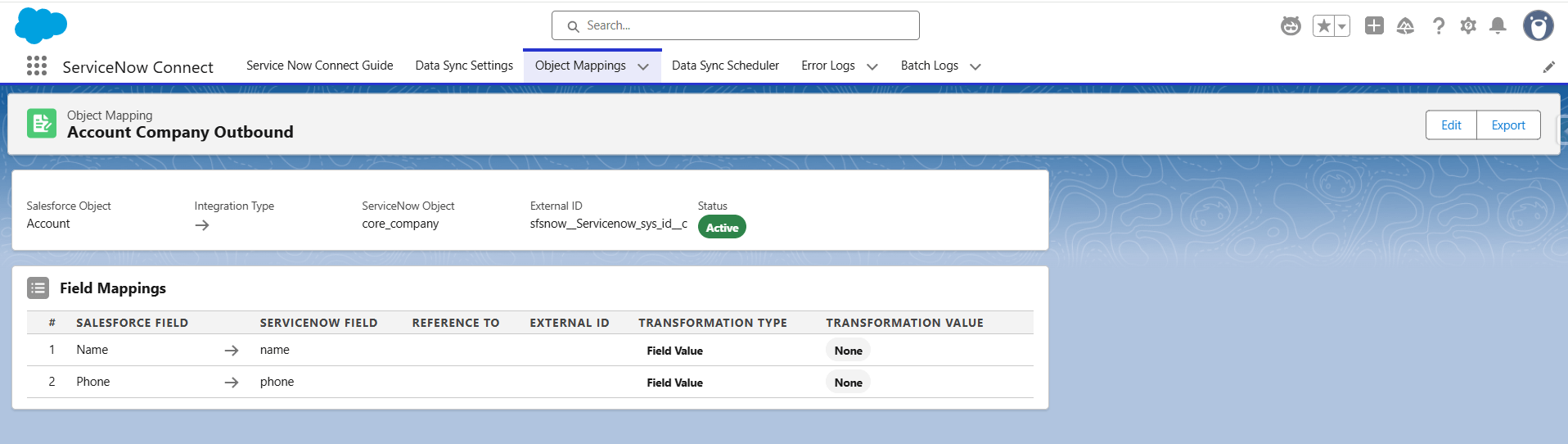
Step 5: Run or Schedule Data Sync
- Run batch jobs manually from the Data Sync Scheduler
- Or schedule jobs using the Schedule Batch tab by defining frequency and time
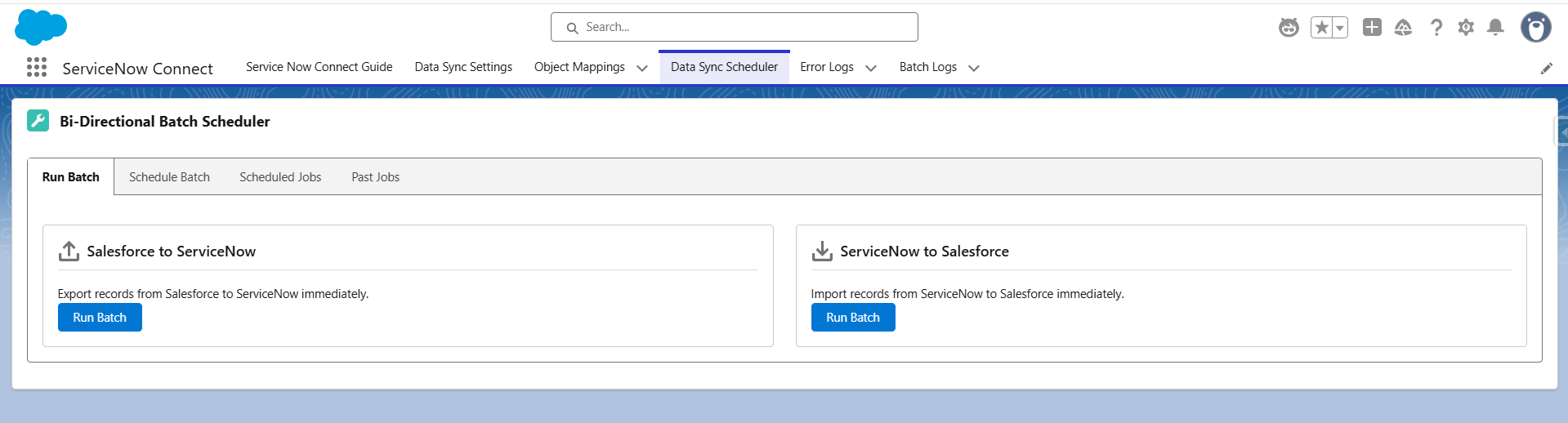
Step 6: Manual Record Sync
Users can sync a specific record directly from the record page by clicking:
- Sync Salesforce to ServiceNow, or
- Sync ServiceNow to Salesforce
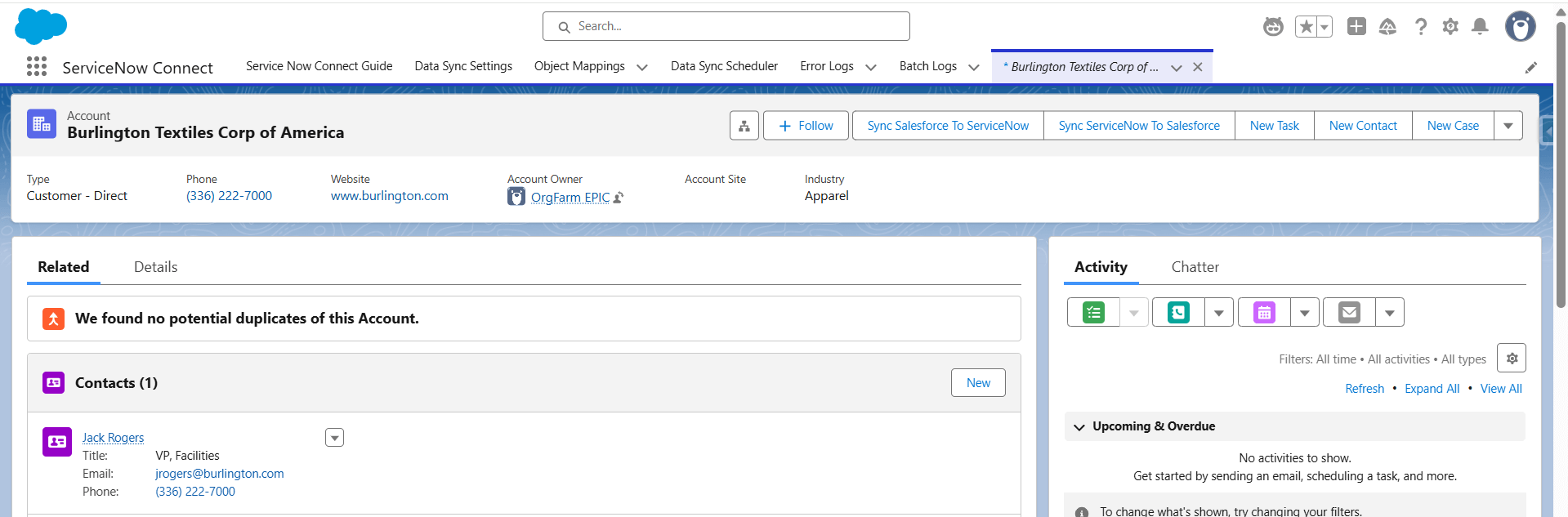
Step 7: Monitor Jobs and Errors
- View scheduled jobs in Schedule Jobs tab
- Check batch execution history in Past Jobs
- Review batch-related issues in Batch Error Records
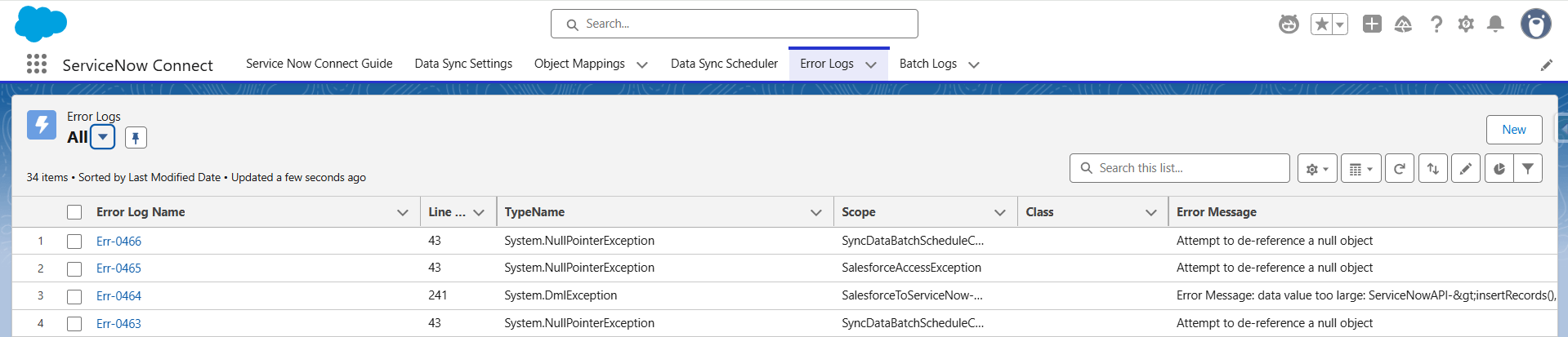
- View other application errors in Error Logs

Agentforce Support (ServiceNow Connect Agent)
The ServiceNow Connect Agent helps users:
- Perform initial configuration
- Create data sync settings and object mappings
- Run or schedule batch jobs
- Sync individual records
- Get answers to FAQs related to the app
Limitations
- Data sync is governed by Salesforce and ServiceNow API limits
- Large data volumes should be synced using batch jobs
- Proper permissions are required to access External Credentials and Agents
Pricing
The price for the app is as below:
- $2,000 USD/company/year
- Free trial available for 15 days
Summary
ServiceNow Connect is a powerful integration tool that simplifies data synchronization between Salesforce and ServiceNow. With flexible configuration, automation capabilities, manual sync options, and Agentforce assistance, it reduces operational effort while ensuring data accuracy and consistency across both platforms.