In Salesforce, opportunity ownership plays a critical role in sales tracking, pipeline reporting, and accountability. In real-world scenarios like employee role changes, team restructuring, or attrition, admins often need to transfer multiple opportunities from one user to another.
Manually updating each opportunity is time-consuming and error-prone. To solve this efficiently and safely, Salesforce Screen Flow provides a no-code and admin-friendly solution.
Business Use Case
Consider a simple scenario:
- Karan is a Sales Executive who owns multiple open Opportunities.
- Due to a role change, Karan will no longer handle these deals.
- Rahul is the new Sales Executive who should take ownership of all Karan’s open Opportunities.
As a Salesforce Admin, you need a way to transfer all these Opportunities in one go, without impacting other data like stage, amount, or close date.
Challenges with Manual Opportunity Transfer
Using the manual approach (editing one record at a time or list views) comes with several limitations:
- Not scalable for large data volumes
- High risk of human error
- Time-consuming for admins
- No reusability for future scenarios
This is where automation becomes essential.
Why Screen Flow Is the Best Choice
Although record-triggered flows are powerful, they are not ideal for this use case. Opportunity transfer is a manual and intentional admin action, not something that should run automatically.
Screen Flow is the best fit because:
- It allows admin input (select old and new owner)
- It runs only when explicitly executed
- It avoids accidental bulk updates
- It is easy to maintain and reuse
- No Apex or coding is required
Solution Overview
We built a Salesforce Screen Flow that:
- Allows the admin to select the current Opportunity owner
- Allows selection of the new owner
- Fetches all open Opportunities for the selected user
- Updates the owner of those Opportunities in bulk
All of this is done safely in a single flow execution.
Step-by-Step Implementation
Step 1: Create a Screen Flow
- Navigate to Setup → Flows
- Click New Flow
- Select Screen Flow
- Click Create
Step 2: Add Screen to Select Owners
Add a Screen element with two Lookup fields:
- Current Opportunity Owner (Lookup to User)
- New Opportunity Owner (Lookup to User)
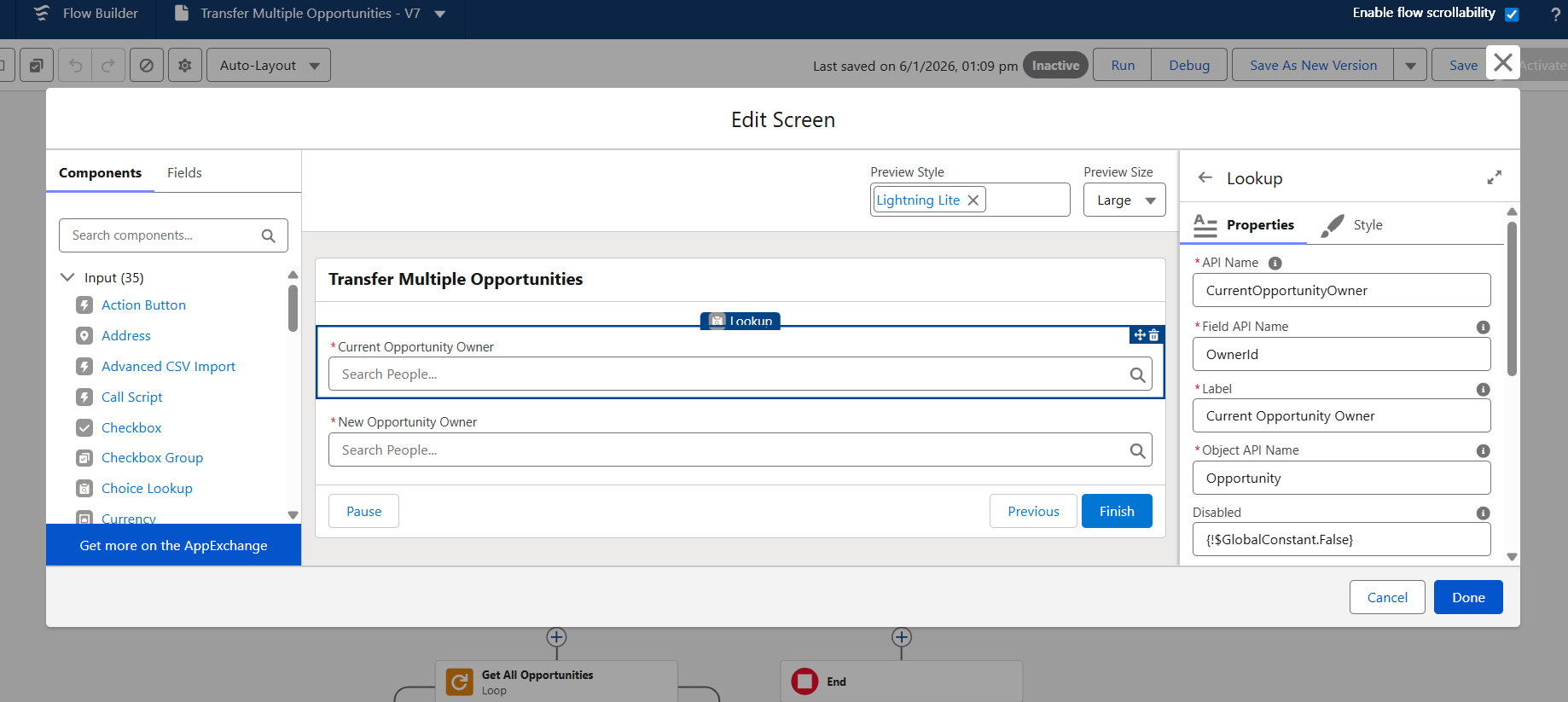
Both fields should be marked as required.
This allows the admin to clearly define the ownership change.
Step 3: Fetch Open Opportunities
Use a Get Records element to fetch Opportunities with conditions:
- OwnerId equals selected Current Opportunity Owner
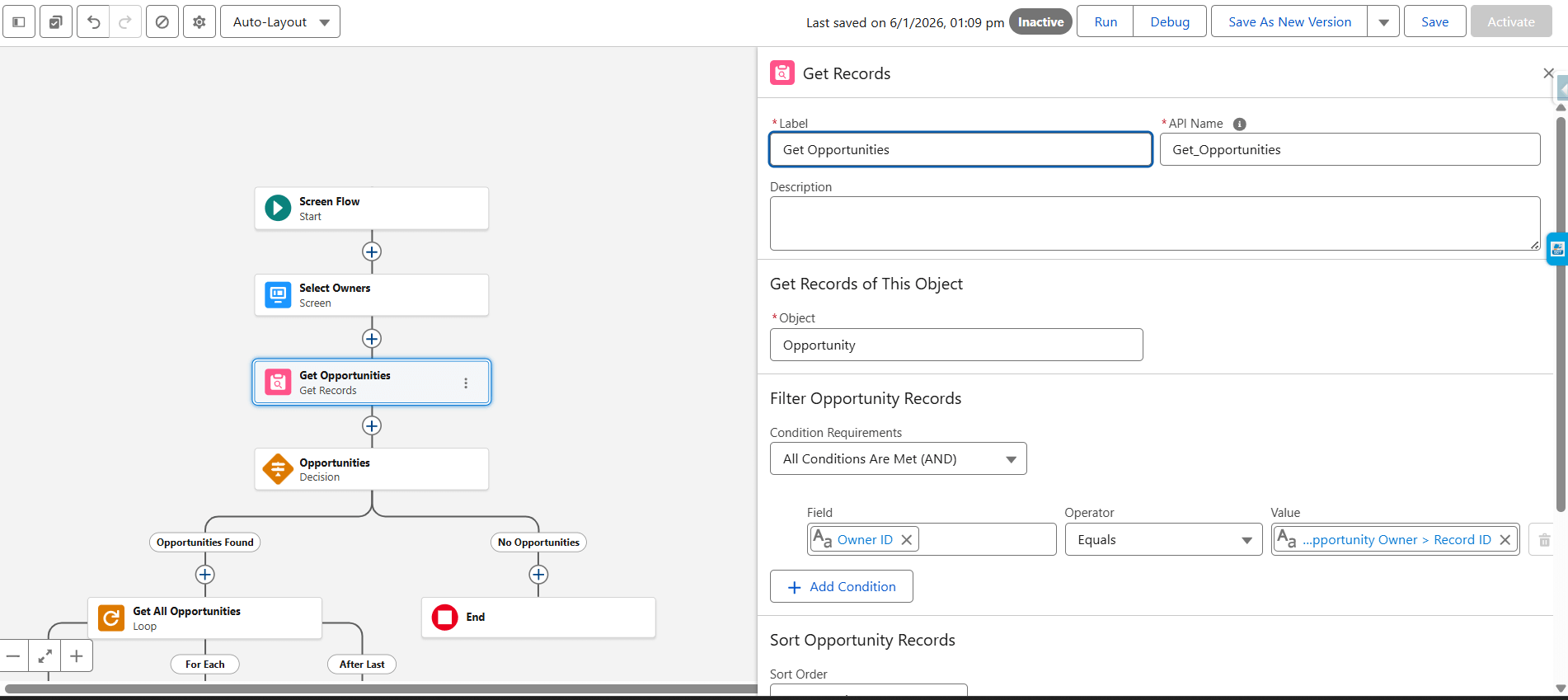
Store all matching records in a collection.
Step 4: Loop Through Opportunities
Add a Loop element to iterate through all fetched Opportunities.
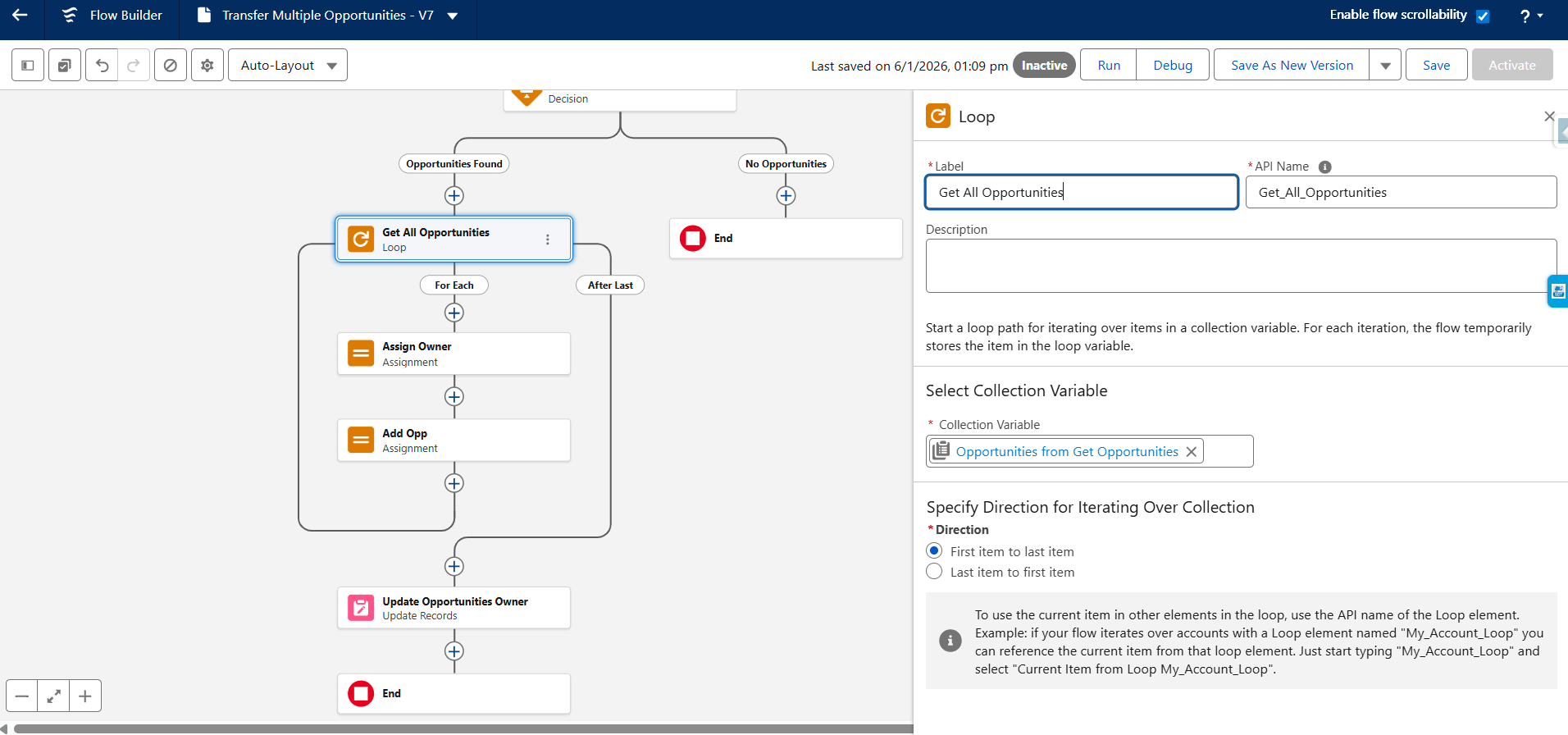
Inside the loop:
- Update the OwnerId of the current Opportunity to the selected New Owner
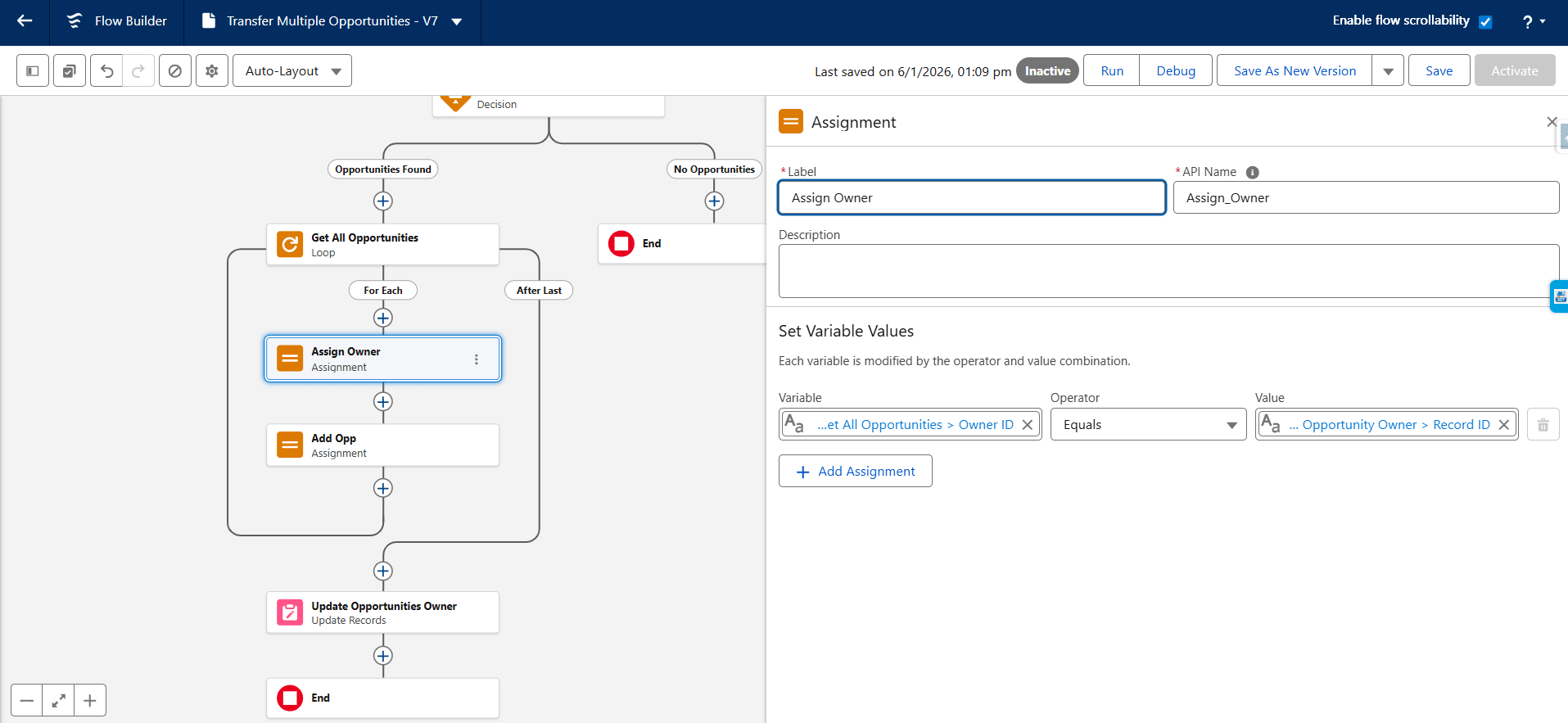
- Add the modified record to a separate collection for update
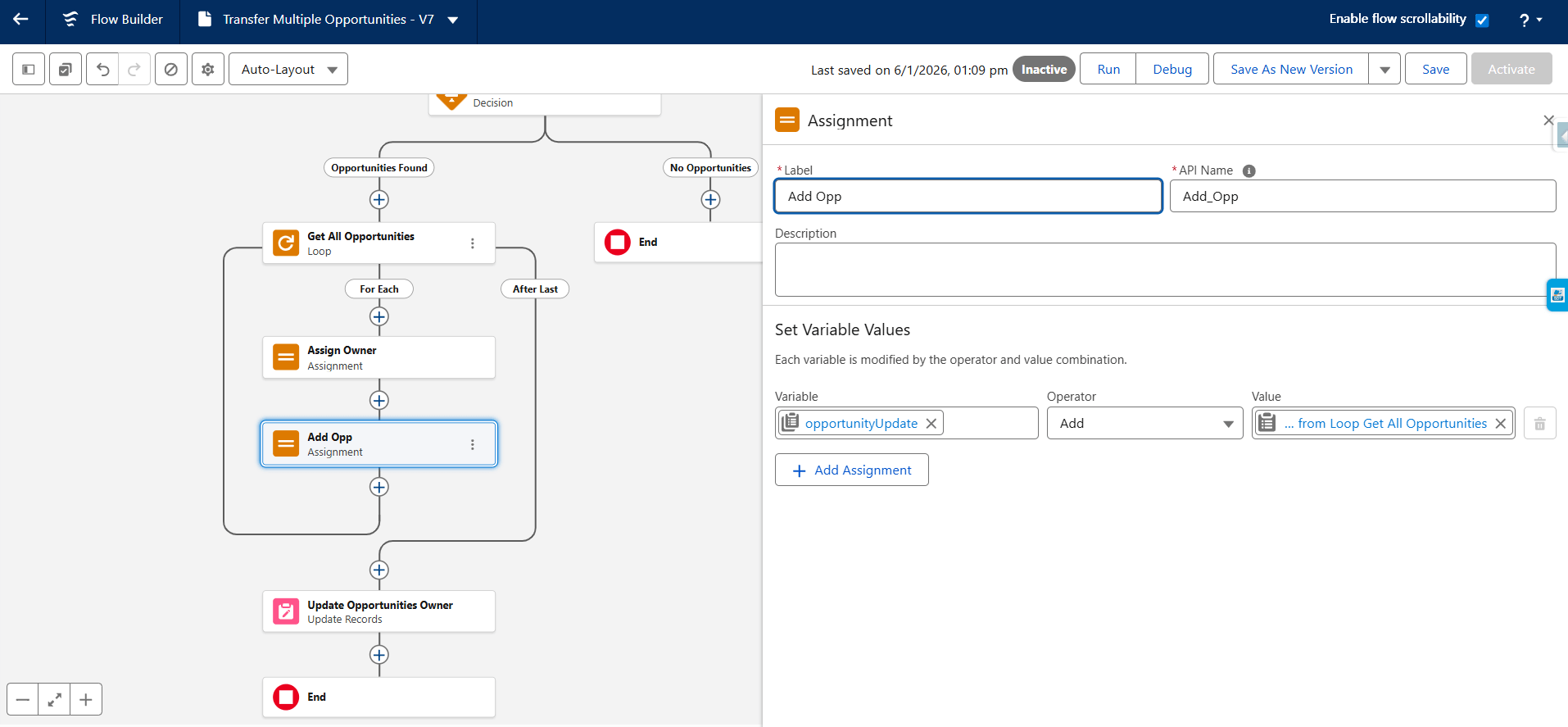
This ensures proper bulk processing.
Step 5: Bulk Update Records
After the loop:
- Use an Update Records element
- Update all records from the modified Opportunity collection
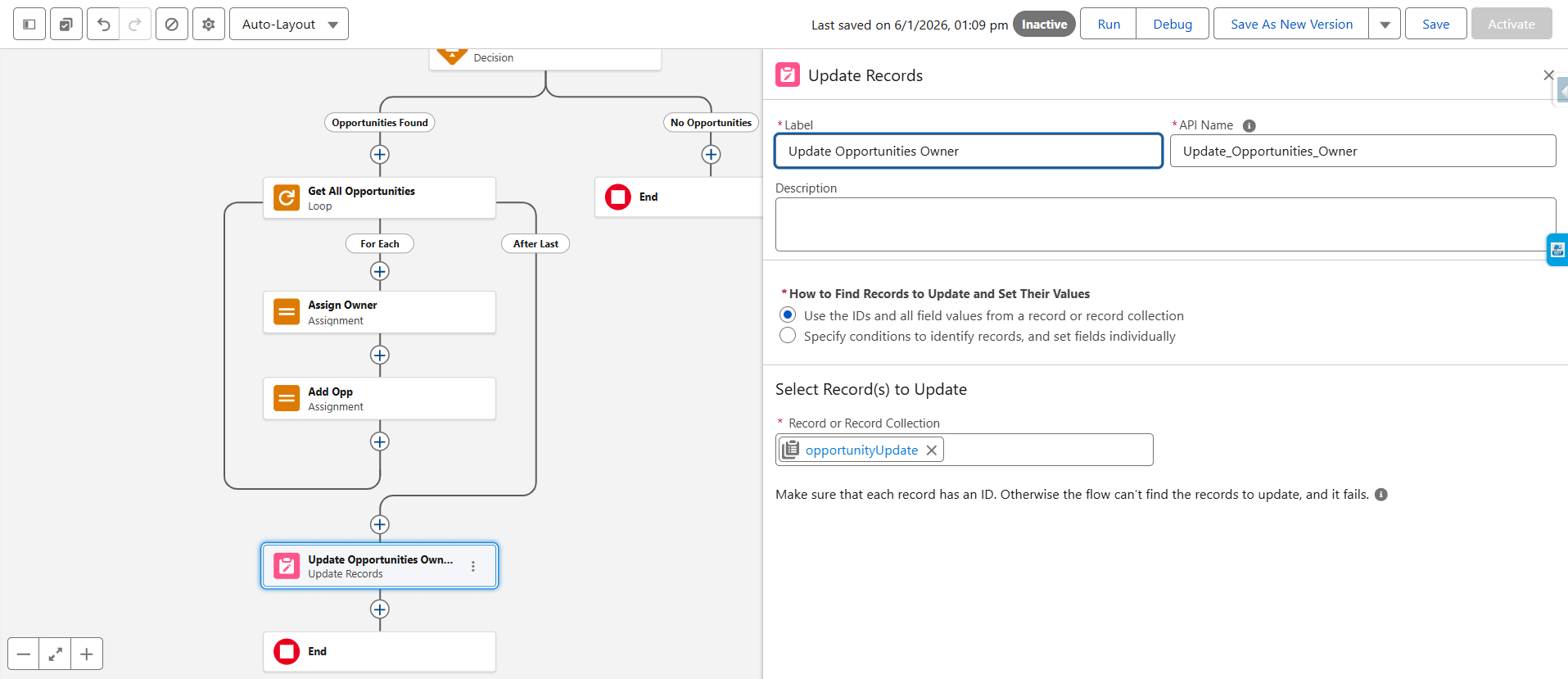
This performs a single bulk update, making the flow governor-limit safe.
Step 6: Display Success Message
Add a final Screen to confirm execution:
“All open opportunities have been successfully transferred to the new owner.”
Testing and Validation
Before deploying the flow:
-
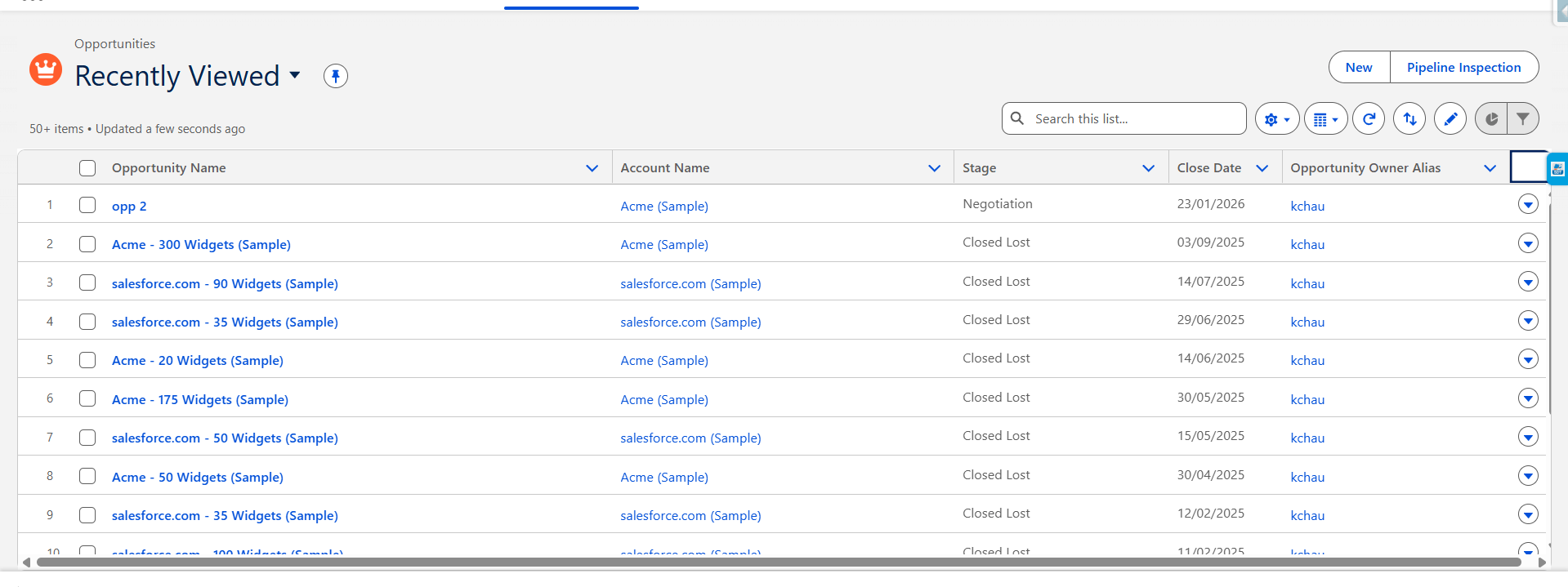
Create a few test Opportunities for the current owner
-
Run the flow as an admin

-
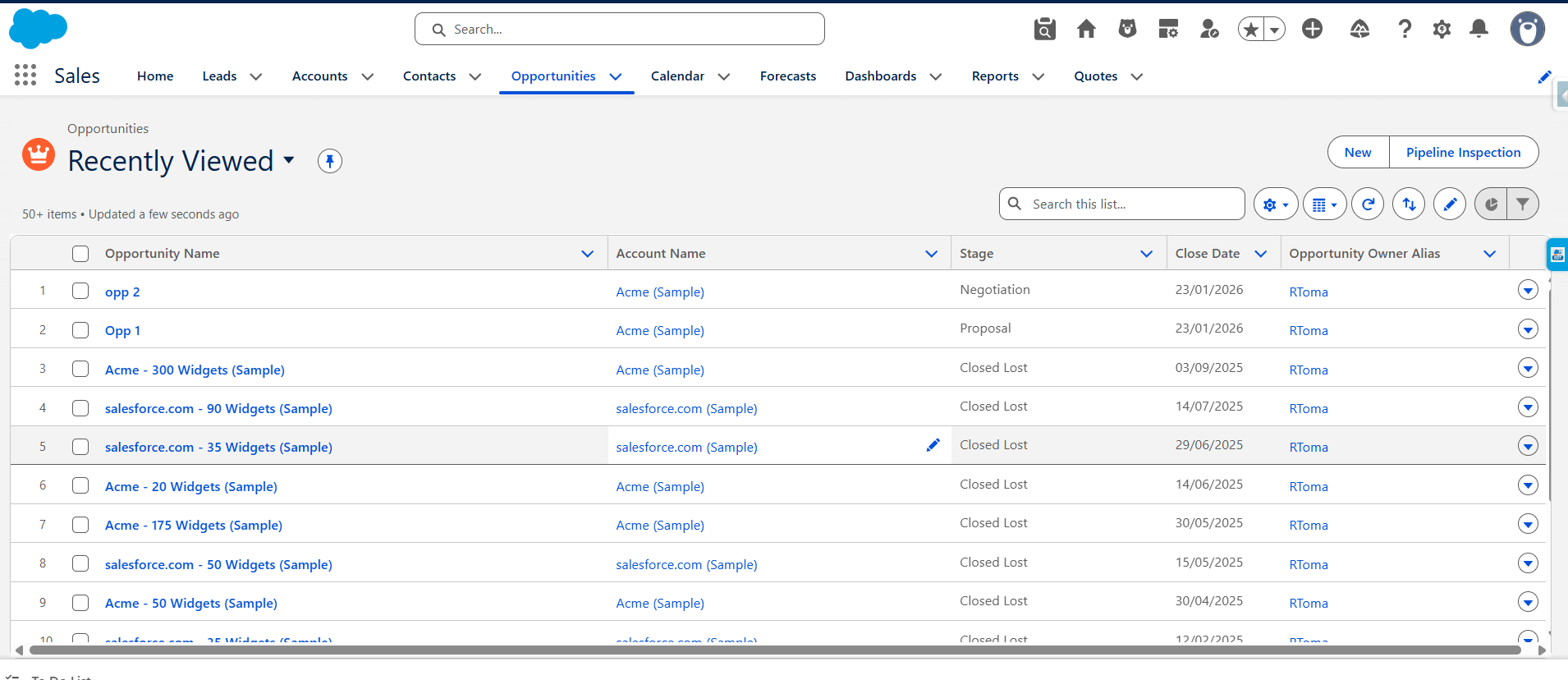
Verify that:
- Opportunity owner is updated correctly
- Stage, amount, and close date remain unchanged
-
Related activities follow the new owner automatically
Benefits of This Approach
- Saves significant admin time
- No-code, declarative solution
- Safe and controlled execution
- Scalable for large data volumes
- Reusable for future ownership changes
Conclusion
Transferring multiple Opportunities is a common administrative requirement in Salesforce. Using a Screen Flow provides a clean, safe, and scalable solution without writing a single line of code.
This approach ensures data accuracy, prevents accidental updates, and gives admins full control over ownership changes.
Have any questions? Feel free to drop an email to support@astreait.com or visit astreait.com to schedule a consultation.