In the ever-evolving landscape of workplace communication, tools like Slack have become indispensable for fostering collaboration, enhancing productivity, and promoting seamless communication within teams. Using Slack effectively can significantly boost productivity in a team.

Here are some best practices:
-
Organize Channels Appropriately:
- Create channels for specific projects, teams, or topics.
- Use naming conventions to make it easy to find channels (e.g., #project-abc, #team-marketing).
-
Channels in Slack serve as virtual spaces where teams can organize discussions, share files, and stay connected

Figure 1: Create Channels in slack.
-
Use Threads to Keep Conversations Organized:
- Reply in threads to keep discussions focused and relevant to specific topics.
-
This prevents main channels from becoming cluttered.

Figure 2: Chat in Slack Channels in thread to keep discussions focused
-
Set Notification Preferences:
- Customize notifications to stay informed without getting overwhelmed.
-
Use Do Not Disturb (DND) mode during focused work times.
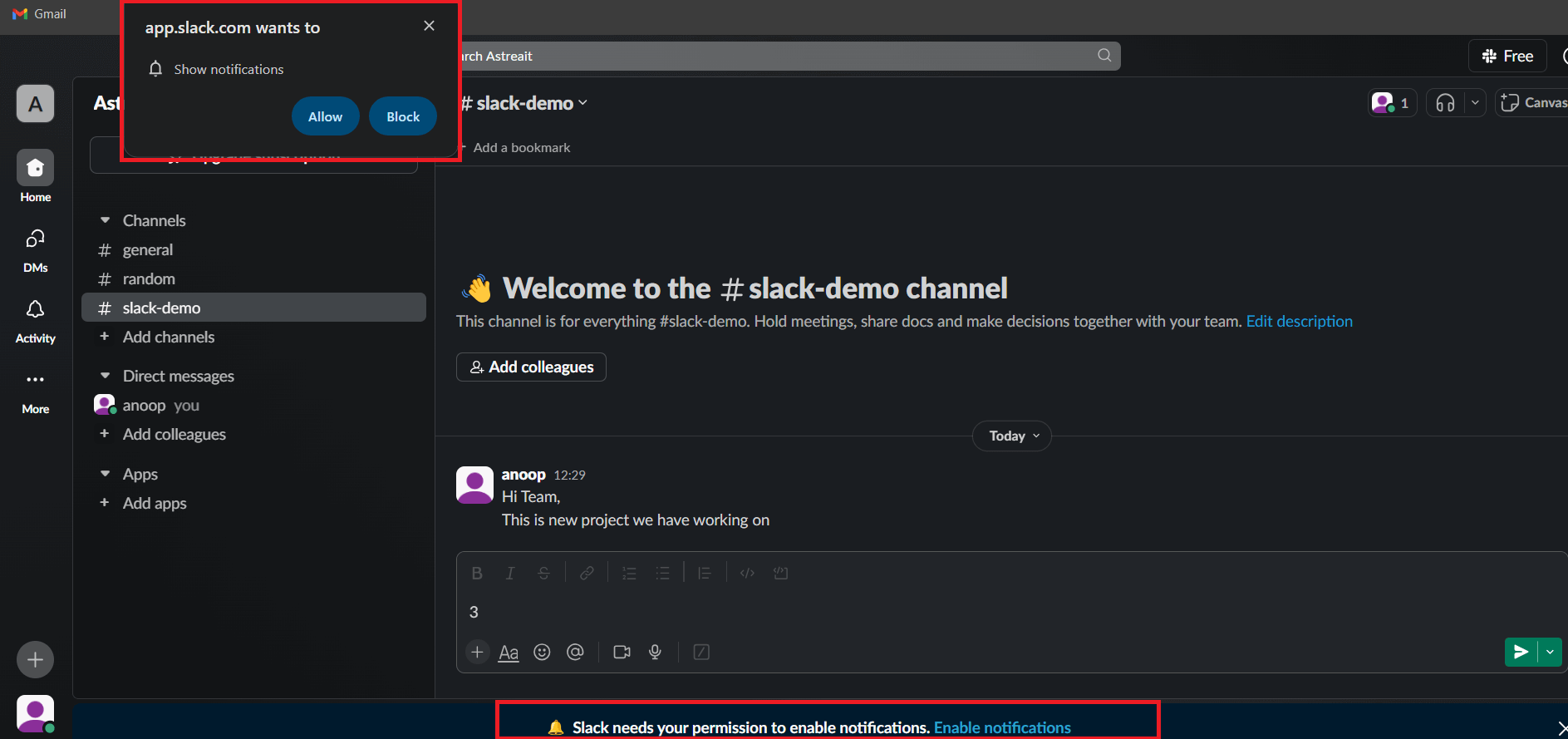
Figure 3: Customized Notifications in slack to stay informed
Pin Important Messages:
-
Define Your Custom Object:
- Pin key messages or documents in channels for quick reference.
- From your desktop, hover over the message that you’d like to pin.
- Click the three dots icon.
- Select Pin to channel, or Pin to this conversation in a DM.
-
This ensures important information is easily accessible to all team members.
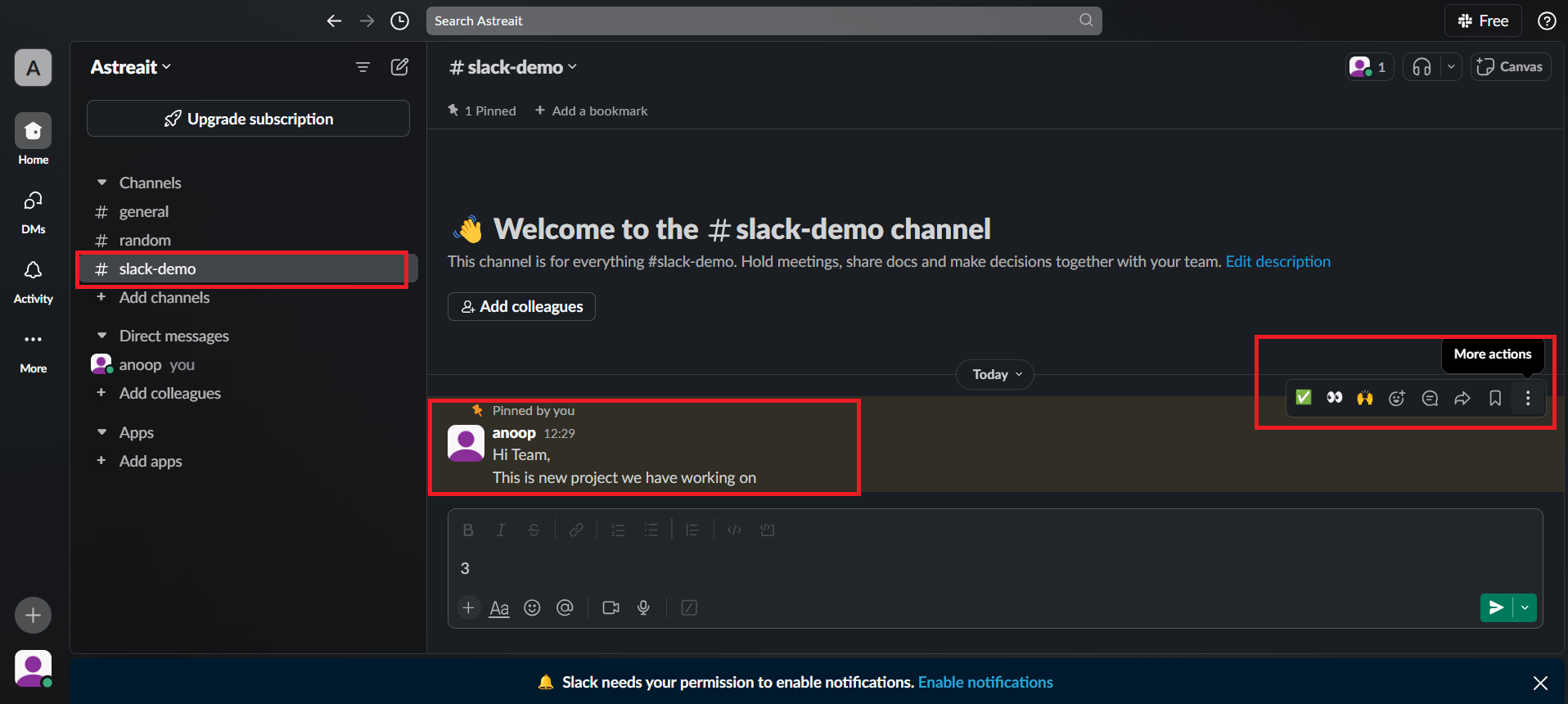
Figure 4: Pin Key message in slack Chat box.
-
Integrate with Other Tools:
- Connect Slack with tools like Google Drive, Trello, or Asana for seamless workflow integration.
-
Use Slack bots and apps to automate tasks and receive updates from other platforms.
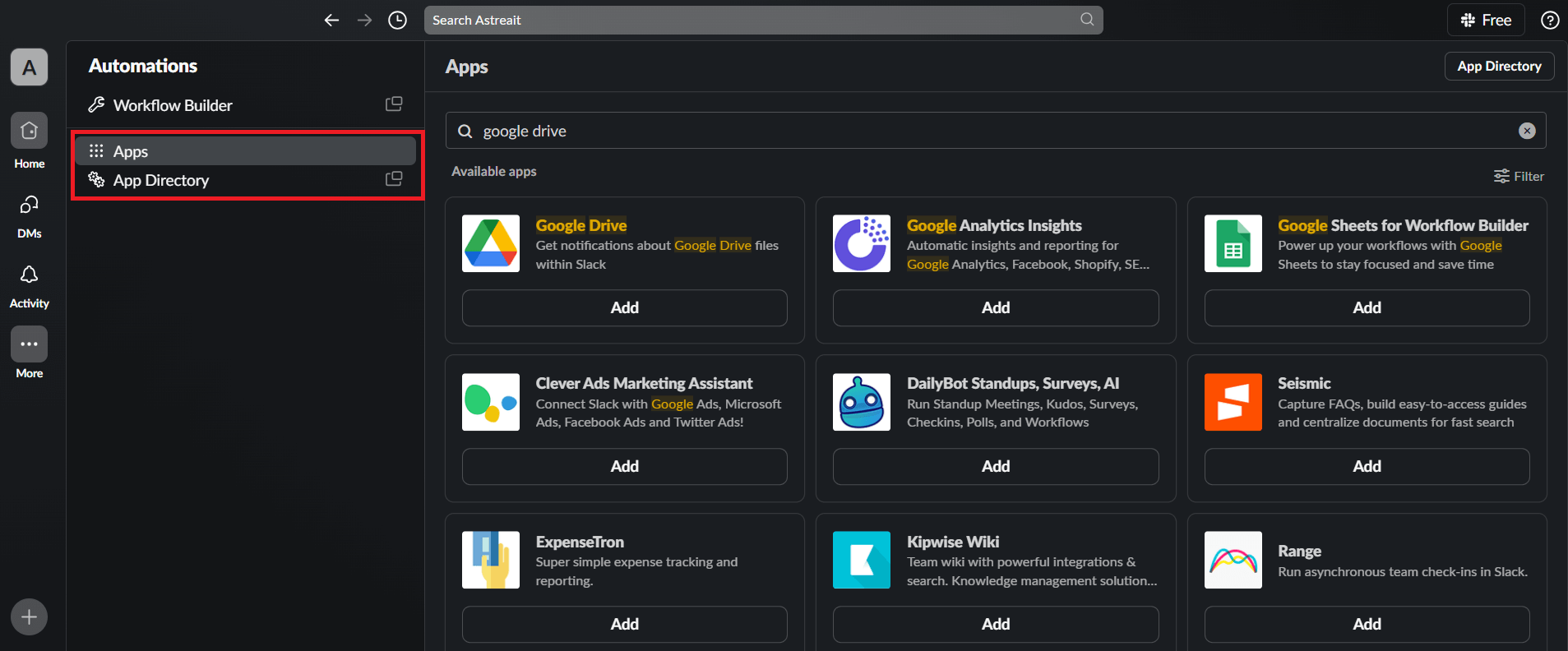
Figure 5: Connect different tools to slack for better productivity.
-
Utilize Keyboard Shortcuts:
- Learn and use keyboard shortcuts to navigate Slack more efficiently.
-
For example, Ctrl + K (or Cmd + K on Mac) to quickly switch between channels.

Figure 6: Use Shortcuts to navigate slack more efficiently.
-
Use Reminders and To-Do Lists:
- Set reminders for yourself or team members using the /remind command.
-
Create and manage to-do lists within Slack or integrated task management tools.
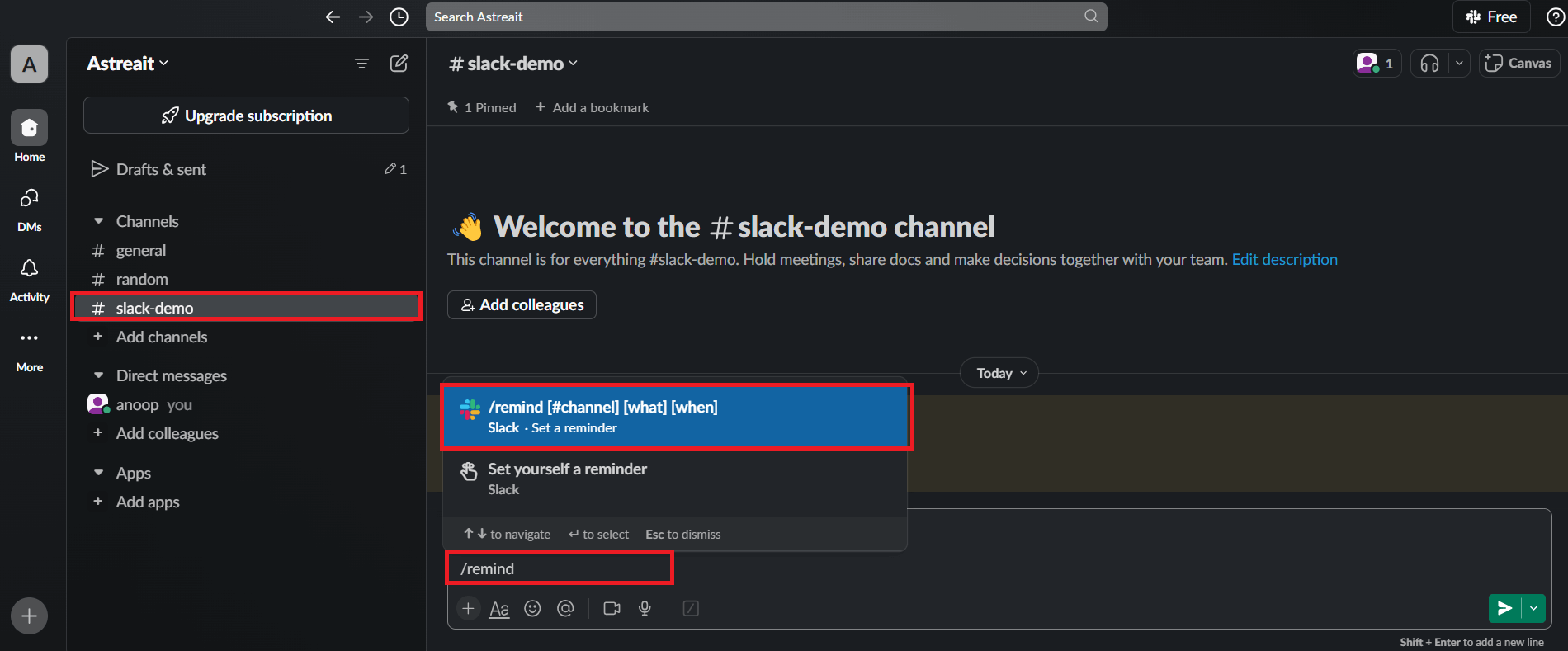
Figure 7: Set reminders in slack to perform specific tasks.
-
Leverage Slack Search:
- Use advanced search options to find messages, files, or links quickly.
-
Save frequent searches for easy access.
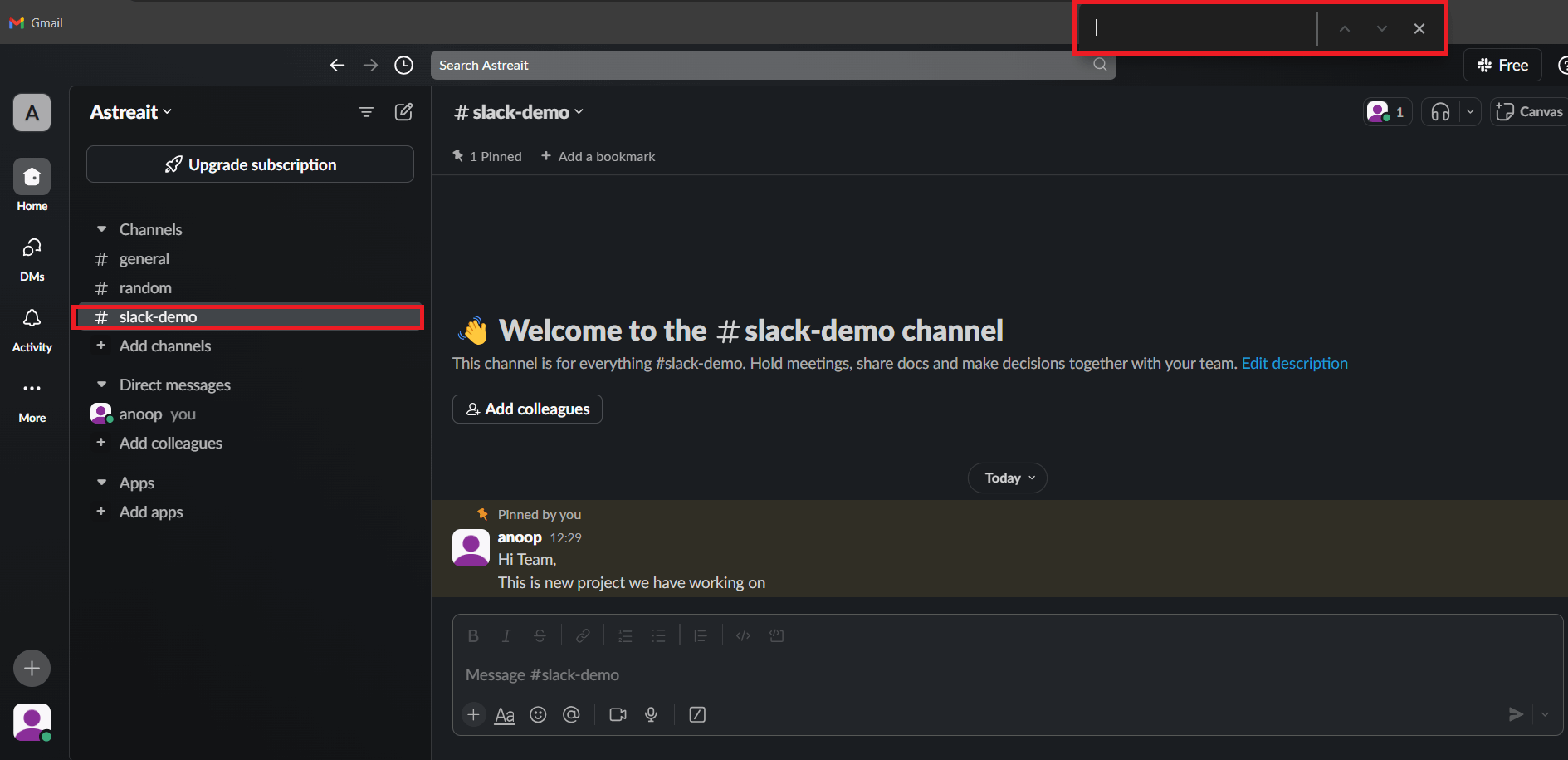
Figure 8: User Search option to find message , Files , Link quickly.
-
Create and Use Custom Emojis and Reactions:
- Use custom emojis for fun and to create a unique team culture.
-
React to messages with emojis to quickly convey responses without additional messages.
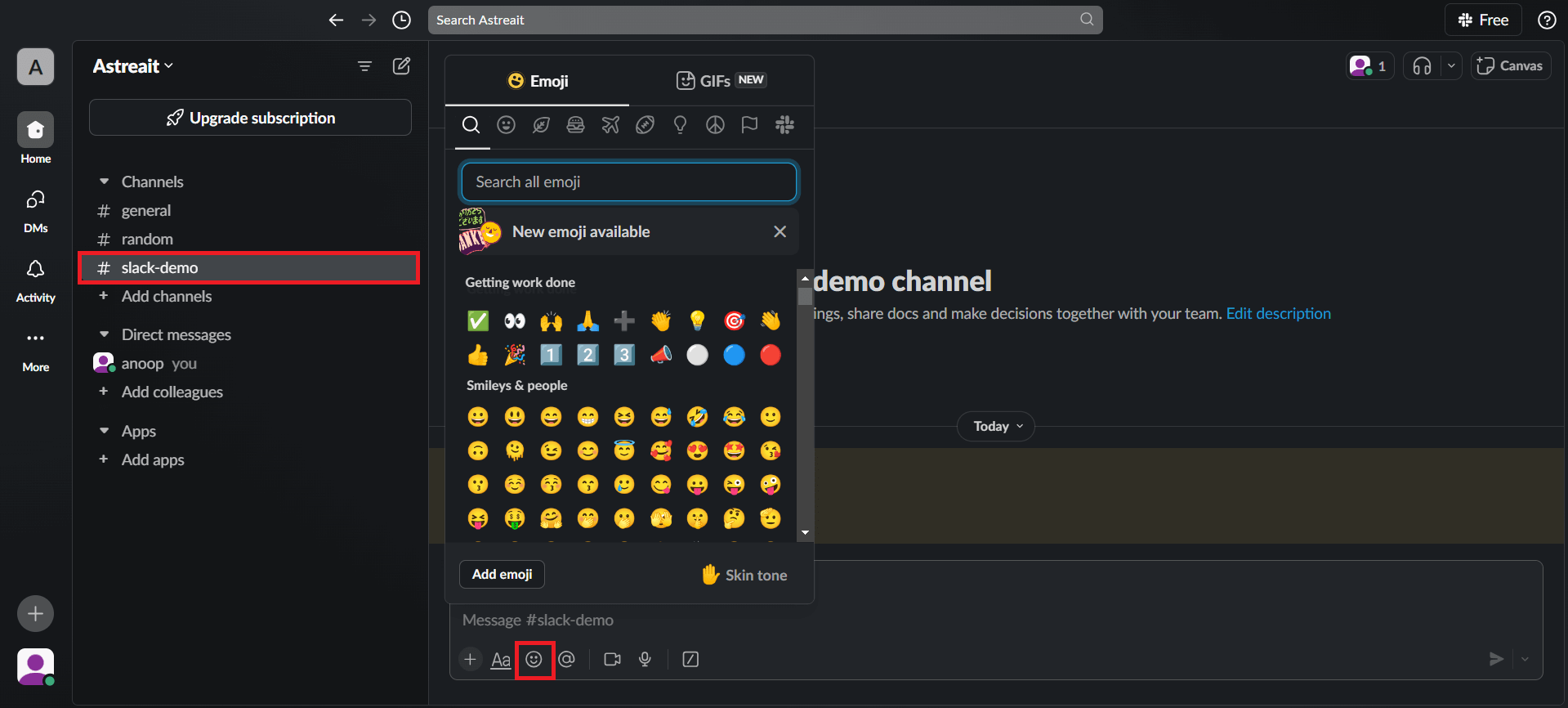
Figure 9: User Emojis in slack message to make your chat interactive.
-
Encourage Clear and Concise Communication:
- Keep messages short and to the point.
- Use bullet points or numbered lists for clarity.
-
Regularly Archive Inactive Channels:
- Archive channels that are no longer active to keep the workspace organized.
- This helps new members focus on relevant and current discussions.
-
Set Clear Channel Purposes and Guidelines:
- Define the purpose of each channel in the description.
- Establish guidelines for what should and shouldn’t be posted in each channel.
Conclusion
Mastering the art of channels in Slack requires a thoughtful approach that aligns with the unique needs and dynamics of your team. By understanding the purpose of each channel type and implementing best practices, teams can harness the full potential of Slack to streamline communication, foster collaboration, and ultimately enhance productivity in the modern workplace.
For any queries on this blog please reach out to support@astreait.com