Salesforce Flows have evolved far beyond simple automation tools and are now a core part of building scalable business logic and interactive user experiences on the Salesforce platform. With every release, Salesforce continues to enhance Flow Builder with smarter, cleaner, and more developer-friendly capabilities, and the Summer ’26 Release brings several highly useful improvements.
This release focuses heavily on improving usability, UI customization, navigation, debugging, and performance optimization within flows. From enhanced Screen Flow experiences to better deployment reliability and cleaner Flow Builder management, Summer ’26 introduces features that can significantly improve both admin productivity and end-user experience.
Whether you are building interactive screen flows, managing complex automation logic, or optimizing scheduled flow performance, this release includes several enhancements worth exploring.
Let’s take a look at some of the most useful Flow features coming in Salesforce Summer ’26.
1. Enhanced Lightning Data Table
The Data Table element in Screen Flows has been enhanced to provide a more user-friendly and interactive experience. Instead of displaying related record IDs, we can now show related record names directly within the table, making the data easier to understand.
Additionally, these record names can be configured as clickable links, allowing users to navigate directly to the respective record pages from the flow.
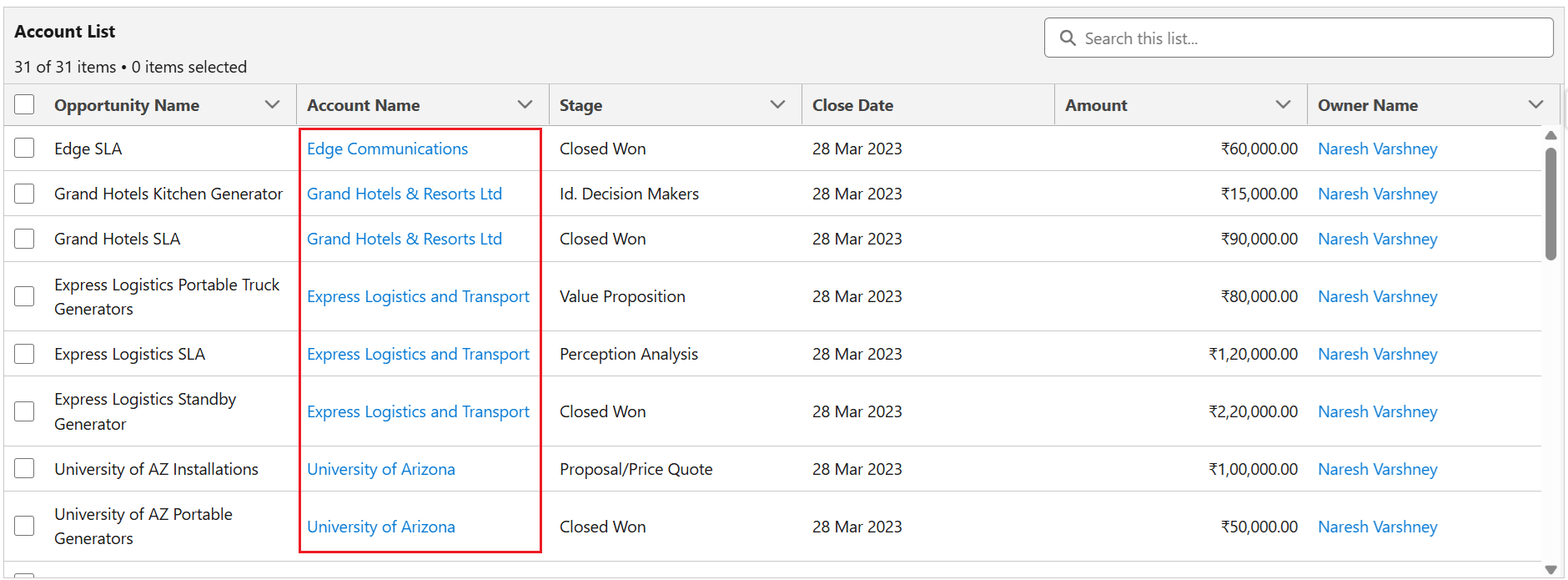
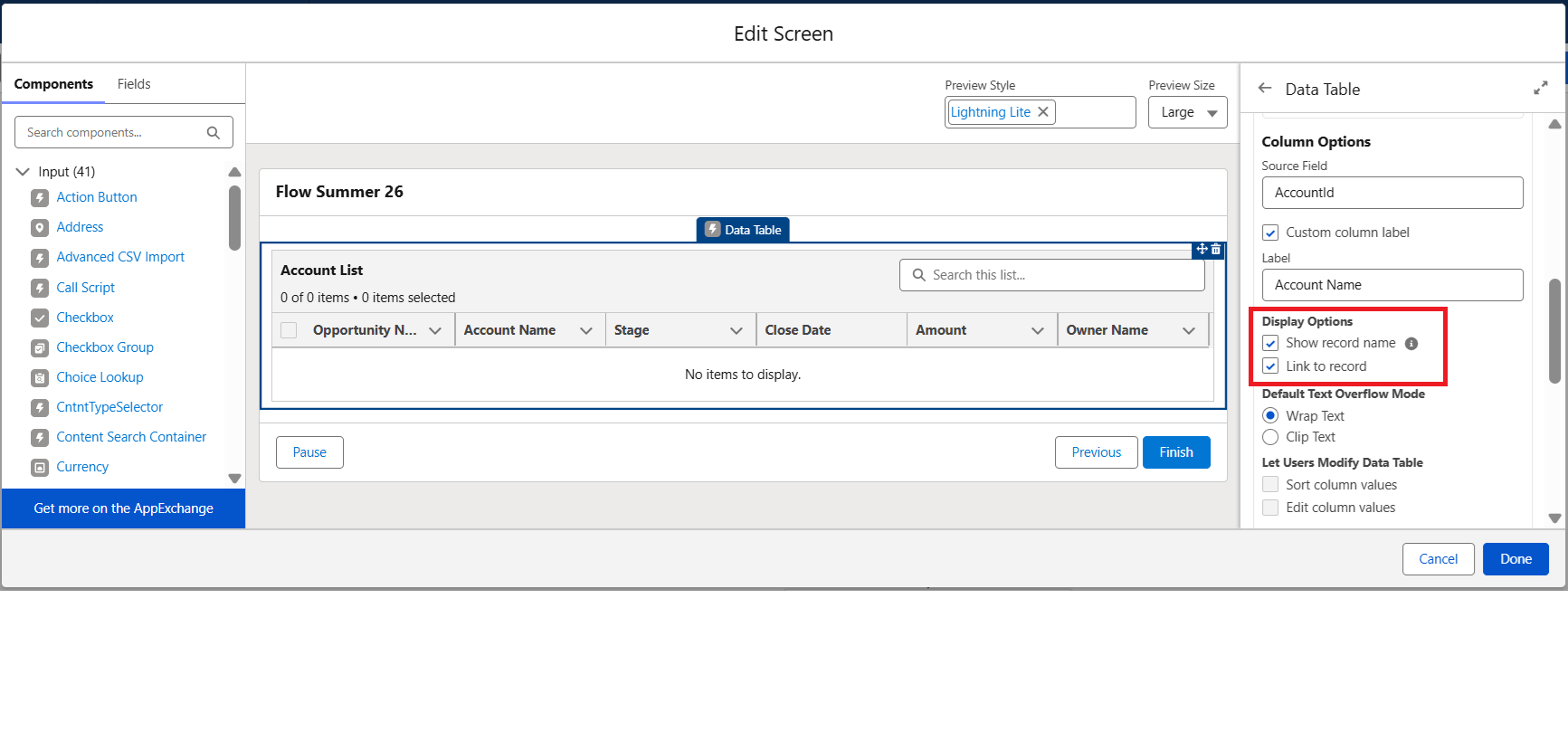
To enable this functionality, select the following checkboxes while configuring columns in the Data Table element:
- Show Record Name
- Link to Record
2. Radio Button Group in Screen Flows
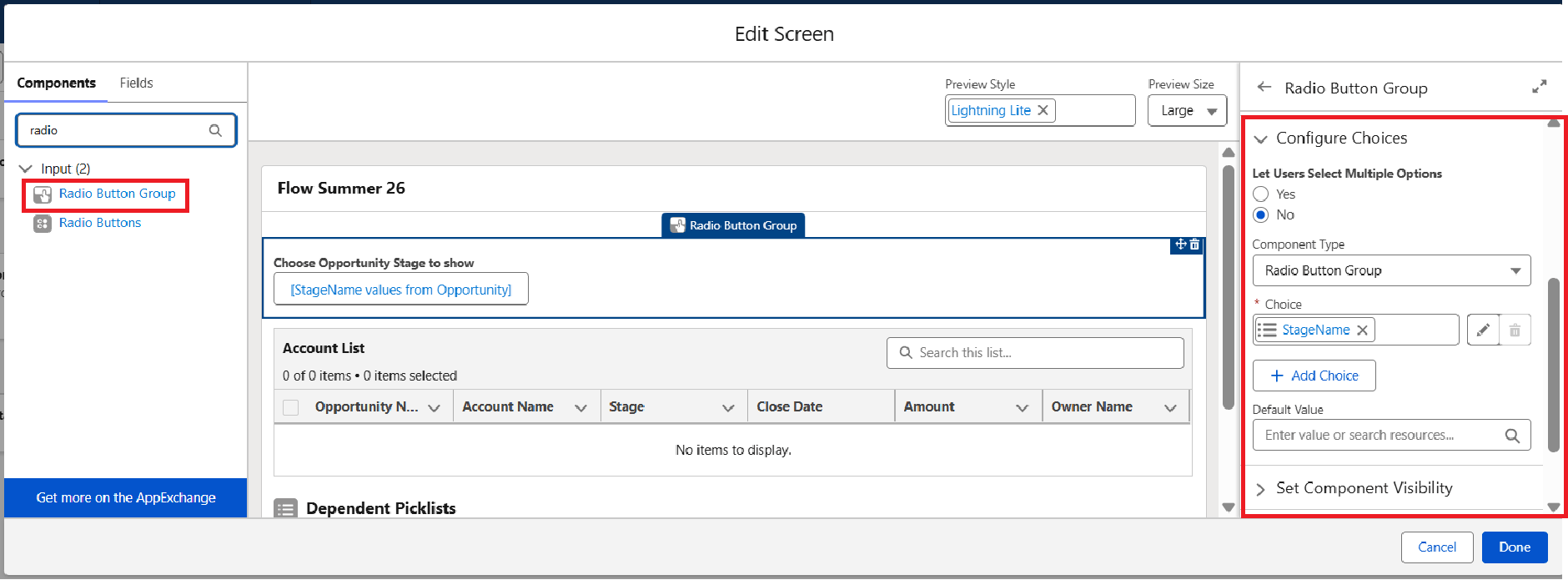
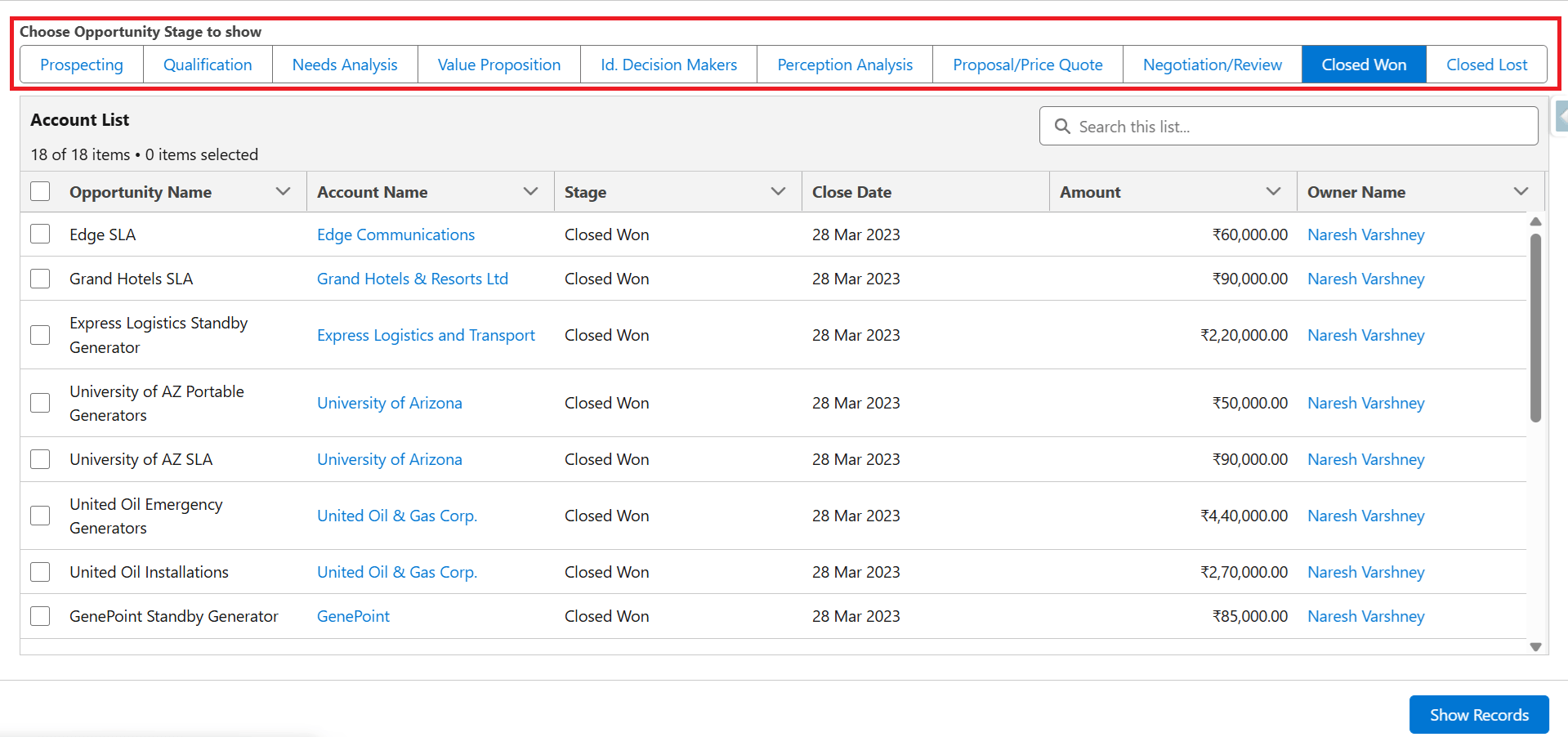
The Screen Flow experience has been further improved with the introduction of the Radio Button Group component. This new feature provides more flexibility in how selection options are presented to the user, allowing for a cleaner and more organized UI.
Unlike standard radio buttons that can sometimes clutter the screen, the Radio Button Group allows developers to choose between horizontal or vertical alignments. This is particularly useful for optimizing screen space and improving the visual flow of the page, especially when dealing with multiple options.
3. Show Toast Messages in Screen Flows
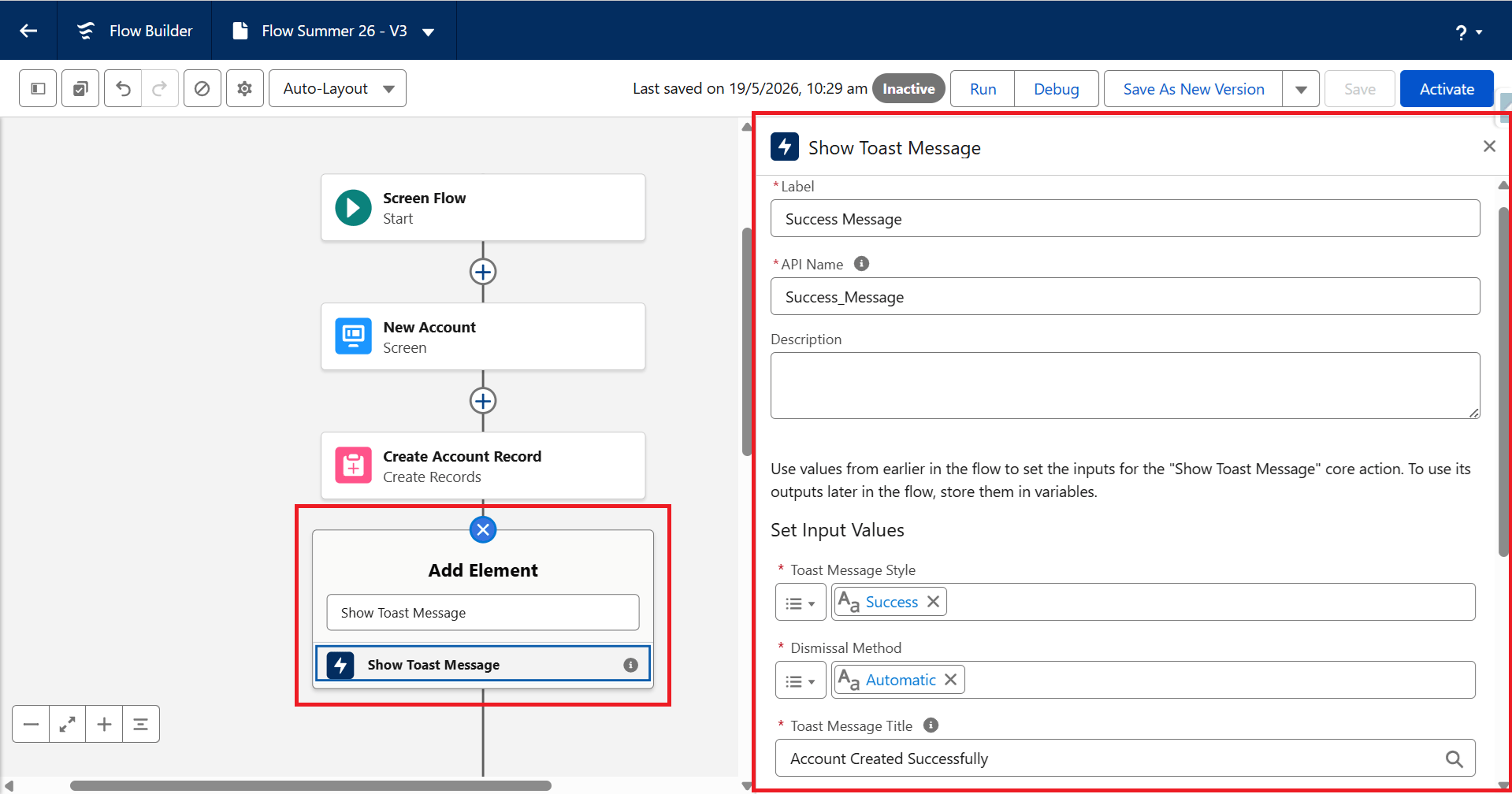
Screen Flows now support declarative toast messages, making it easier to provide real-time feedback to users during screen transitions. These non-intrusive notifications appear temporarily at the top of the screen, helping users stay informed without interrupting their workflow.
This enhancement is especially useful in scenarios such as record creation, approval actions, or form submissions. For example, after a user submits a Case creation flow, a success toast message like “Case created successfully” can be displayed instantly to confirm the action. Toast messages support four different styles:
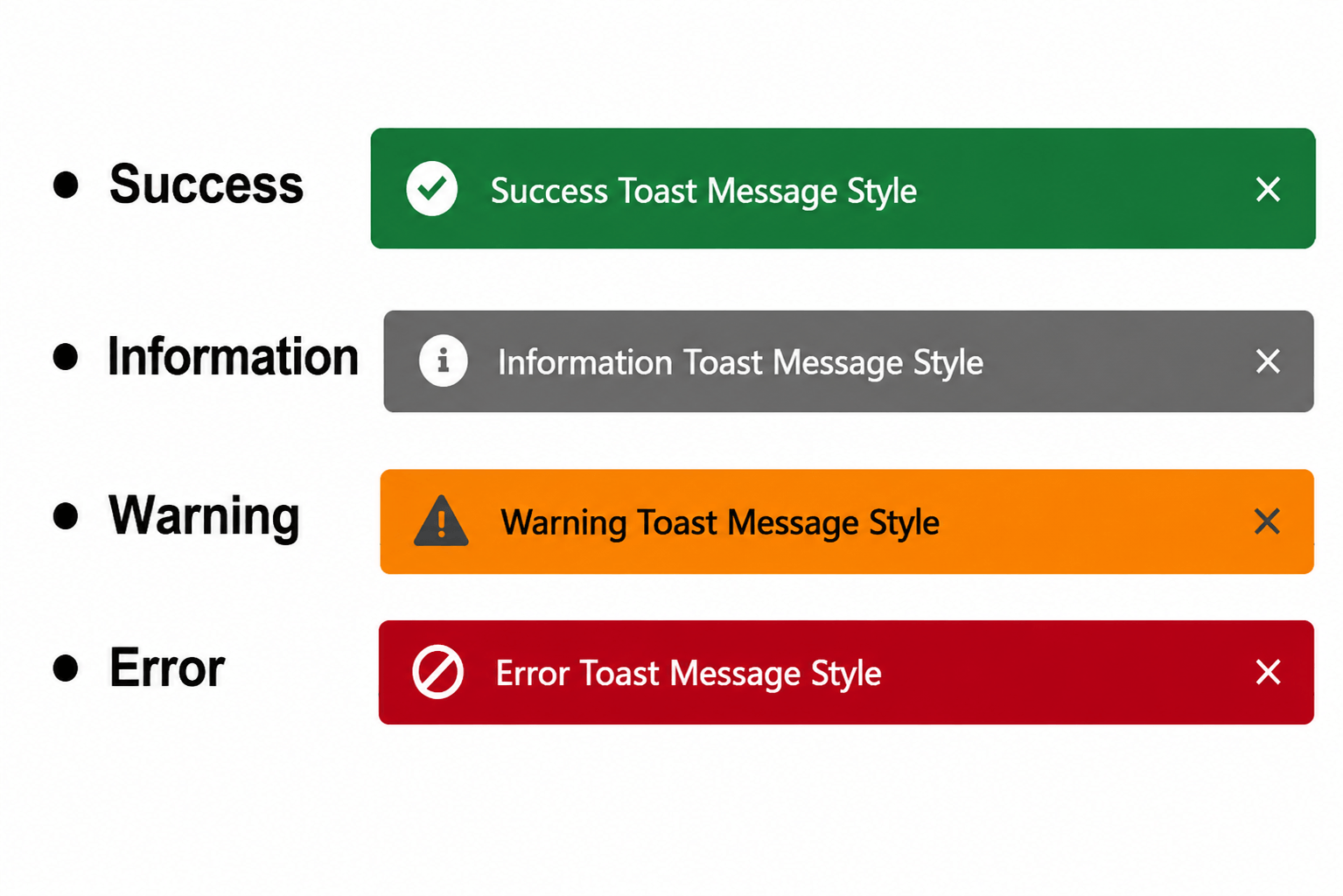
Additionally, two dismissal methods are available:
- Automatic Dismissal
- Manual Dismissal
Another useful capability is support for dynamic links, allowing users to navigate directly to Salesforce records or even external pages from within the toast message itself.
4. Simplify the User Workflow with the “Open a Page” Action
Screen Flows now support the new Open a Page action, allowing users to open Salesforce records or external web pages directly from within the flow. This helps create a smoother user experience by reducing unnecessary navigation steps and keeping users within the workflow context.
For example, after creating a new Opportunity through a Screen Flow, the newly created record can automatically open in a separate tab without requiring the user to manually leave the flow and search for the record.
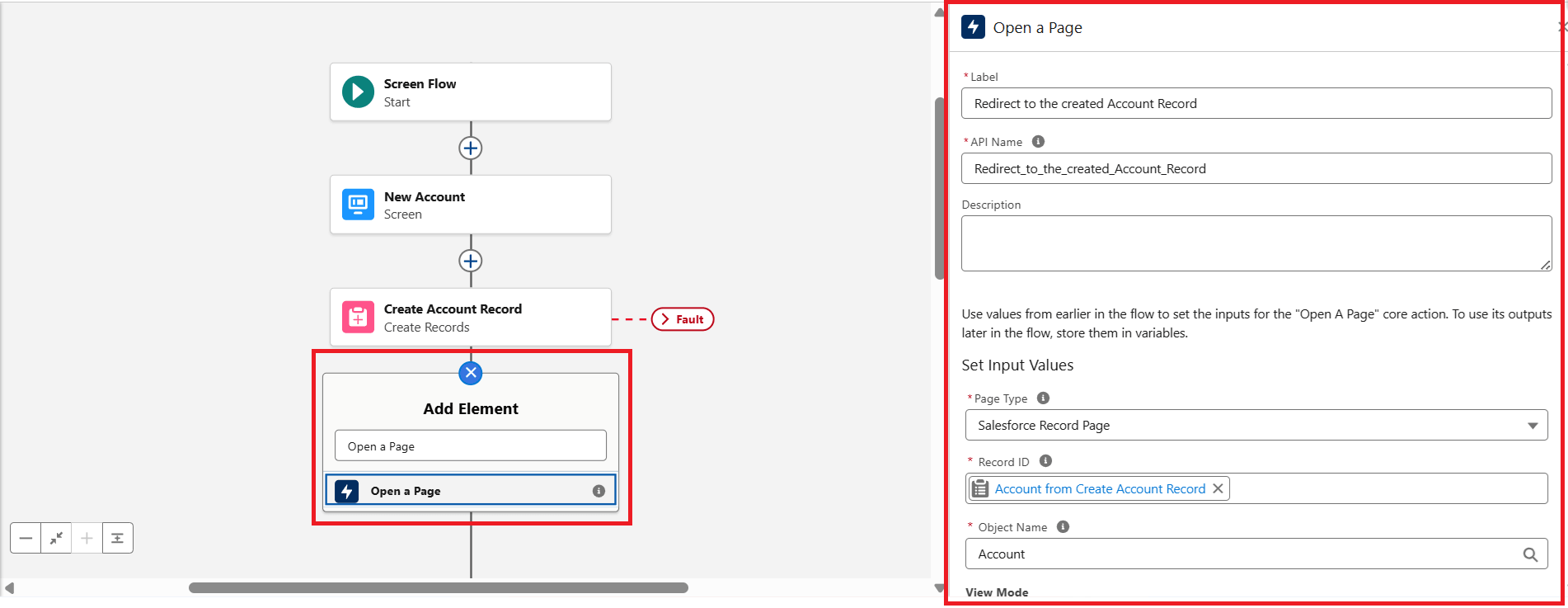
The action supports two different page types:
Salesforce Record Page
This option allows navigation to a Salesforce record page directly from the flow.
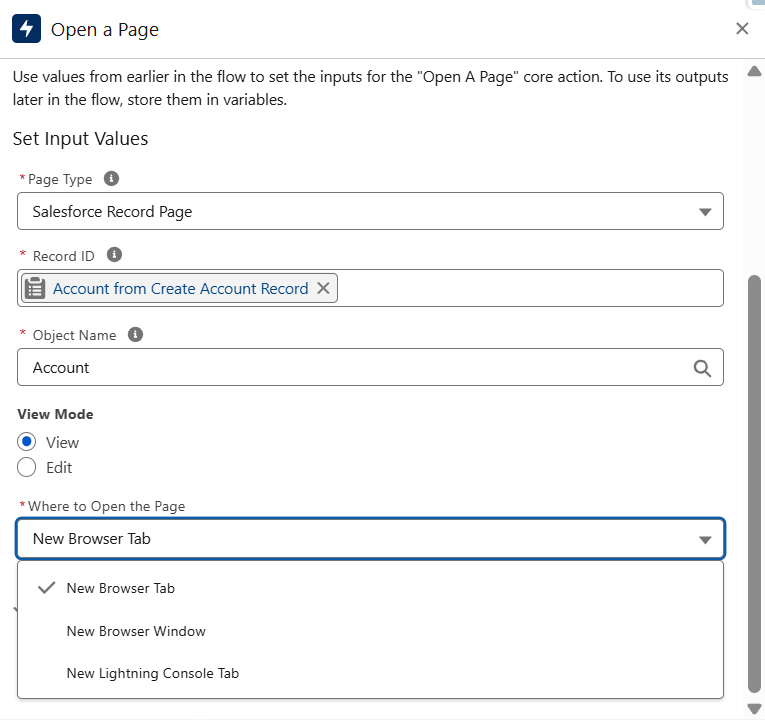
To configure this page type, provide:
- Record Id of the record to open
- Object API Name
-
View Mode
- View
- Edit
External Web Page
This option allows opening any external website or URL directly from the flow.
To configure this page type, provide:
- A valid URL in the format: https://www.example.com
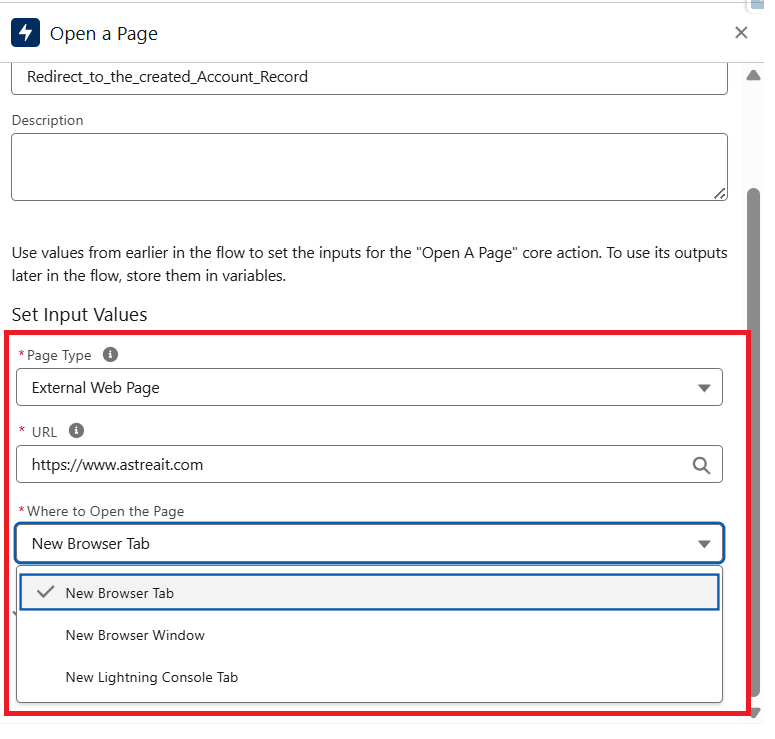
The action also provides multiple options for deciding where the page should open:
- New Browser Tab
- New Browser Window
- New Lightning Console Tab
This enhancement makes Screen Flows more interactive and helps streamline user navigation without requiring custom redirects or complex workarounds.
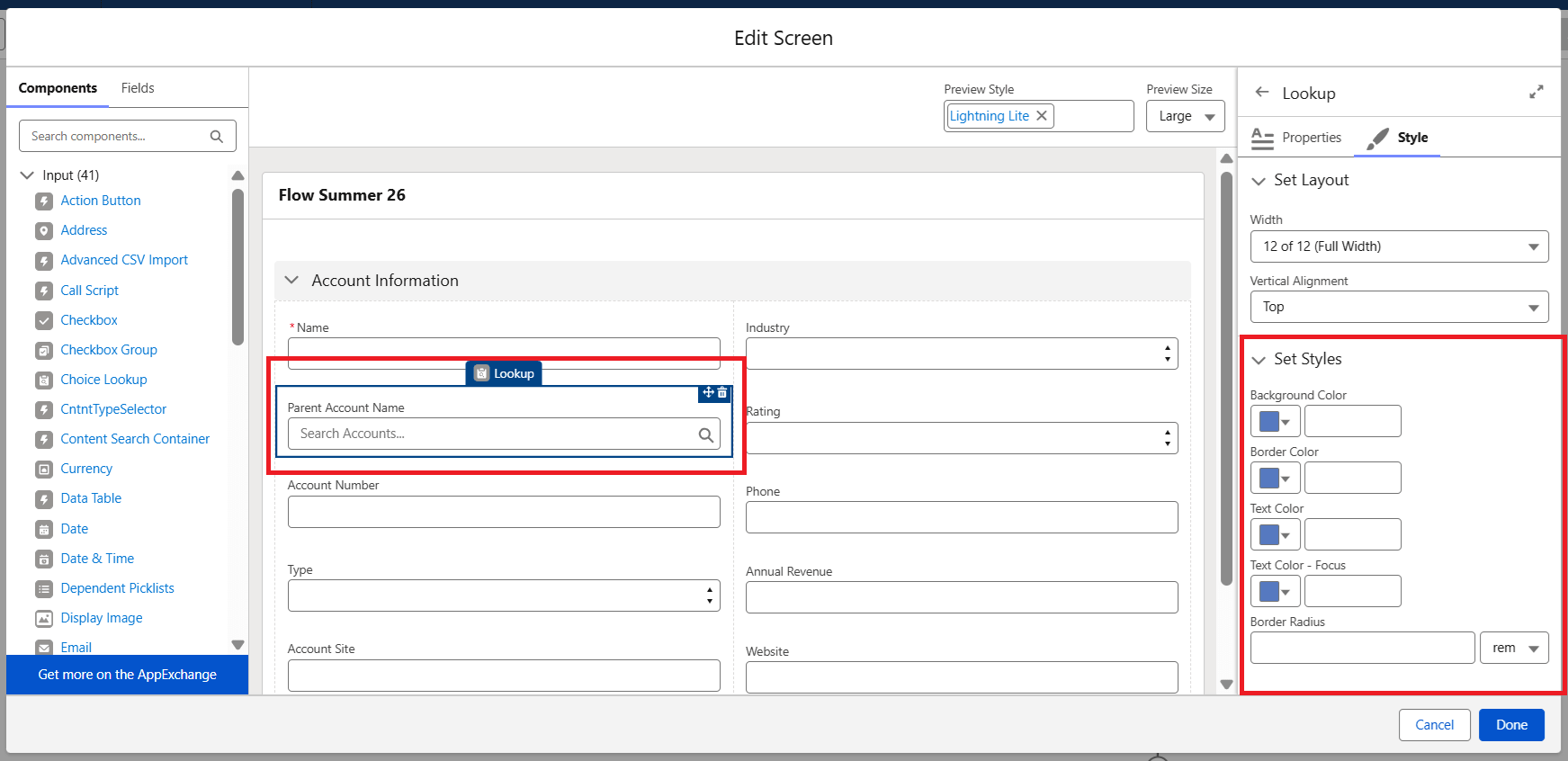
5. Customize Screen Flows with More Style Overrides
Screen Flows now support additional style override capabilities, allowing admins and developers to customize the appearance of more flow components directly from Flow Builder. This helps create a more personalized and visually consistent user experience without relying heavily on custom development.
The newly supported components include:
- Action Button
- Address
- Choice Lookup
- Dependent Picklists
- Lookup
- Name
- Phone
- Slider
- Toggle
- URL
To apply styling changes, open a Screen element, select the component, and navigate to the Style tab. The applied styles override the default org or Experience Cloud theme settings, providing greater flexibility in UI customization.
6. Collapse and Expand Fault Paths in Flow Builder
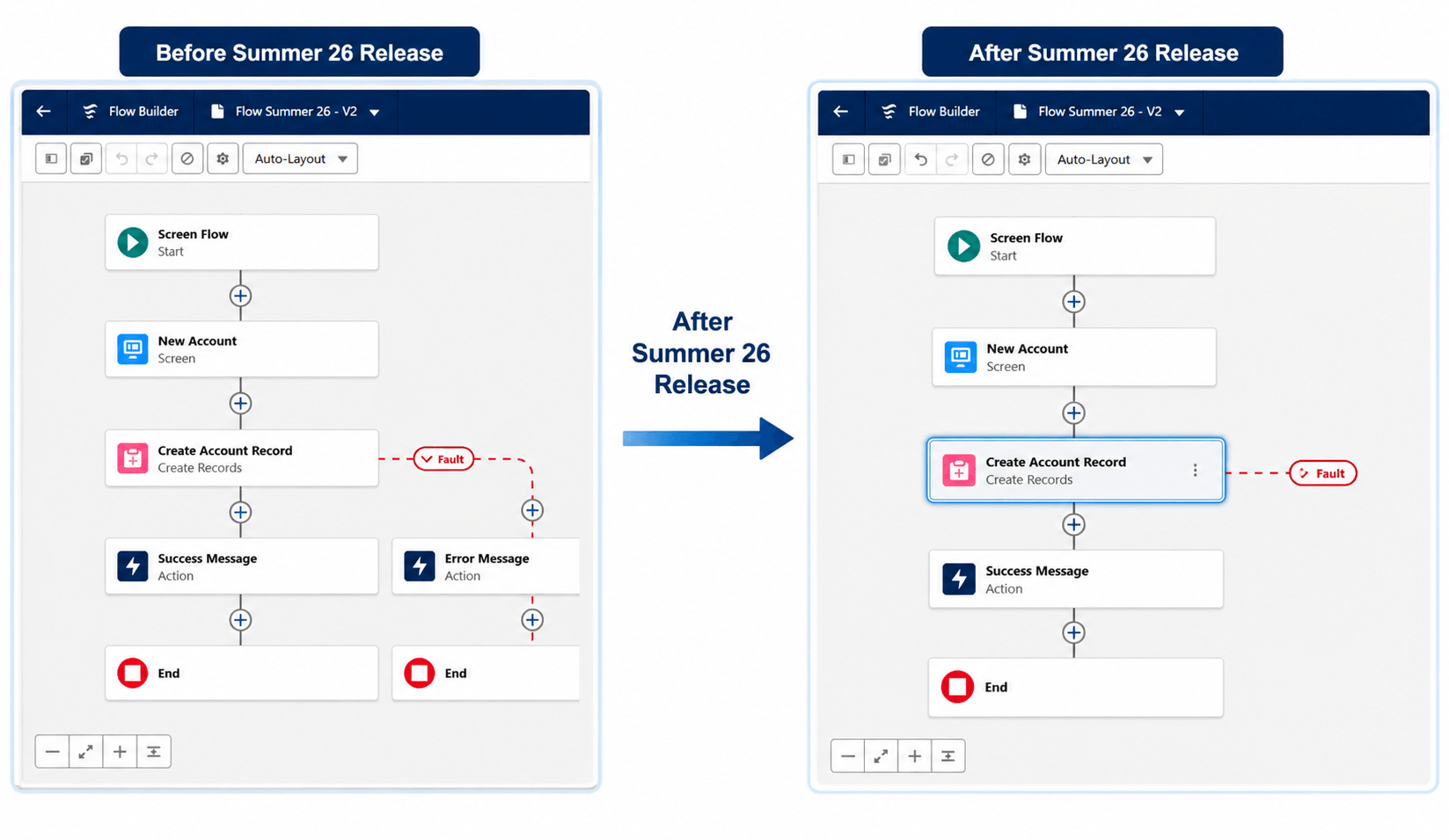
Flow Builder now allows you to collapse and expand fault paths, making complex flows much cleaner and easier to navigate. Instead of displaying every fault path on the canvas at all times, you can now hide them and focus only on the main working path of the flow.
This enhancement improves readability and helps reduce visual clutter, especially in large flows with multiple error handling paths. Whenever needed, fault paths can be expanded again for review or editing.
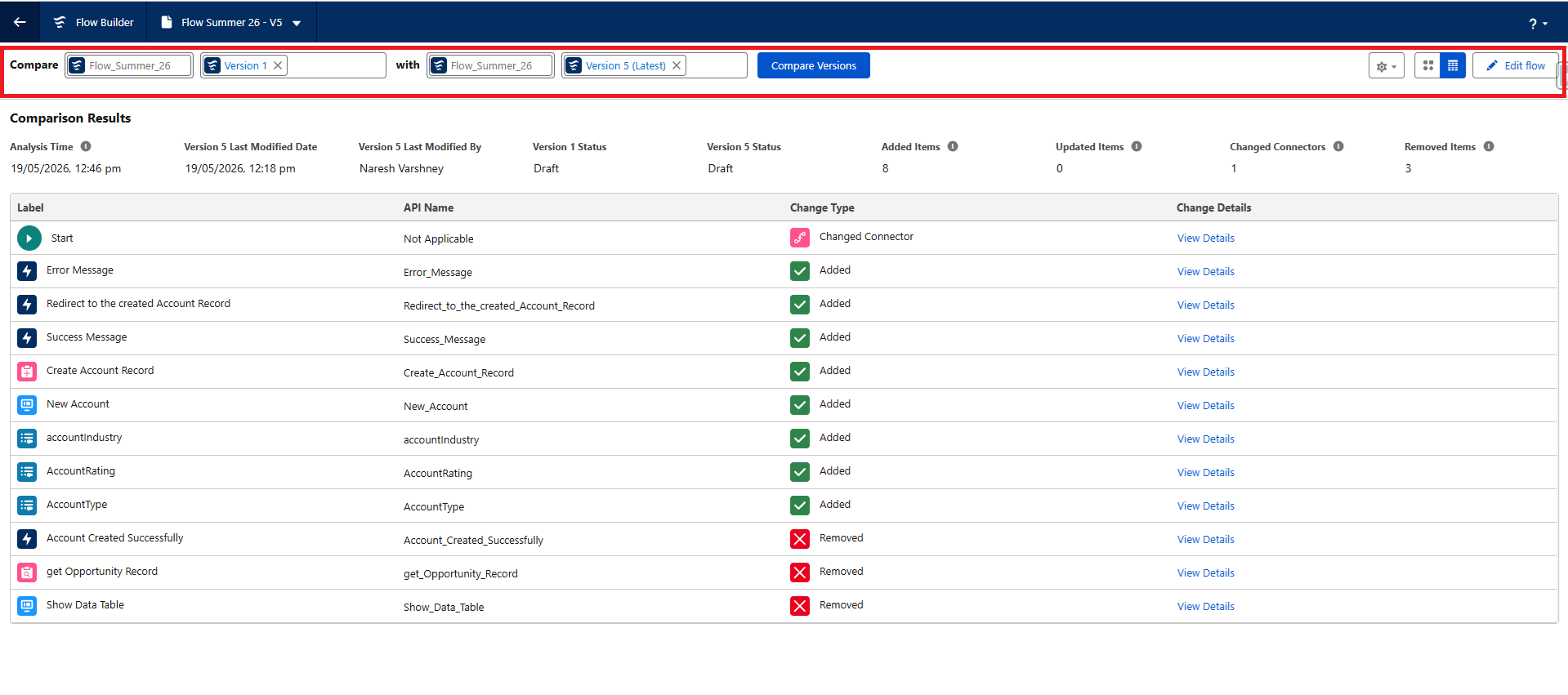
7. Identify Flow Version Changes at a Glance
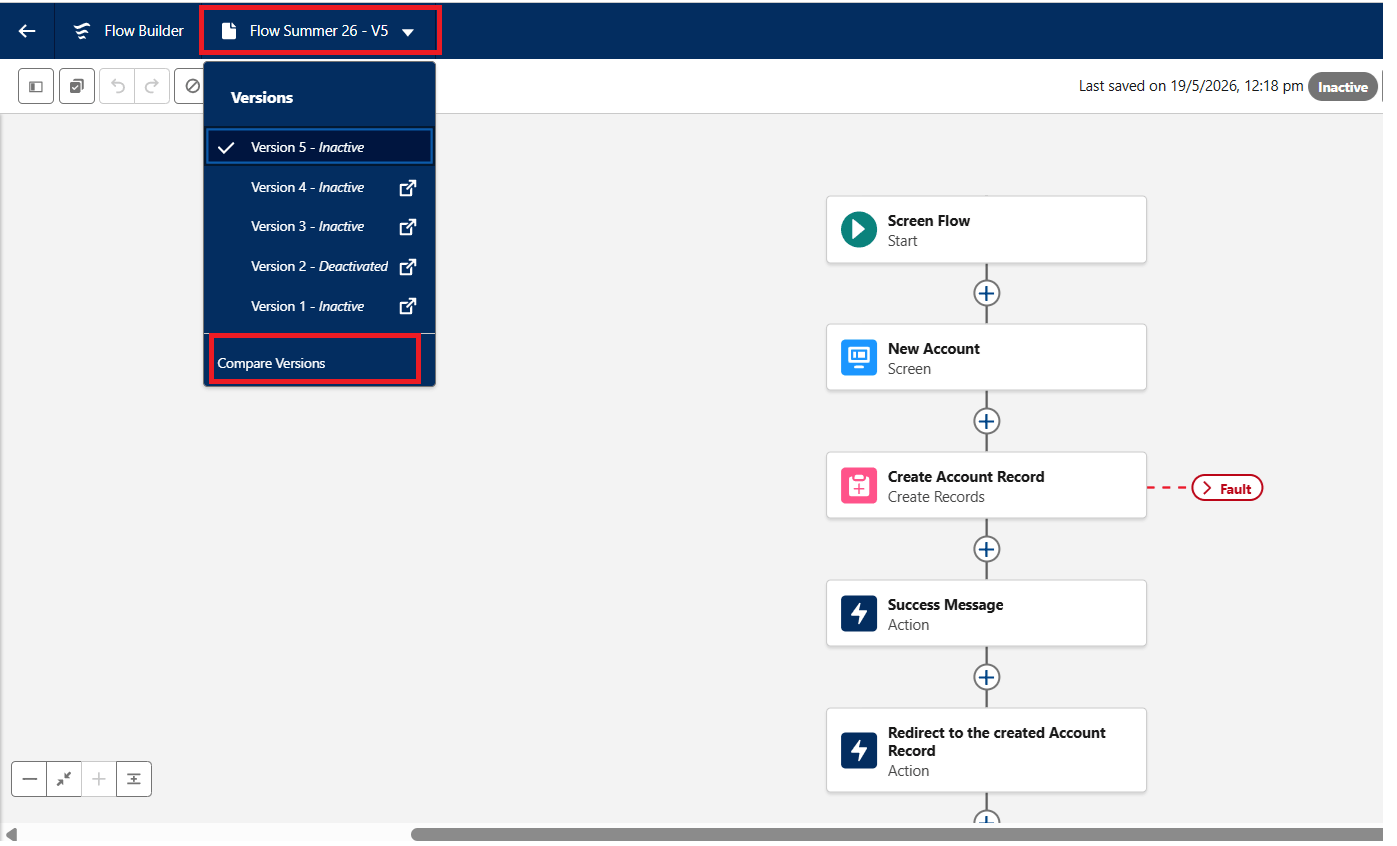
Flow Builder now provides a built-in version comparison feature, making it easier to quickly identify differences between two flow versions. Instead of manually comparing XML files or reviewing changes line by line, you can now visually track updates directly within the Flow canvas.
The comparison view highlights added, modified, and removed elements, helping admins and developers understand changes more efficiently and reduce deployment risks.
To compare versions, open a flow and select Compare Versions from the version dropdown. You can switch between table and visual views and click on changed elements to view additional details.
8. Simplify Email Template Management Across Flow Deployments
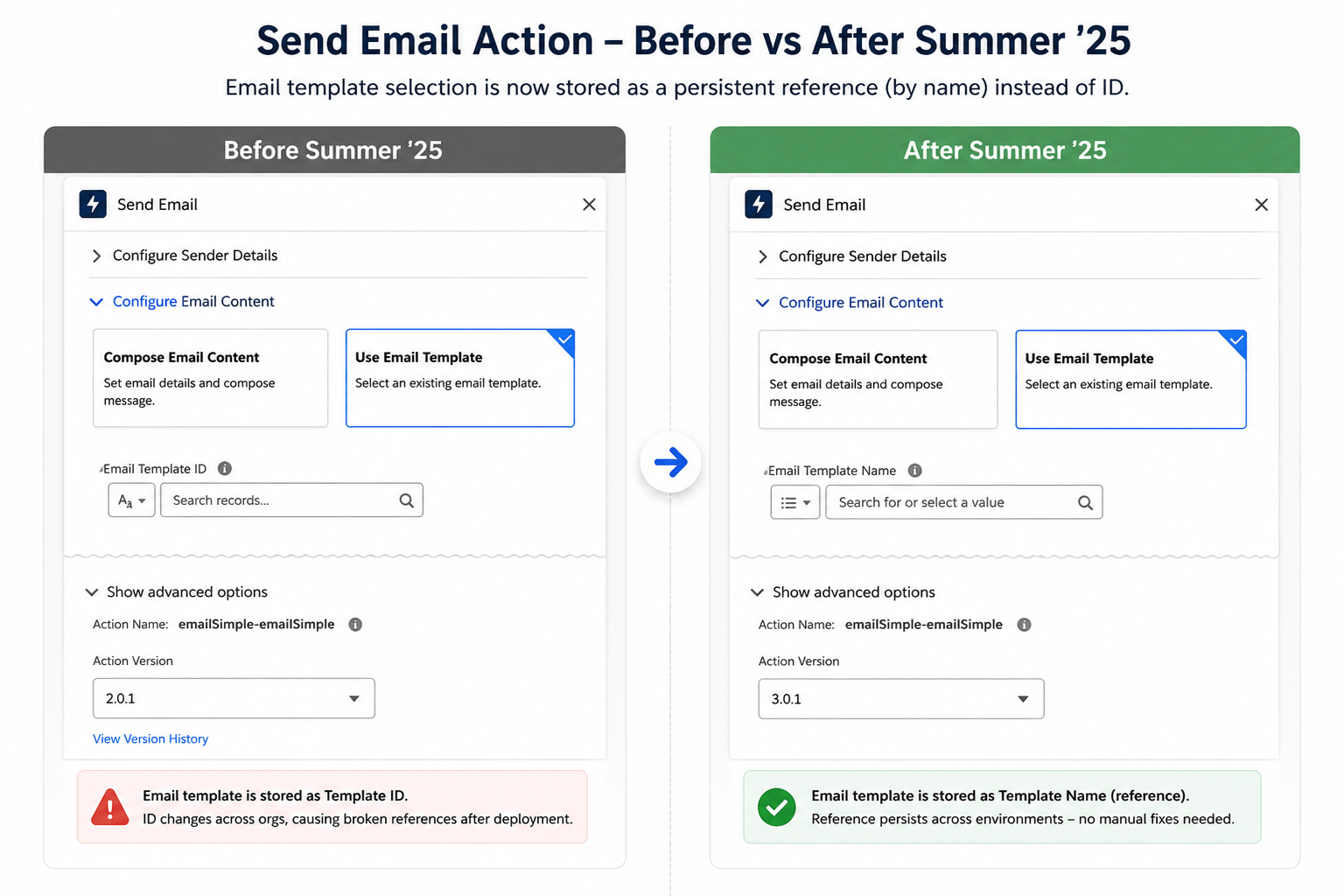
The Send Email action in Flows now supports persistent email template references, helping avoid broken email template mappings after deployment between environments.
Previously, the selected email template was stored using the template ID. Since template IDs change across orgs, deployments often resulted in broken references that required manual fixes after deployment. With this enhancement, you can now select the email template directly by name from a dropdown list. The template is stored as a persistent reference, making deployments across Sandbox and Production environments much smoother and more reliable.
To use this feature, update the Send Email action to Action Version 3.0.1 and select the required email template from the dropdown list.
9. Optimize Scheduled Flow Performance with Custom Batch Sizes
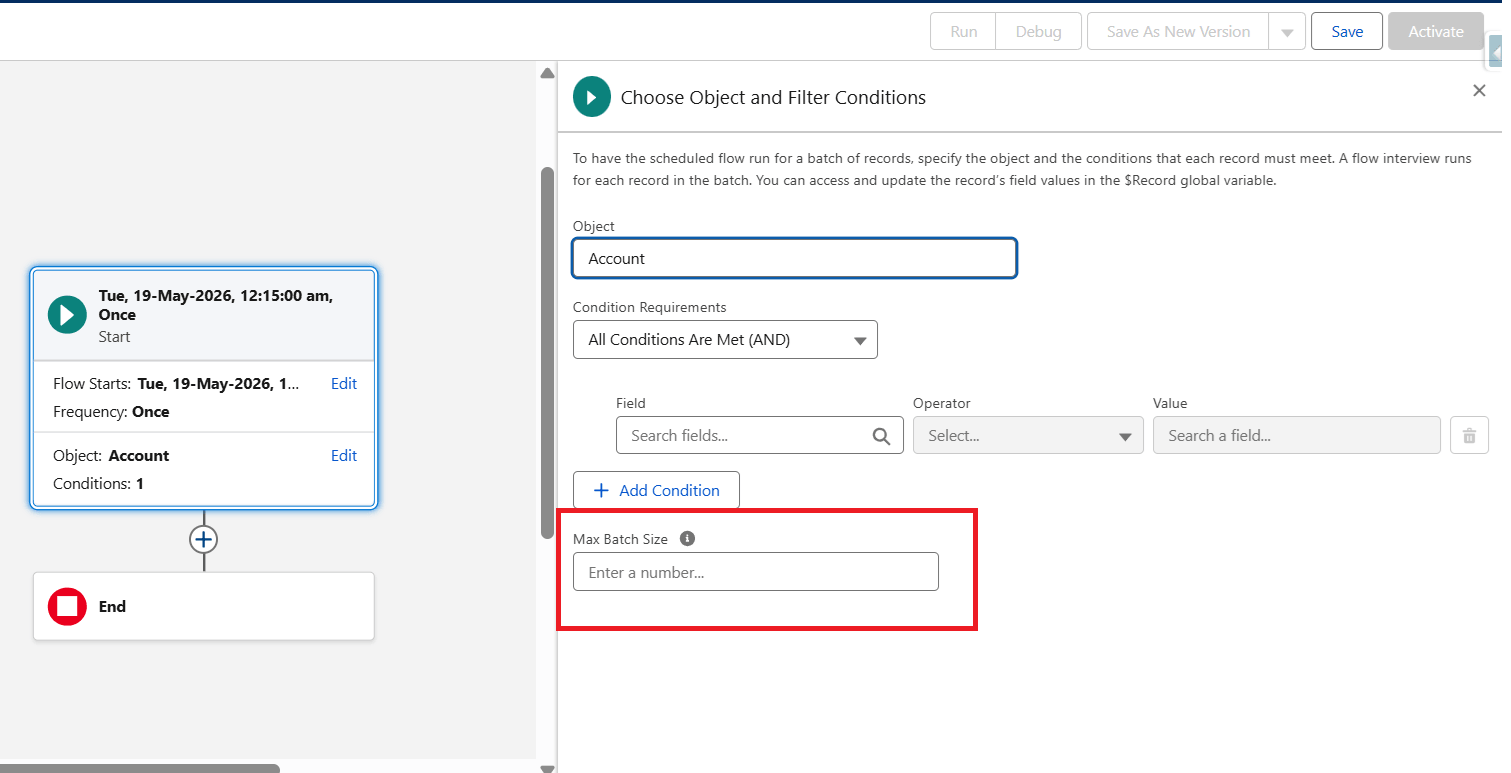
Scheduled Flows now support custom batch sizes, allowing better control over flow execution and helping reduce the chances of hitting Apex governor limits in complex automations.
Previously, scheduled flows processed records in the default batch size of 200, which could create performance issues in resource-intensive flows. With this enhancement, you can now define a custom batch size ranging from 1 to 200 directly from the Start element. For example, if a flow processes 7 records and the batch size is set to 2, Salesforce processes the records in 4 separate batches instead of a single large execution.
Using smaller batch sizes can improve performance and help avoid governor limit issues, especially when flows contain heavy logic, Apex actions, or multiple DML operations. However, very small batch sizes may increase the overall processing time.
10. Enhance Decision Logic with New Date Operators
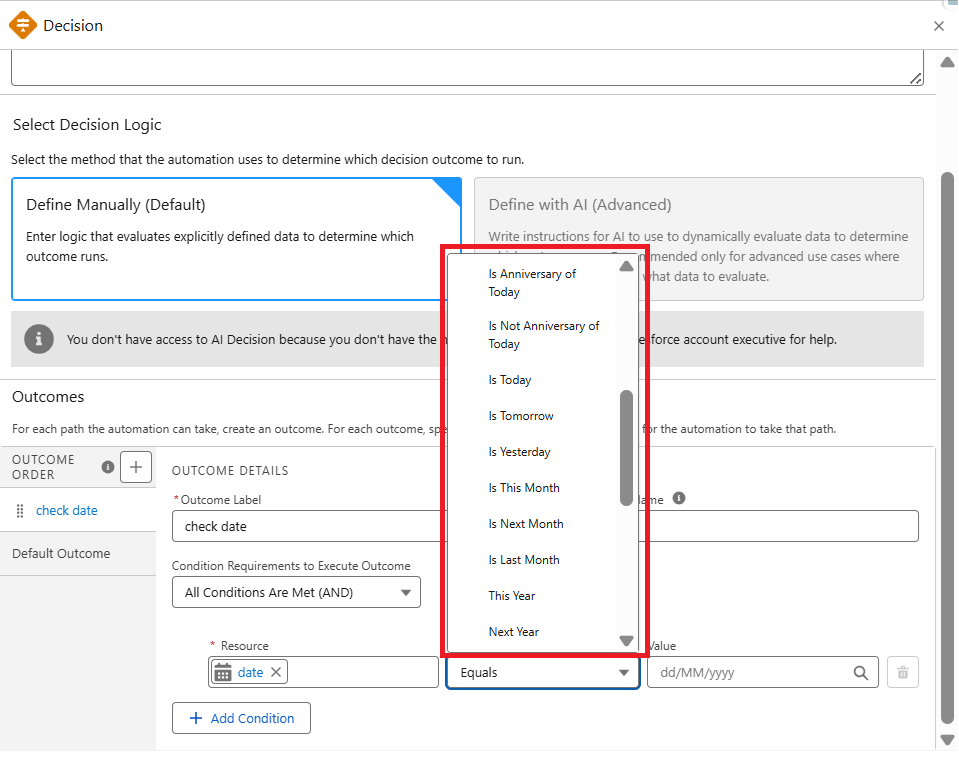
Flow Builder now provides enhanced date operators in Decision elements, making it easier to build date-based conditions without relying on complex formula resources or workaround logic.
Previously, Decision elements supported only limited date comparison options. With this enhancement, you can now use several new operators to handle recency checks, milestone tracking, and time-based branching more efficiently.
Some of the newly available date operators include:
- Is Today
- Is Tomorrow
- Is Yesterday
- Is This Month
- Is Next Month
- Is Last Month
- Is Anniversary of Today
- Is Before
- Is After
- Last Number of Days
- Next Number of Days
- Last Number of Months
- Next Number of Months
- Last Number of Years
Conclusion
Salesforce Summer ’26 introduces several valuable enhancements that make Flow Builder more interactive, user-friendly, and efficient. From improved Screen Flow experiences and better UI customization to smarter deployment handling and performance optimization, these updates help admins and developers build cleaner and more scalable automation with less complexity. Overall, this release continues to strengthen Salesforce Flow as a powerful low-code automation solution for modern business processes.
If you're interested in exploring more Salesforce solutions, visit our Sales Cloud page.
For any queries please reach out to support@astreait.com