A frequent requirement that we receive is to change the owner of cases from a user that has become inactive. A simple flow can do the trick. In this blog I will go through the steps to set up a flow to change the owner of cases that are owned by inactive users.
The steps are included below:
- Create a new flow and select when you want to run the flow.
- In the "Object" field, select "Case".
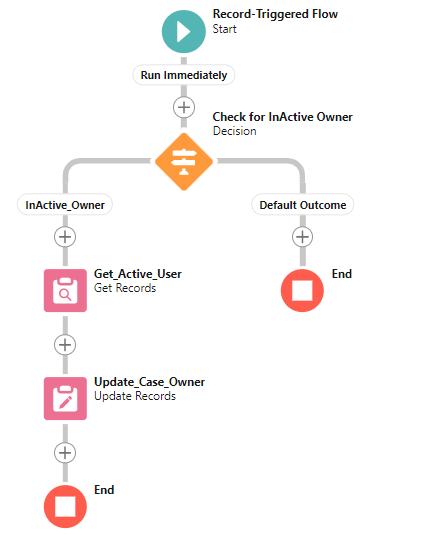
- Add a “Decision Element”, add a filter to only get cases where the current owner is inactive. The filter condition should look like this:

- Create a new “Resource”, select “Variable” as Resource Type. In the “Data Type” field, select "Record" and in the “Object” field, select “User”.
- Add the “Get Records” element. In the “Object” field, select “User”. In the “Filter Records” section, add a filter to only get the Active Users. Alternatively a specific user can be added in the filter criteria.
- Sort the Records by “Id” in “Ascending” order. Store “Only the first record” in the Record Variable you created.
- Add “Update Records” element, Select “OwnerId” field. In the "Value" field, select the “Id” from the Record Variable, like the example as shown below:

- Save and activate the flow.
This flow will update all cases where the current owner is inactive and set the new owner to the user with the lowest ID who is active. You can customize the filter and formula to fit your specific business requirements.
In addition to automating ownership changes through Flow, organizations can further streamline case handling by using Macros within the Service Console. . Macros allow agents to execute repetitive actions—such as updating fields, sending responses, or closing cases—with a single click. When combined with automated ownership reassignment, macros ensure smoother transitions and faster case resolution.
A screenshot of the flow is given as a reference
Beyond ownership automation, organizations often enhance the Case user interface to improve visibility and usability. For example, customizing the Email related list using Lightning Web Components can allow clickable fields, custom sorting, and better navigation for support teams. Combining backend automation with UI enhancements creates a more seamless case management experience.
Similar ideas can be applied to to change the owners of other objects.
Automating ownership transfers, improving console productivity, and enhancing case UI components are all part of building an efficient support ecosystem within Salesforce Service Cloud. By leveraging flows, macros, and Lightning Web Components, organizations can ensure seamless case lifecycle management. To explore more Service Cloud capabilities and implementation best practices, visit our Service Cloud page.