Introduction
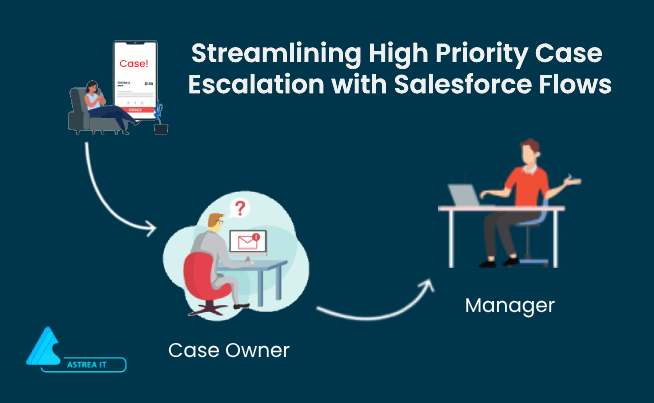
Salesforce Flows are powerful automation tools that enable you to create complex, multi-step business processes within the Salesforce platform without writing code. In this blog post, we'll walk you through the process of implementing a requirement: notifying the manager of the case owner when a high-priority case has been open for more than three days. By the end of this guide, you'll have a clear understanding of how to set up this automation using Salesforce Flows.
While Salesforce Flows provide flexible automation for complex business logic, Salesforce also offers a built-in feature called Escalation Rules that automatically escalate cases based on predefined criteria and time conditions. Escalation Rules are commonly used to reassign cases, notify supervisors, or ensure critical issues receive timely attention.
Prerequisites
- A Salesforce account with necessary permissions to create and edit Flows.
- A Status field of picklist type has value "High Priority" on the Case object to differentiate high-priority cases.
- A custom Field ‘Number of Days’ on case object which can count the number of days the case is open with high priority.
In many organizations, high-priority cases are often tied to specific products or support contracts that customers are entitled to. Salesforce manages these service commitments through Assets and Entitlements, which help define service levels and track customer support coverage. By combining entitlement management with automated flows and escalation processes, organizations can ensure that high-priority cases are handled according to the agreed service level agreements (SLAs).
Implementation Steps
1. Create a New Flow:
- Login to Salesforce and navigate to the Flow Builder.
- Click "New Flow" to create a new flow.
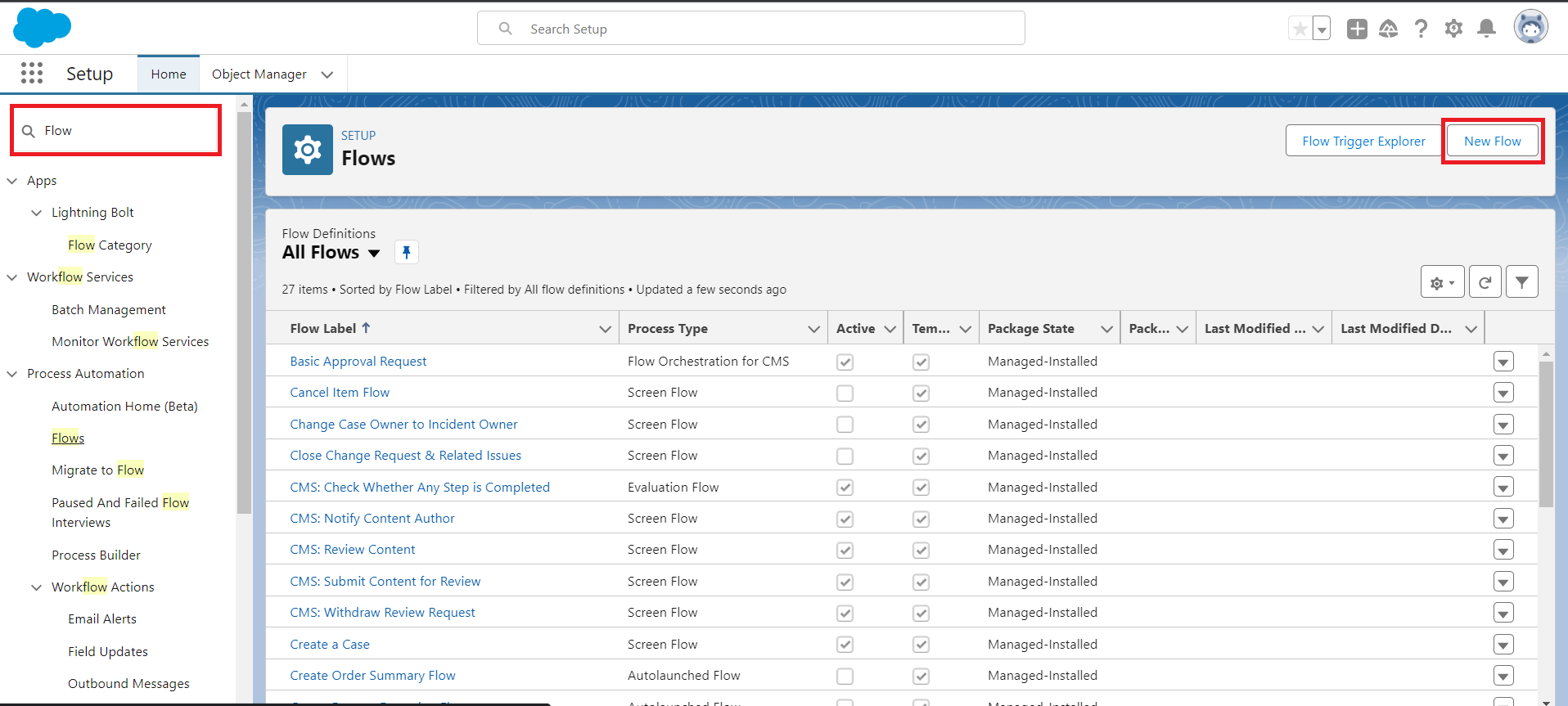
Figure 1: Click on New Flow button to create a new flow.
2. Define Flow Element:
- Entry condition for flow: Use this to Fetch the Case object for high-priority cases open.
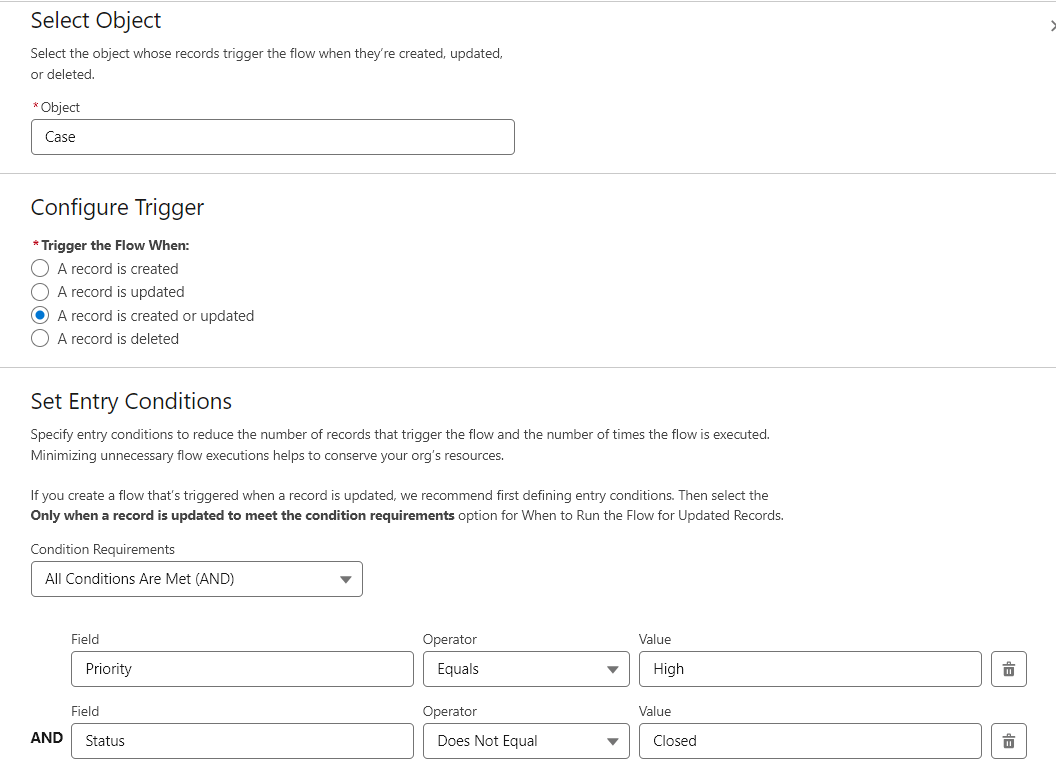
Figure 2: Set the entry condition for flow to executed
- Get case manager records: Use this to fetch the email address of the manager of the case owner.
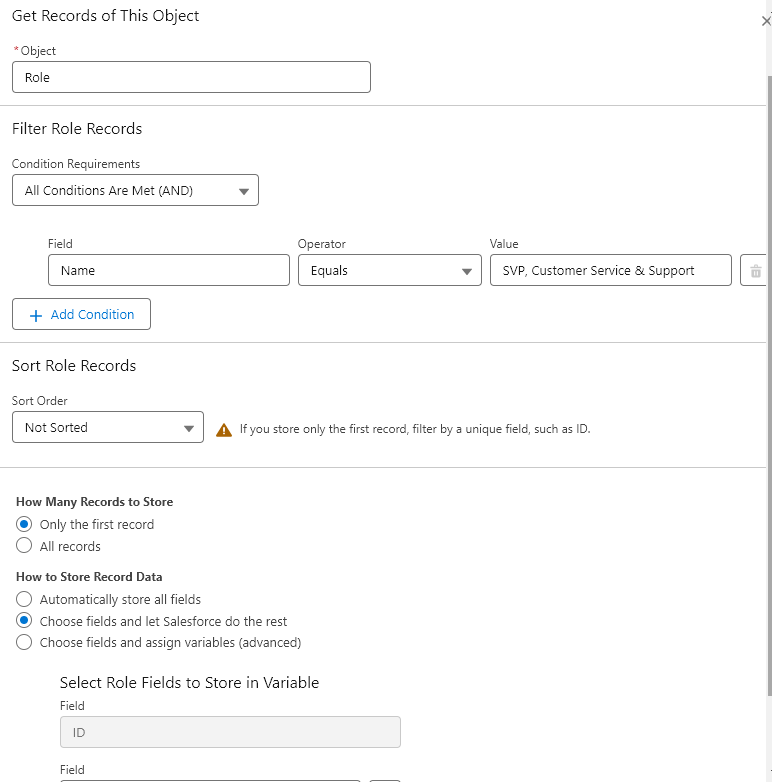
Figure 3: Find the Id of the manager of case owner to send email
-Decision Elements: Use this elements to decide if case is open for more than 3 days or not
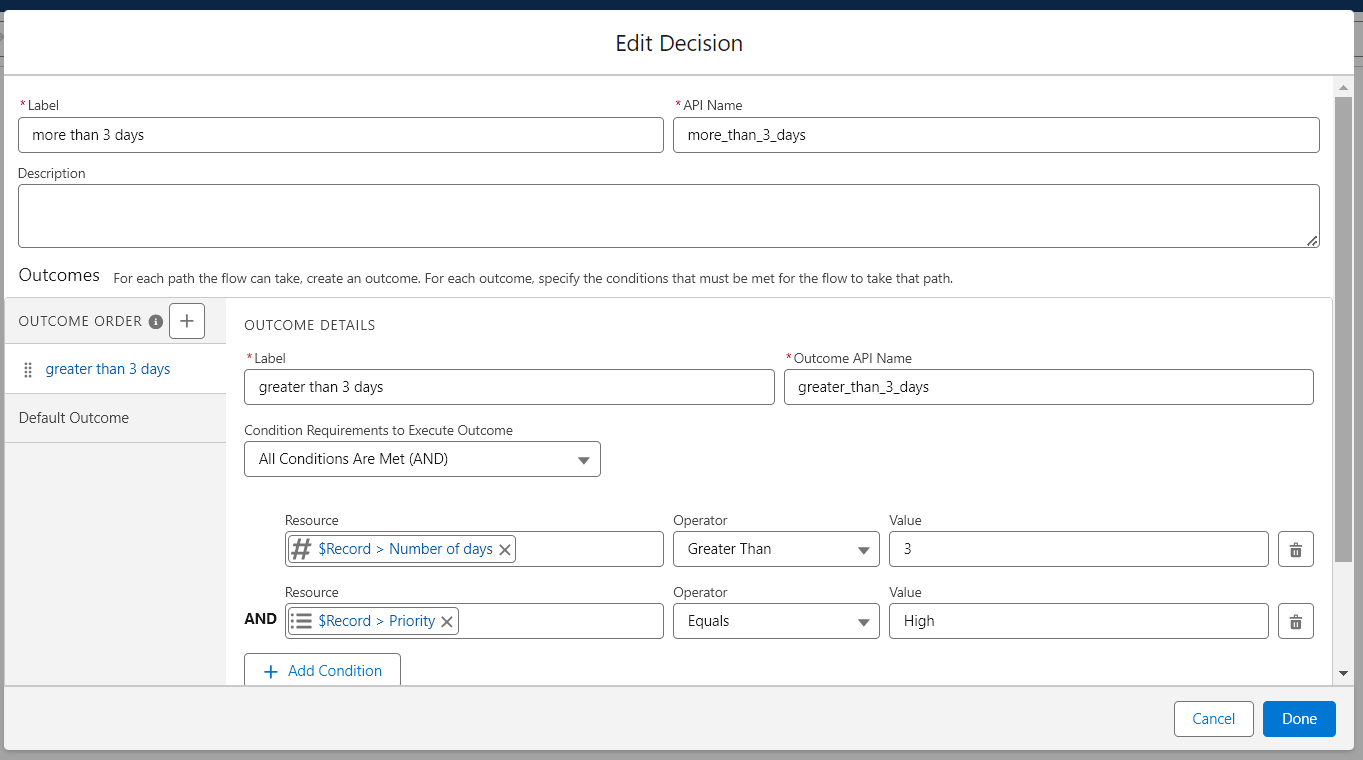
Figure 4: Decision element to decide the case is open for more than 3 days.
- Send Email: This action will be used to send the notification email.
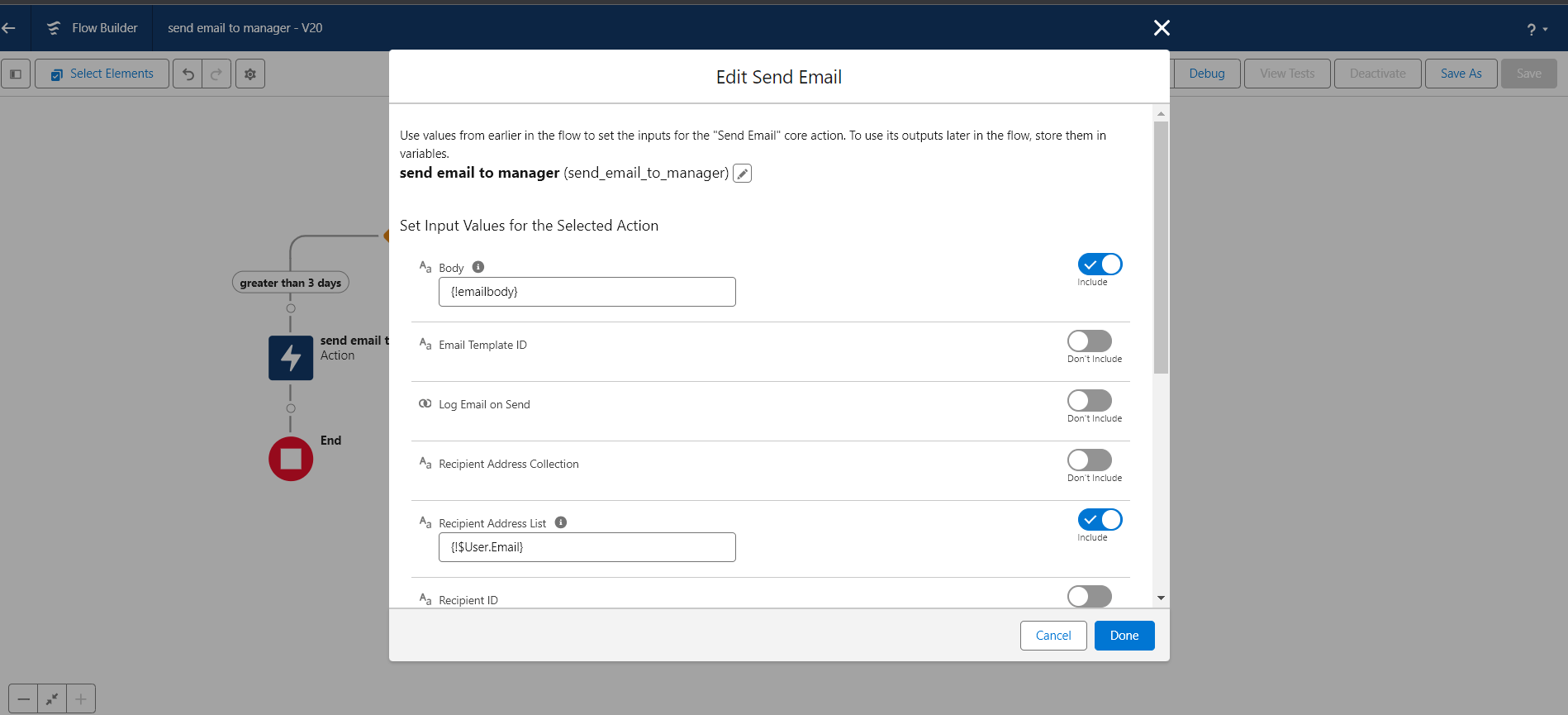
Figure 5: Action element to send email which includes email address of case owner manager.
-Create Email template: we can create an email template for our email action by creating new resources and assign it to the body parts in the input values section in send email action as shown above in figure.
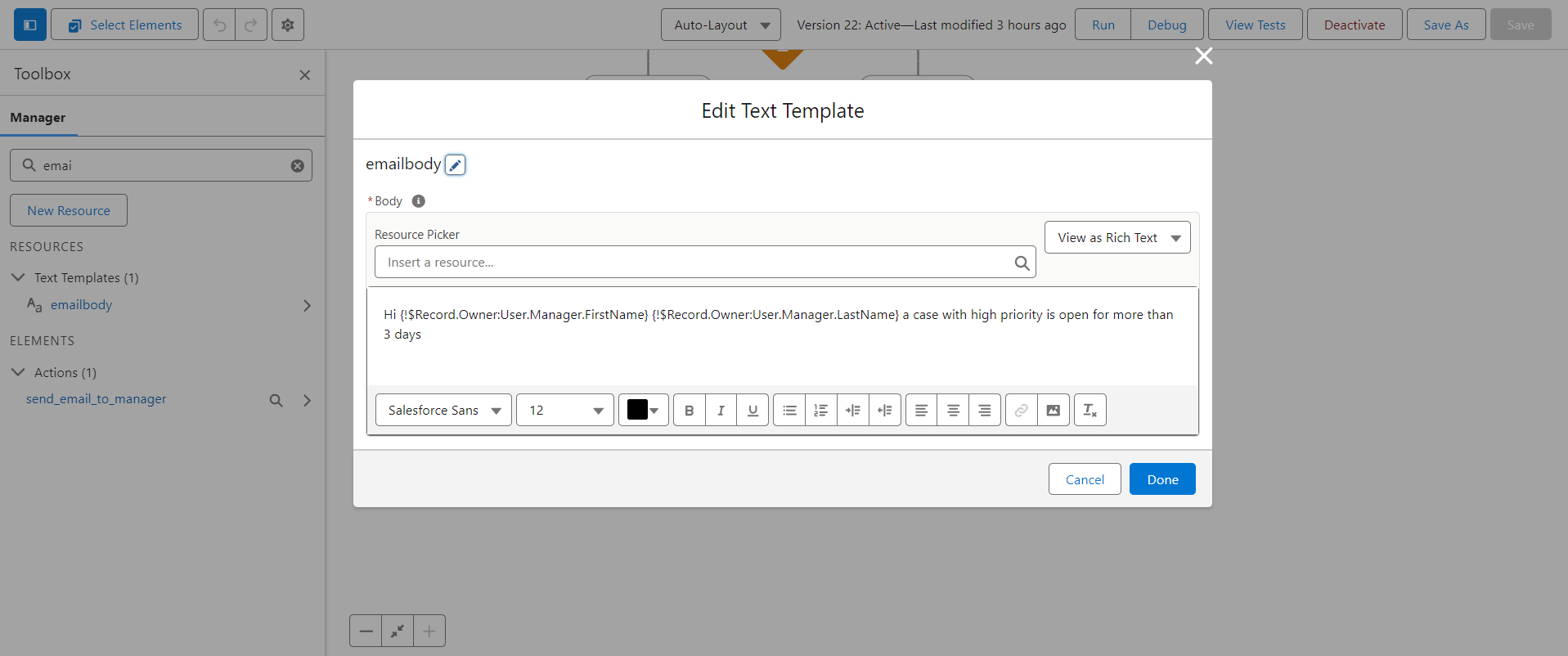
Figure 6: Newly created email template resources for our send email action.
3. Activate and Schedule the Flow:
- Save and activate the flow.
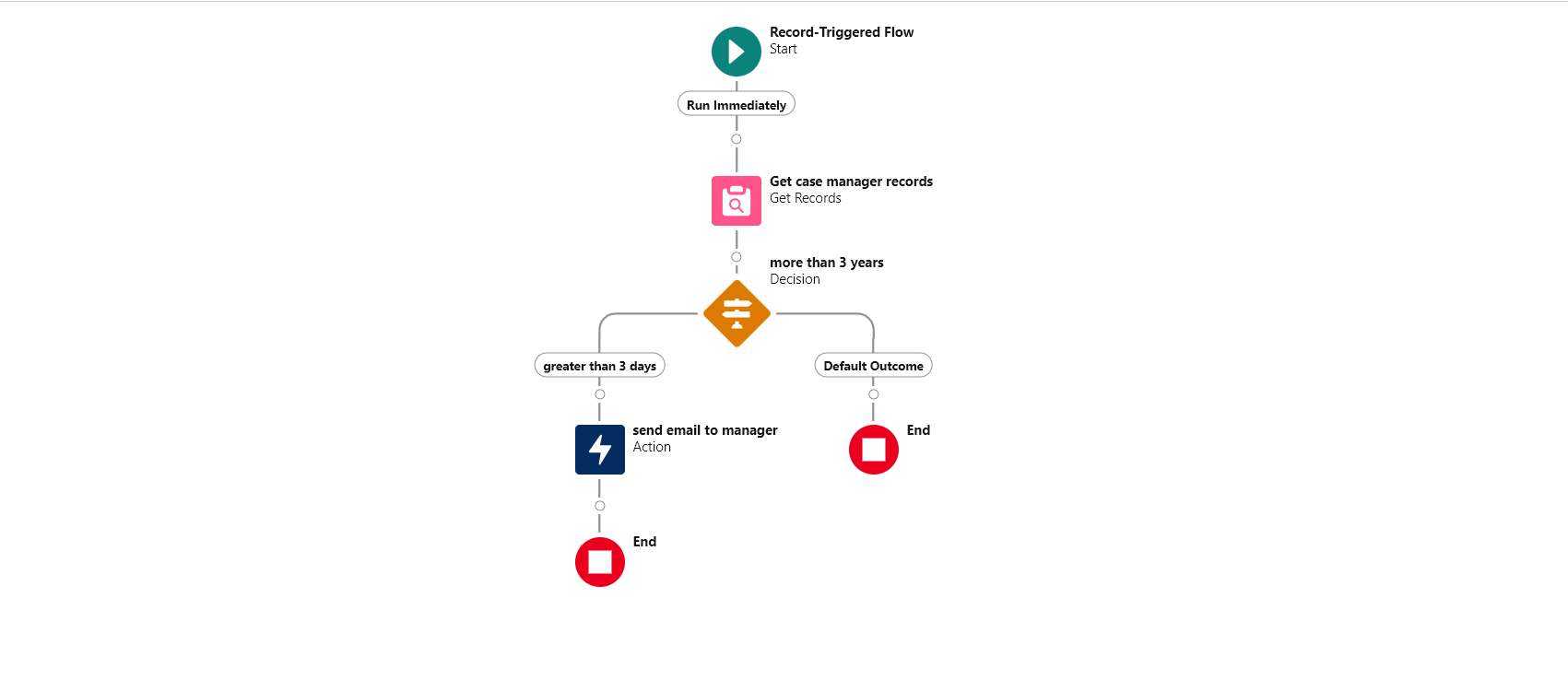
Figure 7: How the final flow looks like.
4. Test the Automation:
-A user with a manager named case manager assigned to it.
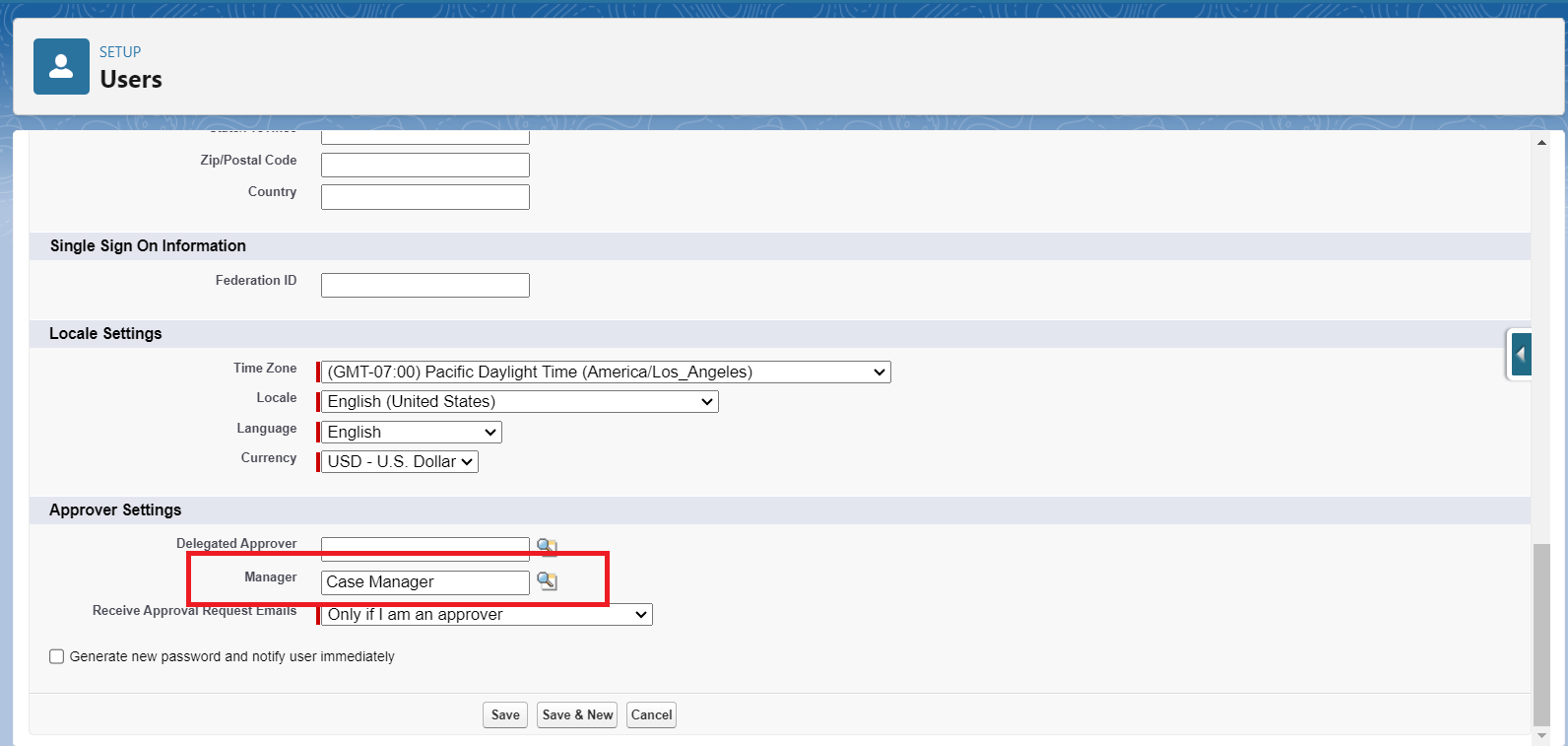
Figure 8: A user with a manager assigned who will receive email.
- To test the automation, create a high-priority case and ensure it remains open for more than three days.
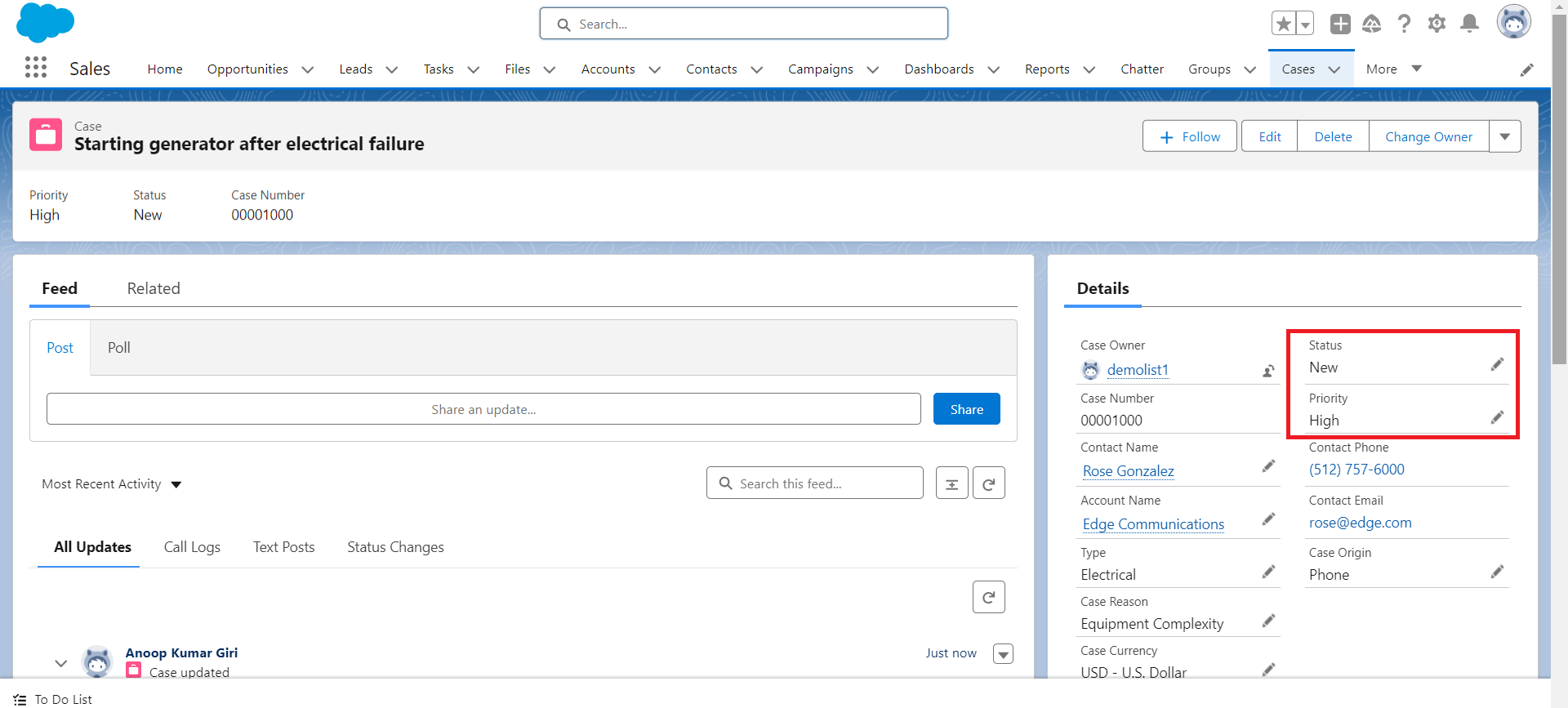
Figure 9: A case record with High Priority is created which is open for more than 3 years.
- Monitor the flow's execution to verify that it sends the notification email to the manager of the case owner as expected.
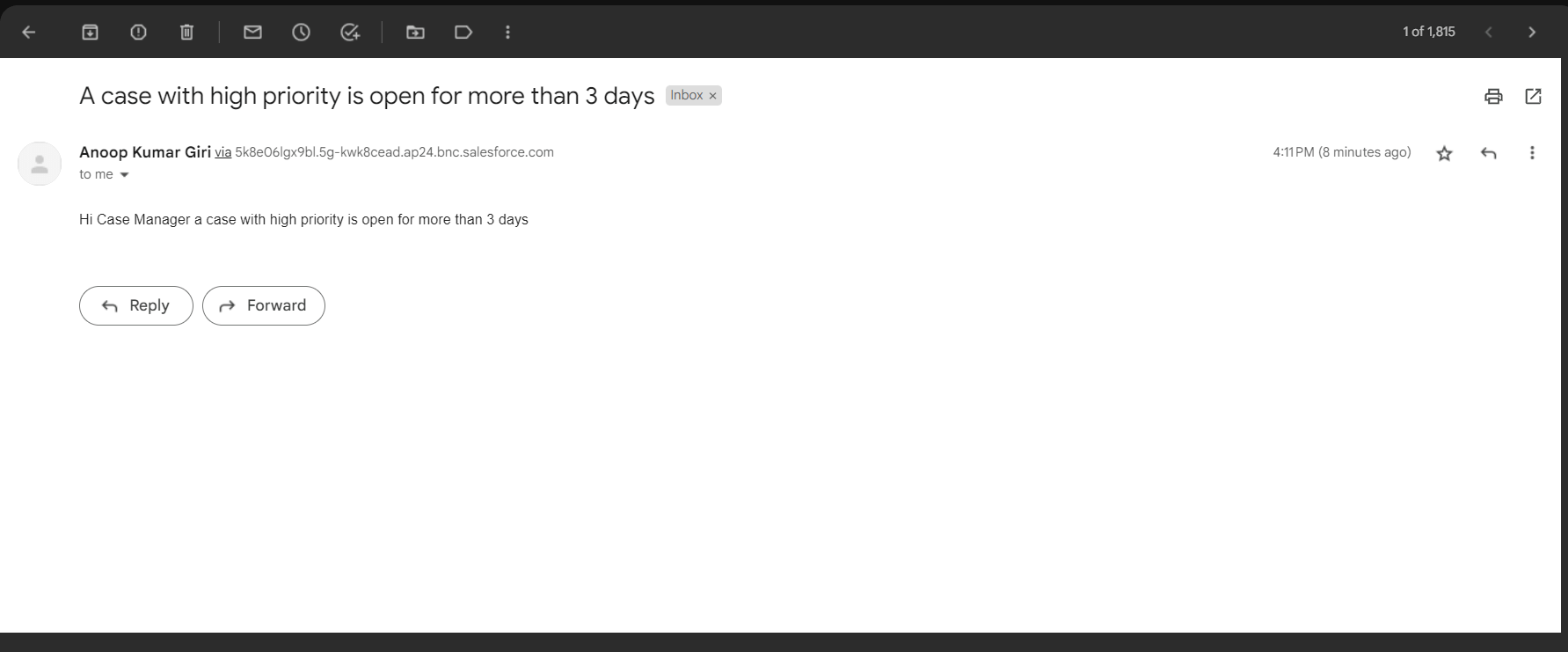
Figure 10: An email has been received to the manager of the case owner.
Conclusion:
Salesforce Flows offer a powerful and flexible way to automate complex business processes, such as case escalation for high-priority cases. In this blog post, we've outlined how to implement this requirement using Flow Builder. By following these steps, you can ensure that managers are promptly informed when high-priority cases remain unresolved for an extended period. This not only improves customer service but also streamlines your support processes within Salesforce.
Salesforce Flows are a key part of Salesforce Service Cloud, which helps organizations streamline case management, automate service processes, and improve customer support efficiency. To learn more about the complete capabilities of Salesforce customer support solutions, explore our Service Cloud page.
For any queries please reach out to support@astreait.com