Salesforce stores a mountain of valuable data—but a huge chunk of it is trapped inside files like order summaries, reports, and business documents. Traditionally, this data stays "dark" because it requires a human to open, read, and manually analyse it.
What if your users could simply upload a file and chat with it?
In this blog, we’ll explore how to build an AI-powered file intelligence solution in Salesforce that transforms static documents into actionable insights using Screen Flow, Apex, and OpenAI.
Solution Overview
We’ve designed a seamless interface that allows users to pick a file directly from a Salesforce record, ask a business question in plain English, and receive an intelligent response in seconds.
Technologies Used
- Salesforce Screen Flow: The user-friendly interface.
- Apex (Invocable Method): The engine that reads file content.
- OpenAI API (GPT-4.1): The "brain" providing the reasoning.
- Quick Action: The entry point on the Lead record.
How It Works: The Workflow
The user journey is designed to be frictionless, keeping the representative inside the Salesforce UI they already know.
Entry: User opens a Lead record and clicks the "Get AI Answers" button.
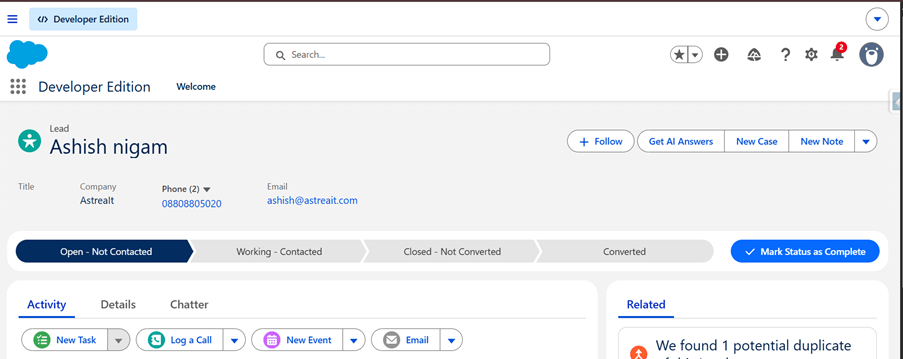
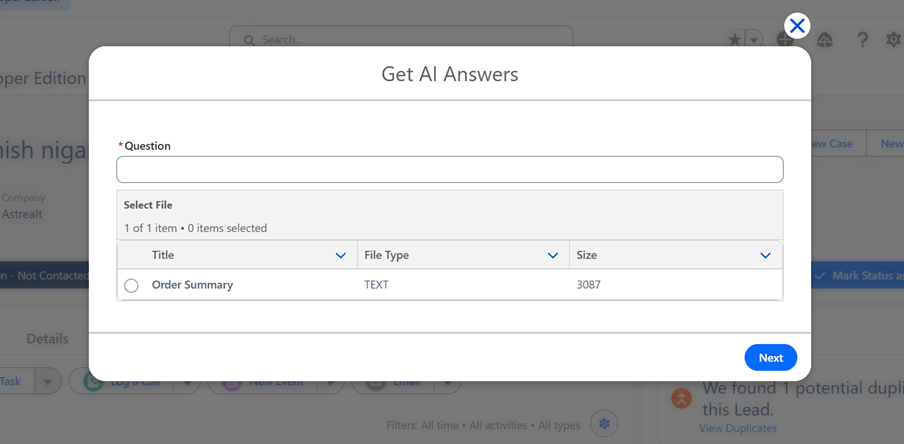
1. Interaction: A Screen Flow launches, displaying a list of related files and a text box for the question.
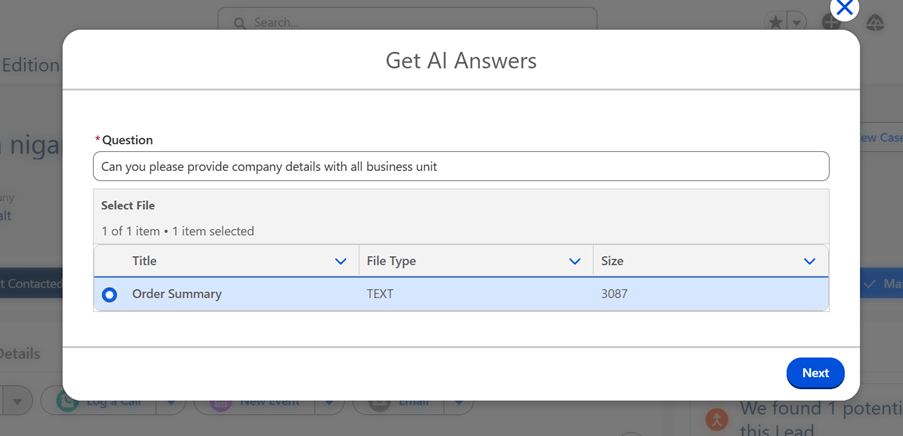
2. Processing: Apex fetches the file from ContentVersion, converts it to readable text, and sends it to OpenAI.
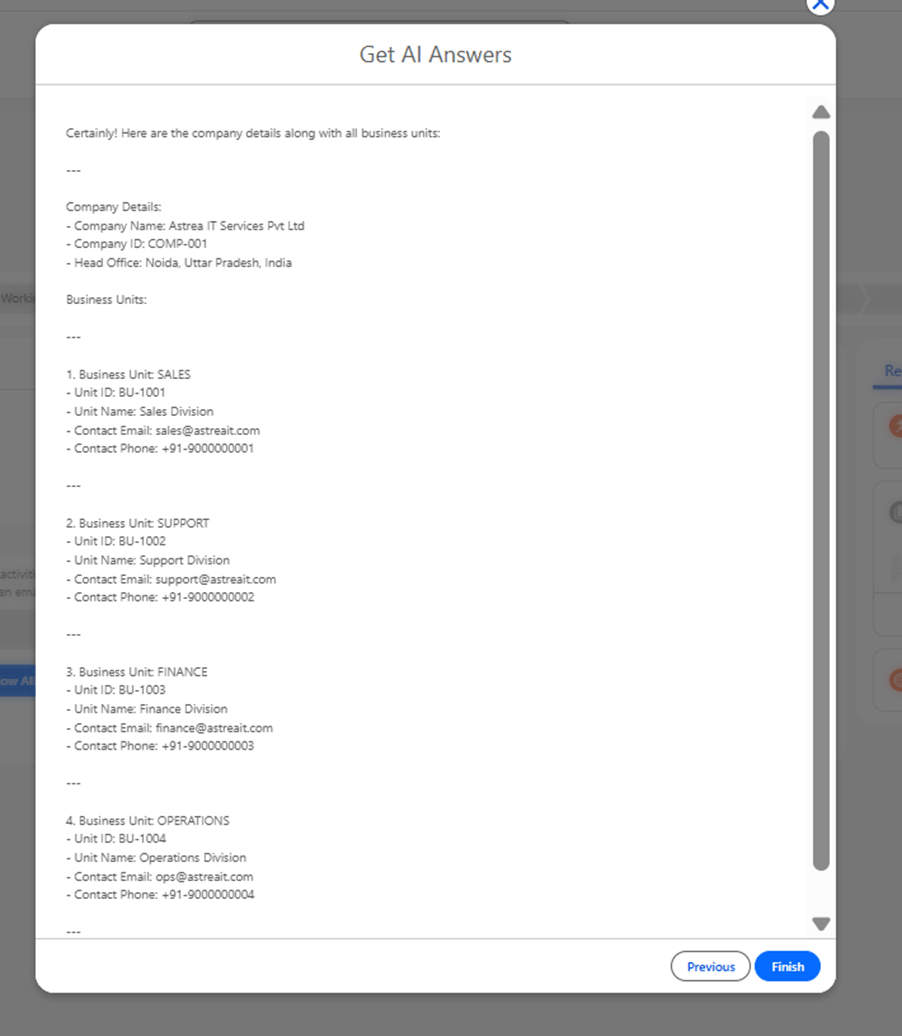
3. Delivery:The AI processes the data and streams the answer back to the Flow screen.
Key Implementation Components
1. The Screen Flow (The UI)
The Flow acts as the orchestrator. It fetches files related to the record, displays them in a selection component, and captures the user's question. Once the user hits "Next," the Flow calls our Apex action and waits for the response to display it on the final screen.
2. The Apex Layer (The Bridge)
This is where the heavy lifting happens. Since Salesforce Files are stored as binary data, our Apex code:
- Retrieves the file from ContentVersion.
- Converts the content into a string (supportingTXT, CSV, or JSON).
- Constructs the JSON payload for the OpenAI API.
- Returns the AI's string response back to the Flow.
3. AI Processing (OpenAI GPT-4.1)
By sending the document text as "context" and the user's prompt as the "query," the AI can provide human-like reasoning. It doesn't just search for keywords; it understands the data.
Real-World Example
Imagine you upload a business performance report to a Lead.
The Data: A CSV containing revenue by division.
The Question: "How many business units are in this company and provide details?"
AI Answer:
Total Business Units: 4
- Sales Division: 2,400 USD
- Support Division: 2,650 USD
- Finance Division: 3,200 USD
- Operations Division: 3,250 USD
Insights: Operations is the top performer, while Sales currently has the lowest value.
Business Use Cases
This solution isn't just a cool party trick; it solves real business bottlenecks:
- Order Analysis: Quickly find the highest value order or identify pending shipments in a massive log.
- Product Insights: Identify the most sold products without running a manual report.
- Risk Analysis: Ask the AI to "detect any anomalies or delayed operations" in a vendor document.
OpenAI Integration
To get started, you'll need an OpenAI API Key.
- Pricing: GPT-4.1 operates on a pay-as-you-go model (approx. $0.005 – $0.02 per request). A small $5-10 credit is plenty for testing.
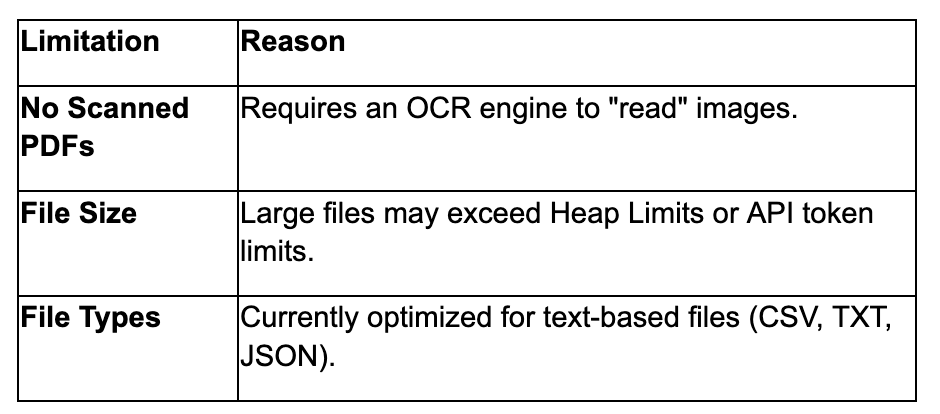
Current Limitations
Conclusion
By bridging the gap between Salesforce Files and OpenAI , you transform your CRM from a storage locker into a knowledge base. Stop reading documents—start asking them questions.
For any queries please reach out to support@astreait.com