Introduction
Organizations frequently need to send emails to multiple recipients while maintaining consistency through predefined email templates. Salesforce provides standard email functionality, but business requirements often demand a more customized experience.
In this article, we'll explore how to build a custom mass email solution using Lightning Web Components (LWC) and Apex. The solution allows users to:
- Search and select email templates
- Preview email content before sending
- Select multiple teams as recipients
- Send emails in bulk using Salesforce Email Templates
- Operate directly from a record page or a home page.
Business Requirement
Users needed an easy way to communicate important updates to multiple teams associated with a specific application record.
The key requirements included:
- Selecting approved email templates
- Previewing the email before sending
- Choosing multiple teams simultaneously
- Sending emails directly from the record page
- Providing a clean and intuitive user experience
Solution Overview
The solution was built using:
- Lightning Web Components (LWC)
- Apex Controllers
- Salesforce Email Templates
- Lightning Dual List Box
- Salesforce Toast Notifications
The component is deployed directly on the Salesforce Record Page, allowing users to initiate communication without navigating away from the current record.
Step 1: Launching the Email Sender
The component appears on the record page as a simple action panel.

Figure 1
Figure 1: Team Email Sender Component
Users can start the process by clicking the Send Team Email button.
This approach keeps the interface clean while making the functionality easily accessible whenever communication is required.
Step 2: Selecting an Email Template
Once the button is clicked, a modal window opens, prompting users to select an email template.
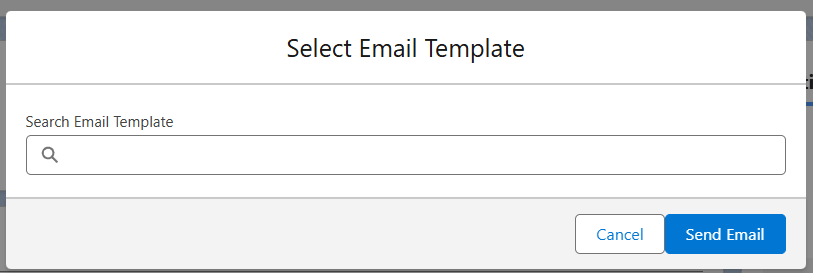
Figure 2
Figure 2: Email Template Selection Screen
The modal contains a searchable template field that allows users to quickly locate the desired template.
Benefits of this approach:
- Faster template discovery
- Improved user experience
- Scalability for organizations with large template libraries
Instead of scrolling through a long list of templates, users can simply type a keyword and instantly filter available options.
Step 3: Reviewing the Selected Template
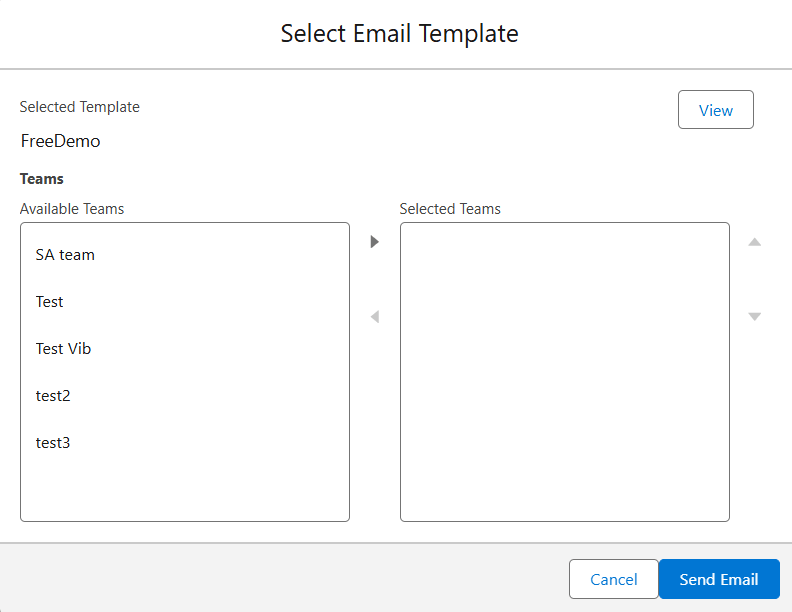
Figure 3
After selecting a template, the component displays the chosen template name.
Figure 3: Selected Template and recipient Selection
In this example, the selected template is:
FreeDemo
A dedicated View button allows users to preview the email before sending.
This feature helps prevent communication errors and ensures users understand exactly what recipients will receive.
Step 4: Selecting Recipient Teams
After choosing a template, users can select one or multiple teams using the Salesforce Dual List Box component.
The interface provides:
Available Teams
Displays all available teams, including:
- SA team
- Test
- Test Vib
- test2
- test3
Selected Teams
Users can move teams into the selected list using the built-in controls.
Advantages include:
- Multi-team communication
- Easy recipient management
- Reduced risk of missing stakeholders
The dual-list design is intuitive and aligns with standard Salesforce user experience patterns.
Step 5: Sending the Email
Once users have:
- Selected a template
- Chosen one or more teams
they can click the Send Email button.
Before sending, the component performs validation checks to ensure:
- An email template has been selected
- At least one Recipient has been chosen
If validation fails, users receive immediate feedback through Salesforce toast messages.
After successful validation, the request is sent to Apex for processing.
Email Template Preview Capability
One of the most valuable features of the solution is the template preview functionality.
Users can review:
- Email Subject
- Rich Text Body
- Formatted Content
before sending the email.
This capability provides additional confidence and helps prevent accidental communication mistakes.
Technical Highlights
Lightning Web Component Features
The component manages:
- Modal interactions
- Template search functionality
- Dynamic template filtering
- Team selection
- Email preview
- Client-side validation
Apex Integration
The Apex controller is responsible for:
- Loading available teams
- Retrieving email templates
- Fetching template content
- Sending emails to selected recipients
Salesforce Email Templates
Using Salesforce Email Templates ensures:
- Consistent branding
- Reusable content
- Centralized template management
- Easier maintenance
User Experience Benefits
Faster Communication
Users can send updates to multiple recipients in just a few clicks.
Consistent Messaging
Email templates eliminate inconsistencies and ensure approved messaging is used.
Improved Accuracy
Preview functionality allows users to verify content before distribution.
Simplified Recipients Selection
The dual-list interface makes recipient management straightforward and efficient.
Seamless Salesforce Experience
The entire workflow occurs within Salesforce without requiring users to navigate to separate screens.
Conclusion
This custom Lightning Web Component provides a practical and user-friendly approach for sending template-based emails to multiple Recipients directly from Salesforce. By combining Email Templates, Lightning Web Components, and Apex services, the solution delivers a streamlined communication experience that improves productivity, ensures message consistency, and reduces manual effort.
The implementation demonstrates how Salesforce can be customized to support business-specific communication workflows while maintaining a modern and intuitive user experience.
If you're interested in exploring more Salesforce solutions, visit our Sales Cloud page.
For any queries please reach out to support@astreait.com