A field technician should not leave a customer site without a signed record of the work done. Salesforce can produce that record in seconds, from the Work Order itself, using Visualforce and a few dozen lines of Apex.
This post walks through a Field Service Summary PDF: what it contains, how to build it, and how to file or email it the moment the job closes.
The use case: Work Order and job completion summary
Technicians, engineers and maintenance crews finish on-site work such as equipment maintenance, HVAC repairs or IT infrastructure installs. Before they leave, the customer needs a document that proves what was done. That document needs four parts:
| Section | What it shows |
|---|---|
| Work Order header | Work Order Number, scheduled date and time, asset and serial number serviced |
| Customer and site | Account name, service location address, on-site contact |
| Services and parts | Line items for labor hours, replaced parts and service fees |
| Notes and sign-off | Technician diagnostic notes and an embedded customer signature block |
Why Visualforce fits
Visualforce is not the newest tool in the platform, but for a PDF it is still the most direct one.
- Works with core objects. It reads standard WorkOrder and WorkOrderLineItem records through an Apex extension, with no extra licensing cost.
- Mobile friendly. A custom action on the Salesforce Mobile App lets a technician generate and preview the summary on a phone or tablet.
- Automated archiving. PageReference.getContentAsPDF() turns the page into an Apex Blob. Save it to the Work Order as a ContentVersion (File), email it to the client, or both, when the job completes.
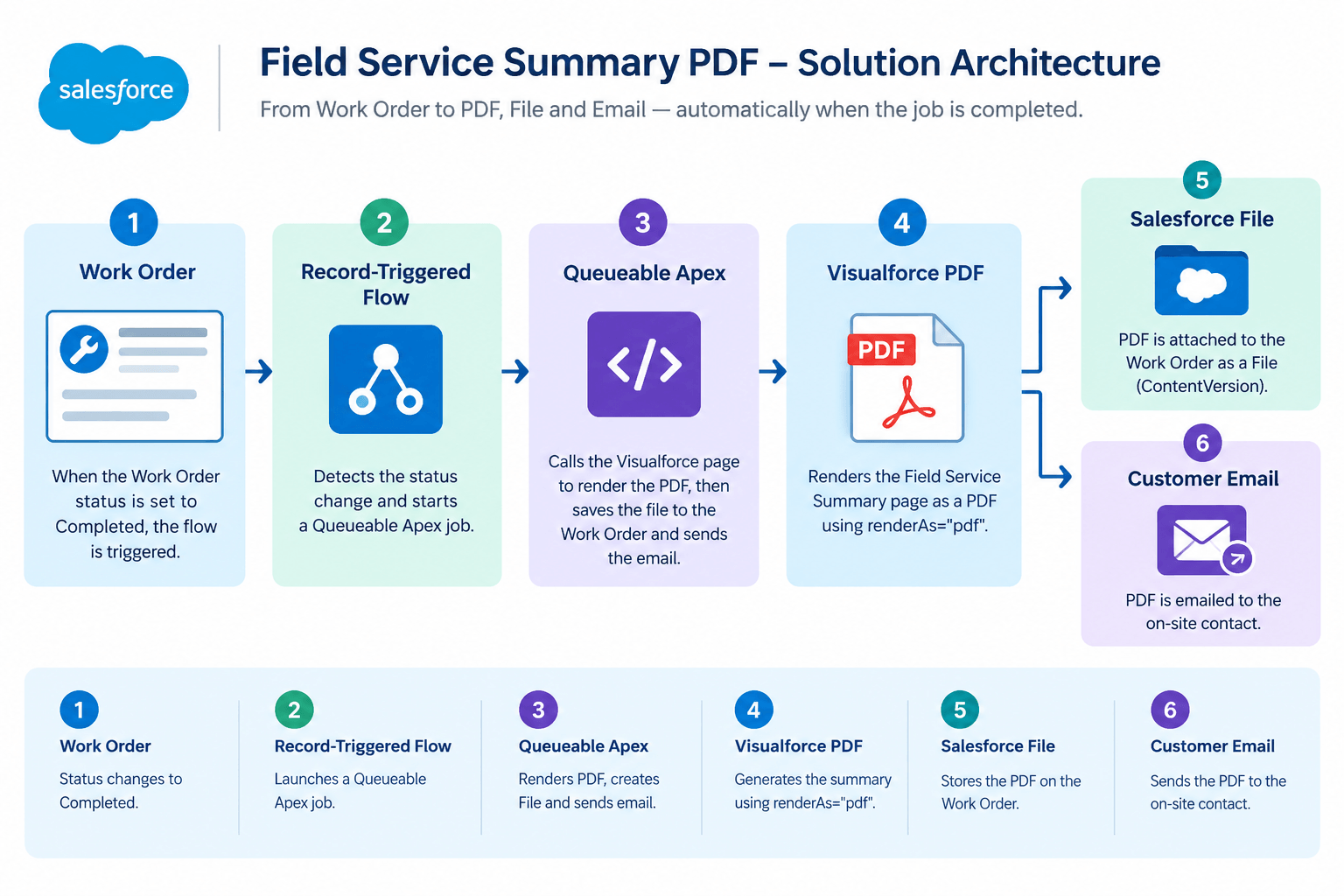
How the pieces fit together
The solution has four parts, and each maps to one step below.
- Apex controller extension: Retrieves the Work Order and related information required by the PDF.
- Visualforce page: Displays the information in a structured, print-friendly format and renders it as a PDF.
- Signature capture: Collects the customer's signature and stores it so that the PDF can display it.
- Automation: Uses a record-triggered Flow and Queueable Apex to generate, archive, and email the PDF when the Work Order is completed.
Step 1: Create the Apex controller extension
Start by creating an Apex class named FieldServiceSummaryExt.
The extension uses the standard Work Order controller to identify the current record. It then retrieves the fields required for the summary and queries the related Work Order Line Items.
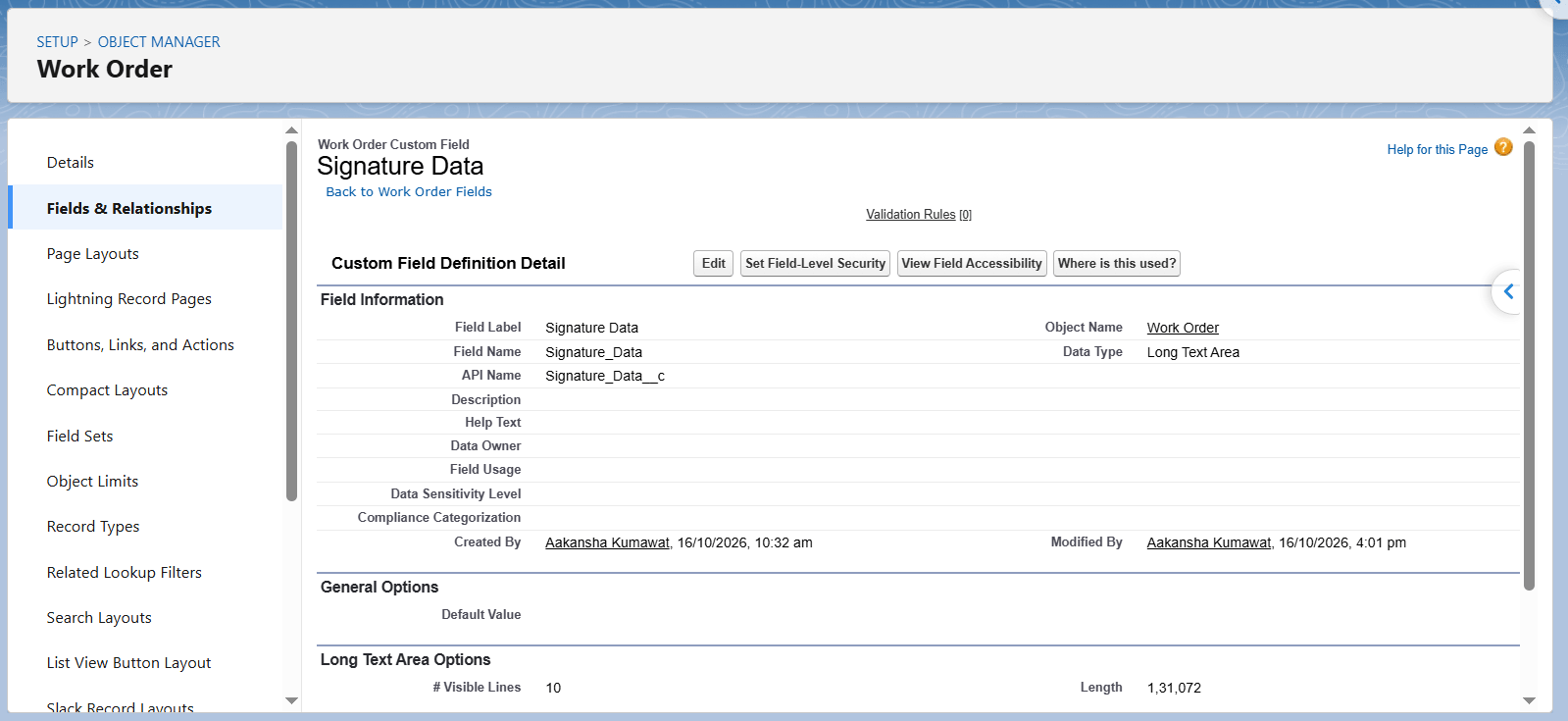
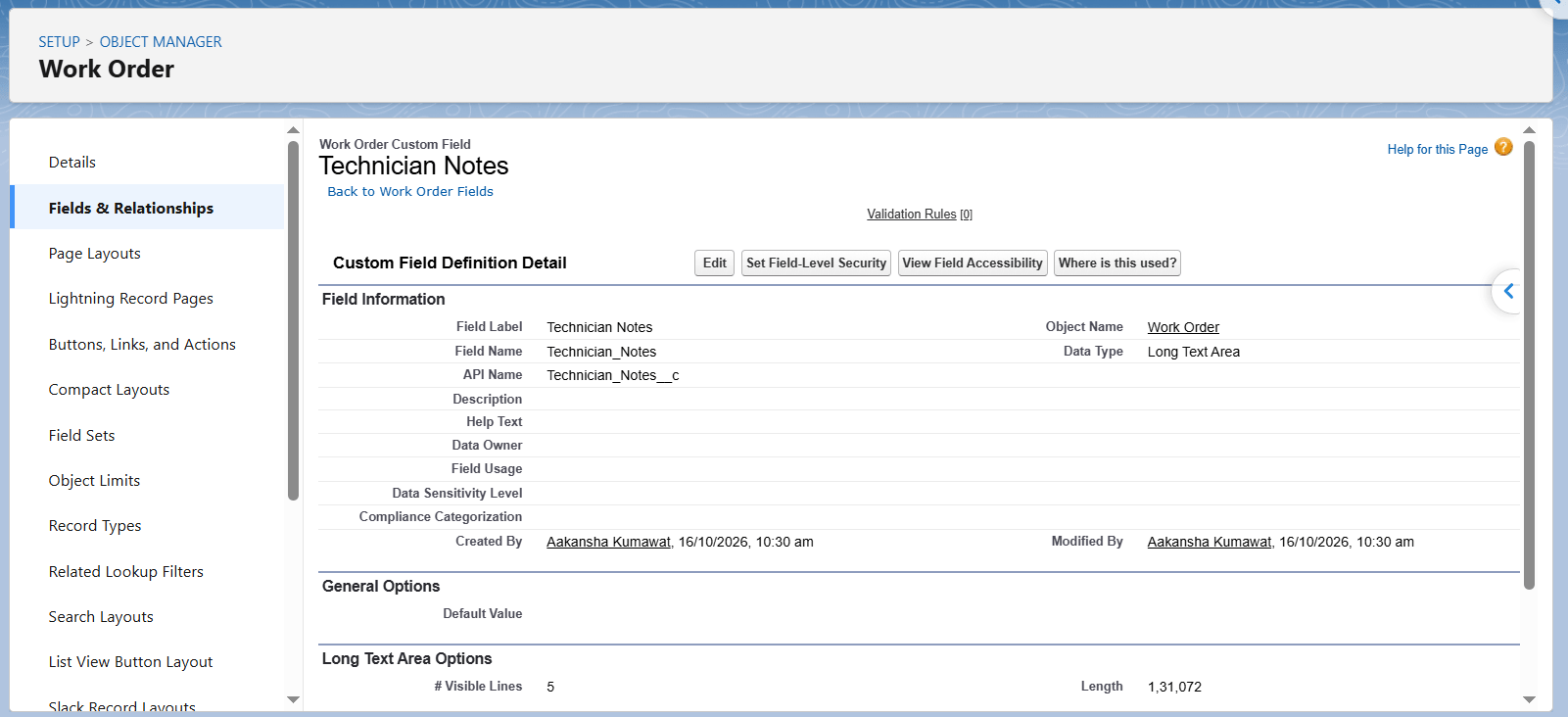
For this example, the Work Order has two custom fields:
- Technician_Notes__c: A Long Text Area field containing the technician's observations.
- Signature_Data__c: A field intended to store the customer's signature data.
The example below retrieves the Work Order details and related line items.
public with sharing class FieldServiceSummaryExt {
    public WorkOrder wo { get; private set; }
    public List lineItems { get; private set; }

    public FieldServiceSummaryExt(ApexPages.StandardController sc) {
        Id woId = sc.getId();

        wo = [
            SELECT Id, WorkOrderNumber, StartDate, Subject, Status,
                   Asset.Name, Asset.SerialNumber,
                   Account.Name, Contact.Name, Contact.Phone, Contact.Email,
                   Street, City, State, PostalCode, Country,
                   TotalPrice, Technician_Notes__c, Signature_Data__c
            FROM WorkOrder WHERE Id = :woId
        ];

        lineItems = [
            SELECT LineItemNumber, Description, Duration, DurationType,
                   Quantity, UnitPrice, TotalPrice,
                   PricebookEntry.Product2.Name
            FROM WorkOrderLineItem
            WHERE WorkOrderId = :woId
            ORDER BY LineItemNumber
        ];
    }
}
Step 2: Build the Visualforce PDF page
Create a Visualforce page named FieldServiceSummary.
Configure the page to use the standard Work Order controller and the extension created in Step 1. The renderAs="pdf" attribute tells Salesforce to render the page as a PDF.
The page should use simple HTML tables and print-friendly CSS. Avoid relying on unsupported modern CSS features, and test the final layout with the Visualforce PDF renderer.
<apex:page standardController="WorkOrder" extensions="FieldServiceSummaryExt"
           renderAs="pdf" applyBodyTag="false" showHeader="false"
           standardStylesheets="false">
<head>
  <style>
    @page { size: A4; margin: 15mm; }
    body { font-family: Arial Unicode MS, sans-serif; font-size: 11px; color: #222; }
    h1 { font-size: 20px; margin: 0 0 8px; }
    h2 { font-size: 13px; border-bottom: 1px solid #999; margin: 16px 0 6px; }
    table { width: 100%; border-collapse: collapse; }
    th, td { border: 1px solid #ccc; padding: 5px; text-align: left; }
    .num { text-align: right; }
  </style>
</head>
<body>


  <h1>Field Service Summary</h1>


  <!-- 1. Work Order header -->
  <table>
    <tr>
      <th>Work Order</th><td>{!wo.WorkOrderNumber}</td>
      <th>Scheduled</th>
      <td>
        <apex:outputText value="{0,date,dd MMM yyyy HH:mm}">
          <apex:param value="{!wo.StartDate}"/>
        </apex:outputText>
      </td>
    </tr>
    <tr>
      <th>Asset</th><td>{!wo.Asset.Name}</td>
      <th>Serial number</th><td>{!wo.Asset.SerialNumber}</td>
    </tr>
  </table>


  <!-- 2. Customer and site -->
  <h2>Customer and site</h2>
  <table>
    <tr><th>Account</th><td>{!wo.Account.Name}</td>
        <th>On-site contact</th><td>{!wo.Contact.Name}, {!wo.Contact.Phone}</td></tr>
    <tr><th>Service location</th>
        <td colspan="3">{!wo.Street}, {!wo.City}, {!wo.State} {!wo.PostalCode}, {!wo.Country}</td></tr>
  </table>


  <!-- 3. Services and parts -->
  <h2>Services and parts used</h2>
  <table>
    <tr>
      <th>Item</th><th>Description</th>
      <th class="num">Hours</th><th class="num">Qty</th>
      <th class="num">Unit price</th><th class="num">Total</th>
    </tr>
    <apex:repeat value="{!lineItems}" var="li">
      <tr>
        <td>{!li.PricebookEntry.Product2.Name}</td>
        <td>{!li.Description}</td>
        <td class="num">{!li.Duration}</td>
        <td class="num">{!li.Quantity}</td>
        <td class="num"><apex:outputText value="{0,number,#,##0.00}"><apex:param value="{!li.UnitPrice}"/></apex:outputText></td>
        <td class="num"><apex:outputText value="{0,number,#,##0.00}"><apex:param value="{!li.TotalPrice}"/></apex:outputText></td>
      </tr>
    </apex:repeat>
    <tr>
      <th colspan="5" class="num">Total</th>
      <th class="num"><apex:outputText value="{0,number,#,##0.00}"><apex:param value="{!wo.TotalPrice}"/></apex:outputText></th>
    </tr>
  </table>


  <!-- 4. Technician notes and sign-off: added in Step 3 -->


</body>
</apex:page>
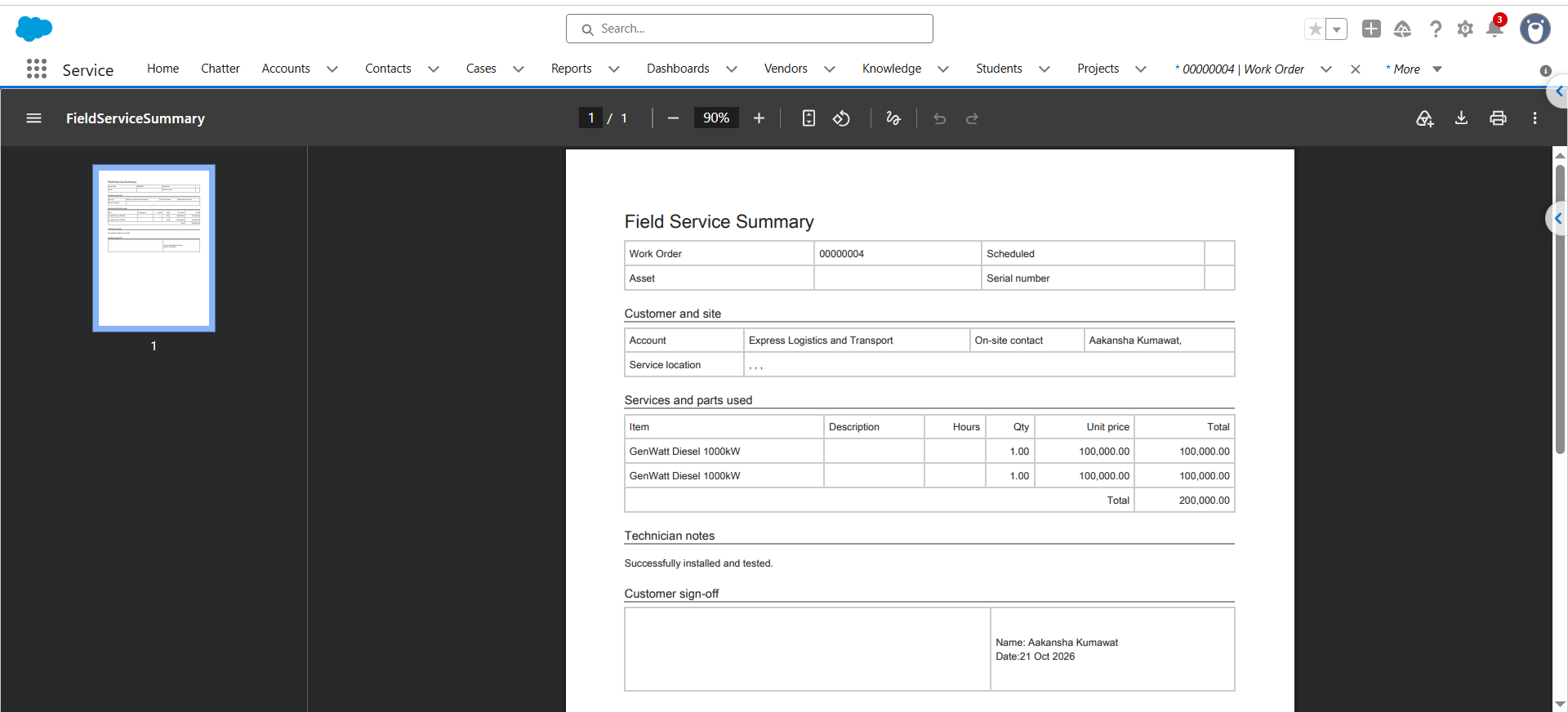
This is the main document layout. It brings the Work Order header, customer information, service line items, and pricing into one printable page or multi-page PDF.
Step 3: Capture technician notes and the customer's signature
A service summary is more useful when it records what the technician observed and confirms that the customer has acknowledged the completed work.
Add a signature-capture component to the technician's workflow. For example, a Lightning Web Component can use an HTML canvas to capture a handwritten signature.
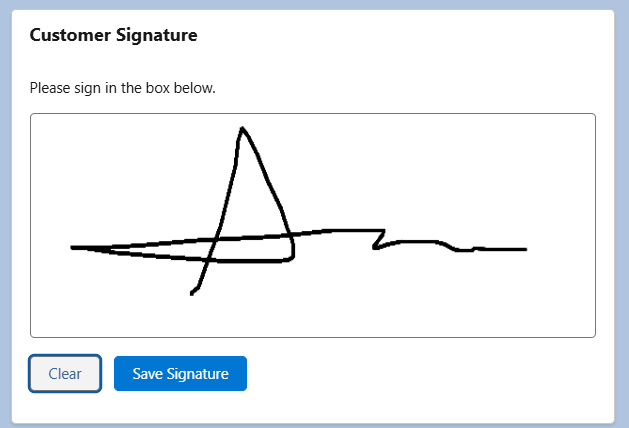
When a customer signs the Work Order, the signature component captures the drawing from the HTML canvas and converts it into a PNG Data URL. The signature is then passed to the Apex controller, for processing and storage.
The Apex controller performs the following operations:
- Validates the Work Order ID and ensures that a signature has been provided.
- Removes the data:image/png;base64, prefix from the Data URL, if present.
- Decodes the Base64 string to validate the image data and check its size.
- Stores the cleaned Base64 string in the Signature_Data__c field on the Work Order record.
- In addition to storing the Base64 string in the custom field, the controller saves the signature image as a Salesforce File. This provides a separate file-based copy of the signature linked to the Work Order.
Important: The signature must be saved successfully before generating the PDF. Since Visualforce PDF rendering runs in a separate request, it cannot access unsaved signature data held only in the browser.
Replace the Step 2 comment for section 4 with this block:
<!-- 4. Technician notes and sign-off -->
  <h2>Technician notes</h2>
  <p>{!wo.Technician_Notes__c}</p>


  <h2>Customer sign-off</h2>
  <table>
    <tr>
     <td style="height: 90px; width: 60%;">
      <apex:outputPanel rendered="{!NOT(ISBLANK(signatureImageUrl))}">
    <apex:image value="{!signatureImageUrl}"
        width="180"
        height="80"/>
      </td>
      <td>
        Name: {!wo.Contact.Name}<br/>
        Date:
        <apex:outputText value="{0,date,dd MMM yyyy}">
          <apex:param value="{!NOW()}"/>
        </apex:outputText>
      </td>
    </tr>
  </table>
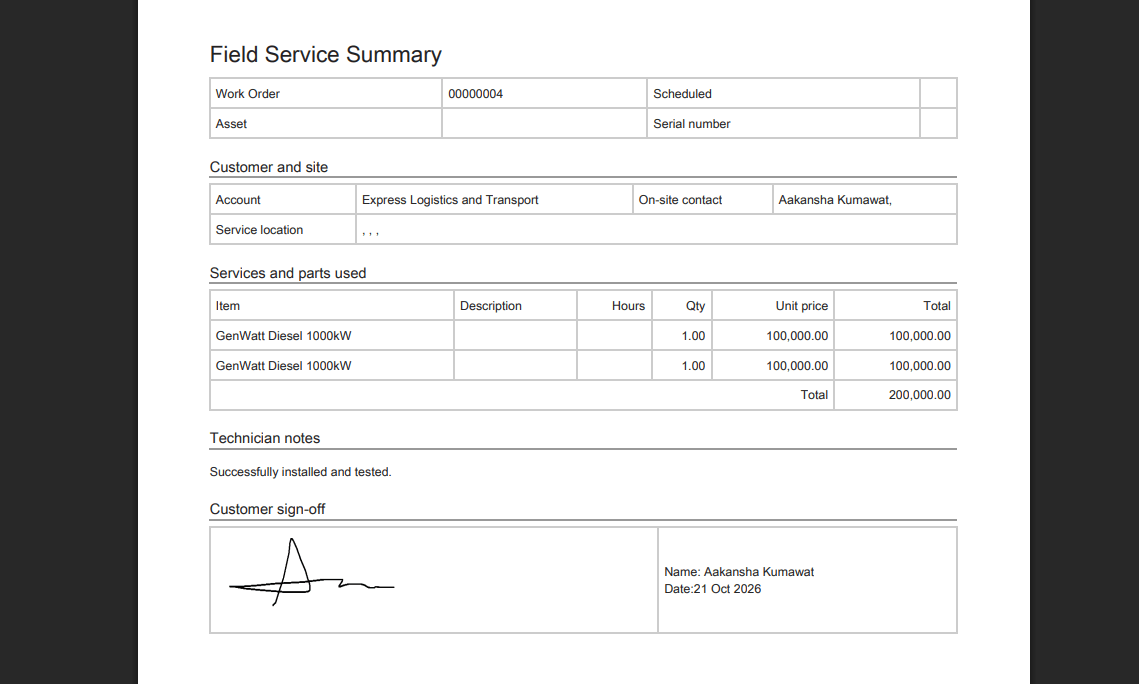
Step 4: Make the summary available to technicians
Technicians work from the Salesforce Mobile App, so the summary needs to be one tap away on the Work Order.
- Open the Visualforce page and enable it for Lightning Experience, Experience Cloud sites and the mobile app.
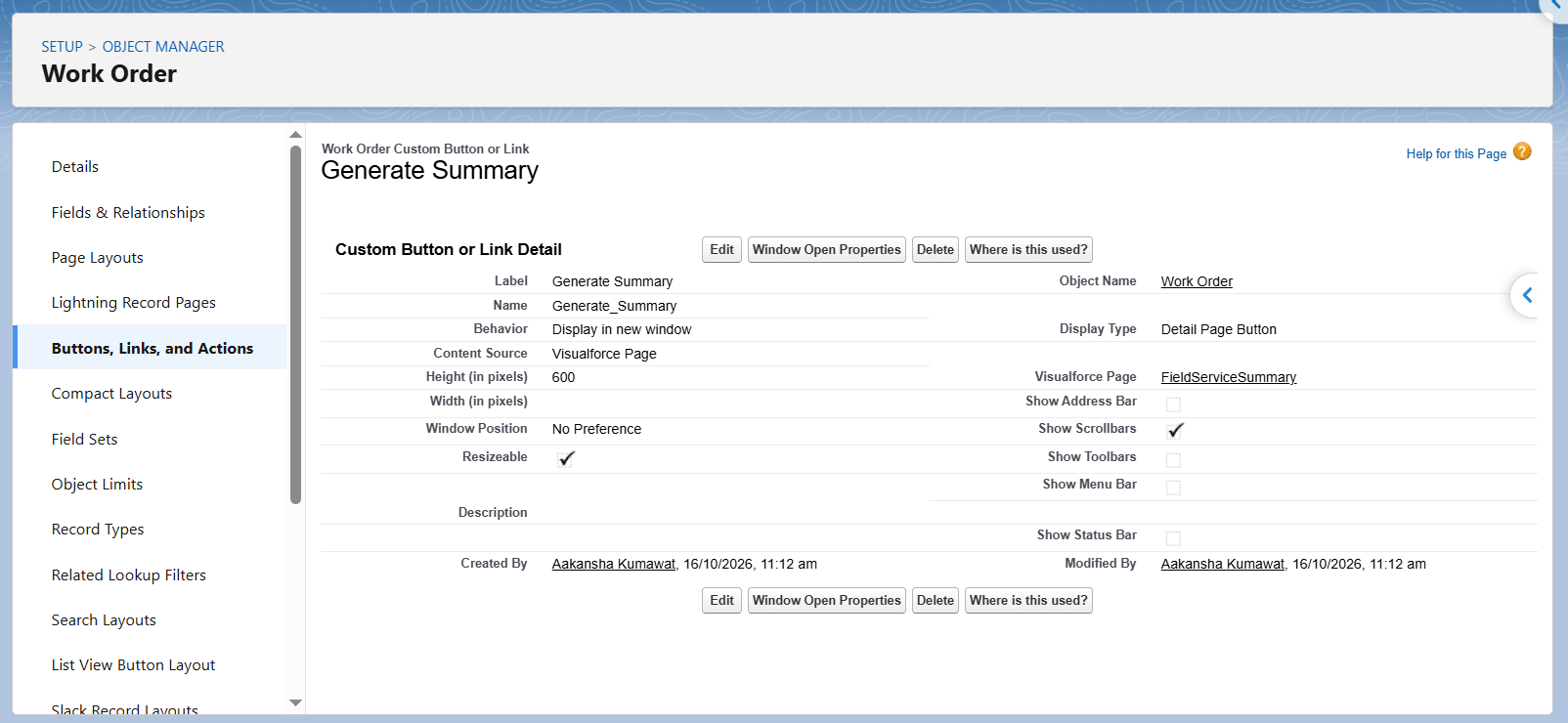
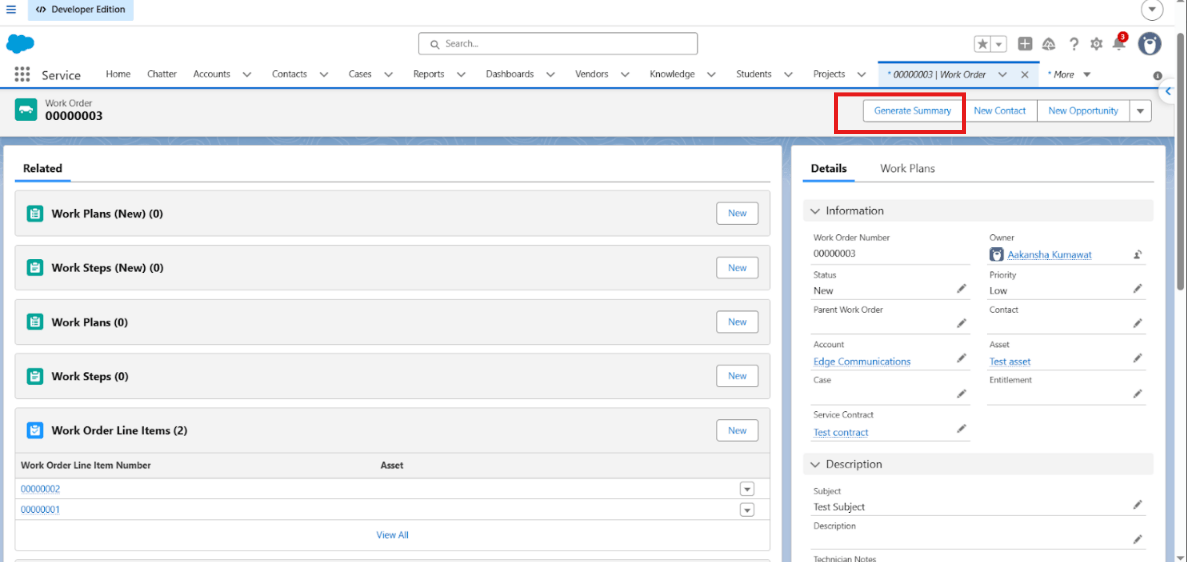
- In Setup, open Object Manager, then Work Order, then Buttons, Links and Actions. Create a new action of type Custom Visualforce and select FieldServiceSummary. Label it Generate Summary.
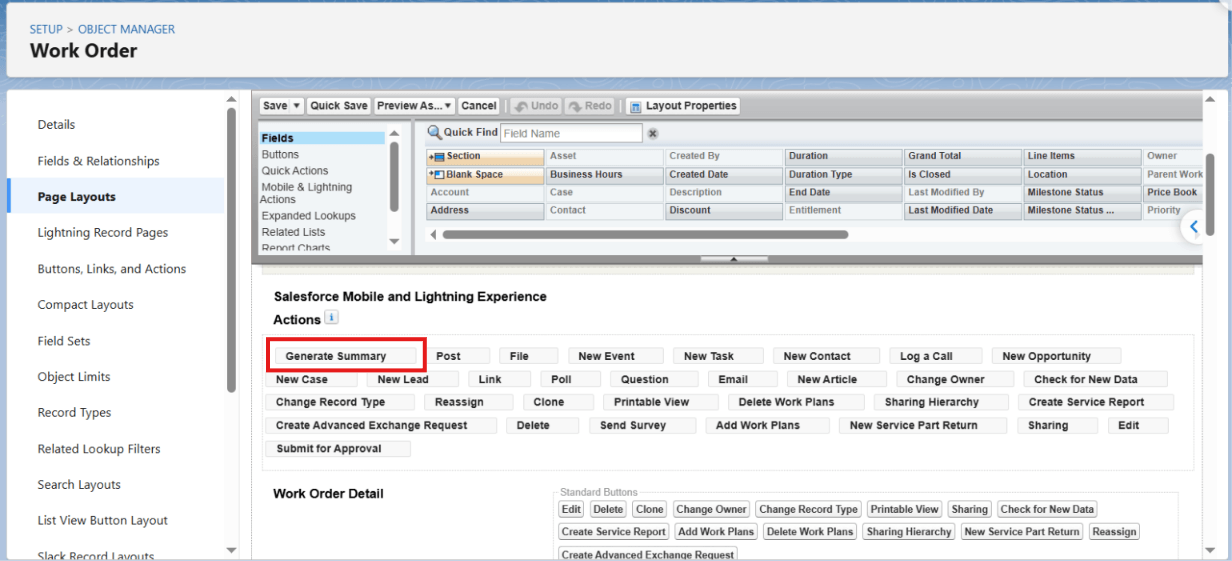
- Add the action to the Work Order page layout under Salesforce Mobile and Lightning Experience Actions.
- Make sure the technician's profile or permission set has access to the page and the Apex class.
Test on a real phone and tablet. Some mobile devices open a PDF page in an external viewer instead of inline, which is acceptable for a preview.
Step 5: Automatically archive and email the PDF when the Work Order is completed
Generating a summary manually is useful, but automation makes the process more consistent. Instead of relying on the technician to remember to generate and send the document, Salesforce can start the process when the Work Order status changes to Completed.
This implementation uses a record-triggered Flow and a Queueable Apex class.
5.1 Create the Queueable Apex class
Create a class named FieldServiceSummaryQueueable that implements Queueable and Database.AllowsCallouts.
The Queueable should:
- Retrieve the Work Order and the contact's email address.
- Verify that the Work Order is still Completed.
- Render the FieldServiceSummary Visualforce page using getContentAsPDF().
- Insert a ContentVersion record to save the generated PDF as a Salesforce File linked to the Work Order.
- Email the PDF to the on-site contact when an email address is available.
The PDF must be rendered before inserting the File or performing other DML in the same transaction. The Queueable should also handle missing contact information and email failures appropriately.
public with sharing class FieldServiceSummaryQueueable
    implements Queueable, Database.AllowsCallouts {


    private Id workOrderId;


    public FieldServiceSummaryQueueable(Id workOrderId) {
        this.workOrderId = workOrderId;
    }


    public void execute(QueueableContext context) {


        // 1. Get Work Order details
        WorkOrder wo = [
            SELECT Id, WorkOrderNumber, Status,
                   ContactId, Contact.Email
            FROM WorkOrder
            WHERE Id = :workOrderId
            LIMIT 1
        ];


        // 2. Process only completed Work Orders
        if (wo.Status != 'Completed') {
            return;
        }
// 3. Prepare the Visualforce PDF page
        PageReference pdfPage = Page.FieldServiceSummary;
        pdfPage.getParameters().put('id', wo.Id);


        // 4. Generate PDF before performing DML
        Blob pdfBlob;


        if (Test.isRunningTest()) {
            pdfBlob = Blob.valueOf('Test PDF content');
        } else {
            pdfBlob = pdfPage.getContentAsPDF();
        }


        String fileName =
            'Field Service Summary - ' +
            wo.WorkOrderNumber + '.pdf';


        // 5. Save the PDF as a Salesforce File
        ContentVersion cv = new ContentVersion(
            Title = 'Field Service Summary - ' +
                    wo.WorkOrderNumber,
            PathOnClient = fileName,
            VersionData = pdfBlob,
            FirstPublishLocationId = wo.Id
        );


        insert cv;


        // 6. Email the PDF to the on-site contact
        if (wo.ContactId != null &&
            wo.Contact.Email != null) {


            Messaging.EmailFileAttachment attachment =
                new Messaging.EmailFileAttachment();


            attachment.setFileName(fileName);
            attachment.setBody(pdfBlob);
            attachment.setContentType('application/pdf');


            Messaging.SingleEmailMessage email =
                new Messaging.SingleEmailMessage();


            email.setToAddresses(
                new List{ wo.Contact.Email }
            );


            email.setSubject(
                'Service summary for Work Order ' +
                wo.WorkOrderNumber
            );


            email.setPlainTextBody(
                'Thank you. Your signed service summary ' +
                'is attached.'
);


            email.setFileAttachments(
                new List{
                    attachment
                }
            );


            Messaging.sendEmail(
                new List{
                    email
                }
            );
        }
    }
}
5.2 Create the record-triggered Flow
Create a record-triggered Flow on the Work Order object.
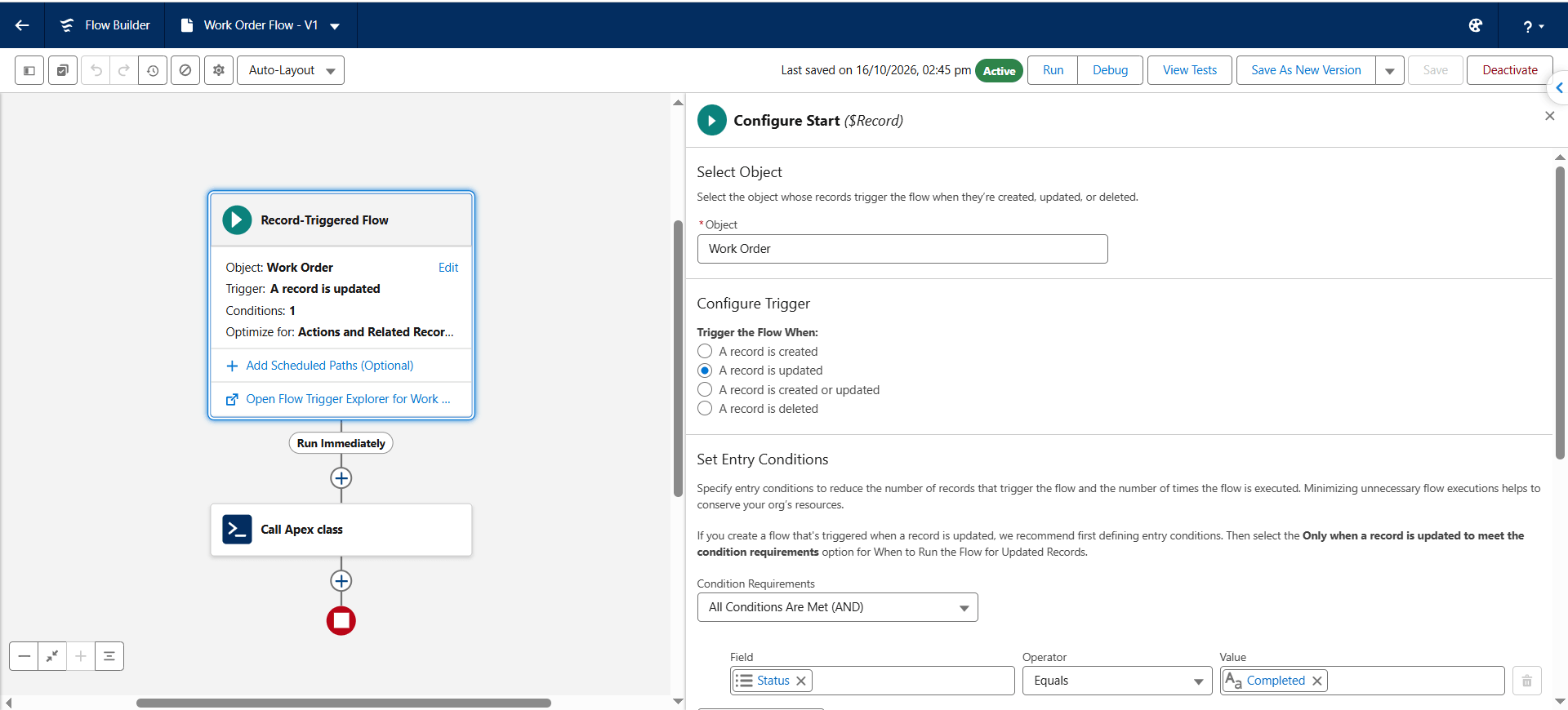
Configure it to run when a record is updated and its Status changes to Completed. Add an Apex Action that invokes an @InvocableMethod wrapper, which enqueues the Queueable job using the current Work Order ID.
public with sharing class FieldServiceSummaryFlowAction {


    public class Request {
        @InvocableVariable(
            label='Work Order ID'
            required=true
        )
        public Id workOrderId;
    }


    @InvocableMethod(
        label='Generate and Email Field Service Summary'
        description='Generates a PDF for a completed Work Order, saves it as a File, and emails the contact.'
    )
    public static void generateSummary(List requests) {


        for (Request request : requests) {
            if (request.workOrderId != null) {
                System.enqueueJob(
                    new FieldServiceSummaryQueueable(
                        request.workOrderId
                    )
                );
            }
        }
    }
}
Configure the Flow to run only when the record is updated to meet the entry conditions. This helps avoid unnecessary executions when an already-completed Work Order is edited.
5.2 Update the existing extension class
When the job is complete, convert the page to a Blob, attach it to the Work Order as a File and email it to the on-site contact. Add this method to the extension class:
public PageReference saveAndSend() {
    PageReference pdfPage = Page.FieldServiceSummary;
    pdfPage.getParameters().put('id', wo.Id);

    // Render first: getContentAsPDF behaves like a callout
    Blob pdfBlob = Test.isRunningTest()
        ? Blob.valueOf('test')
        : pdfPage.getContentAsPDF();

    String fileName = 'Field Service Summary - ' + wo.WorkOrderNumber + '.pdf';

    // Archive on the Work Order
    insert new ContentVersion(
        Title = 'Field Service Summary - ' + wo.WorkOrderNumber,
        PathOnClient = fileName,
        VersionData = pdfBlob,
        FirstPublishLocationId = wo.Id  );

    // Email the customer
    if (wo.Contact.Email != null) {
        Messaging.EmailFileAttachment att = new Messaging.EmailFileAttachment();
        att.setFileName(fileName);
        att.setBody(pdfBlob);
        att.setContentType('application/pdf');

        Messaging.SingleEmailMessage mail = new Messaging.SingleEmailMessage();
        mail.setToAddresses(new List{ wo.Contact.Email });
        mail.setSubject('Service summary for Work Order ' + wo.WorkOrderNumber);
        mail.setPlainTextBody('Thank you. Your signed service summary is attached.');
        mail.setFileAttachments(new List{ att });
        Messaging.sendEmail(new List{ mail });
    }
    return new ApexPages.StandardController(wo).view();
}
5.3 Verify the generated document and email
Once the automation is activated, update a test Work Order to Completed.
Verify that:
- The Queueable job completes successfully.
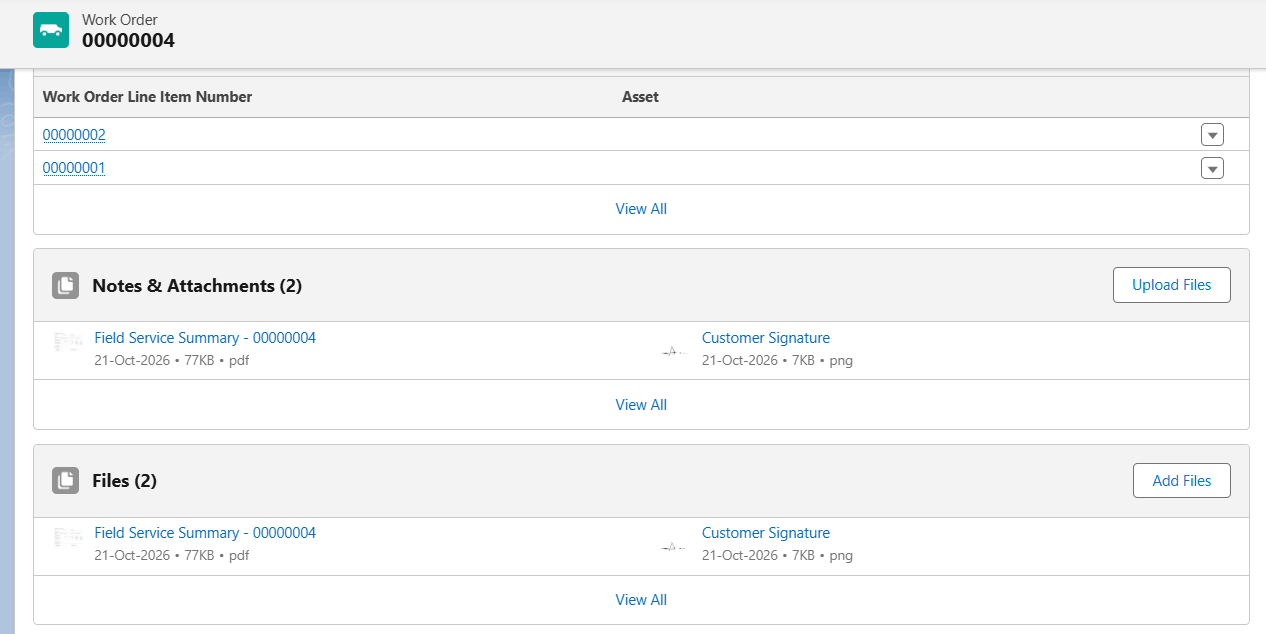
- The generated PDF appears in the Work Order's Files related list.
- The document contains the expected Work Order details, line items, technician notes, and saved signature.
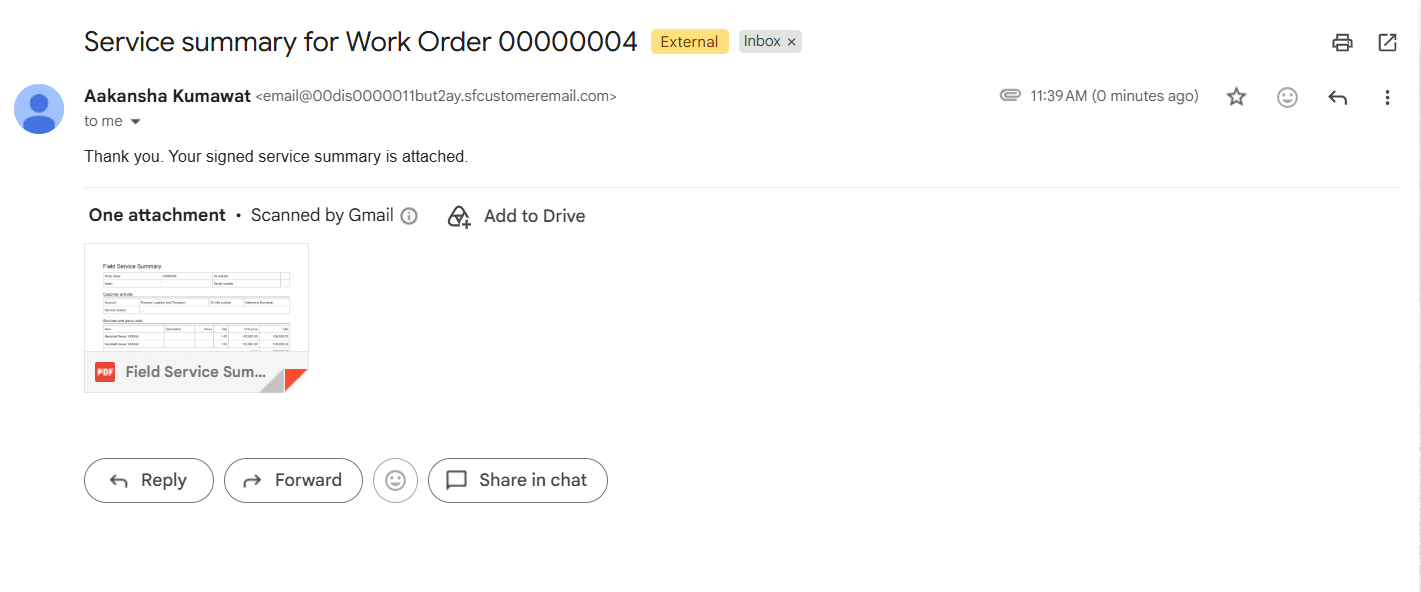
- The on-site contact receives an email with the PDF attached, provided a valid email address is available.
For a production implementation, add duplicate-prevention logic so that repeated updates do not create multiple PDFs or send repeated emails. Also consider logging failed email attempts and providing a retry or monitoring mechanism.
Important implementation considerations
- PDF rendering is limited. Use simple HTML and CSS. Test long line-item lists, since tables can split across pages.
- Fonts. Use Arial Unicode MS if the customer's name or address contains non-Latin characters.
- getContentAsPDF() limits. It cannot be called from a trigger or a scheduled context directly, and it counts as a callout. Render before any DML in the same transaction, and use a Queueable for automation.
- Signature storage. A base64 PNG in a text field is simple, but large. Keep the canvas small, or store the signature as a File if volume grows.
- Security. The class uses with sharing, so technicians see only records they can access. Review field-level security on the signature and notes fields.
Conclusion
With one Apex extension, one Visualforce page and one mobile action, a technician can close a job, collect a signature and leave the customer with a professional summary. The same PDF is filed on the Work Order and emailed automatically.
Astrea IT Services has delivered Salesforce field service and custom document solutions for 15+ years. If you want a summary like this built around your own Work Order process, get in touch with our team.
If you're interested in exploring more Salesforce solutions, visit our Sales Cloud Page.