We’ve all been there. A customer sends an email containing a credit card number, a password, or sensitive medical information. The email routes perfectly into Salesforce, attaches to a record as a fresh Activity, and suddenly your org is storing sensitive customer data inside Tasks, Cases, or EmailMessage records.
Once sensitive information enters Salesforce activity logs, it may become accessible to users with record visibility, replicated in backups, and potentially exposed to compliance risks under regulations like GDPR, HIPAA, or PCI-DSS.
While there are several paid AppExchange solutions available, you can also build a fully native redaction engine using Apex Email Services and Regular Expressions (Regex).
In this blog, we’ll walk through building a custom email redaction solution in Salesforce step-by-step.
The Core Architecture: How Custom Redaction Works
To intercept and clean data before it gets permanently logged into the Salesforce database, you must bypass standard Email-to-Case or Einstein Activity Capture for these specific workflows. Instead, you will route incoming emails through a custom Inbound Email Service.
The native execution flow looks like this:
- Email Ingestion: An email is sent to a generated Salesforce routing address.
- Apex Interception: The InboundEmailHandler intercepts the text in-memory before any record is created.
- Regex Pattern Matching: The code scans the email body and subject line for defined patterns (like credit cards or SSNs).
- Data Masking/Substitution: The matching text is replaced with a compliant placeholder.
- Clean Insert: The sanitized text is saved to a Task, EmailMessage, or Case record.
Implementation Guide
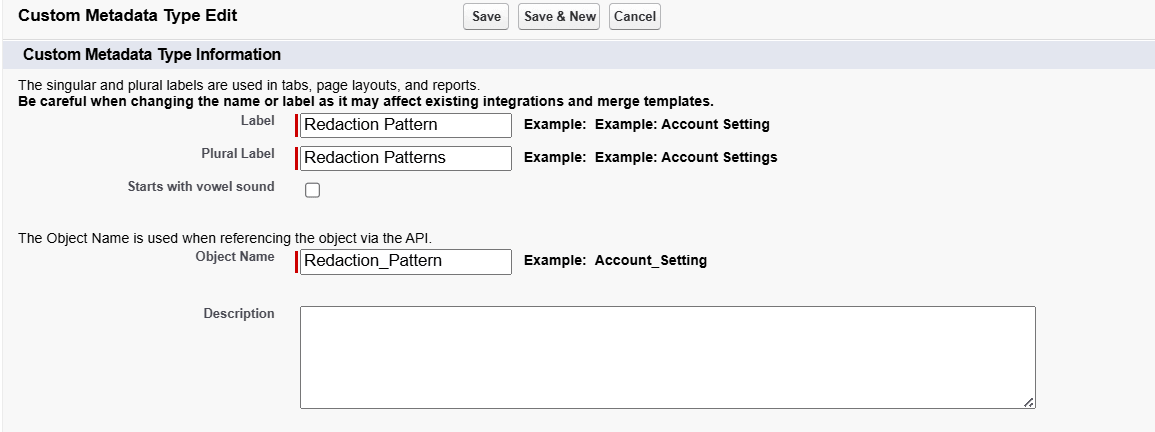
Step 1: Create Custom Metadata Type for Regex Patterns
Navigate to:
Setup → Custom Metadata Types
Create a new Custom Metadata Type with:
Label: Redaction Pattern
Plural Label: Redaction Patterns
Object Name: Redaction_Pattern
Step 2: Create Metadata Fields
Field 1 — Regex Expression
Field Type: Long Text Area
API Name: Regex_Expression__c
Field 2 — Replacement Text
Field Type: Text
API Name generated in our org: Replacement__c

Step 3: Add Redaction Patterns
Create a metadata record with:
Label: Credit Card
Regex Expression: \b(?:\d[ -]*?){13,16}\b
Replacement Text: [REDACTED CREDIT CARD]

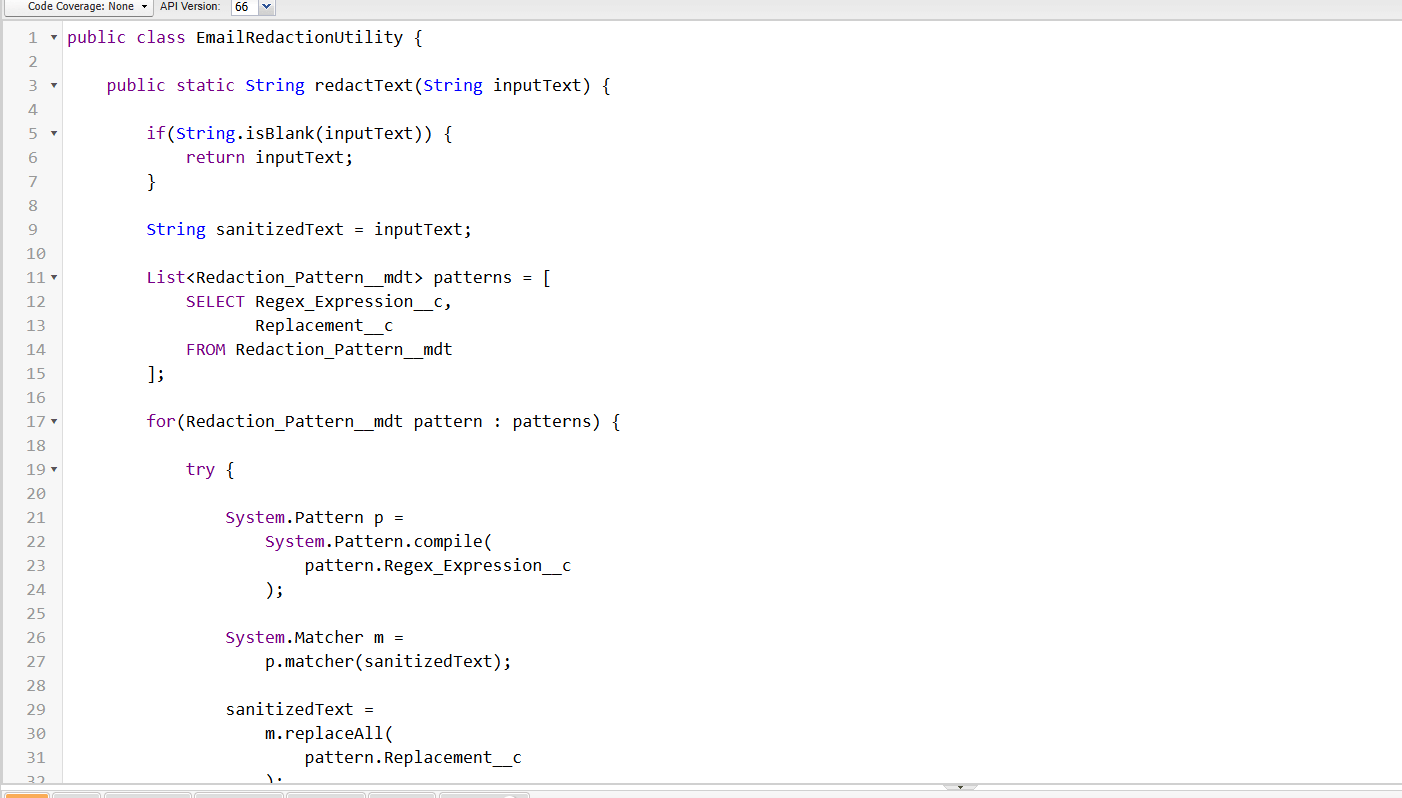
Step 4: Create Apex Redaction Utility Class
Code:
                              public class EmailRedactionUtility {

   public static String redactText(String inputText) {

      if(String.isBlank(inputText)) {
            return inputText;
      }

      String sanitizedText = inputText;

         List patterns = [
            SELECT Regex_Expression__c,
                  Replacement__c
            FROM Redaction_Pattern__mdt
      ];

      for(Redaction_Pattern__mdt pattern : patterns) {

            try {

               System.Pattern p =
                     System.Pattern.compile(
                         pattern.Regex_Expression__c
                  );

               System.Matcher m =
                     p.matcher(sanitizedText);

               sanitizedText =
                  m.replaceAll(
                         pattern.Replacement__c
                  );

            } catch(Exception e) {

               System.debug(
                  'Regex Error: ' +
                  e.getMessage()
               );
            }
      }

      return sanitizedText;
   }
 }
Step 5: Create Inbound Email Handler
Code:
                               global class SecureEmailActivityHandler
 implements Messaging.InboundEmailHandler {

   global Messaging.InboundEmailResult handleInboundEmail(
      Messaging.InboundEmail email,
      Messaging.InboundEnvelope envelope
   ) {

      Messaging.InboundEmailResult result =
            new Messaging.InboundEmailResult();

      try {

            String cleanBody =
                 EmailRedactionUtility.redactText(
                  email.plainTextBody
               );

            Task t = new Task();

            t.Subject = 'REDACTED EMAIL';

            t.Description = 'Body: ' + cleanBody;

            t.Status = 'Not Started';

            t.Priority = 'Normal';

            t.ActivityDate = Date.today();

            insert t;

            result.success = true;

      } catch(Exception e) {

            result.success = false;

            result.message =
               e.getMessage();
      }

      return result;
   }
 }
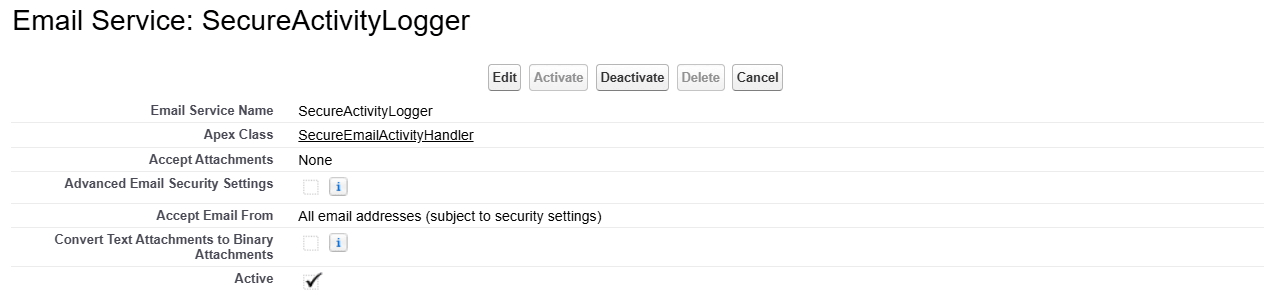
Step 6: Configure Salesforce Email Service
Navigate to:
Setup → Email Services
Create:
Email Service Name: SecureActivityLogger
Apex Class: SecureEmailActivityHandler
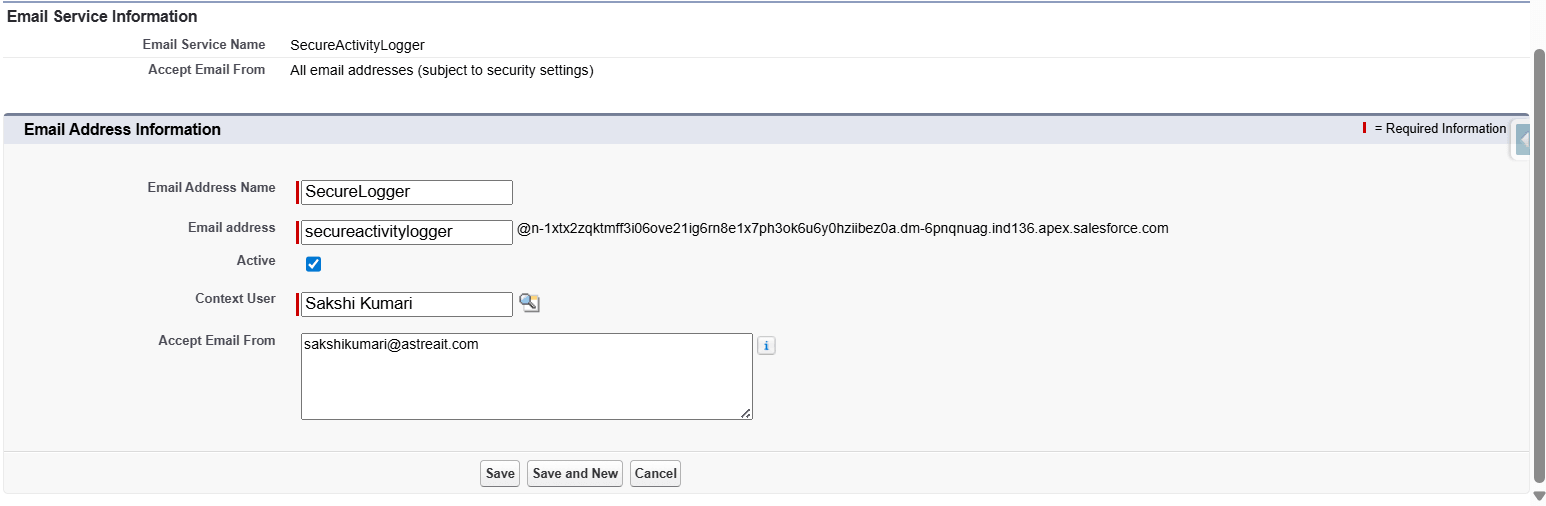
Step 7: Create Email Address
Create a new email address:
Email Address Name: SecureLogger
Local Part: secureactivitylogger
Salesforce generates a routing email like:secureactivitylogger@xyz.apex.salesforce.com
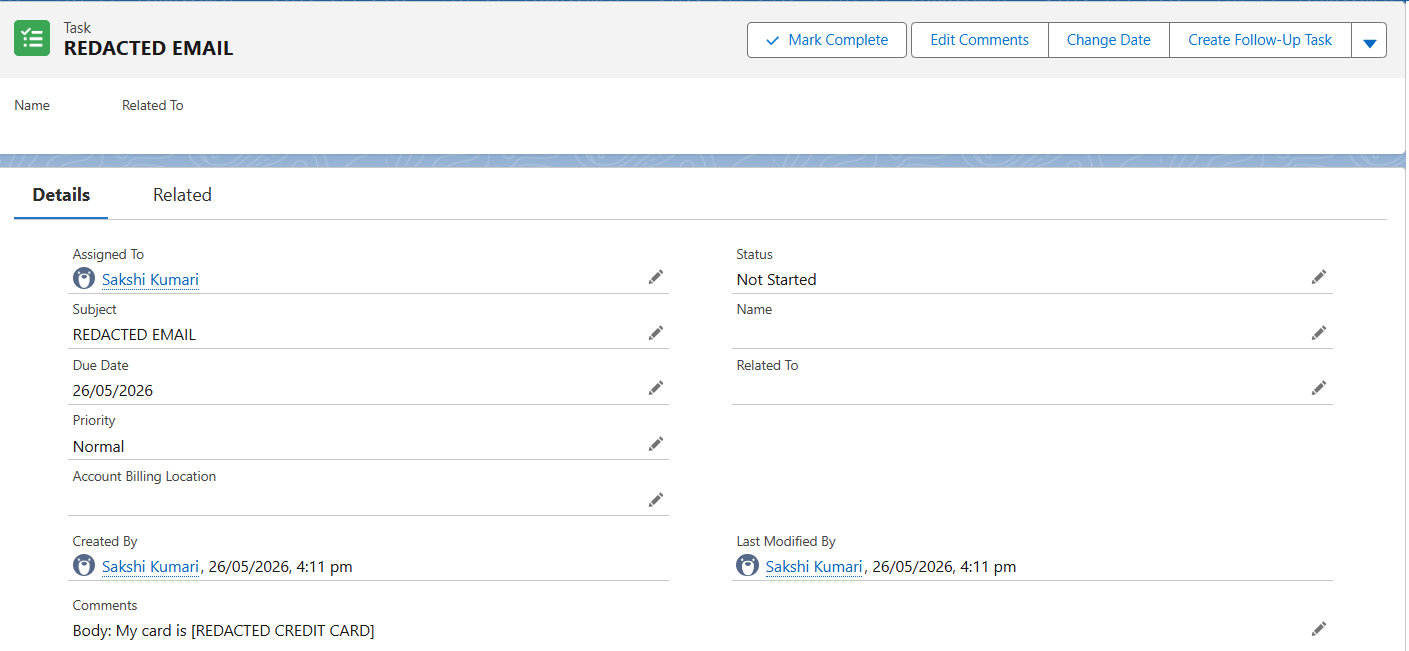
Step 8: Test the Redaction Engine
Send:
Subject: Card Test
Body:
My card is 4111-1111-1111-1111
Expected Output:
Body: My card is [REDACTED CREDIT CARD]
Best Practices
- Optimize regex patterns for governor limits
- Test regex carefully to avoid false positives
- Process both plainTextBody and htmlBody if required
- Use descriptive replacement values like [REDACTED CREDIT CARD]
Summary
By combining Apex Email Services, Custom Metadata Types, and Regex-based pattern matching, Salesforce developers can build a fully native email redaction engine that prevents sensitive customer information from being permanently stored inside Salesforce activity records.
If you're interested in exploring more Salesforce solutions, visit our Sales Cloud page.
For any queries please reach out to support@astreait.com