Introduction
In manufacturing, a Sales Agreement defines the commitment between a manufacturer and a distributor: how much of a product will be purchased, at what price, and over what period.
Salesforce Manufacturing Cloud helps manage these commitments through Sales Agreements and their schedules. However, managing the agreement is only part of the challenge. Distributors also need visibility into their commitments, order progress and remaining quantities.
Without a dedicated portal, this information often gets exchanged through emails, phone calls and spreadsheets, making it difficult for distributors to track their progress and for manufacturers to manage collaboration efficiently.
In this blog, we'll build a Distributor Collaboration Portal using Salesforce Experience Cloud and Manufacturing Cloud, where distributors can:
- View their Sales Agreements and track period-wise order progress.
- Check whether a new order fits their commitment before submitting it.
- Place orders directly against their Sales Agreements.
- Raise support cases linked to the relevant agreement.
We'll bring everything together using standard Manufacturing Cloud objects, a custom Lightning Web Component, Screen Flows and Apex.
The Core Challenge
A Sales Agreement captures the commitment between a manufacturer and a distributor, but managing that commitment throughout its lifecycle presents several challenges:
- Limited Visibility: Distributors cannot easily see how much of their monthly or quarterly commitment is still pending, making it difficult to plan orders.
- No Pace Tracking: Knowing the total agreed quantity isn't enough. Distributors need to understand how much they should have ordered by the current date and whether they are on track.
- Disconnected Orders: Orders placed through emails or other channels may not be directly linked to the Sales Agreement, making actual quantity tracking difficult.
- Lack of Support Context: When distributors raise issues such as delayed deliveries or damaged products, support teams may not know which Sales Agreement the issue relates to.
The goal is to address these challenges through a centralized portal while ensuring that each distributor can access only their own business records.
The Solution: One Page Per Agreement
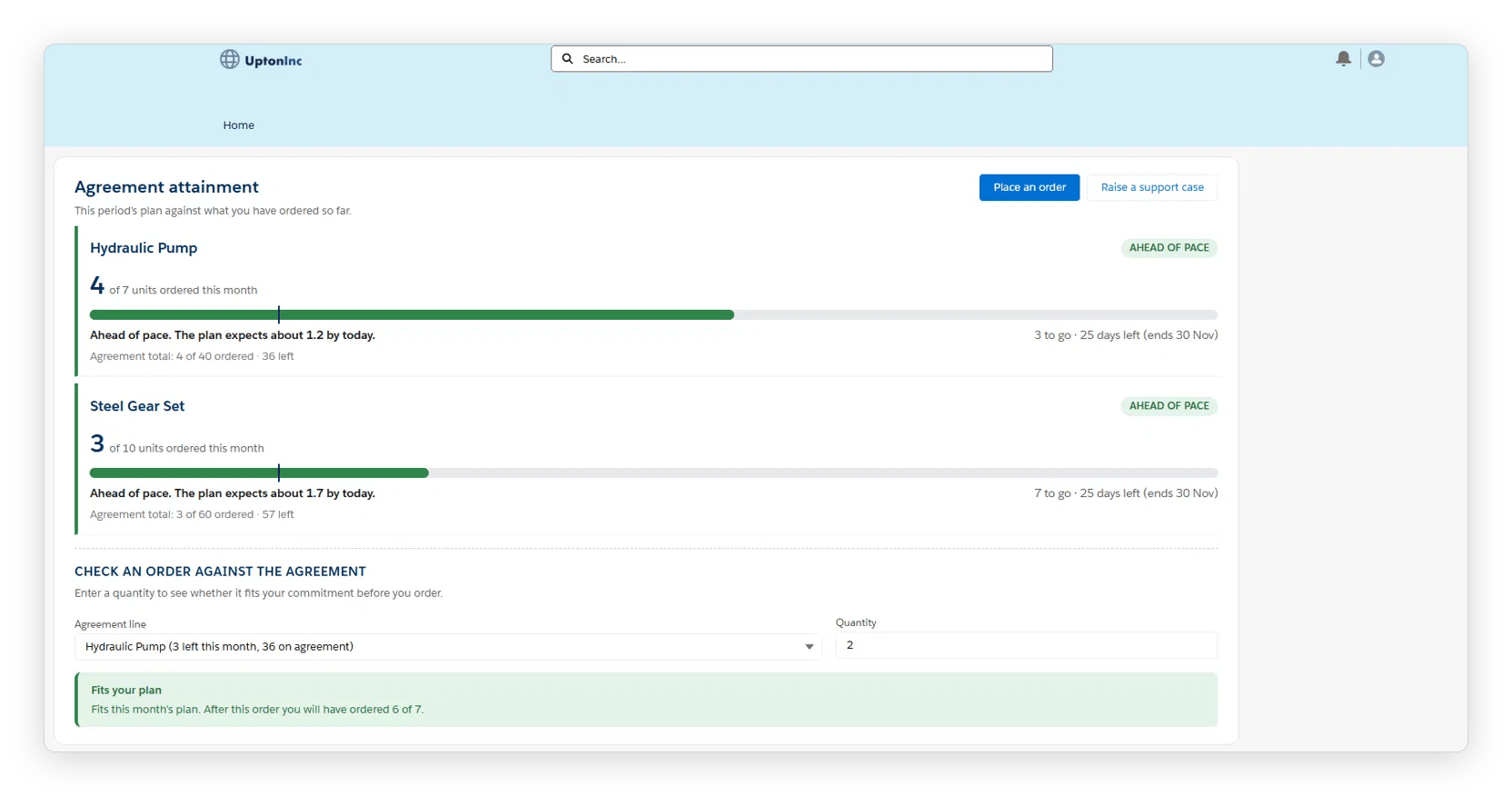
We built a distributor-facing Experience Cloud portal where each distributor can access their Sales Agreements and manage related activities from a single page.
When a distributor opens an agreement, the page provides:
- Agreement Attainment Card: Displays the current period's planned quantity, actual orders and progress against the expected pace.
- Order Validation: Allows distributors to enter a quantity and check whether it fits the remaining period plan and overall agreement commitment.
- Order Submission: Provides a Place an Order action that launches a Screen Flow to create an Order linked to the Sales Agreement.
- Support Requests: Allows distributors to raise cases directly against the relevant agreement.
- My Cases: Displays support cases associated with the agreement.
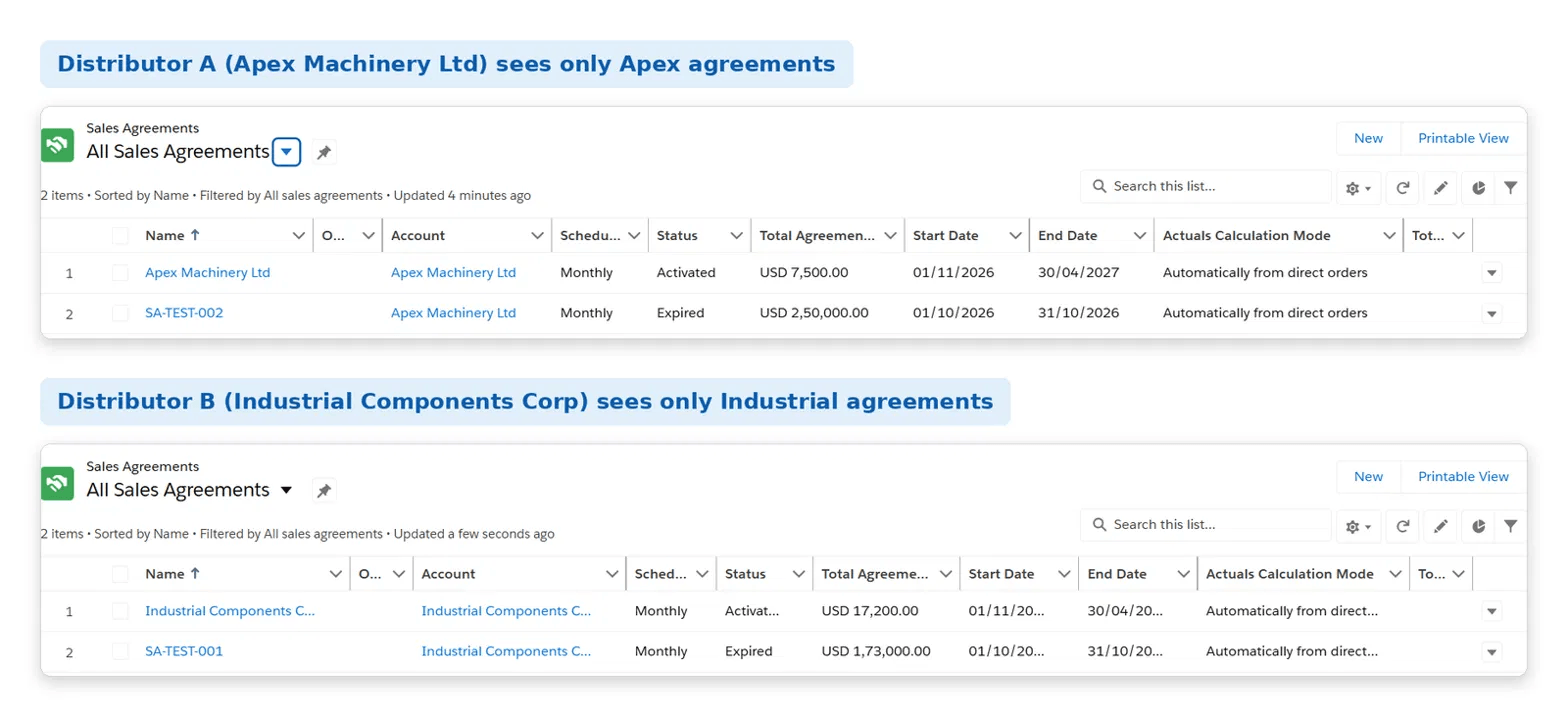
Access is controlled through Partner Community users and Sharing Sets, ensuring that each distributor can view only the records associated with their own account.
The result is a centralized workspace where distributors can monitor commitments, place orders and request support without relying on separate communication channels.
Key Components
| Component | What it does | Built with |
|---|---|---|
| Experience Cloud site | The partner-facing portal | Manufacturing template |
| Partner users and sharing set | Each distributor sees only their own account's records | Partner Community licenses, cloned profile, sharing set |
| Sales Agreement, Agreement Product, Schedule | The commitment, with planned and actual quantity for every period | Manufacturing Cloud |
| Agreement Attainment card | Period plan vs ordered, pace status and the order check | Lightning Web Component and Apex |
| Place an order flow | Creates a Draft Order and Order Product linked to the agreement | Screen Flow and an invocable Apex action |
| Raise a support case flow | Creates a Case linked to the agreement | Screen Flow and a lookup on Case |
| Action buttons and modal | Launch both flows without leaving the page | lightning-flow inside the component |
Implementation
Step 1: Secure the Portal
Create an Experience Cloud site using the Manufacturing template to provide distributors with a dedicated portal.
Follow these steps to configure secure access:
- Create Partner Accounts: Enable the distributor accounts as partner accounts and create Partner Community users for their associated contacts.
- Clone the Profile: Create a custom profile named Distributor Partner User by cloning the standard Partner Community User profile.
- Configure Sharing: Set the external sharing model for Sales Agreement to Private.
- Create a Sharing Set: Map the logged-in user's Account to the record's Account for Sales Agreement, Order and Case.
- Set Object Permissions: Grant only the required permissions:
- Sales Agreement objects: Read.
- Order and Order Product: Read, Create and Edit.
- Case: Read, Create and Edit.
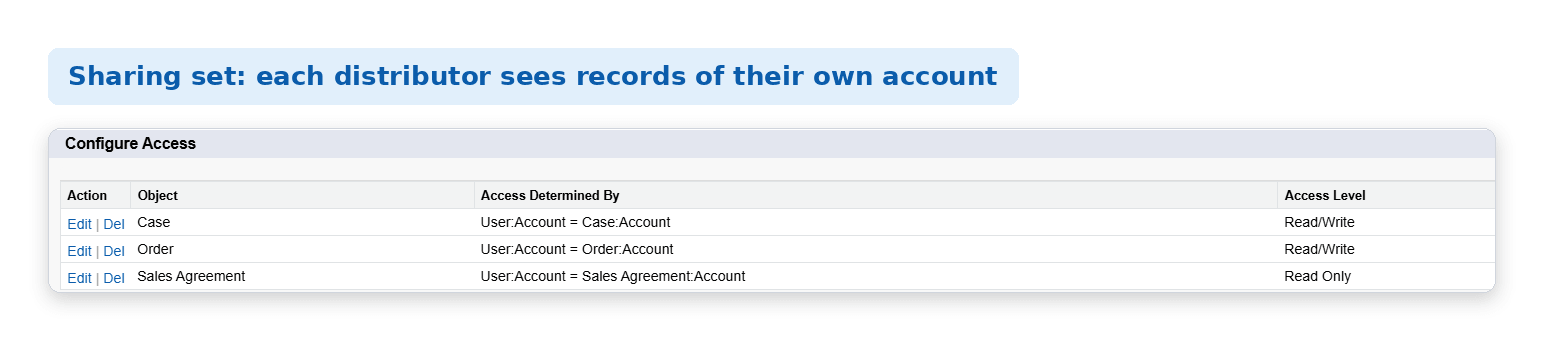
Note → Sales Agreement Product and Sales Agreement Product Schedule have no sharing settings of their own. They follow the parent agreement, so protecting the agreement protects its lines and schedules.
Tip → Test isolation before building anything else. Log in as two distributors; each should see exactly one agreement. In our org both saw all ten, because an old sharing rule shared every Sales Agreement with a portal role. Deleting that rule fixed it.
Step 2: Build the Agreement Attainment Card
See the plan against what has been ordered, period by period
The Agreement Terms tab already displays the overall commitment. However, distributors need more than total quantities. They need to know how much they should have ordered by now and whether they are on pace.
We built a custom Agreement Attainment Card using LWC and Apex to provide this visibility.
How it works
- Fetch Schedule Data: Apex retrieves the Sales Agreement Product Schedule records containing planned and actual quantities for each period.
- Identify the Current Period: The component identifies the schedule covering today's date. The period label (week, month or quarter) is determined by the agreement's Schedule Frequency.
- Calculate Expected Quantity: The expected quantity is calculated based on how much of the period has elapsed.
Expected so far = Period Plan × Elapsed Period Percentage - Determine Pace Status: The component compares the actual ordered quantity against the expected quantity and assigns a status.
| Status | Rule: gap = (ordered − expected) ÷ period plan | Colour |
|---|---|---|
| Ahead of pace | +5% or more | Green |
| On track | Between −5% and +5% | Blue |
| Slightly behind | −5% to −20% | Amber |
| Behind pace | −20% or worse | Red |
| Period just started | First 10% of the period, nothing ordered yet | Grey |
| Plan complete | Ordered at least the period's plan | Green |
Decimal gap = (l.periodActual - l.periodPlanned * fraction) / l.periodPlanned;
if (gap >= AHEAD_GAP) { l.status = 'ahead'; }               // 0.05
else if (gap > SLIGHT_GAP) { l.status = 'on-track'; }       // -0.05
else if (gap > BEHIND_GAP) { l.status = 'slightly-behind'; } // -0.20
else { l.status = 'behind'; }
Tip → Measure the gap against the period's plan, not against the expected units. Early in a small month the expected figure is under one unit, and a rule built on it wrongly shows "nothing due" for a product that is already behind.
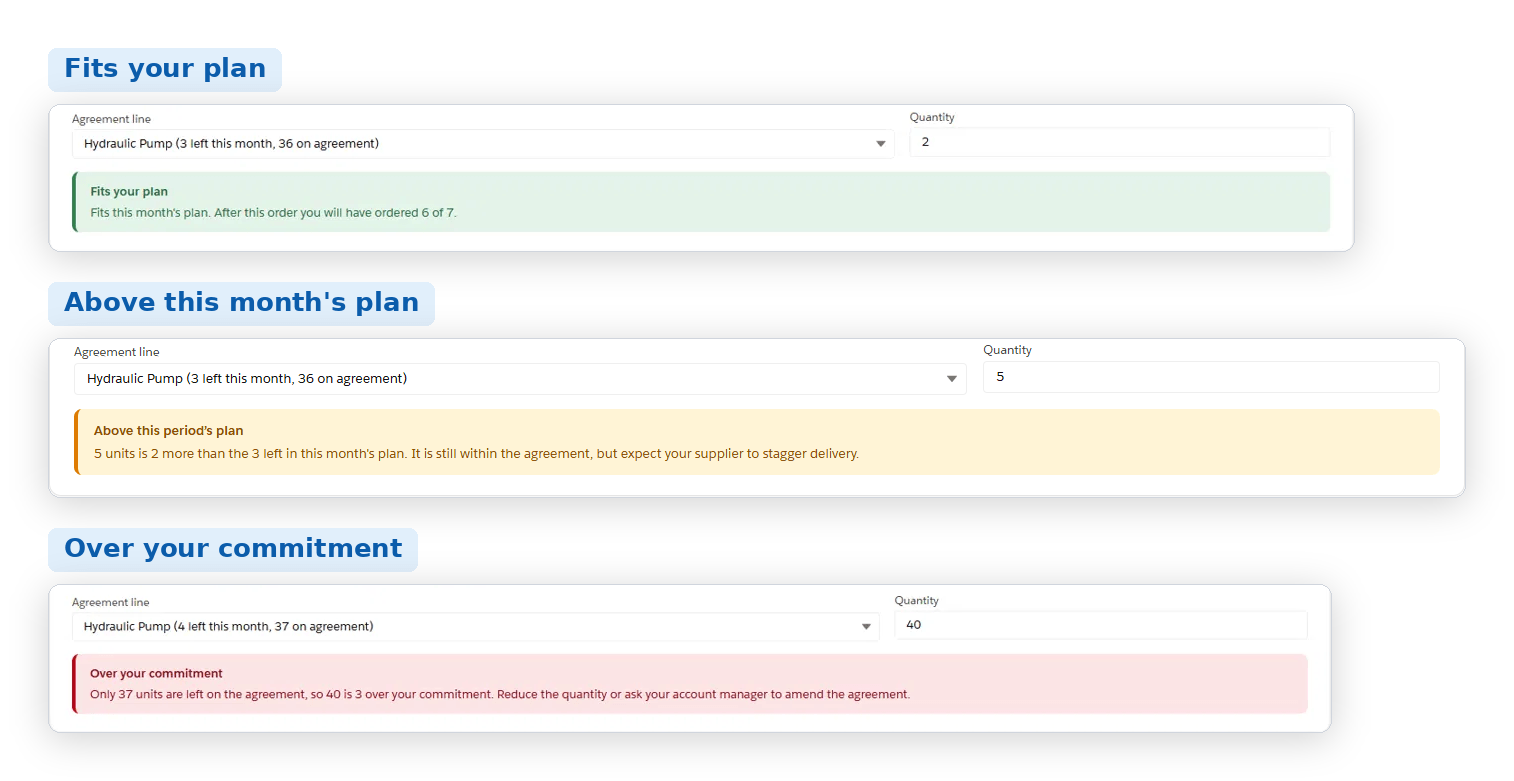
Check an order before you place it. Along with the attainment card, distributors can select an agreement product, enter an order quantity and immediately see whether the order fits their commitment.
| Result | Meaning |
|---|---|
| Fits your plan (green) | Within what is left this period |
| Above this period's plan (amber) | Still inside the agreement, but more than this period expects, so the supplier may stagger delivery |
| Over your commitment (red) | More than what is left on the whole agreement |
Note → On a portal record page the component's recordId can arrive empty. Read it from the page reference as a fallback, and place the component on the Sales Agreement Detail page rather than the generic record detail page.
@wire(CurrentPageReference)
setPageRef(ref) {
    this._pageRecordId = ref && ref.attributes ? ref.attributes.recordId : undefined;
    this.agreementId = this._recordId || this._pageRecordId;
}
Step 3: Place Orders Against the Agreement
A Screen Flow that creates an order already linked to the agreement
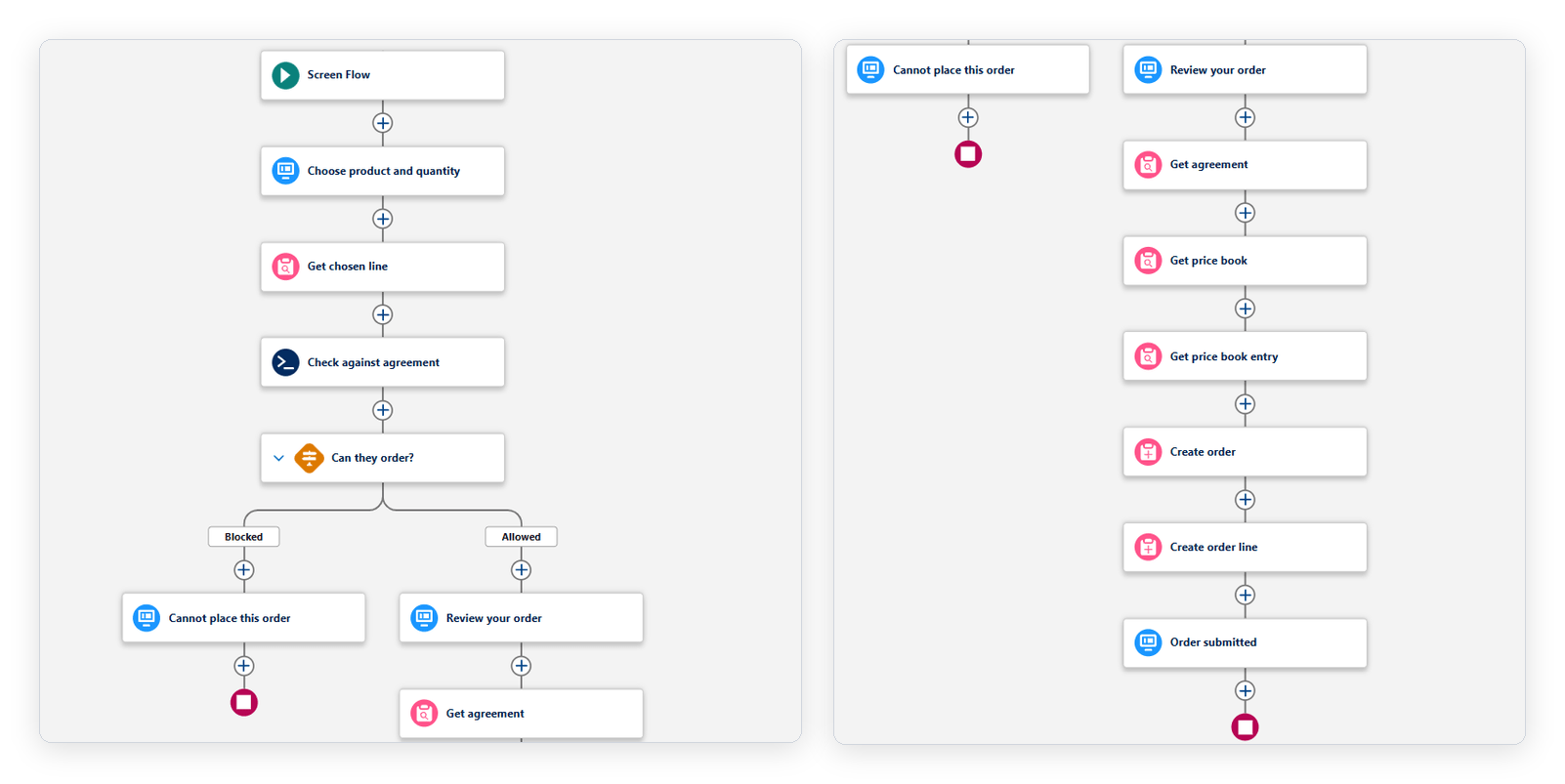
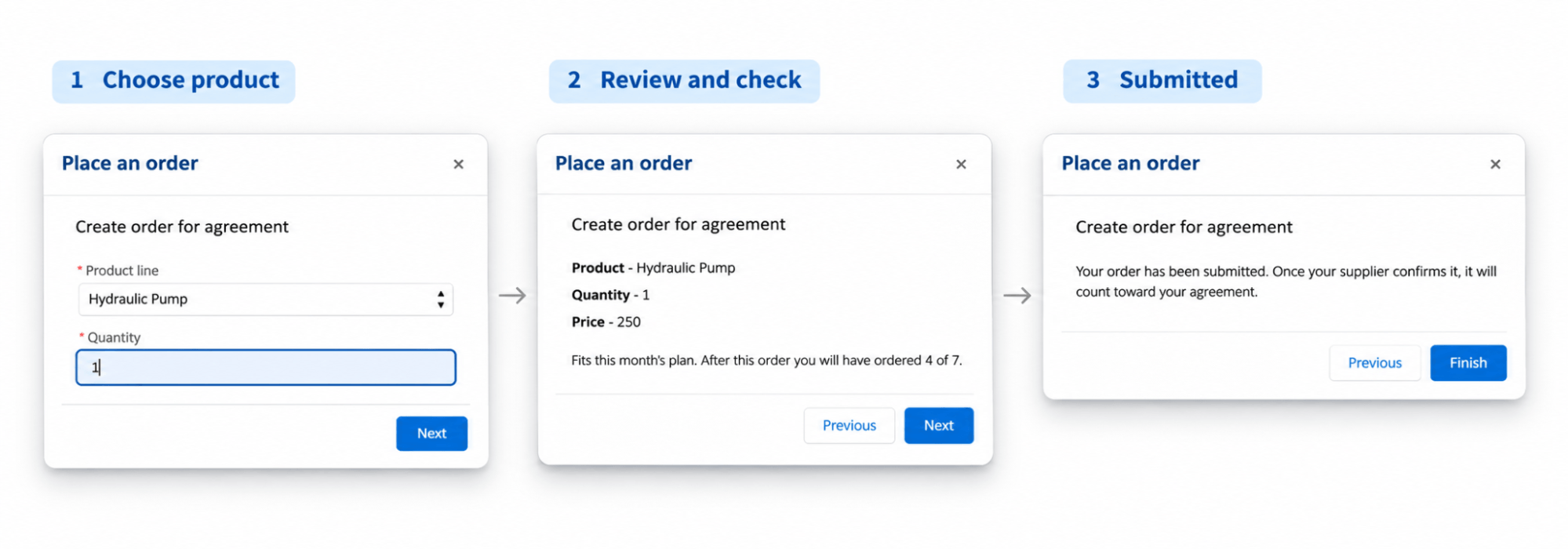
The flow allows distributors to select an agreement product, enter a quantity and validate it using an invocable Apex action. After successful validation, they review the product, quantity and price before confirming the order. The flow then creates a Draft Order and its Order Product, linked to the respective Sales Agreement, and displays a confirmation screen.
@InvocableMethod(label='Check order against agreement')
public static List check(List requests) {
    // for each request, call the same method the card uses
    DistributorPortalController.CheckResult cr = DistributorPortalController.checkCommitment(
        r.salesAgreementId, r.agreementProductId, r.quantity);
    // return cr.status and cr.message to the flow
}
Closing the Loop: Updating Agreement Actuals
Creating an order does not immediately update the Sales Agreement's actual quantities.
Manufacturing Cloud counts an order towards agreement attainment when:
- The Sales Agreement lookup is populated on the Order.
- The Order status is Activated.
Once the manufacturer reviews and activates the Draft Order, the team runs Recalculate Actuals on the Sales Agreement.
This updates the actual quantities reflected in the agreement schedules, allowing the attainment card to display the latest progress.
Example: In our testing, the Hydraulic Pump order quantity increased from 3 to 4 against a monthly plan of 7 after order activation and recalculation.
Note: Only Activated orders contribute to agreement actuals. Keeping newly submitted orders in Draft allows the manufacturer to review and confirm them before they affect attainment.
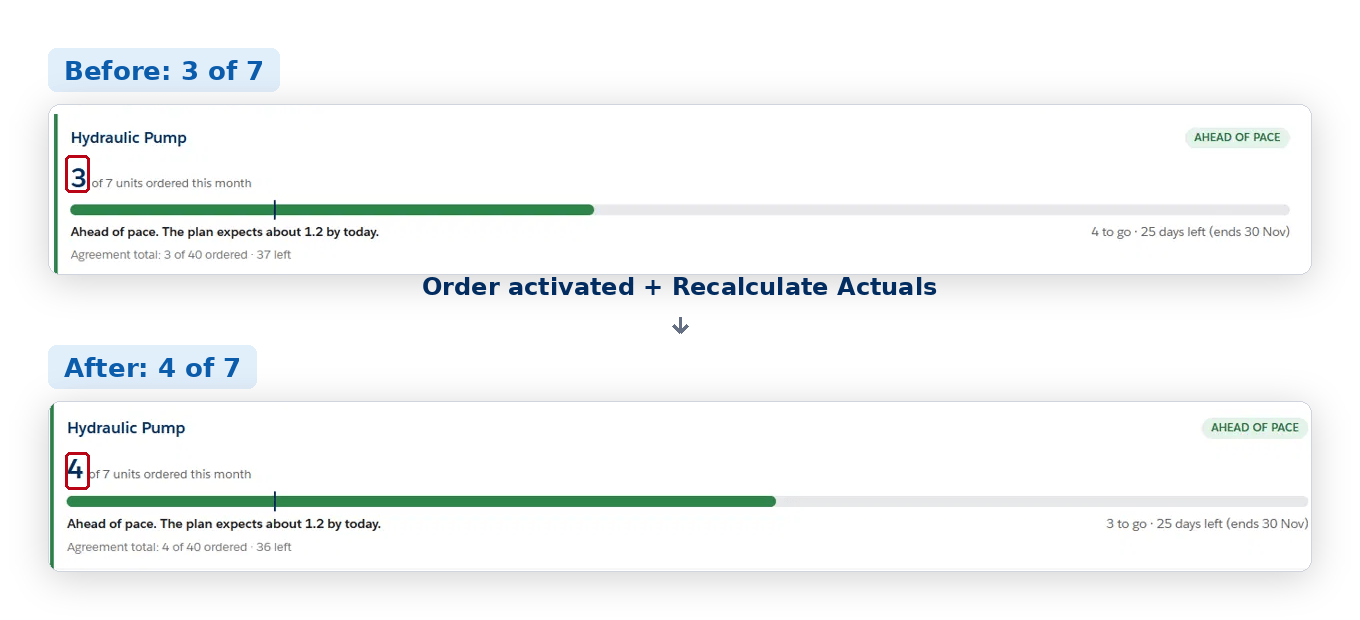
Note: Only Activated orders count. The portal creates the order as Draft, so the manufacturer confirms it before it touches the numbers.
Step 4: Raise Support Cases
Ensure every support request is linked to the Sales Agreement it relates to.
Distributors may face issues such as delayed deliveries, damaged products or order-related queries. To handle these situations, we created a Screen Flow that allows distributors to raise support cases directly from their Sales Agreement.
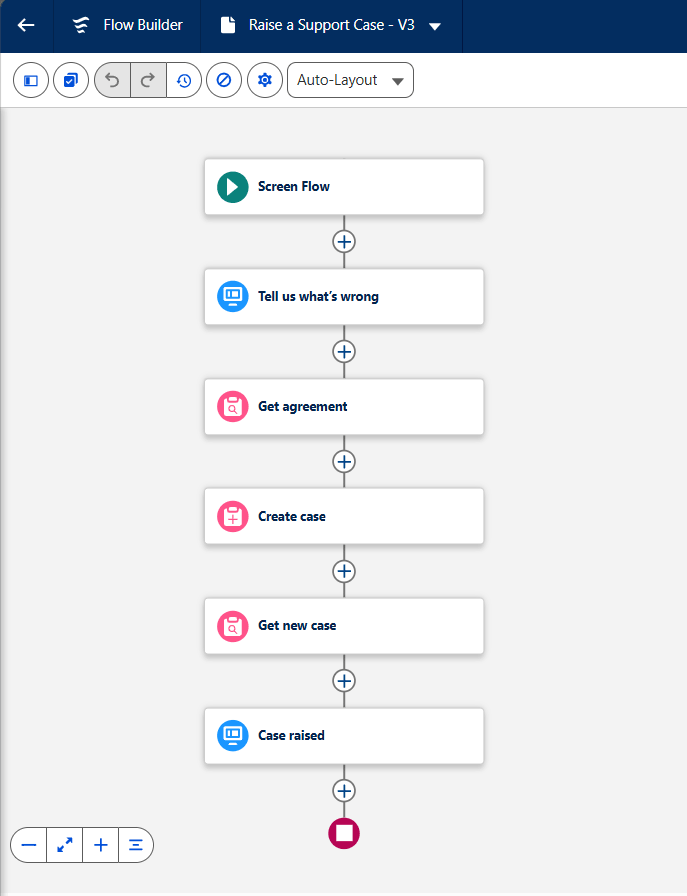
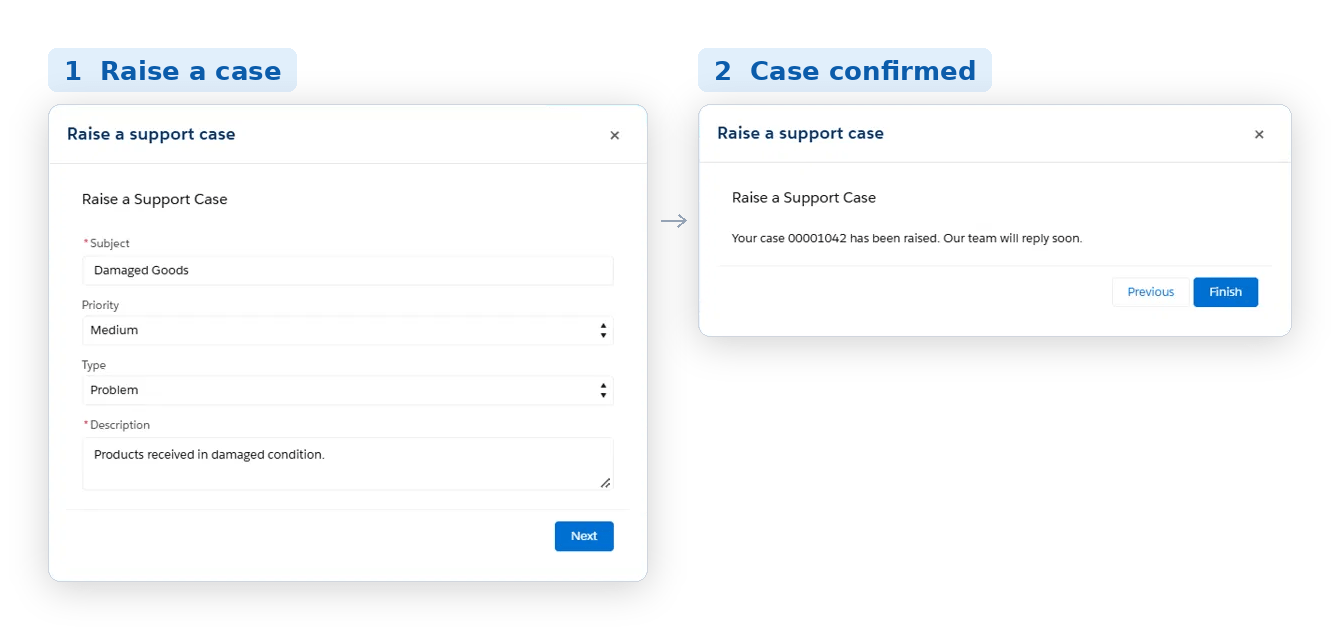
Note → Do not set Account on the Case from the flow. External users cannot write that field, and the flow fails with "Unable to create/update fields: AccountId". Set the Contact instead. Salesforce fills the Account from the Contact, which still puts the case on the distributor's account.
Step 5: Launch the Flows from the Card
Provide distributors with a seamless way to place orders and raise support cases without leaving the Sales Agreement page.
Instead of displaying both Screen Flows directly on the portal page, we added two action buttons to the Agreement Attainment Card. Each button opens its respective flow inside a modal window.
How it works
- Action Buttons: Add Place an Order and Raise a Support Case buttons to the card header.
- Launch Flow: Embed lightning-flow inside the LWC and pass the Sales Agreement ID through the flow's recordId input variable.
- Modal Control: Render the flow only when the modal is open. Each button click starts a fresh flow.
- Flow Completion: Both flows set an output variable named outcome to submitted when the operation succeeds.
- Refresh the Card: When the flow finishes successfully, close the modal, refresh the attainment card using refreshApex() and display a confirmation message.
@InvocableMethod(label='Check order against agreement')
public static List check(List requests) {
    // for each request, call the same method the card uses
    DistributorPortalController.CheckResult cr = DistributorPortalController.checkCommitment(
        r.salesAgreementId, r.agreementProductId, r.quantity);
    // return cr.status and cr.message to the flow
}
Note → lightning-flow is supported on Experience Builder sites. On sites that use Lightning Web Runtime it cannot be used with flows that contain custom Lightning web components or Aura components. Both flows here use standard screens only. See the lightning-flow support page for the current rules.
Business Value
| Benefit | Business Impact |
|---|---|
| Self-service for distributors | They check their own commitment, so status calls and emails drop |
| Pace, not just totals | Distributors order in step with the plan instead of in one late batch, which gives the manufacturer a steadier demand signal |
| Orders linked at the source | Every portal order carries the agreement, so attainment numbers stay accurate with no manual keying |
| Over-commitment caught early | A quantity above the agreement is blocked before it becomes a dispute |
| Support with context | Each case shows which agreement it belongs to |
| Secure by design | Sharing sets and the private sharing model keep every distributor's data separate |
Conclusion
A Sales Agreement is only useful if the people bound by it can see it. With Experience Cloud, a small Lightning Web Component and Screen Flows, we turned the agreement into a live page: how much has been ordered this period, whether that is on pace, whether the next order fits, and a direct way to order or ask for help.
Most of the work was configuration and the sharing model. The code is small: one controller, one invocable action and one component. That makes the pattern easy to adapt to your own agreements, schedules and products.
If you're interested in exploring more Experience cloud solutions, visit our Experience Cloud page.